I have a solution for this. It's a super lame default setting in the 2017 version of Premiere (from what I can tell)
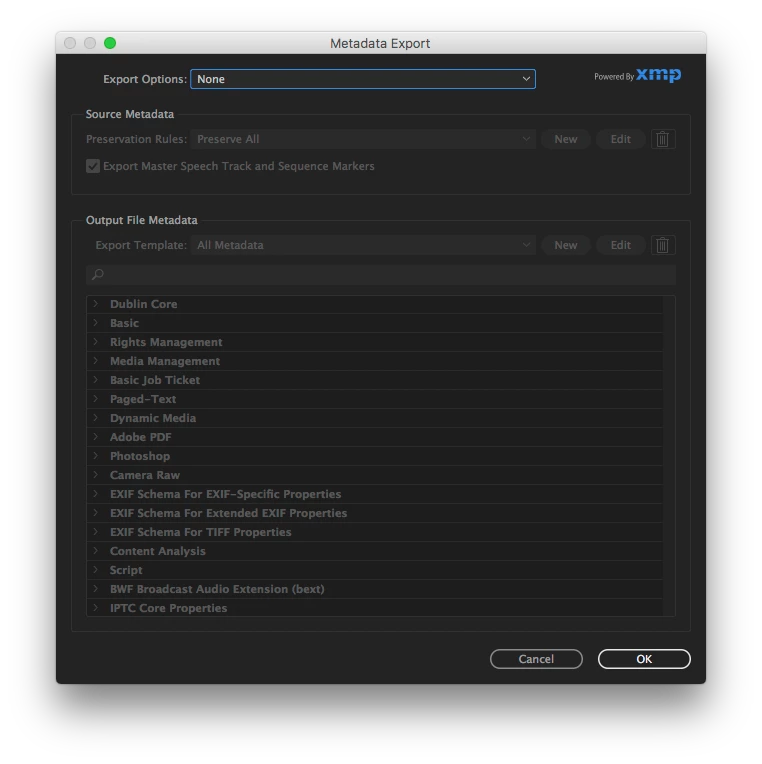
In short; check you metadata when exporting, especially if you have any photoshop files in your original sequence. Make sure the "create sidecar file" is changed to "none" in the metadata export options.
Long story; We would go to export a :30 second spot to MP4 with the android 960x540 settings, it estimated the file size to be around 8MB which is usual. I noticed it would export to about 99% and hang for a second and then complete. If you were to watch the actual file being written in finder, you would notice the size would jump from 8MB to about 60MB all of the sudden.
So what we started to do was take out elements from the sequence and re-export to see if we could isolate the problem. The last thing we took out was any and all graphics, including Photoshop files and suddenly the file size was 8MB like we had intended. Put the PS file back in the sequence, it would be 60MB again.
So we figured it was writing some sort of metadata with the photoshop files because even after exporting a ProRes Quicktime and then taking that file and converting to the Android 960x540 MP4, it was still 60MB. So it was keeping the photoshop information (or something) in the metadata and passing it along, even after compressing it to an entirely different format.
Anyways, we went into Metadata in the export settings and saw that "create sidecar file" was selected on under "Export Options". Changed that shiz to "none" and suddenly we got our 8MB file.
ADOBE: PLEASE MAKE "NONE" THE DEFAULT EXPORT OPTION FOR METADATA EXPORT
This should be an opt-in feature. We either make sure our exports have the sidecar file turned off or have recreated our previous presets we made. At any rate, it's not very efficient.
Thanks, man. Hope this helps because we were tearing out our hair.
Here's where those options are:
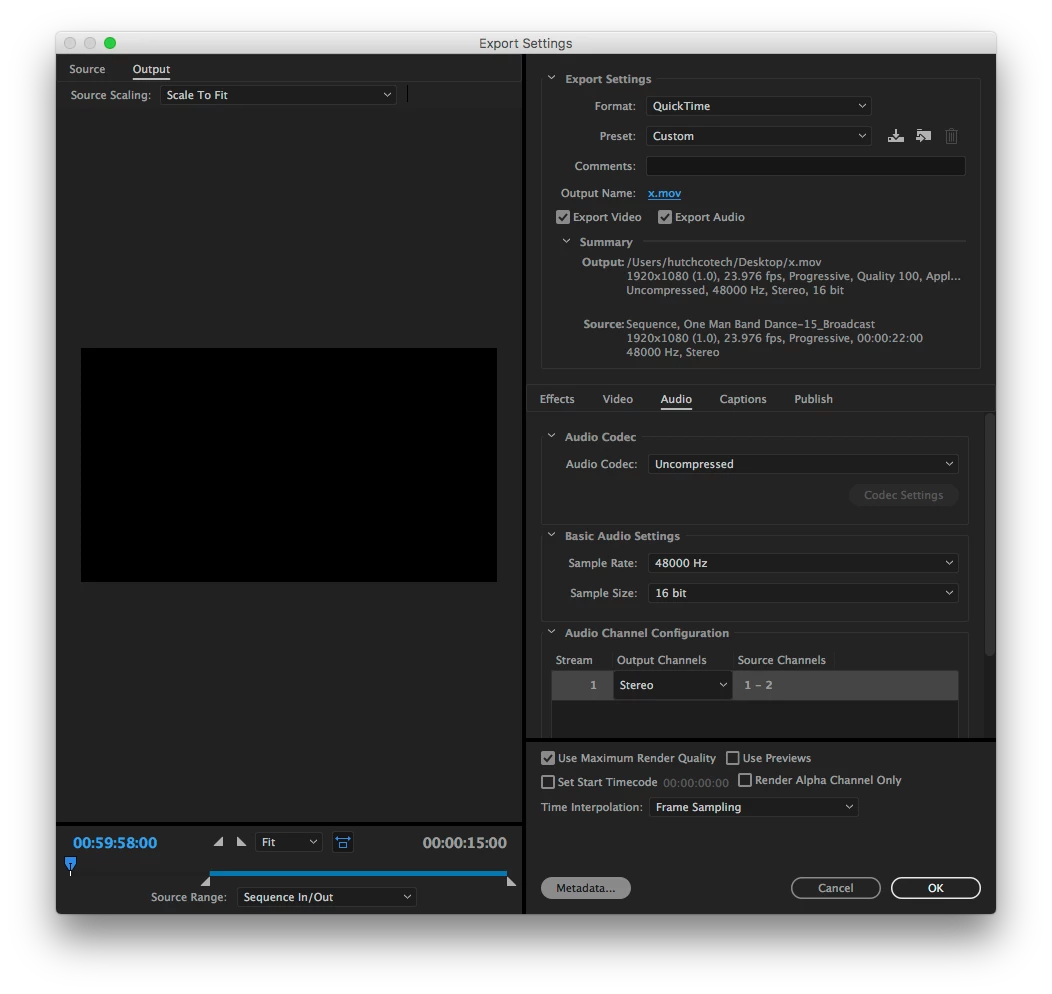
Export like usual, make your export settings or select a preset. Then click on "Meta Data" at the bottom, near "Cancel" and "OK"
Click on the "Export Options" drop down at the top of the window and select "None" and hit "OK".

 AdChoices