
Inspiring
November 28, 2016
Question

File size is always larger than source

  • November 28, 2016
  • 9 replies
  • 26650 views

Greetings,

Why is it, no matter what settings I choose, If I render a video file, the output is ALWAYS a larger file size than the source file? Even if  minimally touched.
Heck even if I trim it to make it shorter, it's still larger.
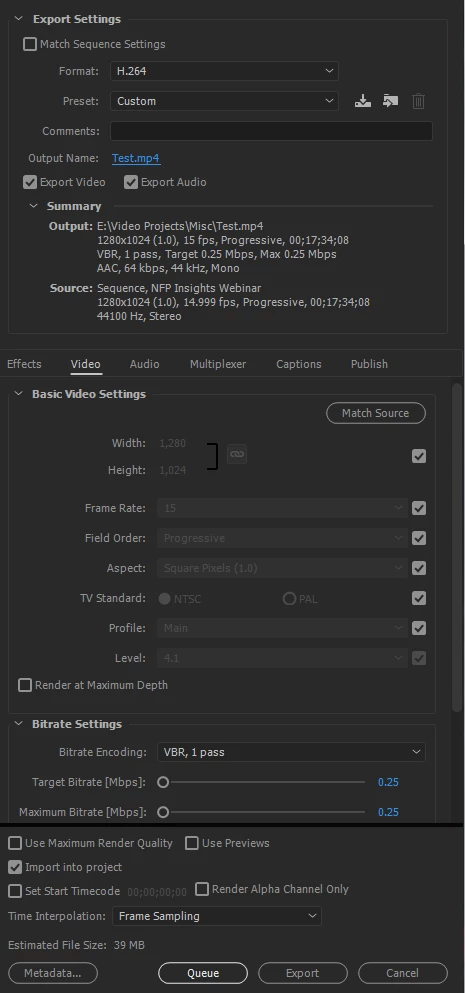
Here is the AME settings to a project where all I did was put a white box over 4 sec of text. And the final file is almost twice as big and of much crappier quality at these settings
9 replies

Participant
December 28, 2022

There is only one solution to this and it is to ditch Media Converter and download the free software HandBrake.

Adobe really dropped the ball on this one. 

Participant
February 22, 2021

Hi,

After seaching online for an answer to this problem of edited video file sizes, I found this post. However it didn't really resolve the problem of why a 116Mb screen captured training video becomes 633Mb after a small edit in Premiere. So after I experimented exported twenty times, with tweaks in the bit rate and variable bit rate this is what I discovered.

I exported out of Premiere with the settings as:

Format:H.264

Preset: Match Source -Medium Bitrate

Then looked at the variable bit rate in original file and matched it roughly in the Bit rate settings with 2 passes.

This produced the 633Mb file.

Taking this file into Handbrake with settings:

Fast 1080p30 everything else as standard except I moved Average Bitrate in Handbrake to 3000.

Then guess what the output file went back to 192Mb with no visible loss of quality.

This all seems bizare and unnecesary in a professional piece of software however we got there after several hours of experimenting.

Hope this helps, as I am sick of people moaning about how when you edit a file it grows to 5 times its size despite taking something out! 😀


Participant
October 22, 2019

Have you tried not exporting the Audio? I found turning off audio when I don't need it somehow seems to fix this issue for me.

Participant
January 28, 2019

Bro in h.264 format the preset you should use should be any one of the android, vemio, YouTube, twitter. Choose any resolution you want.

IMP: use VBR pass 2. This allows only software encoding and compression as estimated. Bitrate should set to maximum of 1 or below.

Also select none in the metadata tab.

However I wouldn't recommend using AME for compression because they are too lossy but encodes are 2 times faster than other GUIs.

For good compression and quality, we need to tweek CFR, which is not given AME. Therefore use Hybrid or Handbrake to for compressed quality encodes by setting CFR from 22 to 26, profile-Main 10, level-4.0,preset -slow or slower.( I recommend to use Hybrid)

brandonl8911795
Inspiring
January 15, 2019

Welcome to 2019! Still no good answer on this topic. I know little of the advanced settings, but can attest that I also wind up with HUGE file sizes and it's been an ongoing issue for years.

A lot of times, I'll get files that people create through Camtasia or via webinar recording and they ask me to trim them down and add our corporate bumper. I'll end up with ridiculously large files, even if the vid is half the original length and I export with matching settings ticked. Especially true with webinar files since AME can't run at that low of a framerate. Webinars might be captured at 10fps. But even with a file at 25fps that I just worked on it was the same issue.

Weird workaround I've used out of desperation: upload to YouTube and then download that file since YT has good compression. I don't like this approach, of course, and would like to get better AME settings to render small files.

Doing highly compressed files creates unusable garbage that's worse than the original and still far larger. It's a mystery. I feel like a tech genius would have had a definite answer that's obvious to them. Hmm..

Participant
January 28, 2019

Bro in h.264 format the preset you should use should be any one of the android, vemio, YouTube, twitter. Choose any resolution you want.

IMP: use VBR pass 2. This allows only software encoding and compression as estimated. Bitrate should set to maximum of 1 or below.

Also select none in the metadata tab. This should do the work.

However I wouldn't recommend using AME for compression because they are too lossy but encodes are 2 times faster than other GUIs.

For good compression and quality, we need to tweek CFR, which is not given AME. Therefore use Hybrid or Handbrake to for compressed quality encodes by setting CFR from 22 to 26, profile-Main 10, level-4.0,preset -slow or slower.( I recommend to use Hybrid)

trevors77337015
Participant
August 6, 2018

having this kind of problem. i have a 10 sec animation i created in Ae.

i need 10mb h264s. i have to make all kinds of sizes. no matter what i set the bit rate too.

i get a file 20 - 24 mb. witch i need to be 10 mb.

even though AME says the estimated size is.. 4 MB. so no idea whats happening.

Warren Heaton
Community Expert
Community Expert
August 8, 2018

Trevor:

If you set your Target Bit Rate to 6 and your Maximum Bitrate to 8, a 10 second H264 file should come in really, really close to 80 megabits (or 10 megabytes).

-Warren

kathleens96926442
Participant
December 4, 2018

I tried this and the file size was EXACTLY the same as when the setting was at 14. I echo what everyone else has said here — why isn't Adobe Media Encoder able to compress files to a similar file size as the original MP4 files?

Participating Frequently
July 26, 2018

I really wish there was an answer to this. I don't feel like when I cut half a video, and set output to medium quality out that it should have a larger file size. The video loses quality, and is way larger.

Dmitri Graf
Adobe Employee
Adobe Employee
July 26, 2018

As everybody above has said: H.264 is a lossy format.

Also, it seems like the source might have variable frame rate and AME only exports constant frame rate outputs which can explain why they can be a bit larger.

VeldrynAuthor
Inspiring
July 27, 2018

The source did not have VFR. And It's not just a bit larger. Files can be 10x as large.
This is pretty consistent across many projects so let's not focus on this one example (which again was a white box of text).
When encoding using a previously rendered video (whether to color correct or even trim it shorter, which should lend itself to a smaller file size) The file is ALWAYS much bigger. Even if I reduce the settings where the final out put is significantly worse than the original (reduce in bit-rate in both video and audio) l, It's still a larger file. And h.264 being lossy seems like that would be a reason for a smaller file size, not an explanation of larger.

Participant
March 9, 2017

One thing that, for me, was causing exports to be larger than expected was the metadata sidecar file. Try changing the Metadata option "create sidecar file" to "none" and see if that makes a difference. The Metadata button is at the bottom of the Export Settings pane, and then the Export Options drop-down at the top has the options.

Not sure if this has anything to do with your issue, but I figured I'd throw it out there.

Participant
July 24, 2020

Thank you so much!!

Participating Frequently
November 28, 2016

What screen capture software did you use? The bit rate of 0.25 is extremely low for HD video. When you take something that highly compressed and re-compress again, you are going to lose quality. File size is determined by bit rate, so if export bit rate is higher than the source, then yes the exported file will be larger.

Thanks

Jeff

VeldrynAuthor
Inspiring
November 28, 2016

.25 is the output quality I set to try and get a smaller file size. And it is unacceptably low I agree. The data rate of the source is 127kbps but making the output any higher only makes the file size problem worse. Hense my issue
And I just used the windows snipping tool t get the screen shot

Participant
January 20, 2017

Did you ever figure this out? I'm in the same boat!