
Beta iStream
Participant
December 11, 2018
Question

Media Encoder (CC2019 Problem) - hangs/freezes during encoding

  • December 11, 2018
  • 26 replies
  • 82952 views

I have a problem with the encoder after upgrading to version 2019. The same problem occurs on two workstations. At random moments, the program stops working for no particular reason. This is a very big problem for me because I can not go back to the 2018 version at this stage of the post-production and I have to encode over 250 films. The only solution that work for me right now is direct export from Premier Pro. But how can you imagine the employment of someone who is sitting and every 30 minutes is encoding another movie is not the best solution.

What I did:
- reinstall all Adobe apps
- clean cash
- update graphic card drivers
- on one of the stations, I even reinstalled the entire windows
- I tried to encode without CUDA
- I did update to 13.0.1
- I did update to 13.0.2

... nothing works. Since I've experienced the problem, Adobe has already sent two updates, but none of them solved my problem. There is only one machine in the entire office that has no problems with 2019 Encoder and it's a laptop (Lenovo IdeaPad with Intel Core i7 6700HQ and GeForce GTX 950M).

Workstation parameters:
Intel Core i7 7700K

B250-HD3P-CF (Motherboard)

16GB RAM (ViperX)
GeForce GTX 1050Ti

Additional information

all postproduction takes place on network drives available in the local network


Printscreens

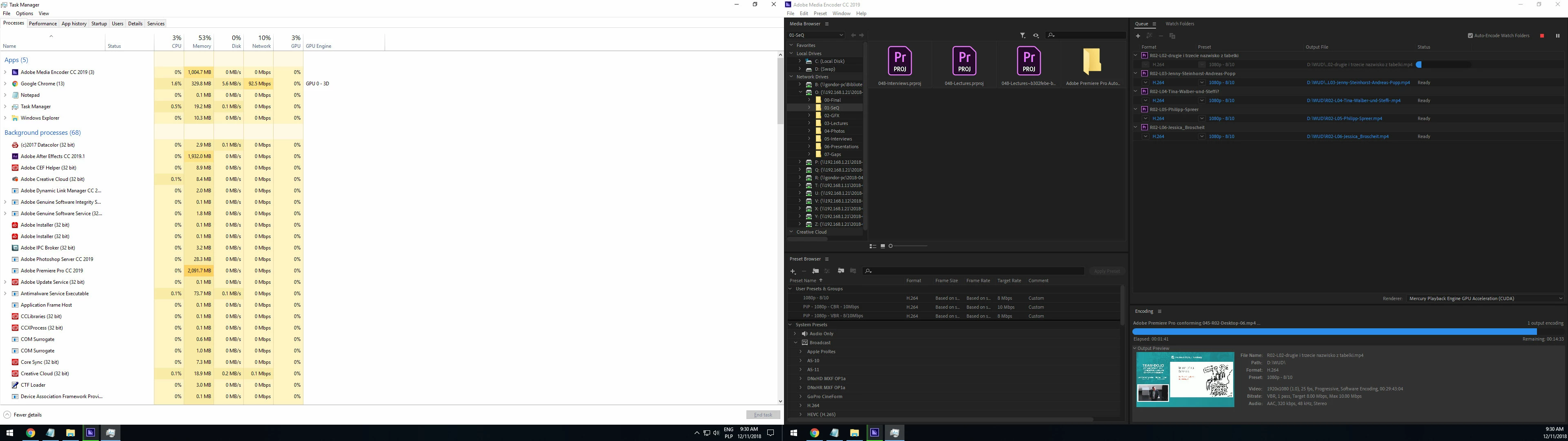
1. sometimes hangs during conforming (printscreen was made after 15 minutes in this state - the application did not report any error or crash)
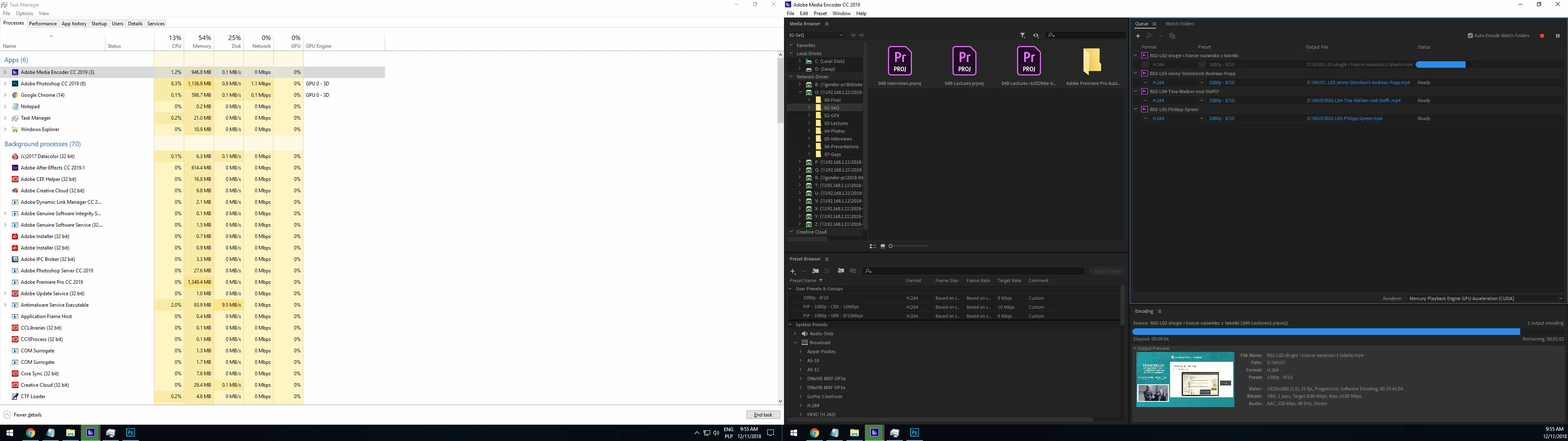
2. but in most cases it looks like this ( the application did not report any error or crash)
Help?

This topic has been closed for replies.

26 replies

Participant
March 1, 2019

Same issue on a brand new Dell Alienware R5 machine with dual 2080's, i9-7980XE.  ME will randomly hang and freeze the whole machine.  All other CC apps work as they should.  My case may be hardware related, but doubtful reading these posts.

Participant
February 28, 2019

Any luck on this issue being solved?having the same issue with random crashing beginning of render both in AE and encoder on a laptop,

dajupe
Participating Frequently
February 12, 2019

Having same problem with Media Encoder 2019. Crashes about 5 seconds into encoding.

Participant
January 11, 2019

Not sure if this is relevant to anyone but me, I was having issues with Media Encoder freezing randomly as well.  After trying several things I noticed that it was only freezing when the screen had been turned off by the OS so I tried disabling the screen shutting down when I have to render something and haven't had a freeze since. It is a bit annoying to change the setting every time, but at this point if it lets me actually use Media Encoder I'll do it.

CPU: i9-9900k

Graphicscard: GTX 1080ti (driver up to date - 417.35)

RAM: 32 GB

OS: Windows 10 Pro (up to date) 

Adobe Products are all up to date.

Anti-Virus-System: Just Windows Essentials (Up to date)

corporateshutter
Participant
January 22, 2019

This is exactly the problem. I was just trying to diagnose this issue, while doing a 3 hour encode, nearly 2 hours into it. The screen went blank as it tried to turn off, and I moved the mouse to interrupt it. The encode process is frozen now. I am so pissed right now. The encode has failed twice because of this, and I'm running the drivers that just came out last week. If Adobe cannot fix this, I am canceling my subscription. Premiere is 95% of the reason I'm using CC, and if it doesn't work I have no reason to keep forking over money. Every year there's a new problem... but the sad part is this isn't a new issue. My Google search returned posts from people complaining about the same thing going back as far as 2013... 6 YEARS AGO!

hareton_fan1
Participant
January 5, 2019

Just adding to the problem. No, this is not just a 2019 issue. I've been using the Media Encoder for a long time and this happens to me almost every time. I might get through exporting a few videos in the queue, but all of a sudden it stops at the end of a render. It says it's at 0:00:00, but never actually declares itself done. This is never an issue when I just manually export them one by one on Premiere. I'm gonna have to assume this is purely a Media Encoder issue that has not been fixed with the new update.

Adobe Employee
December 11, 2018

So, did this problem start after updating to 13.0.0 (version2019), and no issue with 12.1.2(version2018)?

I see you are trying to export into H.264.  Does this problem happen with other formats as well?

Could you try changing Media Cache Files and Media Cache Database (Edit menu > Preferences > Media) to somewhere on a local drive with plenty of free space and see if it helps?

Also, could you see if changing the option "Import sequences natively"  (Edit menu > Preferences > General) makes any difference?  Please note that this option change takes place next time you import a project.  Please import a project after changing this option.

gammai98888057
Participant
December 12, 2018

The problem is with 2019 version only. I have no problem with 2018. I managed to undo several projects to the 2018 version and now new projects are only made in version 2018. But unfortunately, a few projects were too advanced to make a rollback to 2018.

I tried to encode to other formats, but nothing has changed.

All the Media Cache and Media Cache Database are held local on SSD. Only raw footages are on the server. Also, encodings are going to local disk - physically separate disk from the Media Cache Disk.

I'm right now encoding the Queue with "Import sequences natively" unselected before importing and I run it with GPU encoding support. During the encoding after 10-15 minutes, I had a crash report and encoding stops ... but after I send report the encoding resume.

But yesterday I made a new discovery. When I tried to encode movies without CUDA support I just changed in the encoder option from "CUDA" to "Software only", after checking task manager I noticed that I have 100% use of GPU. But the process that was using GPU was not Encoder itself but Premier Pro running through the encoder in the background. So I went to PremierPro project file and switch in "Project Settings" video render playback to "Software". All videos have been rendered correctly without freezing the application ... so I think CUDA is the main problem in my case. (remark: without GPU support, render files last 4.7 times longer so I can not consider it a success)

So why encoding worked on a laptop? ... outdated drivers that did not allow the GPU support to start in the first place. That's why it was the only working machine in the company (with 2019 software). After the update of drivers ... the same problem with encoding.

So I started to wonder what is a common factor for all these machines. We had different processors (Intel and AMD), disks (HDD and SSD), motherboards but since the problem is with CUDA main culprit must be Graphics Card and guess what ... all Nvidia.

And then I got a revelation because I remember that a similar problem was once in 2017 after version 2018 has been announced (Premiere Pro CC 2018 constantly crashing ). The Premier Pro was crashing all the time and the problem was a BUG IN NVIDIA DRIVERS SUPPORT.

Today he will try to get an ATI card and re-run tests.

Piotr Damian
Participating Frequently
December 14, 2018

Besides nVidia driver update, I was told that Intel GPU driver may need to be updated as well if you have Intel Graphic enabled.  You can check this from Device Manager > Display adapters.  If Intel Graphics is listed there, please try updating its driver as well.  This also need to be from Intel website directly, not from Windows Update or any other 3rd party.

For some detail, please refer to Important Information on GPU and GPU Driver Requirements | Adobe Blog


I apologize for this change of accounts but I write in free time on the machine which I have available at the moment in the office. I will try to continue the conversation with this account.

Regarding the latest driver you mentioned, I just want to make sure it's from nVidia, not from another source, like Windows Update or the computer vendor website.

Yes. I used GeForce Experience to be sure I have the latest drivers directly from Nvidia.

For your nVidia GPU, the latest driver is version 417.35

https://www.geforce.com/drivers/results/141171

I have the driver 417.35 right now (from 12/12/2018)

When you are installing the driver, you may want to try the custom install option and use the "Perform a clean installation" option.

I did perform clean installation … as I mentioned I even reinstalled the entire Windows on one of the machines.

Besides nVidia driver update, I was told that Intel GPU driver may need to be updated as well if you have Intel Graphic enabled.  You can check this from Device Manager > Display adapters.  If Intel Graphics is listed there, please try updating its driver as well.  This also need to be from Intel website directly, not from Windows Update or any other 3rd party.

For some detail, please refer to Important Information on GPU and GPU Driver Requirements | Adobe Blog

Well … that was a complicated operation. I did not have in Device Manager > Display adapters but for Intel Core i7 7700K Intel HD graphic 630 should be available. So tried to follow the instructions from the blog post you submitted but without success. “a compatible device was not detected during the installation” … or something like that. I went to google for help and discovered that it is necessary to turn it on in BIOS. It helped. intel HD graphics 630 he appeared in device manager so I made the update to the version indicated in the blog and I run the test two times … which gave me a very strange results. (Why "Important Information" is published almost a month after the release of the new version of the application)

Test 2.

Premier > Project Settings > CUDA

Encoder > CUDA

in Export to H.264 > Video options >  I set up “Hardware acceleration”

Test 1 result:

00:15:45 - Encoder worked correctly. Even faster than usual.

CPU Load: 80%

GPU1 Load (GeForce GTX 1050Ti): 50%-70%

GPU2 Load (Intel HD graphic 630): 80%-100%

… and suddenly

00:15:46 - A short stop. The encoding time is extended four times. But it does not stop.

CPU Load: 70%-80%

GPU1 Load (GeForce GTX 1050Ti): 0%

GPU2 Load (Intel HD graphic 630): 100%

At some point the encoder stated that he does not want to use one of the graphics cards anymore. The state lasted for an hour, then I interrupted encoding.

Test 2.

Premier > Project Settings > CUDA

Encoder > CUDA

in Export to H.264 > Video options >  I set up “Software acceleration”

Test 2 result:

00:20:37 - Encoder worked correctly. Even faster than usual.

CPU Load: 90% - 100%

GPU1 Load (GeForce GTX 1050Ti): 80%-100%

GPU2 Load (Intel HD graphic 630): 0%

… and suddenly

00:20:37 - PProHeadless crash. After clicking "send report" encoding resumed.

CPU Load: 70%-80%

GPU1 Load (GeForce GTX 1050Ti): 90%-100%

GPU2 Load (Intel HD graphic 630): 0%

… and suddenly.

00:39:40 - PProHeadless crash. After clicking "send report" encoding resumed.

00:50:00 - I interrupted encoding.

Tomorrow is Saturday so maybe as a curiosity I will create desktop recordings to show what exactly happens with the encoder and in task manager.

As for ATI graphic card test. I bought one of the cheaper test cards R5 230. And it turned out to be too weak to make reference tests … but during all tests, the encoder did not froze up once.

My conclusions at the moment:

- the problem is CUDA (and on the side of Encoder support)

- Adobe tries to give advice in the dark. Why Adobe tells me to update the Intel graphics for proper for stable work of 2019 Encoder? One of my stations is based on an AMD processor (and has identical problems) ... what should I update there?

- Adobe was badly prepared to launch the new version. Why do you write an article about the technical conditions that have to be met almost a month from the release of the application? If I saw this article before, I would never decide to upgrade!

- Adobe once again forces you to replace your hardware or upgrade something. Last year (after releasing the 2018 version) I had to change the operating system to Windows 10 everywhere due to lack of audio support in MTS files (probably from what I remember it was a Dolby Digital license issue), now it turns out that in order for the movie applications to work, one must have cards with a minimum of 4GB of frames (as the article indicates).

All this is slowly becoming absurd … nevertheless, I still hope to solve my problem.