
Participant
March 3, 2020
Answered

[Extensibility]-Unable to install plugins in XD for Chinese user account.

  • March 3, 2020
  • 6 replies
  • 11247 views

Today is my first time  download XD,and it's latest version 28.

My language is Chinaese.

It's like something wrong ,I can't install Plugin and I can't find Plugin Store in my application.
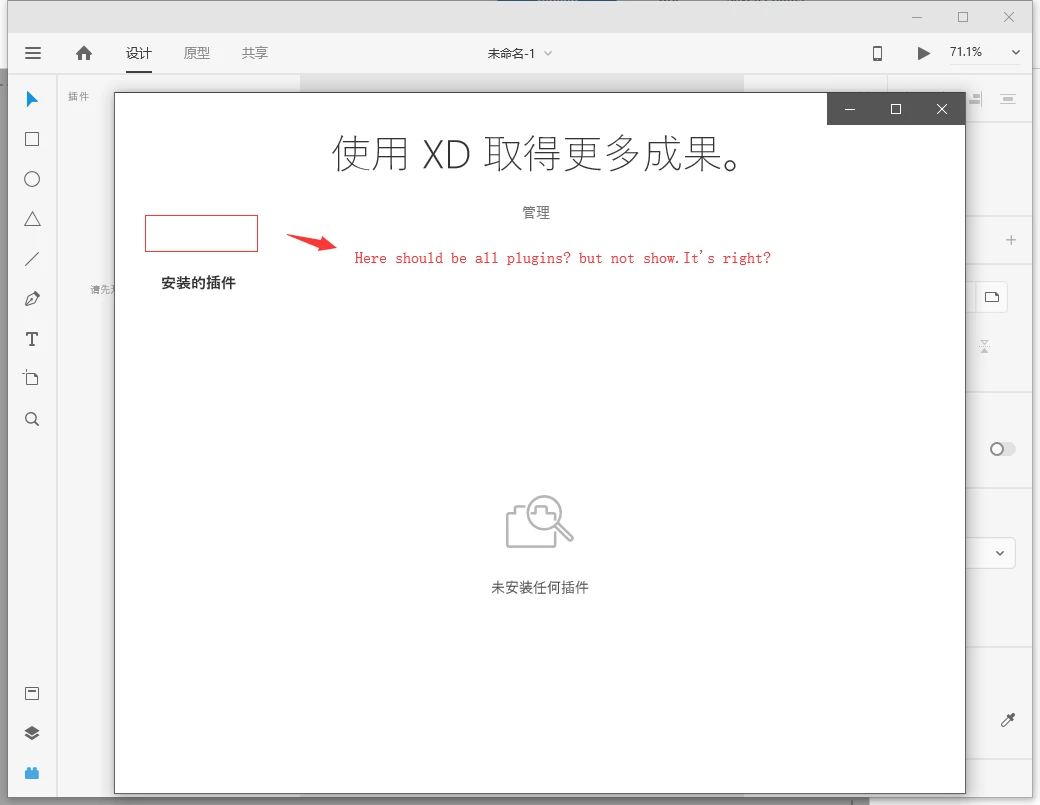
 

<The Title was renamed by moderator>

This topic has been closed for replies.
Correct answer HARSHIKA_VERMA

您好,公司更新XD軟體發現plugins功能無法使用,公司帳戶為台灣帳號,在煩請協助排除,感謝


Hi there,


If I heard you right you are unable to install plugins in XD. I assume you belongs to the China region and you have an XD set up as a China account. Unfortunatley plugins are not accessible in china region from XD 25.1 version. You can only use XD in china language only.


Please let us know if you are facing some other problem. We'd be happy to help.


Thanks,

Harshika

6 replies

Participant
July 15, 2020

为什么中文版不能安装插件。


Community Manager
July 15, 2020

Hi there,


Sorry for saying this, It could be a piece of sad news for you as plugins are not accessible in the China region beyond XD 25.1 version. 


Feel free to ask if you have any further questions, we'll be happy to assist you.


Thanks, 

Vertika Gupta

Adobe XD

Participant
May 8, 2020
 

Rishabh_Tiwari
Legend
May 8, 2020

Hi there,


Thanks for reaching out. With the screenshot attached, I am assuming that you are trying to access XD from the China region? If that's correct, I am afraid, unfortunately, plugins are not accessible in china region from XD 25.1 version. 


Let us know if you have any further query, we will try our best to help you.


Regards

Rishabh

jasonj98283964
Participant
March 26, 2020

I update my xd (mac: 10.15.4 ) to latest version:  28.2.12.3,when I show plugins view,  I can't find add button in the plugins view, where is it?


Then I uninstall xd(Removed Preferences),  and reinstall. But  the problem is still。


Please help me, I can't search and install xd plugins now! What should I do?

HARSHIKA_VERMA
Community Manager
Community Manager
March 26, 2020

Hi Jason,


I assume you belongs to the China region and you have an XD set up as a China account. Unfortunatley plugins are not accessible in china region from XD 25.1 version


I understand it could be sad news for you but as of now, this is how it works.


Thanks,

Harshika

jasonj98283964
Participant
March 27, 2020

Thanks for your reply!

HARSHIKA_VERMA
Community Manager
Community Manager
March 11, 2020

Hi Alex, 


Welcome to the Adobe XD Community!


Thank you for reaching out. I assume you belongs to the China region and you have an XD set up as a China account. Unfortunatley plugins are not accessible in china region from XD 25.1 version. You can only use XD in china language only.


I understand it could be sad news for you but as of now, this is how it works. 


Thanks,

Harshika

alex.yeAuthor
Participant
March 11, 2020

Ok , thanks for your reply.

Participant
March 11, 2020

Hi all, my interface is suddenly in Chinese, anyone who knows a fix for this? 

Have tried several things, but nothing so far seems to work.

Participant
March 11, 2020
 

Click hanburger menu ,then click 帮助->语言,change your lanuage ,hope it help.

Participant
March 10, 2020

IMAC的电脑,在网站点击下载插件之后打开XD,弹出管理插件的窗口但是点击管理没有任何反馈。请尽快回复,谢谢

italosan
Community Expert
Community Expert
March 10, 2020

Hi, try it like this:

  1. In finder go to /Users/<username>/Library/Application Support/
    If you can’t see Library folder because it’s hidden, from the Finder menu, select the “Go” menu and choose “Home”, or select <username> from favorites in Finder than select “view” and choose “Show View Options”, check “Show Library Folder” option form view options, now you should be able to see the Library folder in finder under <username>/LibrarySelect “Adobe” folder, then choose File > Get Info.
  2. Click the lock icon to unlock it, then enter an administrator name and password.
  3. Select your <username> from “Sharing & Permissions” and change the privilege to “Read & Write” if privilege is already set to “Read & Write” proceed on to the next step
  4. Click the Action (gear icon) pop-up menu , then choose “Apply to enclosed items.”
  5. You can close the “Info” window after process is over.