
May 9, 2020
Answered

Thin white line between two elements on artboard when zooming the pasteboard

  • May 9, 2020
  • 3 replies
  • 3529 views

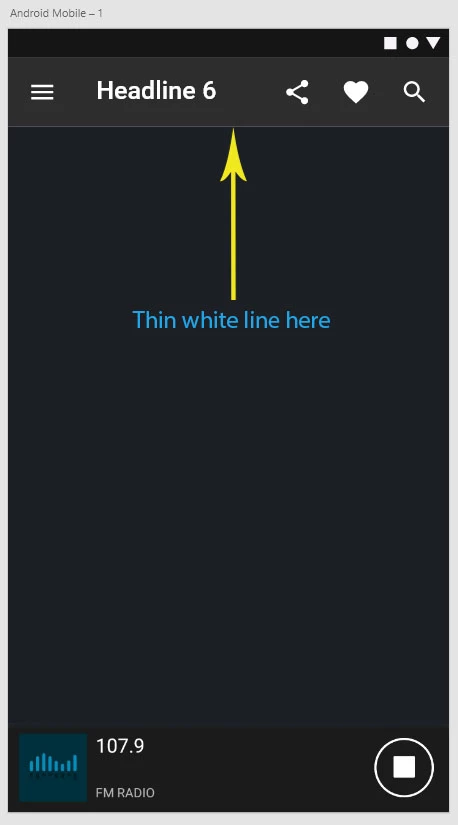
When I zoom the pasteboard/view to anything more than or less than 100%, I'm seeing a thin white line between the bottom and top edges of two elements in the artboards. However, it doesn't show up in the exported png image of the artboard. And I made sure that there was no border active for the elements. How can I fix this? I attached a screenshot of what I'm referring to. Thanks.
 

    This topic has been closed for replies.
    Correct answer Peter Villevoye

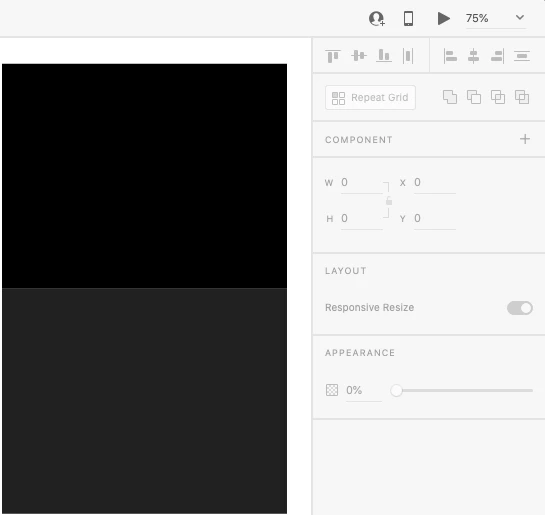
    If elements are positioned exactly against each other, then it's possible that at certain rendering percentages, the anti-aliasing reveals unexpected artefacts like these. I can easily reproduce it, as you can see from my example below:


    The remedy is quite simple: let the elements overlap, e.g. by stretching the lower element.

    3 replies

    Peter Villevoye
    Community Expert
    Community Expert
    May 10, 2020

    Please share your design with me (personally), if you want a more precise advice: peter@studea.nl

    May 10, 2020

    Ok. I'll do that once I'm at least half way done with my XD project. That image I attached to the original post was from me just playing around with a UI kit and getting to know XD. Thanks.

    Peter Villevoye
    Community Expert
    Peter VillevoyeCommunity ExpertCorrect answer
    Community Expert
    May 10, 2020

    If elements are positioned exactly against each other, then it's possible that at certain rendering percentages, the anti-aliasing reveals unexpected artefacts like these. I can easily reproduce it, as you can see from my example below:


    The remedy is quite simple: let the elements overlap, e.g. by stretching the lower element.

    May 10, 2020

    Is this artifact produced on all PCs for all Adobe CC 2020 users, regarless of the specs for their graphics cards?

    Peter Villevoye
    Community Expert
    Community Expert
    May 10, 2020

    I guess this hasn't so much to do with graphic cards. Adobe XD is quite straightforward in 'feeding' the rendering process. I'm on a MacBook Pro with a lot of hoopla, and it still shows this thin line. And I'm definitely not going to tweak any GPU settings just because XD might need or benefit from it. Haven't touched GPU settings since Adobe introduced silly 3D features in Photoshop CS3, back in 2008 or so...

    May 9, 2020

    Please read the original post which I edited. This was an accidental post. Thanks.

    italosan
    Community Expert
    Community Expert
    May 10, 2020

    Hi, which version of Adobe XD are you using? Have you checked for available driver updates for your graphics card?

    May 10, 2020

    Hi, I'm using version 28.8.12.1. I just installed Adobe XD yesterday via the Creative Cloud app on my Windows 10 (1909) PC. So, I'm assuming I have the latest version. And I already have the latest most up-to-date driver for my Nvidia GeForce GTX 560 Ti graphics card. What else can I check or do?


    By the way, this is an older 9 year old graphics card (release date January 25, 2011). Should I even have the CC subscription with this old graphics card? Should I cancel my subscription? I am still within the 30 day trial period. Thanks.


    My PC Specs:


    Motherboard: Asus P6T (not SE or Delux)

    CPU: intel core i7 (920 @2.67GHz)

    RAM: Corsair Vengeance 24GB DDR3 (3 x 8GB) - CMZ8GX3M2A1600C9B

    Graphics Card: Nvidia GeForce GTX 560 Ti

    Primary Drive: Samsung 860 EVO 1TB SSD

    Secondary Drive: Western Digital 1TB HDD

    Power supply: Corsair TX850W 850 Watts

    Monitors: Dual monitor, 2 - 24 inch Dell 24SE2416H Monitors