julianc96306437
Participating Frequently
September 23, 2021
Answered

Animate 2021 export video/media: mp4 looks terrible

  • September 23, 2021
  • 2 replies
  • 5646 views

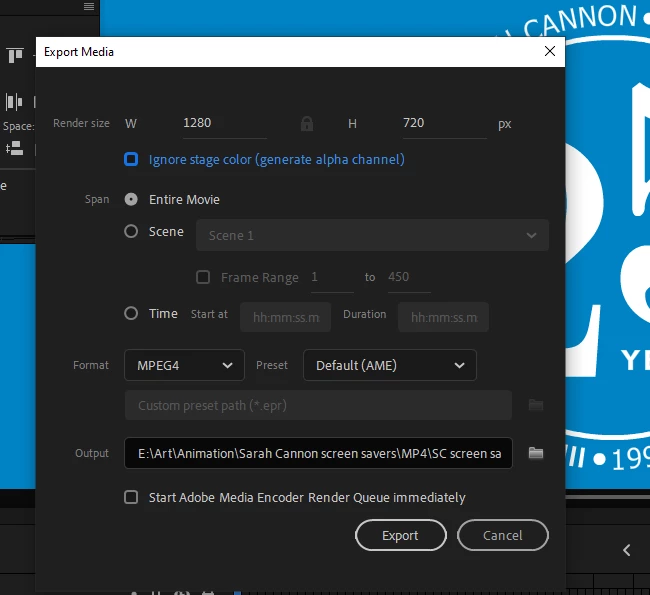
I'm using version 21.0.7, and when I export my project, and Media Encoder opens, and I follow the steps I watched in a tutorial, the final product, the MP4 file, looks terrible when played. The video has very low resolution, and, even when maximized, the display area is small in the frame. I tried raising the resolution from 1280x720 to 1920x1080 in the first export window, but I didn't think that would change anything, and it didn't. I was so excited to complete my first animation, and now this. Can't one step of this learning process be easy?

    This topic has been closed for replies.
    Correct answer Mario_CR

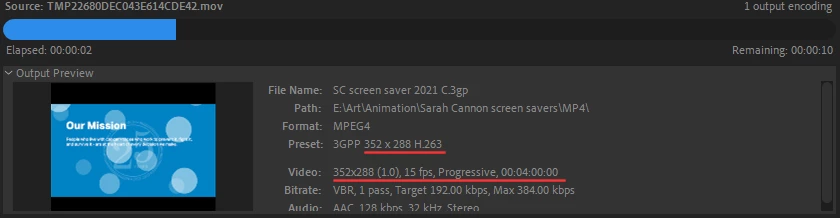
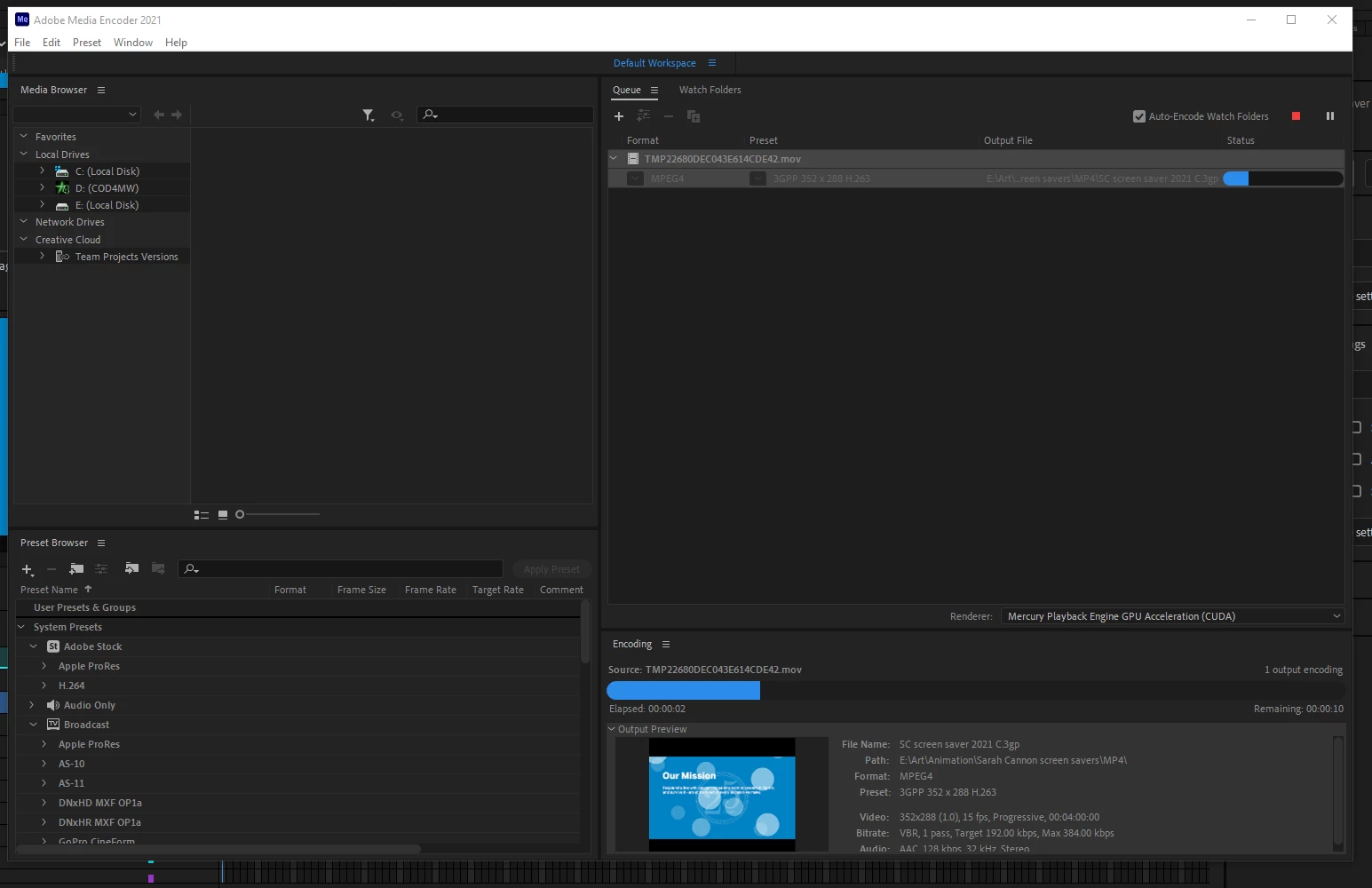
    Take a look at the info in the output preview. You're rendering the video in 352 x 288 at 15 fps: 

    This is because you're using the wrong preset. MPEG4 is set to a very low resolution in AME. On top of that you set the export to Default to Media Encoder's settings, ignoring your document specs in Animate.


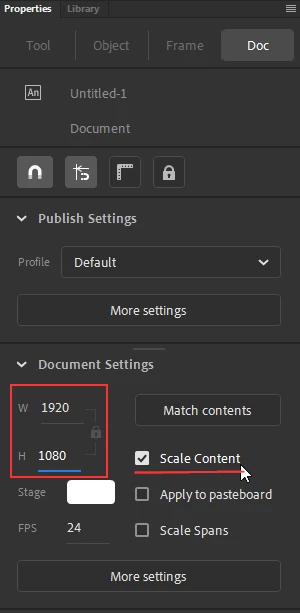
    Use this preset instead: Format: H.264  / Preset: Match Source (High Bitrate) this will give you an MP4 that matches your document's resolution and framerate. Make sure your stage size is big enough to match your video res though (if you just increase the render size in the export window it will only stretch the pixels in AME instead of resampling them, making the video look blurred) for example if you want a 1080p video your stage size should be 1920x1080px, you can change the size from the properties panel.


    *Edit: This was fixed in Animate 2022, now just increasing the render size will upscale the animation properly rather than stretching it in the output video.

    2 replies

    Mario_CR
    Community Expert
    Mario_CRCommunity ExpertCorrect answer
    Community Expert
    September 25, 2021

    Take a look at the info in the output preview. You're rendering the video in 352 x 288 at 15 fps: 

    This is because you're using the wrong preset. MPEG4 is set to a very low resolution in AME. On top of that you set the export to Default to Media Encoder's settings, ignoring your document specs in Animate.


    Use this preset instead: Format: H.264  / Preset: Match Source (High Bitrate) this will give you an MP4 that matches your document's resolution and framerate. Make sure your stage size is big enough to match your video res though (if you just increase the render size in the export window it will only stretch the pixels in AME instead of resampling them, making the video look blurred) for example if you want a 1080p video your stage size should be 1920x1080px, you can change the size from the properties panel.


    *Edit: This was fixed in Animate 2022, now just increasing the render size will upscale the animation properly rather than stretching it in the output video.

    Maxxx17
    Participant
    October 6, 2021

    I myself have recently begun to learn how to make various animated videos for advertising. So making mistakes is acceptable. Don't worry about it. I think the problem is that you are using the wrong preset. MPEG4 is an old format. And it is set to a very low resolution in AME. I think that is why you are having this problem. Try using H.264. I've encountered this too in my training to make quality videos. At first I ordered animated videos for my company at [link removed by moderator] while I was learning to make them myself. And also got acquainted with similar forums like this. Where I also learned a lot of new things.

    Participating Frequently
    December 11, 2021

    Are you using a much older version of Animate? It will only work if your version is either Animate 21.0.9 or 22.

    If it's an old version (let's say 2019 or earlier) you'll be better off by using Swivel to convert your SWF files to MP4.

    As for the other issues, audio sync has to be set to stream in the properties panel.

    Layer opacity is for working purposes only, it's non-exportable. If you need transparency convert the two layers to graphic symbols, select the symbols on stage (not the frames), go to the object properties, color effects and select alpha.


    Animate is version 22.0.1. I will try the rest.


    So much to grok. So little to grok from. - Robert A. Heinlein - Stranger in
    a Strange Land
    _keyframer
    Community Expert
    Community Expert
    September 23, 2021

    I highly recommend changing your encoding format to H.264.

    Animator and content creator for Animate CC