
Animate CC, Wacom tablet, brush tool begins with straight line
I have seen a lot of people post about this but I thought I would share my specific situation. Like many, when using my tablet (Intuos4 PTK-840) in Animate, the brush tool creates a straight, horizontal line at the beginning of each brush stroke (see the magenta lines I did below).
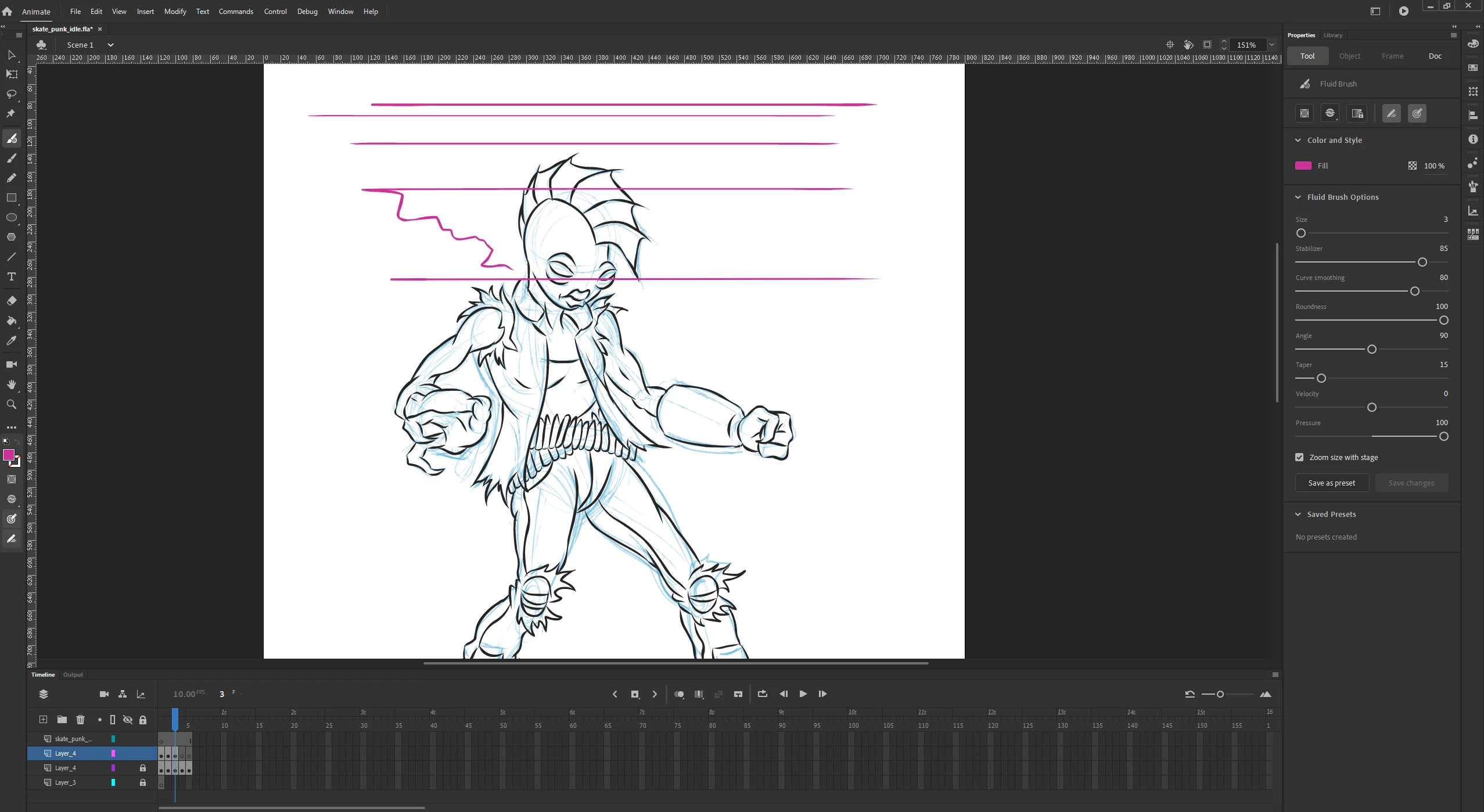
Most people experiencing this seem to be using a dual monitor set up on Windows 10. Now the issue only arises when when I use the display toggle on my tablet to work on one monitor at a time. Unfortunately this is the only elegant way to work. If I set the screen area to full (both monitors), the tool works fine but since I'm only using Animate on the right monitor, the left half of my tablet is basically going to waste. I can turn off one of my monitors but I use the other one for my reference photos, music etc. so this is still a huge inconvenience.
The only work-around I found is exiting Animate, setting display to "show only on 1", opening Animate again and then setting display back to "extend these displays". Unfortunately once I go to "test scene" or anything similar, it reverts and I have to do it all over again.
I have uninstalled/reinstalled both Animate and the Wacom driver, restarted my computer and have had no success.
I also tried the work-around of restarting "Wacom Professional Service" in the Services panel but then I lost my pressure sensitivity. Same thing happens when I disable Windows Ink
This issue does not occur in Photoshop or any other program I've tried so far. I hope this information will give some insight and we can finally figure this out. Any help would be greatly appreciated. I'll detail my set up below:
Adobe Animate 2020
Windows 10 Pro
Monitors display at 1920x1200 and 2564x1440 respectively
I'm using a Wacom Intuos4 model PTK-840
 AdChoices