
Inspiring
January 31, 2022
Answered

Asset warp tool, wrong converting under 1500 pixels

  • January 31, 2022
  • 2 replies
  • 3976 views

Hello

Adobe Animate: I have used an Asset warp tool on a object. Then appeared an information that:
"To ensure a good warping experience, Animate will be converting all files under 1500 pixels".

After that, the object automatically shrunk and the mesh that was created is much larger than the object. Please tell me how to fix it? So that the object is the same size as I determined earlier and that the mesh adjoins it.


In addition, please write me which option use to be able to change the size of the object by entering a value.

Thank you
This topic has been closed for replies.
Correct answer Mario_CR

And I was wondering why the objects I created in Photoshop are bigger when I import them into Adobe Animate. For example, an image in Photoshop is 40 cm, and this is the size I create a document in Adobe Animate, but the same image after importing is much larger than the created document. Maybe it's the resolution, only that when creating a document in Adobe Animate, I don't see the option to enter a resolution value ... Please help, this still applies to the same problem ...


The size in centimeters is irrelevant, that's for print purposes, what matters is the size in pixels. An image could 'physically' be 40 cm but be tens of thousands of pixels in resolution.

Unlike Photoshop, units in Animate are pretty much always meassured in pixels, since it's a web only program; you have to really go out of your way to change it. In Photoshop though, consider changing your measure units from centimeters to pixels to avoid any confussion.

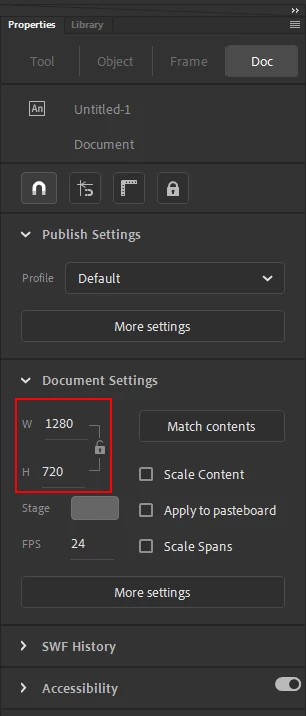
In Animate, the stage size (in pixels) can be found in the properties panel (Doc tab) and can be changed at any time.


2 replies

Adobe Employee
February 3, 2022

@Bart111 Hope you got the workaround as Mario_CR mentioned. We have identified the cause for the original issue and we are working on a fix. We will keep you posted once there is a fix for the same. Please let us know if you have any queries. Thanks!

Bart111Author
Inspiring
February 7, 2022

@arvind_bv  However, the problem persists. Some of the objects that I imported and used the Asset Warp Tool fit well with the mesh and some did not (for example, the mesh was larger and further to the right from the object). Did you manage to do something about the bug you identified? A good solution I think would be to introduce an option to edit the mesh size and the option to change its position relative to the object (as is the case with the free Opentoonz program, for example).
Please let me know if you are able to do something about it? Because I think Adobe Animate should be more functional in terms of this tool.

Bart111Author
Inspiring
February 7, 2022

@arvind_bv I noticed that when I create a document of a very large size, the created mesh adheres well to the object. So far, the only solution is (if we want to create a document with our own page dimensions) in a roundabout way in Photoshop to create objects much smaller than the background and only then import them into Adobe Animate.

It's just tiring. It could be easier 🙂

Bart111Author
Inspiring
February 1, 2022

I still need help with the above issue. Thank you in advance for your help.

Bart111Author
Inspiring
February 1, 2022

Could anybody help me solve this problem? I will be grateful.

Mario_CR
Community Expert
Community Expert
February 1, 2022

Thank you for your answer.
I checked all three suggestions, but unfortunately the problem is still the same.
2) Even when I apply the Asset warp tool to an object in its original size, the object shrinks by itself and the mesh remains much larger.
3) When I reduced the size of the image in Photoshop and Animate did not give me a message that image was too large, the problem I described appears anyway.

It is a pity that there is no (because I cannot find) an option to adjust the mesh size. This possibility is available, for example, in the free Opentoonz program.


It's not that bad on my end. Are you able to share the FLA? You can do so via Google Drive, WeTransfer, or Wormhole if you'd like us to take a look.