AnScathMarcach
Inspiring
April 30, 2017
Répondu

"Paint Fills" Mode Not Working Properly

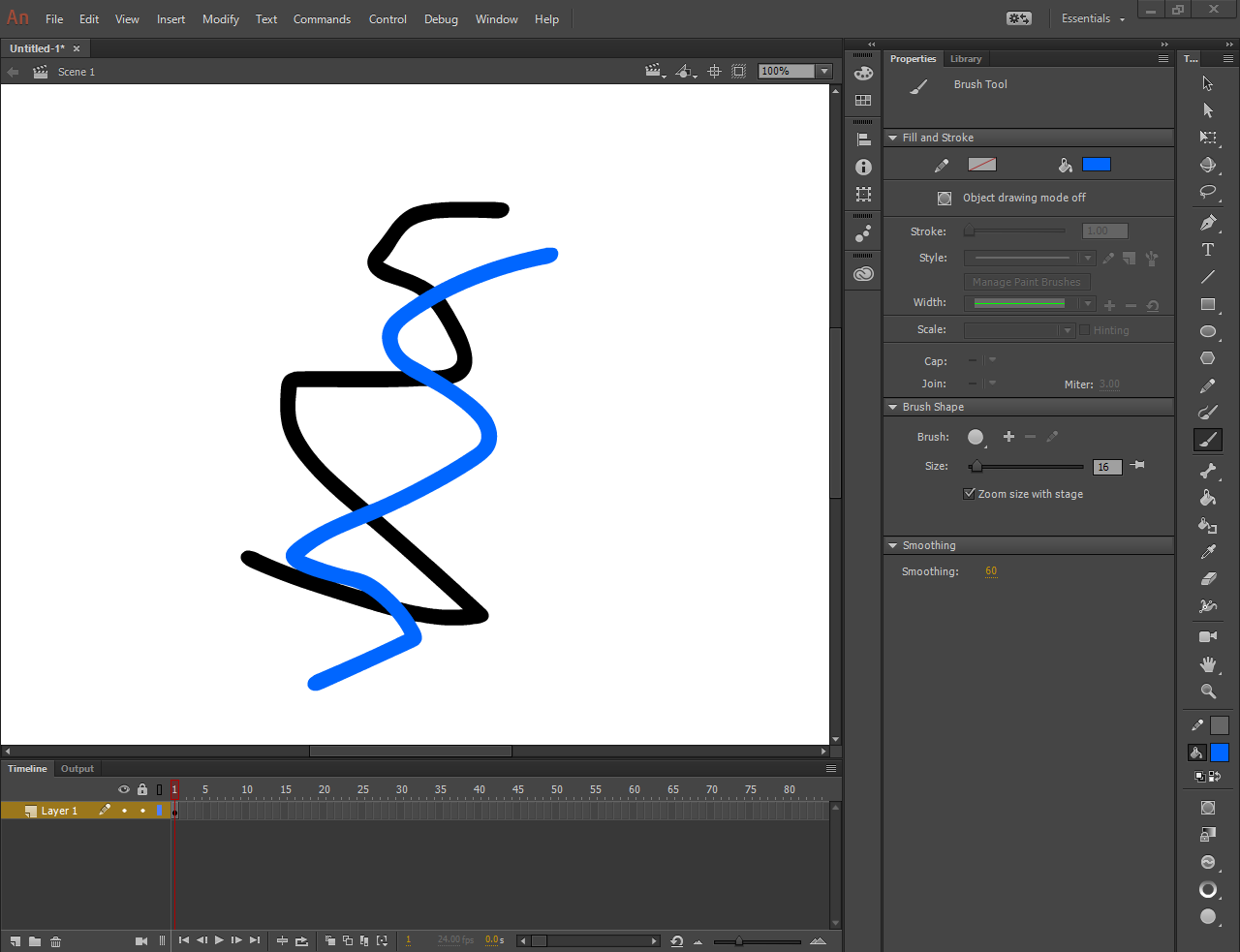
The "Paint Fills" brush mode is supposed to paint ONLY on top of already filled objects, right? And that's exactly what I want to do, I want to change the color of a certain part of my drawing by painting over it without messing up the already defined shape. But when I use the Paint Fills mode, it seems to operate exactly the same as the "Paint Normal" Mode. The only way I can get the result I want is by putting the brush in the "Paint Selection" mode and select the colored line I want to paint over.

Before:
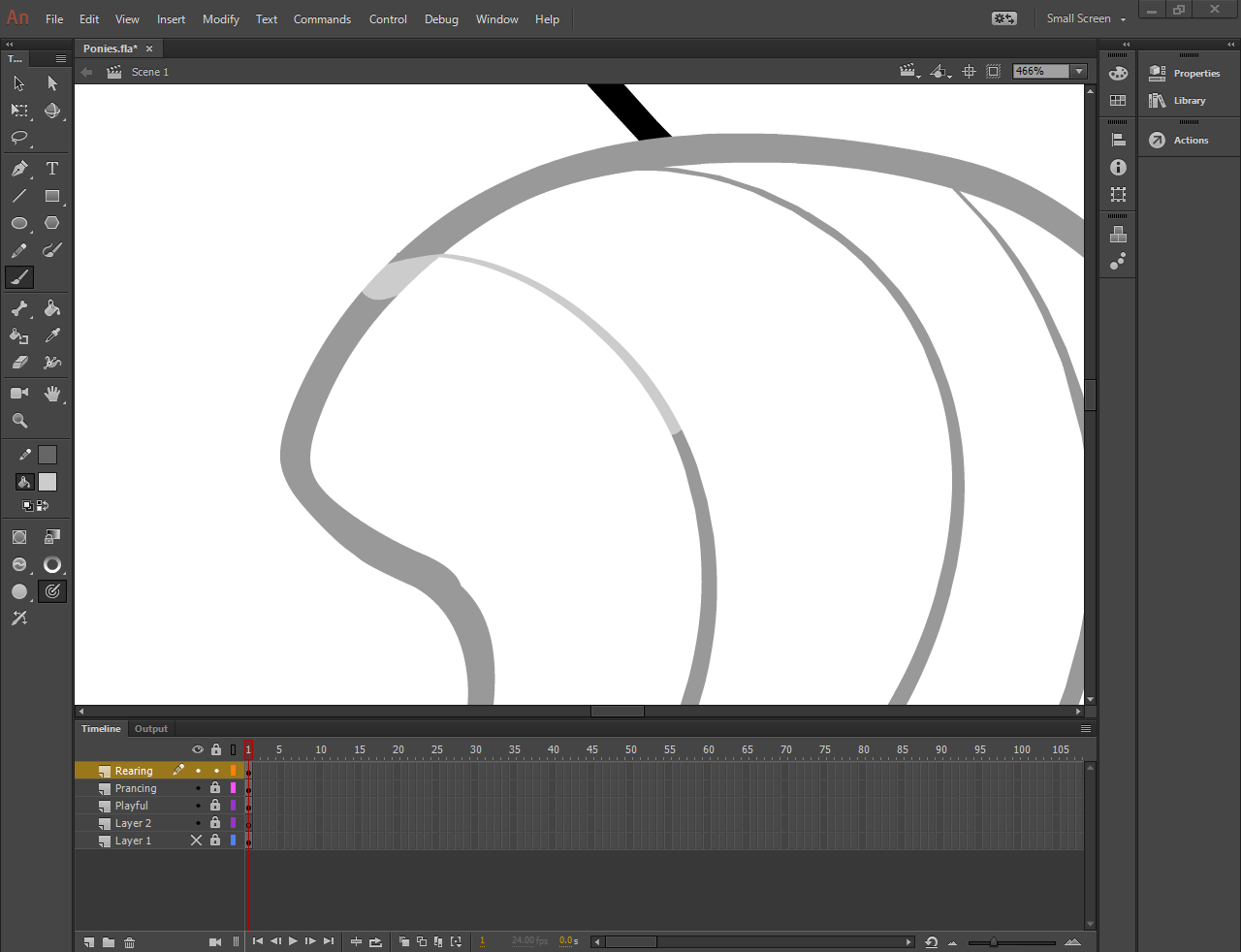
49792a3abd1e41bb8f0c50c6e3eca164.png

Paint Normal Mode:

a0849be82091d6eda1f5b24cf88ed08d.png

Paint Fills Mode:

c56dd53b55d659ca3f9565db292d8308.png

Paint Selection Mode (the result I wanted and thought Paint Fills was supposed to accomplish):
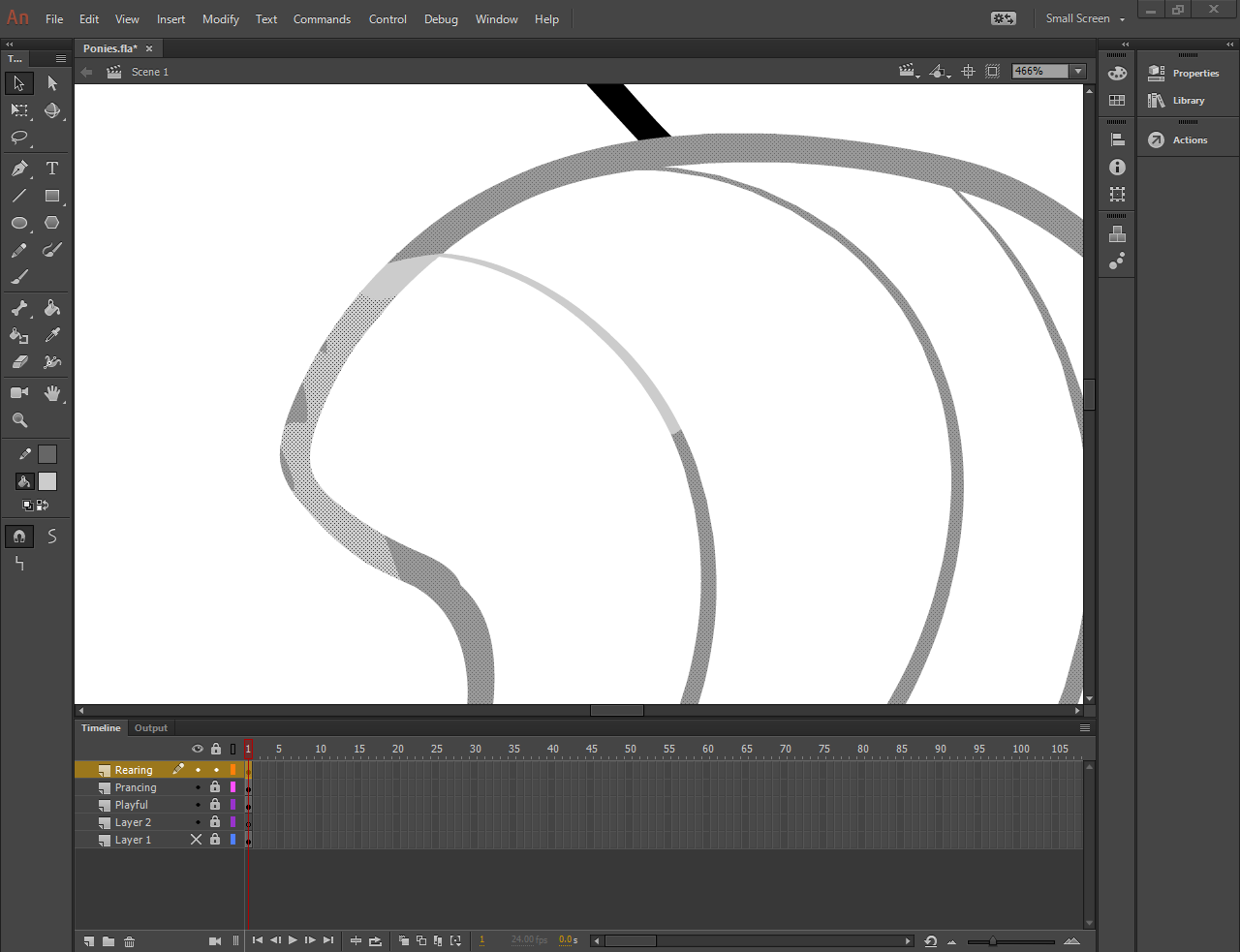
d73d064b8d909e79805be79071e90f89.png

I am using Windows 10 Home, 64-bit and Adobe Animate CC 16.2.0.24.
Ce sujet a été fermé aux réponses.
Meilleure réponse par robdillon

Okay, I successfully removed the files, and it looks like everything has been reset. But still no luck on the Paint Fills mode.

46bd4d6b677f990fb146a4744fc7cfb5.png


OK, I just re-read your first message. I mistakenly thought that you were having a problem with Paint Inside. Paint Fills will paint on a filled area of a object and any blank space on the stage, as you show. So to get the effect that you want to see, use Paint Inside. Here's an article on the different paint modes: Using Paint Brush Modes | Creating Graphics in Adobe Flash CS4 | InformIT

1 commentaire

robdillon
Participating Frequently
April 30, 2017

From the options showing in your Tools palette, it looks like you're using a tablet. If you disconnect the tablet and try the Paint Inside brush mode with a mouse, does that work correctly? If that's the case then you may need to update the driver for your tablet.

AnScathMarcach
Inspiring
April 30, 2017

With the mouse and the tablet unplugged it still does not work correctly.

Colin Holgate
Inspiring
May 2, 2017

Nothing I do seems to be working.

I am using two monitors, maybe the prompt was bumped offscreen? That happens with a lot of things and causes problems.


I did some tests with Windows 10, and only one monitor. The first time I tried control-alt-shift I got the same dialog you saw, where Windows asked if the Adobe program was allowed to make changes. Like you I clicked Yes, and the preferences were so much reset that it showed me the Trial startup screen. I was able to use the Register option to make work again.

Further attempts to hold control-alt-shift didn't have any effect. No Windows dialog appeared, and preferences seemed not to be affected.

The preferences are in these locations:

C:\Users\colin\AppData\Local\Adobe\

C:\Users\colin\AppData\Roaming\Adobe\

'AppData' is a hidden folder, the easiest way to get into it is to type the path in Windows Explorer. Of course, change the 'colin' part to be your own user name.

Once you are in those two folders you can delete the two Animate folders, they will get recreated when you next open Animate. If you have another version of Animate you want to keep as is, and not reset its preferences, go into the Animate folder and only delete the 2017 folder, if there is one.

Doing it that way did successfully reset my preferences, so maybe you will have success too.