Thanks to Colin Holgate advices on this thread and this other one:
AIR 29+ can not debug app on iOS. App is never installed on the device
I found th solution to my problems.
But there is still the need for an update so I hope the team will do something soon.
Thanks to Preran for taking the time to reply my messages.
This is how solved my situation, mainly with the help of Colin Holgate. I use AIR SDK 30.0.0.107 on Animate 2018:
1. I created new Developer and Distribution Certificates in my Apple Developer Account
2. I created new Developer and App Store Provisioning Profiles for my app
3. I din´t use Xcode because it makes things more complicated for me. I downloaded the free ANE LAB to generate the Assets.car file. You can get it from:
https://www.myflashlabs.com/ane-lab-lets-you-use-air-native-extension-in-adobe-air/
- I included Assets.car file in the "Included files" of the AIR for iOS Settings window. I also included these "splash" images:
Default-568h@2x.png (640 x 1,136)
Default-568h@2x~iphone.png (640 x 1,136)
Default.png (320 x 480)
- I made sure to include the icons sizes that you can see in the attached picture:
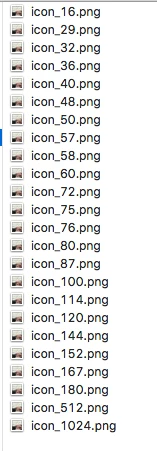
- The name of the folder where you put your icons must be “icons” (with no quotation marks)
- I made sure to include all this on my .xml (use what you need)
<initialWindow>
<content>1.swf</content>
<systemChrome>standard</systemChrome>
<transparent>false</transparent>
<visible>true</visible>
<fullScreen>true</fullScreen>
<autoOrients>false</autoOrients>
<aspectRatio>landscape</aspectRatio>
<renderMode>auto</renderMode>
</initialWindow>
<customUpdateUI>false</customUpdateUI>
<allowBrowserInvocation>false</allowBrowserInvocation>
<icon>
<image16x16>icons/icon_16.png</image16x16>
<image29x29>icons/icon_29.png</image29x29>
<image32x32>icons/icon_32.png</image32x32>
<image36x36>icons/icon_36.png</image36x36>
<image57x57>icons/icon_57.png</image57x57>
<image114x114>icons/icon_114.png</image114x114>
<image512x512>icons/icon_512.png</image512x512>
<image48x48>icons/icon_48.png</image48x48>
<image72x72>icons/icon_72.png</image72x72>
<image50x50>icons/icon_50.png</image50x50>
<image58x58>icons/icon_58.png</image58x58>
<image100x100>icons/icon_100.png</image100x100>
<image144x144>icons/icon_144.png</image144x144>
<image1024x1024>icons/icon_1024.png</image1024x1024>
<image40x40>icons/icon_40.png</image40x40>
<image76x76>icons/icon_76.png</image76x76>
<image80x80>icons/icon_80.png</image80x80>
<image120x120>icons/icon_120.png</image120x120>
<image152x152>icons/icon_152.png</image152x152>
<image180x180>icons/icon_180.png</image180x180>
<image60x60>icons/icon_60.png</image60x60>
<image75x75>icons/icon_75.png</image75x75>
<image87x87>icons/icon_87.png</image87x87>
<image167x167>icons/icon_167.png</image167x167>
</icon>
<supportedLanguages>en fr it pt es</supportedLanguages>
<iPhone>
<requestedDisplayResolution>high</requestedDisplayResolution>
<InfoAdditions><![CDATA[
<key>UIDeviceFamily</key>
<array><string>1</string><string>2</string></array>
<key>UIPrerenderedIcon</key>
<true/>
<key>NSCalendarsUsageDescription</key>
<string>Some ad content may access calendar</string>
]]></InfoAdditions>
</iPhone>
</application>
4. I used Developer Certificate with the Developer Provisioning Profile and in the AIR for iOS Settings I used "Device Debugging" to test the app on my device, then:
5. I used the Distribution Certificate with the AppStore Provisioning Profile and in the AIR for iOS Settings I used “App Store”. The .ipa you get from these settings wont instal in your device. But it will go up through Application Loader, then you can use it on TestFlight or the AppStore.

 AdChoices