

Marieke2d
Inspiring
January 6, 2020
Answered

Selecting frames on timeline

  • January 6, 2020
  • 2 replies
  • 4957 views

I have a problem:

On the timeline, I can select empty frames by clicking on them. So far so good.

But if there is something on the timeline, I can't select a single frame, but the whole of the timeline gets selected.  

I used to make keyframes on the timeline by selecting a frame> then shortcut F6> voila a keyframe. Now I get keyframes all along the timeline. Why is that?
This topic has been closed for replies.
Correct answer n. tilcheff

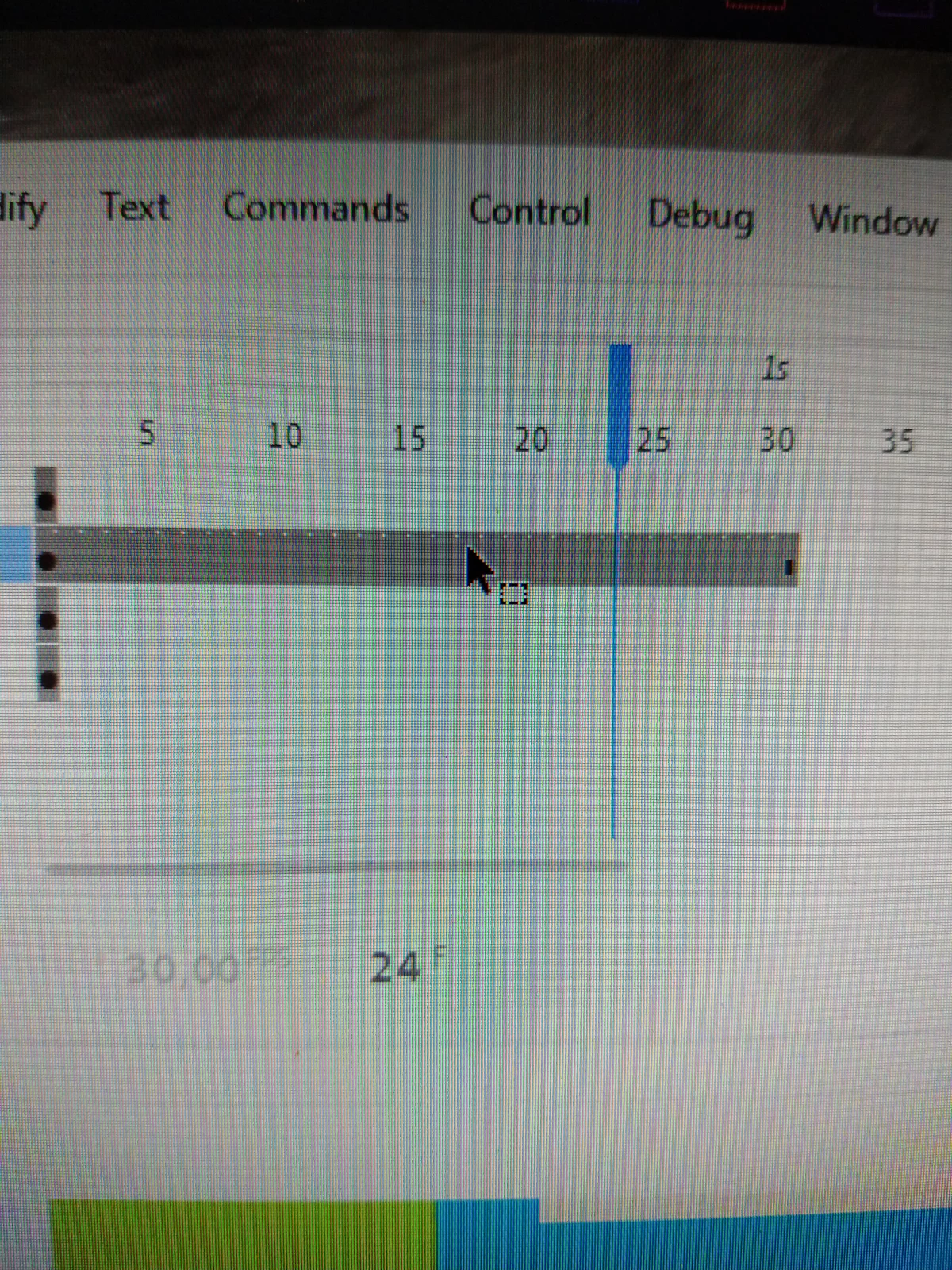
Thanks for your replies. A strange rectangle pops up next to my mouse pointer when I hoover above a populated layer(see attachment) Or was it always there and I didn't notice..?

Or maybe something wrong with my pen?

I still cannot single click on a populated layer without selecting the entire layer. BTW it also happens on an empty layer.

I'll try installing previous version Animate and see if it changes.


Hi mate,


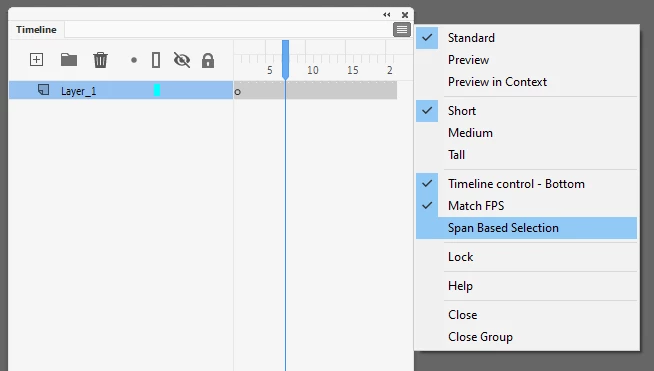
Make sure you switch off "Span Based Selection" in Timeline hamburger menu:


2 replies

tolstoyin29
Participant
January 22, 2021

Hi, this is very useful. Thank you very much for your support.

kglad
Community Expert
Community Expert
January 7, 2020

you can't select a keyframe by left or right clicking it?

Marieke2d
Marieke2dAuthor
Inspiring
January 7, 2020

I can indeed select a keyframe by right clicking it> then scroll down to > 'Insert Keyframe' 

BUT I used to just click the frame> hit the key F6>voila keyframe, which is much faster. That doesn't work anymore. When I do that now, the entire layer gets selected and all of the frames on it turn into keyframes...

Legend
January 7, 2020

I cannot reproduce this in 2020. When I single-click a frame on a populated layer and press F6, it creates a single keyframe at that frame.


Also, the mapping of F6 has not changed. Even back in CS6, F6 meant "Convert to Keyframes".