
stevenm9342790
Known Participant
December 17, 2017
Answered

Fill in areas created by layers

  • December 17, 2017
  • 4 replies
  • 3463 views

Hi there,

So I'm just wondering if there is away i can use the fill tool, to fill an aea with colour, that was created by two different layers.

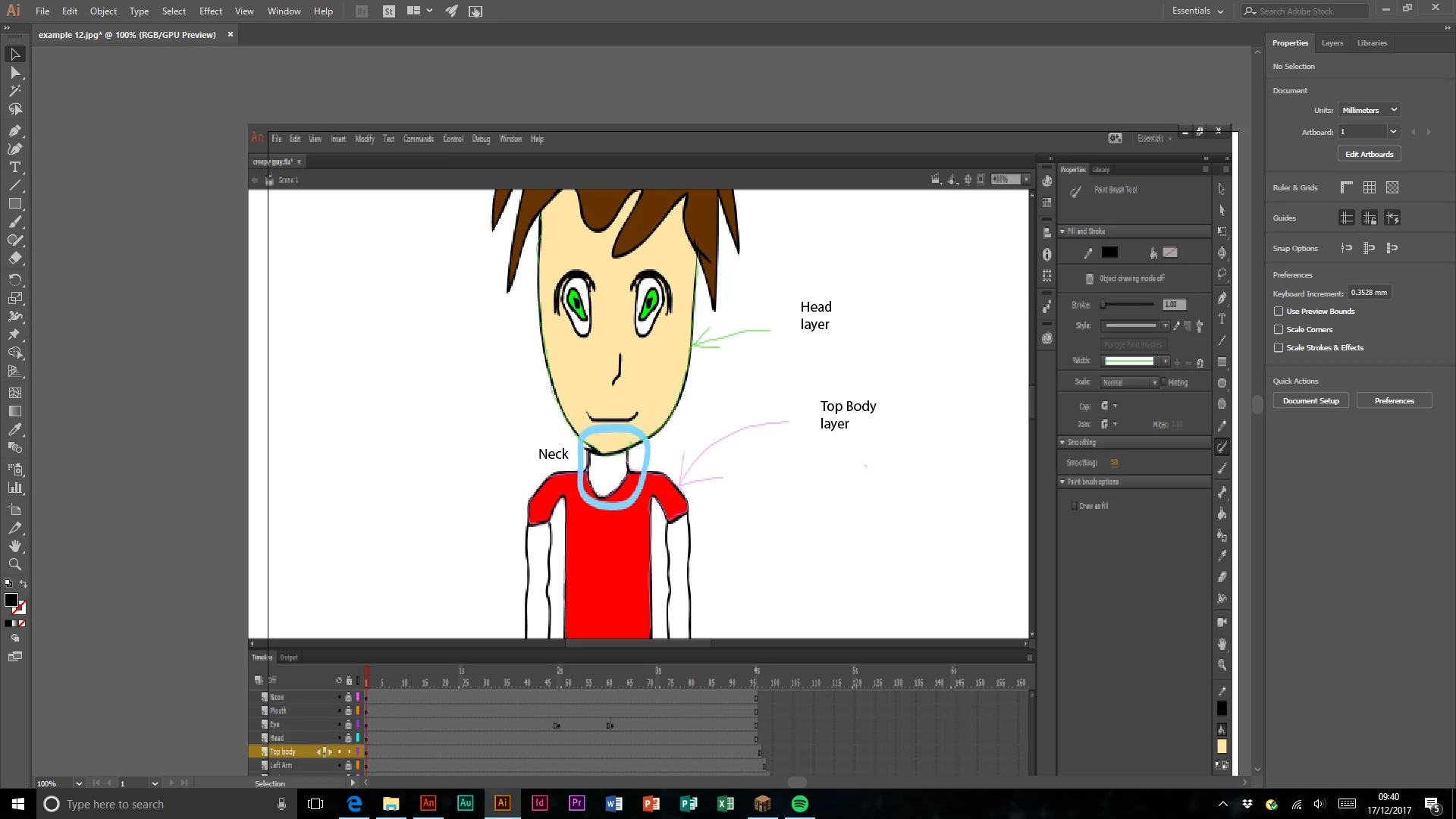
For example, if I am trying to animate a human being. And i have the head and the top body as two separate layers.

It will not let me fill in the neck, as i made the neck with two separate layers.

The base of the neck is attached to the rest of the upper body, which forms one layer. And the lines that form the neck are attached to the base of the neck from one end and the chin of the head, which is a separate layer at the other end.

It's kind of hard to explain, so here is an image.

Don't get confused, you're looking at the adobe animate screenshot, i have just added my notes and highlights, by editing the adobe animate screen shot in illustrator.
This topic has been closed for replies.
Correct answer Myra Ferguson

Duplicate your layers then copy/paste so that they are on the same layer. Then you can use the Paint Bucket Tool (K) to fill in the shape. Then you can copy the fill and paste it onto the neck layer (I'm assuming that's where you want it). Then you can delete those copied layers that you don't need anymore.

4 replies

New Participant
July 15, 2024

I know its late but to those who need an alternative.

Duplicate the layers. Shift-click on the layers you want to combine then click "Merge layers". If you want certain areas of the drawing to be filled, then ensure they are not in object mode. If so, click on the merged layer, click on the "Edit multiple frames" icon, go to the Properties window, and click " Expand to fills. 


Hope this helps! ^^

stevenm9342790
Known Participant
December 19, 2017

I've discovered a method, where i just thicken some of the outlines, its not completely professional but its simple, and more efficient then all the ideas suggested in this forum and across the website, anyone with the same trouble, simplify your layers, rough sketch, head, torso, legs, facial features and arms.-At least when drawing humans. And simply draw a line that connects to the intersection points on the current layer, but so close, it slightly thickens the layers above.

Adobe- I still believe this feature should be added, so please don't ignore the thread due to my issue being solved to some extent.

Thanks all for your help.

JoãoCésar17023019
Community Expert
December 18, 2017

Oh I see... Sorry. I had thought that you wanted a way to fill gaps created by shapes in different layers without copying/pasting from one layer to the other.

JoãoCésar17023019
Community Expert
December 17, 2017

As far as I know, it's not possible. One could build an extensible tool that does it, but certainly it won't be an easy task.

The best you can do is to request this feature here: Report a bug/feature request.

Regards,

JC

stevenm9342790
Known Participant
December 18, 2017

I have done, thanks for your help.

I am not putting this thread as answered yet.

If anyone reading has had the same problem make a suggestion, at the link above. The more they are, the higher the chance of it being added.

If anyone knows anyway I can work around this issue, please let me know. My project is due February 2nd 2018, its for College so it's kind of urgent.

Myra Ferguson
Myra FergusonCorrect answer
Community Expert
December 18, 2017

Duplicate your layers then copy/paste so that they are on the same layer. Then you can use the Paint Bucket Tool (K) to fill in the shape. Then you can copy the fill and paste it onto the neck layer (I'm assuming that's where you want it). Then you can delete those copied layers that you don't need anymore.