
thebeamanater107
New Participant
March 3, 2018

P: Camera Raw Dialog is too large on Windows recommended scaling
  • March 3, 2018
  • 11 replies
  • 13970 views


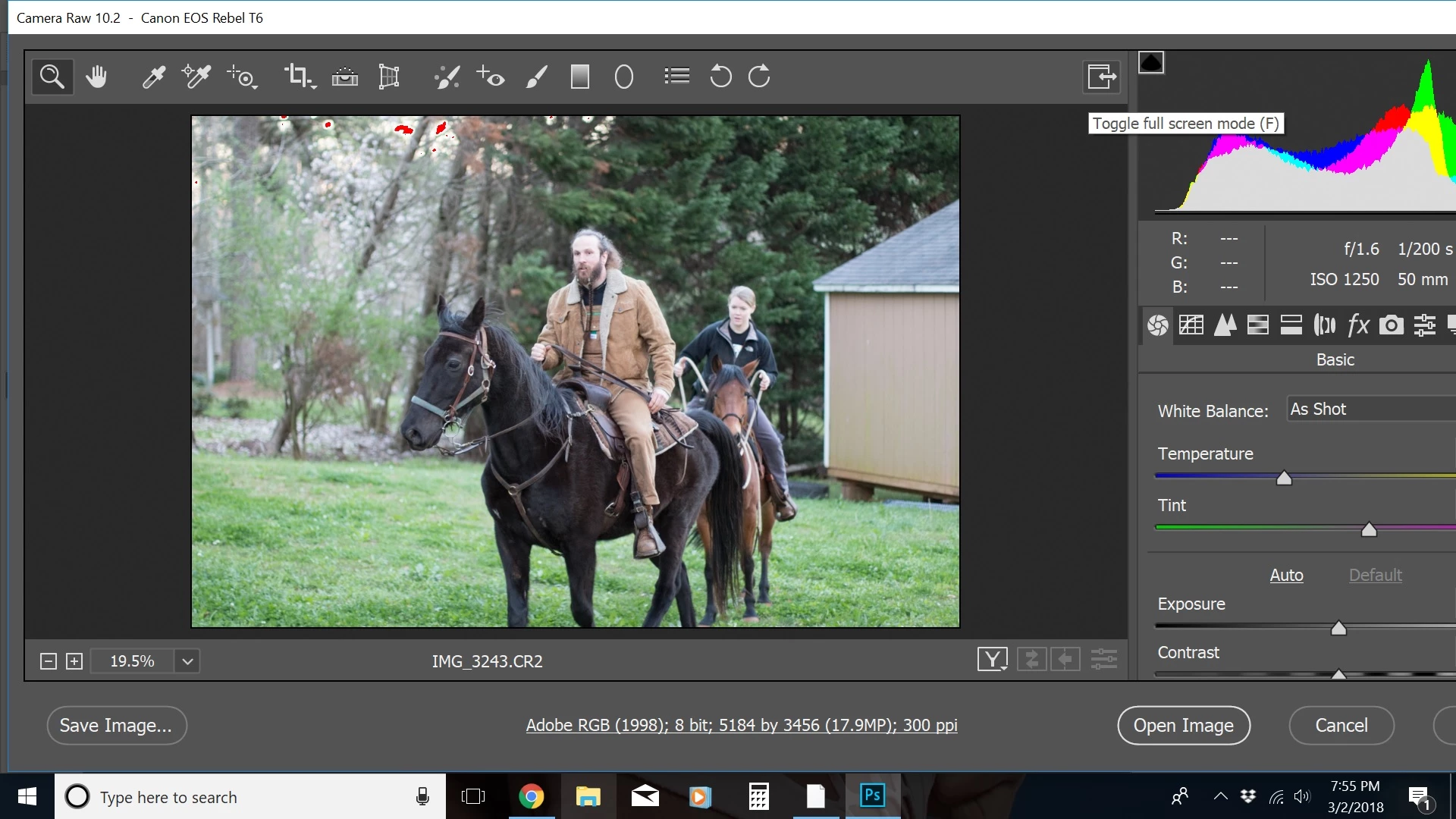
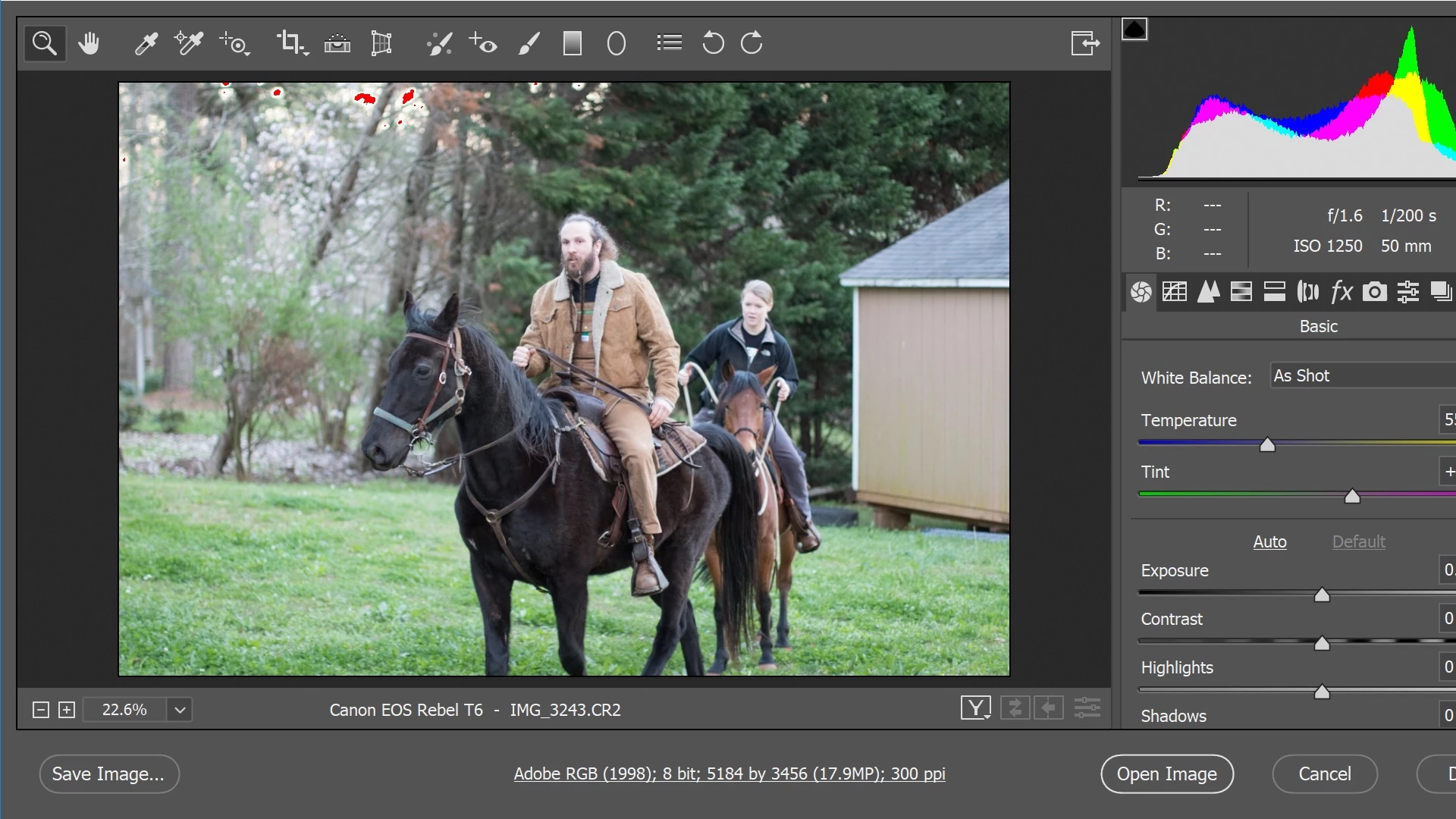
the first image is not in full screen mode. the second image is in full screen mode.


photoshop CC has been running fine for me for a long time. ever since this new most recent update, the camera raw filter window has been larger than my computer screen. at first, it was super wide. i hovered my mouse over the edge of the window and i brought it in as far as it will go. i tried using the full screen option, but half of the histogram is cut off. the smallest available size for that camera raw window is still too big. is there a way to make it fit on my screen like it did last week and before?


running windows 10 by the way.

This topic has been closed for replies.

11 replies

Rikk Flohr_Photography
Community Manager
Community Manager
November 11, 2021

Post was missing status

Rikk Flohr: Adobe Photography Org
New Participant
May 7, 2021

This issue sound to be relay persistent. After 3 years of this thread: I am experiencing the same issue with my brand-new laptop + brand new last version 2021 version of the photoshop. The camera raw is too big! I tried all the solutions in this thread. The only working solution is to change the scale preference of my system and sacrifice all the other application to rescue my Adobe Camera raw. This is my first month with personal adobe, shall I switch back where I came from? N.B: I know how photoshop work from my workstation, but this is the first time I install it in my personal laptop as I used to relay on other software. 

Known Participant
December 18, 2020

Just tap F to toggle

New Participant
March 16, 2021

It works!!!!! 

jacquelingphoto2017
Community Expert
July 27, 2018

If your issue has not yet resolved, and you have not tried reset as yet, you could try it to see if it will work. There are three ways of doing it I will first give you the info for the one I used to resolve an issue developed with my camera raw filter since my last post. This you need to know, all your preference settings will be lost with this method.

With Photoshop closed, hold down ctrl + Alt + Shift and click to open Photoshop. A dialog box will pop-up saying delete the adobe photoshop settings files. Click on it. Choose no on the next dialog box, and Photoshop will come up with the original settings.

Here is another method. Go to Edit> Preferences > General > Reset Preferences on Quit and then close and restart Photoshop.

The third is more selective, but more technical.  An audio/video at Preferences in Photoshop explains two methods: the more selective method and the first method I describe above. (Note: in the first method above you can hold down the keys first then click immediately after. The idea is to have all 4 action at once)

If reset does not work you could probably browse through Solve Adobe Photoshop problems and issues by keeping it up-to-date to see if there's any other suggestion that you might find helpful.

I hope this was helpful

JG

Known Participant
November 18, 2019

Newest Photoshop 2020 running on Windows 10 1909 - still the same problem when the screen is set to 150%. A shame...

PECourtejoie
Community Expert
November 21, 2019

Hello, please report the issue on a https://feedback.photoshop.com bug report. (search to find a relevant thread, and indicate that it is still the case)

JJMack
Community Expert
July 20, 2018

Show you Windows 10 Display scaling setting for each of your displays.

JJMack
New Participant
July 17, 2018

hi...same problem here. as solution seems to help scaling less than 150%, may even be 149% scale in display advanced scaling setings. I have a 14' inches with full hd resolution. the problem is that, when scaling less than 150%, just the adobe raw interface seems to be scaled at 100%, resulting in a window with perfect matching, but with very small text (as in 100% scaling).

New Participant
July 6, 2018

I had the same problem in Windows 7.

This works for me:-

Go to just above top right corner of Camera Raw window (to right of "preview"

Toggle to full screen and all Camera Raw window shows.

Toggle again; window still shows.

I hope this works for you.

PECourtejoie
Community Expert
May 30, 2018

Hello, did you report it on the https://feedback.photoshop.com site?

There, post the screenshots you posted here, The contents of help>system info...

Also, could you post screenshots of ACR hosted in Bridge, to compare?

Finally, if you have CC2017, post the a view of ACR working normally?

Ellenfaye
New Participant
May 28, 2018

Have the same problem...."i cant get the camera raw filter window to fit my screen."  It is so frustrating!!!!!  Is there no solution to this issue other than changing to a new program???

JJMack
Community Expert
May 28, 2018

Sound like you configured someting wrong if you system and Phototoshop are the latest version and your system meates requirements.

Supply pertinent information for quicker answers

  • The more information you supply about your situation, the better equipped other community members will be to answer. Consider including the following in your question:
  • Adobe product and version number
  • Operating system and version number
  • The full text of any error message(s)
  • What you were doing when the problem occurred
  • Screenshots of the problem
  • Computer hardware, such as CPU; GPU; amount of RAM; etc.
JJMack
Participating Frequently
April 7, 2018

This has also happened to me.  It has absolutely nothing to do with Windows display settings.  The issue has just started with a recent update.

davescm
Community Expert
April 8, 2018

jamesw39161393  wrote

This has also happened to me.  It has absolutely nothing to do with Windows display settings.  The issue has just started with a recent update.

In Photoshop CC2018 on Windows 10, there was a change in that Photoshop now picks up the interface scaling setting from Windows > Settings rather than from Photoshop preferences. So JJMack's question is very relevant.

Dave

Mr_rossduncan
Inspiring
April 8, 2018

I've been trying to fix this issue for months now, the only work around I have been able to find is to change the scale and layout ratio in the Windows 10 display from the recommended 150% to 125%.

It wrecks every other program you're running (Outlook, browser etc.) making them too small and unfocused to look at but Photoshop and Camera Raw will fit correctly.

I've gotten used to changing back and forth each time I flick from Photoshop back to another program, it's a pain in the bum but there you go.

All settings/System/Scale and Layout/125%