


- Home
- Captivate
- Discussions
- Captivate 7 - Can I create a button that triggers ...
- Captivate 7 - Can I create a button that triggers ...

Copy link to clipboard
Copied
Hello,
I am 99.5% positive this is a dumb question, but can I install a button that plays video as its action on success? I know I could use the skin to allow the user to play the video, but I want the video to play after the user hits a button I created. I don't see "play video" as an option for action on success.


 1 Correct answer

Hi rscharfer,
You can also try the below.
1) Insert an event video with autoplay.
2) Uncheck its visibility from PI.
3) Insert a button, make its success action as show Video_Object_1.
In the published output, when you click the button, movie will start playing. Please let me know if it solves your problem.
Regards,
Haridoss

 8
Replies
8
8
Replies
8


Copy link to clipboard
Copied
Hello ,
You can simply insert a button on that slide and on action of that button you can use Open Url or File ( Properties Panel Of button) and then you can select the file (Video) which you want to open .
Make sure that after publishing that video must be there in the published folder , If it is not there you need to manually paste in published folder.
Hope This Helps 
Thanks and Regards
Himanshu Satija


Copy link to clipboard
Copied
Himanshu,
I think the user is wanting to play a video on the Captivate slide, not in a separate window. If so, your solution will not work.
Copy link to clipboard
Copied
Hi Himanshu.
That could be a back-up solution, but it's not really want I want.
RodWard is right. I would like to play the video on the Captivate slide.
A. Is this possible?
B. I am using your "open a file" suggestion as a back-up, but this doesnt work for me in preview mode. When I click the button, a web browser window opens and nothing happens. I then placed the video in the same folder as the source file, but still not working. Is it also supposed to work in preview mode or only when it is publisched?
Thanks for the help!
Copy link to clipboard
Copied
Hello ,
Okay Now i understand your workflow .
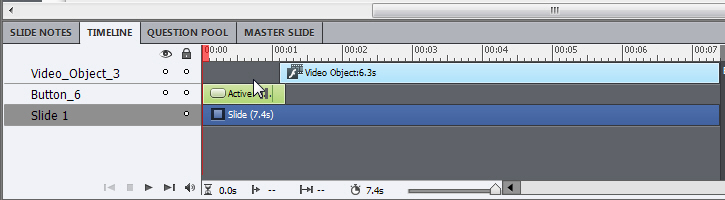
You can insert a Button and Video on same slide . After inserting the video set it to autoplay from the properties panel.
Now adjust the pause of the button along with video in the timeline as shown in image below .
Thanks and Regards
Himanshu Satija
Copy link to clipboard
Copied
Hi rscharfer,
You can also try the below.
1) Insert an event video with autoplay.
2) Uncheck its visibility from PI.
3) Insert a button, make its success action as show Video_Object_1.
In the published output, when you click the button, movie will start playing. Please let me know if it solves your problem.
Regards,
Haridoss
Copy link to clipboard
Copied
Thanks Haridoss!
This works well...

Copy link to clipboard
Copied
Hello Haridoss,
Would you mind expanding on the instructions you gave for creating a button to play an embedded video on a Captivate 7 slide?
It sounds straight-forward enough but my Properties panel isn't showing an option for setting the video to autoplay (see printscreen image).
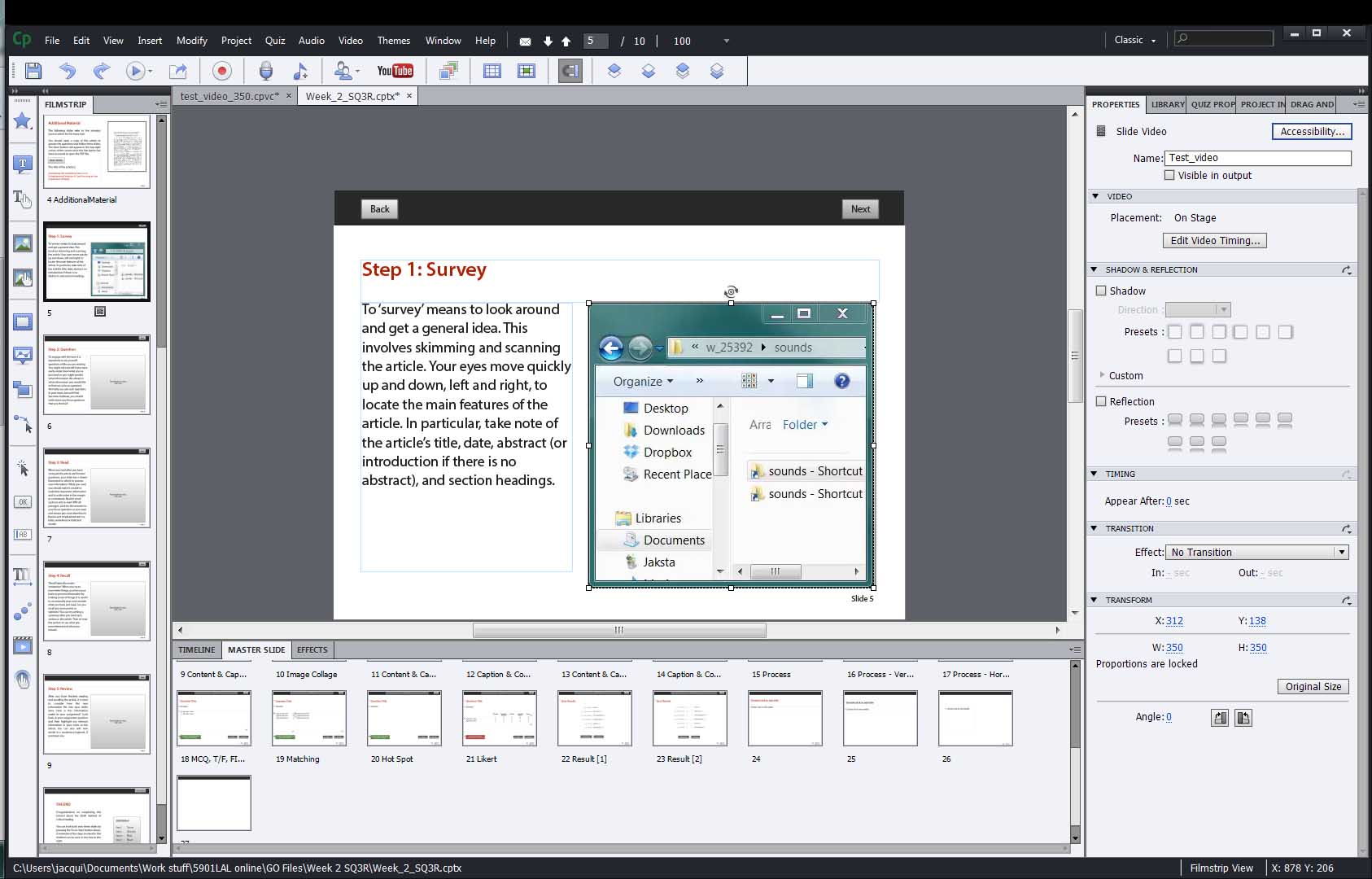
Also, when you say to insert an 'event video', is this the same as inserting a regular video via the interactions panel (2nd tool from bottom at left in default view)?
Finally, assuming I can find the autoplay button and that 'event video' is the same as a regular video, will I need to stagger the button and video in the timeline, as per Himanshu's printscreen above? (I can try it out if you're not sure - once I find the autoplay!)
Cheers,
Jacqui.
Copy link to clipboard
Copied
Ok, looks like I've answered my own question. When you create the Advanced Action to show the hidden video, you also need to create an action to Continue (for slide to play).
Also, you do need to stagger the items in the timeline (the button and the video).
Now I'd like to know how to pause the video after it finishes playing - but I can post that in a new question.
Cheers.


Get ready! An upgraded Adobe Community experience is coming in January.
Learn more
 AdChoices