


Copy link to clipboard
Copied
Hi guys!
I've created a puppet on Illustrator, using a template base (empty layers) so all the layers are correct.
Now I'm trying to import it to Character Animator and I keep getting the "bad allocation" error, without any additional details. The puppet doesn't even appear and when I try to click on the layers, the error keeps coming up. I'm desperate, as I've been trying to correct this for four days now, with no success... About to give up, but I really need to make this animated video for a work project...
Can you help me?
Thanks!!!


 1 Correct answer


Ok, I can reproduce the error and filed a bug.
Under +Pintas/Head/Background there's an unnamed layer right above the one named "Live Paint" which is really wide. When I delete that it imports without an error. Still a bug, but hopefully that'll get you back to good for now.
DT

 8
Replies
8
8
Replies
8


Copy link to clipboard
Copied
You might try someone like DanTull - can you share the artwork? Sometimes something in it causes the problem. I suggest deleting layers one by one (of a copy) to see if you can identify which one.
Copy link to clipboard
Copied
Yeah, thanks for the mention, Alan.
I would definitely be interested trying to reproduce this error internally if possible (and having the ai file is probably a good start).
DT
Copy link to clipboard
Copied
Thanks!!! Sent it already  maybe it's something simple, but as I'm still exploring this, I can't figure it out by myself.
Copy link to clipboard
Copied
Ok, I can reproduce the error and filed a bug.
Under +Pintas/Head/Background there's an unnamed layer right above the one named "Live Paint" which is really wide. When I delete that it imports without an error. Still a bug, but hopefully that'll get you back to good for now.
DT
Copy link to clipboard
Copied
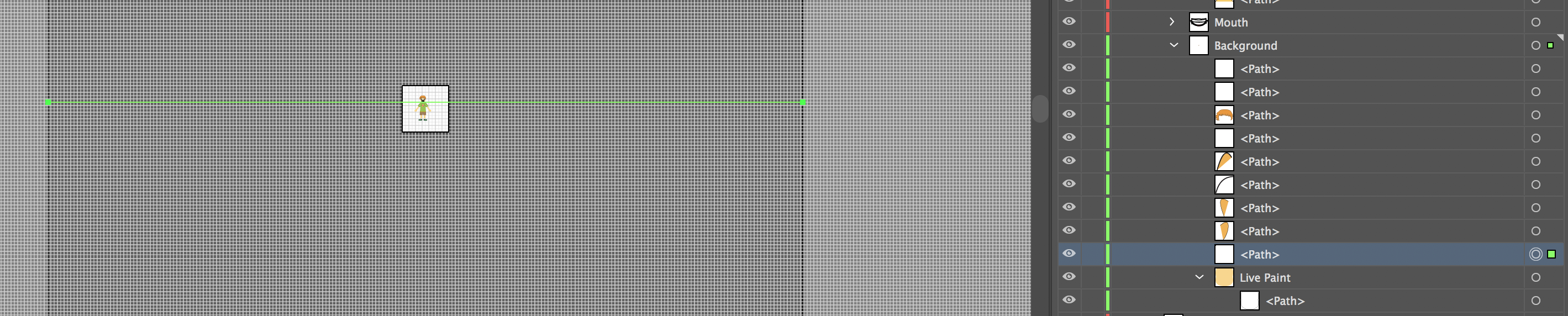
This one ^

Copy link to clipboard
Copied
if that was meant as a guide object in Ai you can make it not visible to Ch by selecting it, then choosing View > Guides > Make Guides
Copy link to clipboard
Copied
THANK YOU!! Yes, it was meant as a guide! Imported it just fine now
Copy link to clipboard
Copied
Hi! Thank you so much! What files do you need? The .ai file only? Where do I send it to?


Get ready! An upgraded Adobe Community experience is coming in January.
Learn more
 AdChoices