

Rocky Berlier
Known Participant
November 26, 2023
Answered

Script that mimics the InDesign Align Left and Align Right buttons

  • November 26, 2023
  • 1 reply
  • 609 views

UPDATE: I have since learned some basic javascript and achieved what I wanted.
Hello community. For years I have wanted a way to assign a shortcut to the Align Left and Align Right buttons, but I have been unsuccessful in my search for this mystical creature. If anyone knows of a way to do this in a script or otherwise, I would appreciate it if you shared this with me. Currently I am using Keyboard Maestro to accomplish this, however there is a limitation when I change the application window size and the button locations move. I am not very knowledgeable in Javascript but I have tinkered with it, sometimes successfully so. However, I can't seem to find the magical ingredient to simply mimic these buttons. Any help is gratefully appreciated.
    This topic has been closed for replies.
    Correct answer Richard TJ

    Hi @Rocky Berlier 

    I just came across your request, and I assume you want to bind a keyboard shortcut to the various alignment options. 

    If so, you can modify it by doing the following:


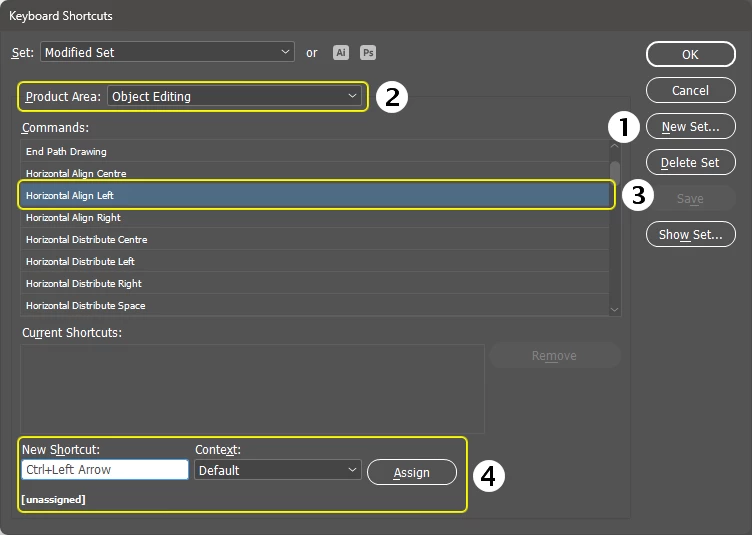
    Open the Keyboard Shortcuts Dialog: Edit > Keyboard Shortcuts... 

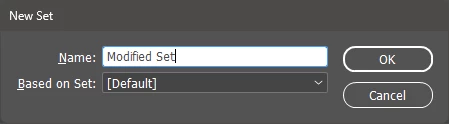
    Click New Set... (1) to copy the current keyboard shortcuts so you can experiment without overwriting your defaults 

    Next, change the Product Area: to Object Editing (2)
    Find Horizontal Align Left in the list (3)

    Click in the New Shortcut field and then press the key combination (e.g., CTRL + Left Arrow or ⌘ + Left Arrow), leave the Context on Default, and then Assign (4)

    You'll be warned if the shortcut is already assigned, so either change it or click Assign to override.


    Repeat for any other align options you'd like a shortcut, and click OK.


    I found a trick: If you can't find the command you'd like to add a shortcut to, click Show Set..., which opens in a text editor. You can then use the search tools to find the command and the product area it belongs to.


    I hope that helps!

    Richard

    1 reply

    Richard TJ
    Community Expert
    Richard TJCommunity ExpertCorrect answer
    Community Expert
    February 22, 2024

    Hi @Rocky Berlier 

    I just came across your request, and I assume you want to bind a keyboard shortcut to the various alignment options. 

    If so, you can modify it by doing the following:


    Open the Keyboard Shortcuts Dialog: Edit > Keyboard Shortcuts... 

    Click New Set... (1) to copy the current keyboard shortcuts so you can experiment without overwriting your defaults 

    Next, change the Product Area: to Object Editing (2)
    Find Horizontal Align Left in the list (3)

    Click in the New Shortcut field and then press the key combination (e.g., CTRL + Left Arrow or ⌘ + Left Arrow), leave the Context on Default, and then Assign (4)

    You'll be warned if the shortcut is already assigned, so either change it or click Assign to override.


    Repeat for any other align options you'd like a shortcut, and click OK.


    I found a trick: If you can't find the command you'd like to add a shortcut to, click Show Set..., which opens in a text editor. You can then use the search tools to find the command and the product area it belongs to.


    I hope that helps!

    Richard

    Rocky Berlier
    Known Participant
    February 23, 2024

    @Richard TJ
    Thanks for the post. I figured it out on my own last year. The KBSCs didn't do what I needed. I wanted more control over the alignments and reference points and wrote the scripts I needed. Thanks again for the good info.

    **_Rocky Berlier_** __________________________ Photoshop Educator • Freelance Technical Writer/Editor • Adobe Press© / Peach Pit Press© • [Technical Editing and Book Projects](https://www.amazon.com/gp/registry/wishlist/13FPVO0PB9V13/ref=cm_wl_huc_view "Technical Editing and Book Projects") Mac Pro5,1 (mid-2010) • OS Mojave 10.14.6 • Radeon RX580 8192 MB • 32 GB RAM • LG 38" Display • OWC Mercury SSD 1TB • Seagate 4TB HD (external)
    Richard TJ
    Community Expert
    Community Expert
    February 23, 2024

    Thanks, @Rocky Berlier, I'm happy you got a solution.