Participating Frequently
January 21, 2020
Answered

printer profiles missing for Epson SC-P800

  • January 21, 2020
  • 14 replies
  • 15925 views

The basic printer profiles seem to be missing when I am trying to print to the Epson SC-p800. I selected Photoshop controls printing. Only a few paper profiles show up. The basic ones such as Premium Luster, Glossy, etc. don't show up only 3 for legacy papers. The luster one was there only a few weeks ago (before the holidays - I used it). Last night I uninstalled the printer and reinstalled the driver software but that did not fix the problem.

Correct answer NB, colourmanagement

Hi

Did you select Photoshop controls color?

this should provide you with a list of all the ICC printer profiles on your system

Epson puts them in some hidden folders, but normally Photoshop can "see" them.

You may be able to find the profiles 

Are you on Mac or PC?

If PC, sounds like you may need help from Epson's support team


Here's some Mac tips, just in case photoshop can't find the Epson profiles:


Missing Epson profiles in Photoshop on Mac


I had to search for these myself on a client site once, took me quite a while, but, hey, means I now know how to find them


basically they are in the 

hard disk/library/ printers/EPSON/InkjetPrinter2/ICCProfiles/ [inside a “package”]

Not the username/library/ 
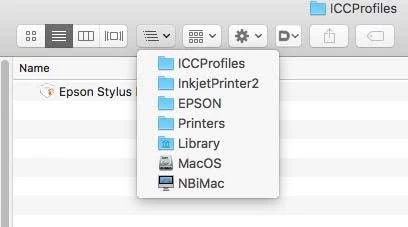
in ICCProfiles (see above) is a folder, e.g:  Epson Stylus Pro 4900_4910.profiles


you right click on it [or control click] and select "show package contents"


A contents folder appears

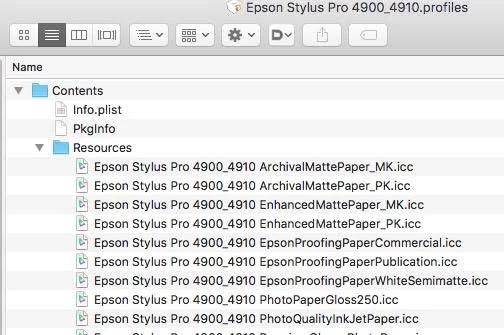
Now look inside that in  the ”resources" folder. 


see screen shot below


they are the icc profiles used in the Epson driver [driver colourmanagement], 

SO don't move them 

but you can copy them to your normal ICC profiles folder which is in the system library

[ computer name/hard disk name/Library/Colorsync/Profiles ]


I hope this helps

if so, please "like" my reply and if you're OK now, please mark it as "correct", so that others who have similar issues can see the solution

thanks

neil barstow, colourmanagement.net

[please do not use the reply button on a message in the thread, only use the one at the top of the page, to maintain chronological order]


14 replies

Participant
April 21, 2020

WOW Thank You! Thank You! Thank You! Why on earth would EPSON do this? What a scavenger hunt this was for me. I kept on reinstalling the printer drivers and occasionally that would work but then POOF they were gone for no apparent reson. Very helpful NB_colourmanagement

NB, colourmanagement
Community Expert
Community Expert
February 12, 2021

Thanks, I think Epson use that hidden folder, so that the profiles are protected from users who may delete them when "tidying up". The link to Photoshop normally works but as you discovered it's not entirely reliable.

Can you imagine how long it took me to find those profiles hidden away there!


I hope this helps
neil barstow, colourmanagement net :: adobe forum volunteer
google me "neil barstow colourmanagement" for lots of free articles on colour management
[please only use the blue reply button at the top of the page, this maintains the original thread title and chronological order of posts]

ChristinePentecost
Participant
April 3, 2020

Thank you! Thank you! It worked, and saved me quickly from pulling out my hair!

NB, colourmanagement
Community Expert
Community Expert
January 27, 2020

Hi Jim

thanks, glad I could help

So - you have now copied the profiles to the main Colorsync folder and its all working again I hope? 

You can now see the profiles in the "Photoshop Manages Color" option list?

Yes there is some kind of hidden link from Photoshop to that "package" but it seems it doesn’t always work - as you found when writing your original e-mail.

If you're OK. now perhaps mark my previous as "correct answer" please.


thanks

neil barstow, colourmanagement.net

[please do not use the reply button on a message in the thread, only use the one at the top of the page, to maintain chronological order]



NB, colourmanagement
Community Expert
NB, colourmanagementCommunity ExpertCorrect answer
Community Expert
January 21, 2020

Hi

Did you select Photoshop controls color?

this should provide you with a list of all the ICC printer profiles on your system

Epson puts them in some hidden folders, but normally Photoshop can "see" them.

You may be able to find the profiles 

Are you on Mac or PC?

If PC, sounds like you may need help from Epson's support team


Here's some Mac tips, just in case photoshop can't find the Epson profiles:


Missing Epson profiles in Photoshop on Mac


I had to search for these myself on a client site once, took me quite a while, but, hey, means I now know how to find them


basically they are in the 

hard disk/library/ printers/EPSON/InkjetPrinter2/ICCProfiles/ [inside a “package”]

Not the username/library/ 

in ICCProfiles (see above) is a folder, e.g:  Epson Stylus Pro 4900_4910.profiles


you right click on it [or control click] and select "show package contents"


A contents folder appears

Now look inside that in  the ”resources" folder. 


see screen shot below


they are the icc profiles used in the Epson driver [driver colourmanagement], 

SO don't move them 

but you can copy them to your normal ICC profiles folder which is in the system library

[ computer name/hard disk name/Library/Colorsync/Profiles ]


I hope this helps

if so, please "like" my reply and if you're OK now, please mark it as "correct", so that others who have similar issues can see the solution

thanks

neil barstow, colourmanagement.net

[please do not use the reply button on a message in the thread, only use the one at the top of the page, to maintain chronological order]

Jim OmahaAuthor
Participating Frequently
January 27, 2020

Thanks! You really helped, although I still understand what happened. Yes I had selected Photoshop for color management. But I could no longer see a list of the "basic" epson photo papers, such as premium luster, glossy, etc., and that was a puzzle, since I had used them to print back in December. I had found them in the "package" that you showed me but I did not know what or how to use them.


Earlier I had booted up an old Mac laptop I have that isn't capapble of the latest OSX  versions due to Apple's system requirements. It has PS on it and it can communicate with the SC-P800. The profiles were there in the PS dialog box. But when I went to the colorsynch folder they were not listed there either but somehow PS knew where the profiles werre. There must be some sort of broken link.


Thanks again and I did give you a like - I'd give more if it the adobe community system would allow.