


Setting up Break out rooms

Copy link to clipboard
Copied
I have been trying to set up break out rooms and was told the only way to do that is to have attendees present in the meeting and to make sure the pod was on the main stage and not in the presenter section.. When I tested that functionality, the break out room button did not appear on the attendee pod even though I had attendees in my meeting and the pod was on the main stage. Any ideas as to why the break out room was missing or what I need to do to get that to work?


 11
Replies
11
11
Replies
11



Copy link to clipboard
Copied
See this in the help system ( You need to be a HOST and the attendees don't move themselves..the host does):
Define breakout rooms and assign members
While in a meeting or training session, hosts can create breakout rooms and send attendees into the rooms.
- In the Attendees pod, click the Breakout Room View button . Note: Only the host sees the Breakout Room View of the Attendees pod.
- In the Attendees pod, three breakout rooms are available by default; click the Create A New Breakout button until you have the number of rooms you want (the maximum available is 20).
- Assign attendees to breakout rooms by doing either of the following:
- Manually select an attendee name in the list (use control-click or shift-click to select multiple attendees). Then either select a breakout room from the pop-up menu, or drag attendees to a breakout room.
- Automatically assign attendees to breakout rooms by clicking the Evenly Distribute From Main button . (Attendees previously assigned to specific breakout rooms remain in those rooms.)
- Before and after dragging attendees to different breakout rooms
Begin a breakout session
In breakout rooms, attendees are automatically assigned the role of presenter. This gives them all presenter rights such as sharing their voice, sharing content in the Share pod, modifying whiteboards, and adding text to the Notes pod. When attendees are returned to the main room, they revert to their prior status.
Note: All attendees, even ones who sign in as guests, can download shared content in breakout rooms.
- In the Attendees pod, define breakout rooms, and assign attendees to the rooms.
- Click Start Breakouts. Attendees are placed in the breakout rooms to which they were assigned.
Breakout room with attendees assigned as presenters
Note: If you are recording a meeting or training session and send attendees to breakout rooms, the recording continues to record only the main room. (To edit the recording so those watching do not have to view an empty main room, see Edit a recorded meeting.)
Visiting breakout rooms
When breakout rooms are in use, hosts can visit different rooms, including the main room.
To visit another room, drag your name to it in the Attendees pod.
Send a message to all attendees in breakout rooms
Hosts can broadcast messages to all breakout rooms. This can be useful if you have noticed one or more rooms have a similar question. It is also a good practice to send attendees in breakout rooms a warning message a few minutes before ending breakout sessions and returning them to the main room. This allows attendees to finish speaking, loading files, and working on the whiteboard before a breakout sessions ends.
- In the upper-right corner of the Attendees pod, click the menu icon , and choose Broadcast Message.
- Type the message, and then click Send. Attendees in all rooms see the message in the center of the Connect window.
Communicate attendee status in breakout rooms
Either with or without the Host present, use the options in the Attendee Status View of the Attendees pod. For example, ask a question and ask the attendees to respond by using the status options Agree or Disagree.
For more information, see Communicate with training or meeting attendees.
Conduct a poll in breakout rooms
Hosts can conduct separate polls in each individual breakout room by placing themselves in the rooms and opening Poll pods.
For general information about polling, see Polling attendees.
Asking and answering questions in breakout rooms
Attendees in breakout rooms can ask hosts a question at any time, whether a host is in their breakout room or not.
- To verbally ask a host in the same breakout room a question, use the audio provided (VoIP or telephony).
- To type a question for hosts in the same breakout room, use the Chat pod menu to send a message to the host. The host can then respond in the Chat pod to the attendee alone or everyone.
- To ask all hosts in the meeting a question, type in the Send Message To Hosts box, and then click the Send button . The question appears to all meeting hosts in a small message box with the attendee’s name. Hosts can respond by entering the attendee’s breakout room and using the Chat pod.
Chatting in breakout rooms
If the Chat pod is available in the breakout room, use chat to communicate with others in your room only. You cannot chat with attendees in different breakout rooms.
For general information about using the Chat pod, see Chat in meetings.
End a breakout session
Only hosts can end a breakout session. When breakout rooms are closed, all attendees are returned to the main meeting room.
In the Breakout Room View of the Attendees pod, click End Breakouts.
Share breakout room content in main room
After ending a breakout session, hosts can share the contents of a single breakout room with everyone in the main room.
- In the main room, choose Pods > Breakout Pods.
- Select a breakout room name, and then select Chat, Share, or Whiteboard. The selected content appears in a new floating pod. The contents are view only and cannot be changed or edited.
Reopen closed breakout rooms
After ending a breakout session, you can return attendees to the breakout rooms again. The configuration of rooms and assigned users remains in place for the entire meeting.
- In the Attendees pod, click the Breakout Room View button .
- (Optional) Make changes, such as adding a room, deleting a room, or moving attendees into different rooms.
- Click Start Breakouts.
Remove breakout rooms
Note: In the Pods menu, pods from breakout rooms remain available until you remove them in the Attendees pod.
- To remove all rooms, click the Attendee pod menu , and choose Remove All Rooms. To store pod content, select Save Pod Information For Future Reference, and enter a session name. (You can reaccess saved pods from the Pods > Breakout Pods menu.)
- To remove an individual breakout room, including all pods and content it contains, click the X button to the right of the room name. The numbering of subsequent rooms is adjusted to ensure continuity.
Copy link to clipboard
Copied
Thanks for the tips but when I am the Host, the break out button does not appear in my attendee pod. I am in a meeting and the pod is not in the presenter area. I also have attendees present. Any ideas as to why the break out button does not appear in my attendee pod?
Mary Ann Belleville
Sr. Learning Design Analyst
Performance and Knowledge Services
Pacific Life Insurance Company
949-420-8217

Copy link to clipboard
Copied
What version of Adobe Connect are you using?
Copy link to clipboard
Copied
Adobe Connect 8
Copy link to clipboard
Copied
Here is what your button for Breakoput rooms should look like:

Notice it is the second icon on the tab. Can you take a screen shot of your button and share that here in JPEG format?
Copy link to clipboard
Copied
Here is what my attendee pod looks like (see attached). It does not have the break out button, therefore I am not able to set up break out rooms. Also, I was informed in an Adobe webinar the the break out rooms could not be set up without attendees within the room, based on your image it appears that you are able to set up rooms with out additional attendees present.
Copy link to clipboard
Copied
The more I think about this I believe you are not setup as a Meeting Room Host. This from the help file:
Manually select an attendee name in the list (use control-click or shift-click to select multiple attendees). Then either select a breakout room from the pop-up menu, or drag attendees to a breakout room. Automatically assign attendees to breakout rooms by clicking the Evenly Distribute From Main button  .
. until you have the number of rooms you want (the maximum available is 20).
 . (Attendees previously assigned to specific breakout rooms remain in those rooms.)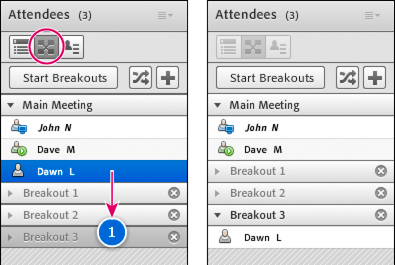
Copy link to clipboard
Copied
Based on the screen shot I just forwarded, you can see that I have been set up as a meeting Host. Is there some setting that may have been missed when my account was initially set up?
Copy link to clipboard
Copied
I'm not sure what you mean by forwarded...did you send it to me via email? You could have posted the picture in the fourm using the camera icon...seems easier that way.
Have you talked to the system adminsitrator?
Here under the Administration tab there is a tab for system restrictions (compliancy):
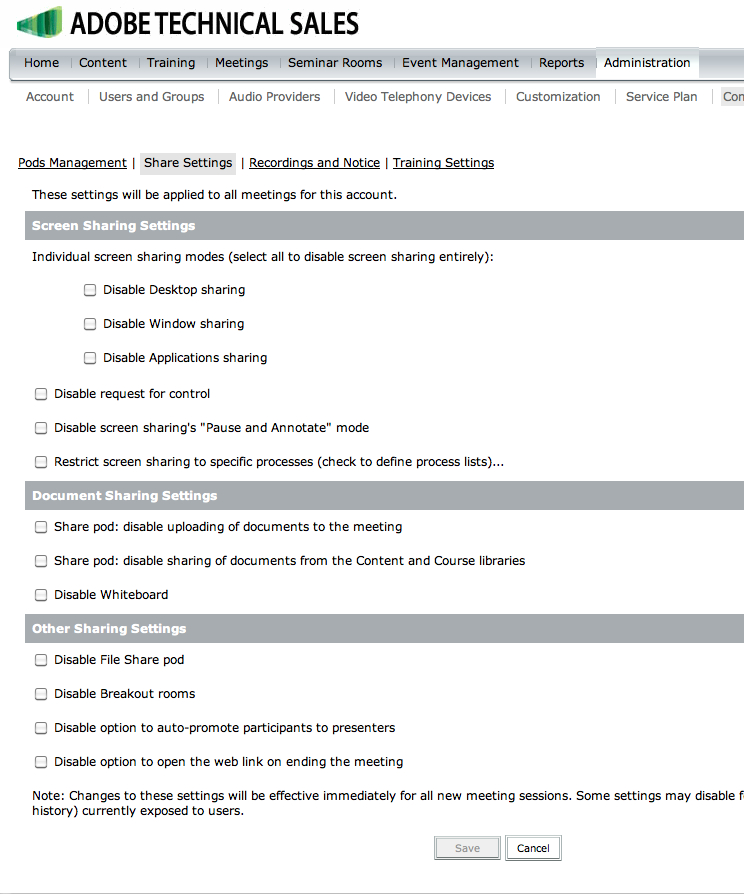
Notice the DISABLE BREAKOUT ROOMS. I bet your administrator has checked the option. That explains the reason.
Copy link to clipboard
Copied
Sorry about the image before, I did respond in my email. I've attached the image I sent earlier.
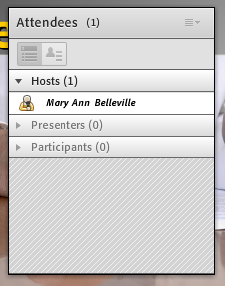
I am going to follow up with our administrator, I think that she may have disabled that functionality unfortunately, I don't have access to the compliancy section to verify.
Thanks for your tips. I'll make sure and follow up with what the outcome is.
Copy link to clipboard
Copied
Thanks for your assistance. It appears that our system administrator had our program functionality locked down.

Get ready! An upgraded Adobe Community experience is coming in January.
Learn more
 AdChoices