



Solution for Photoshop Elements 2022 installer error message
Many will start getting an error message now if they try and direct download the installer for their adobe products. Why? I have no idea. I tried myself to reinstall my licensed software, in this case, Photoshop Elements 2022, and kept getting this notice which hasn't occurred before:
"installation cannot continue as the installer file may be damaged. Download the installer again."
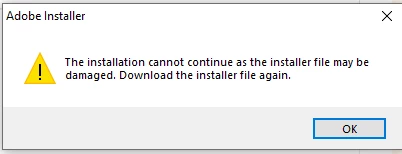
The usual "guidance being relied on is in fact out of date, inaccurate or just nonsense. The false advice is usually something along the lines of:
- Make sure all your updates have been done including drivers (you should do that anyways but it wont help).
- Use a different browser (Edge/Both versions, FireFox, Safari, Chrome).
- Check your Internet connection, try installing trial software then activate, blah, blah, blah.
- Make sure you are not trying to install something else at the same time. Generally good advice but the problem is occurring when just trying to install the one particular program/software.
Chances are all these "suggestions" and "work arounds" will not work. What you should do is first, check your updates and make sure nothing is in the process of updating, trying to install or that your computer needs to restart in order to complete updates. SO check those first. Also don't try and install several programs at the same time anyways because that is just a bad idea and will cause its own issues later if you managed to do so.
Now here is the basic check list before proceeding:
- Remove all versions or copies of the installers you had because they will be broken/wont work, and there is no reason to keep hold of them.
- Make sure you know your login because you will likely have to do this manually several times along the way for some of these steps. Do be prepared to be annoyed.
- Make sure you do have your current product/license key.
- Make sure to make a lot of notes because you may have do do this as well with other products from Adobe that are not installing as they have before.
- This solution was done in both Windows 10 and Windows 11 versions. It may or may not work in MAC the same way.
LETS BEGIN (PICS HAVE BEEN INCLUDED)
- Make sure you are logged into your account locally.
- Go to this link here: Adobe products: desktop, web, and mobile applications | Adobe
- Select install of Cloud.
- It will install and will take a bit depending on your own net connection and system specs.
- Let it open up its window as follows:
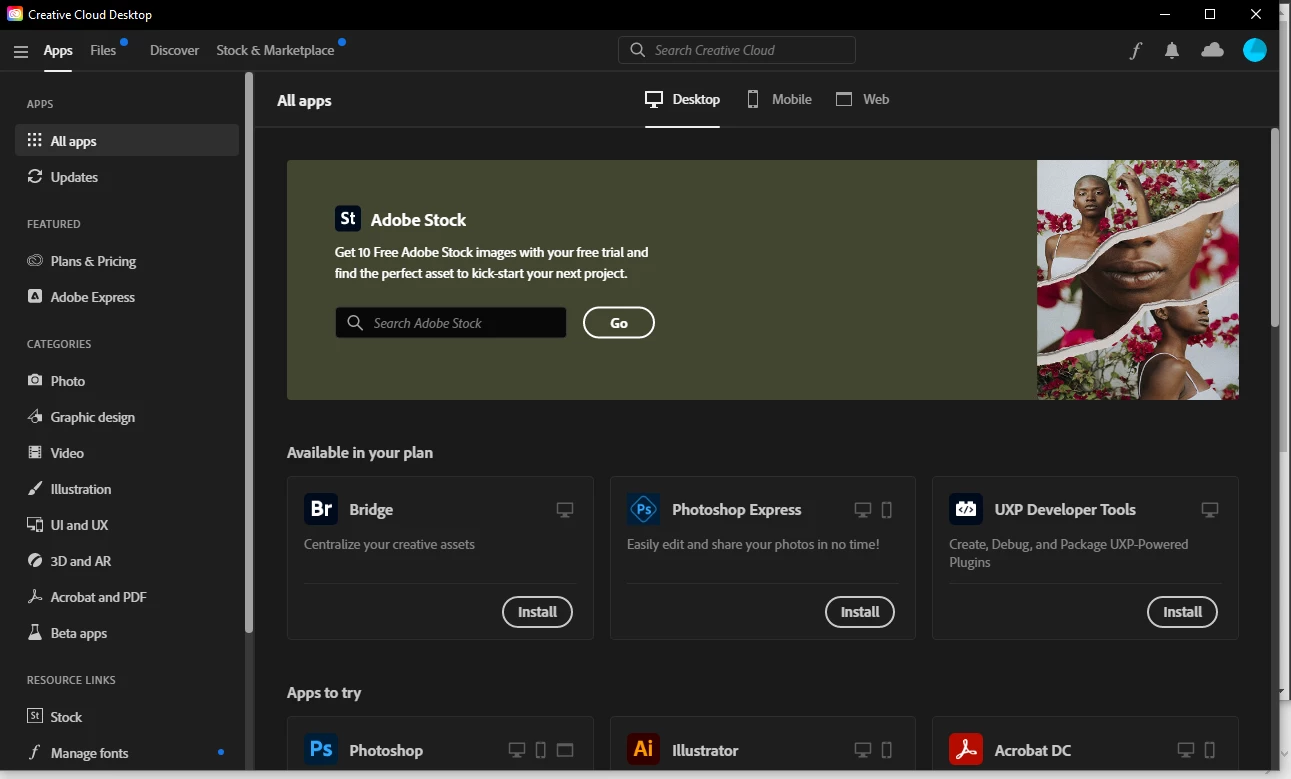
- In the Top Right Corner you will open the icon and see your account info, In the drop down select Adobe Account:
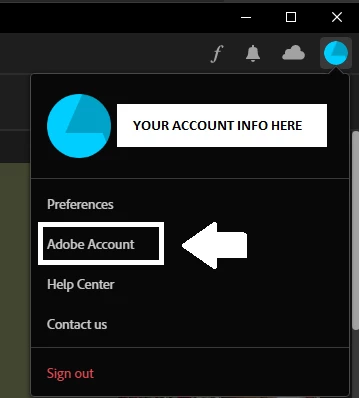
- This will open the page again where your products you have purchased are at. You will in fact do this for all future installers you purchase.
- Select the download option for your product (Make sure to use a sticky note long enough to save the license key because you will need it later):
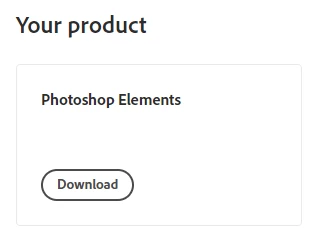
- Sit back and let the installer do its job which will take a bit. It will install and you should get this window wherein you will choose the selection indicated:
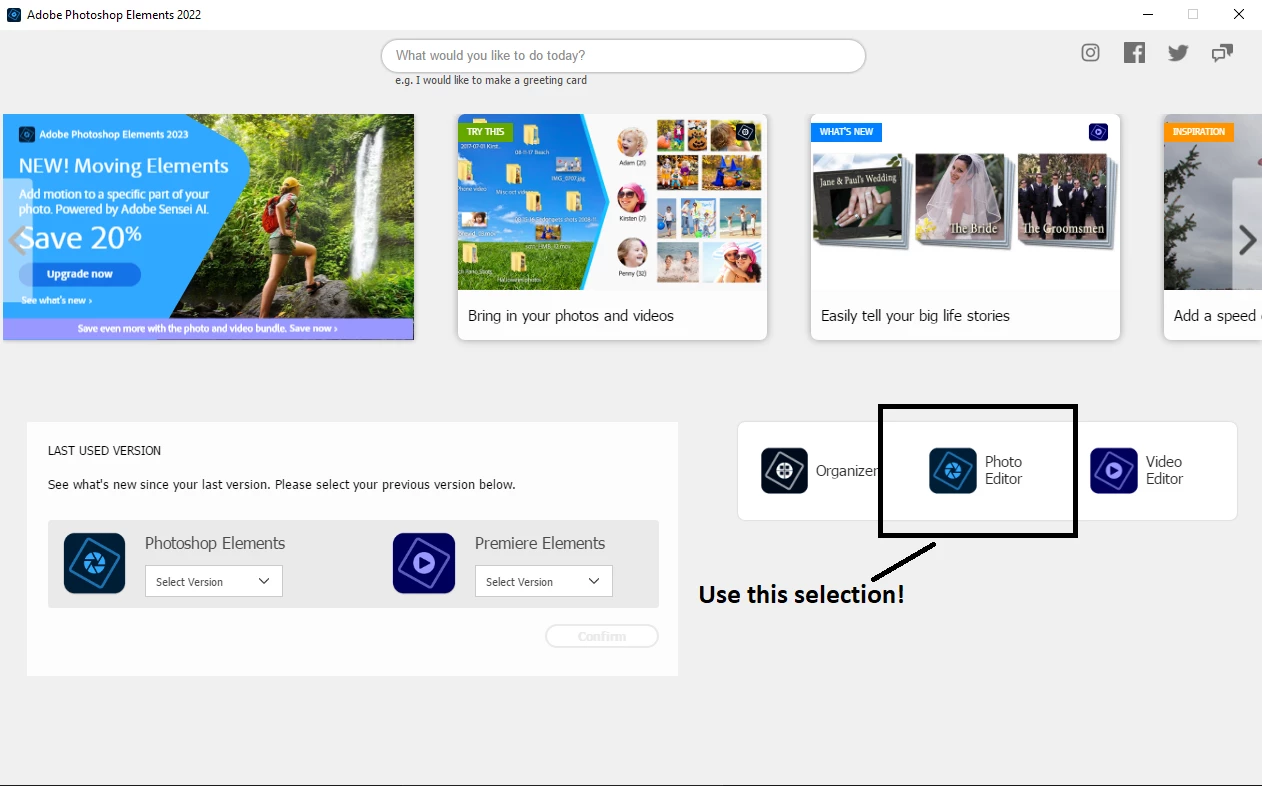
- You will then get this set of windows:
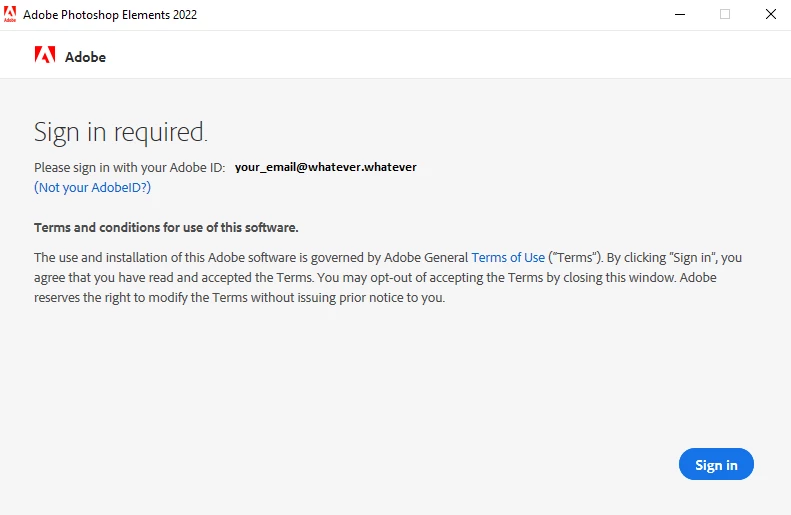
- Select Sign in and this will come up:
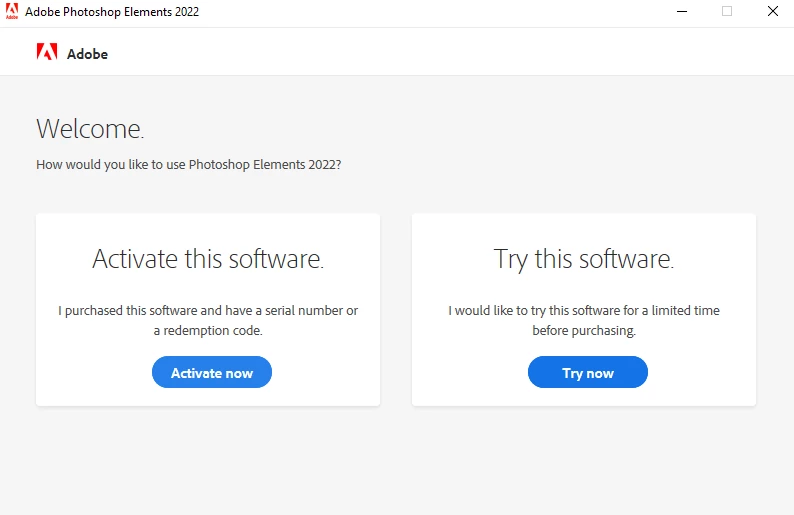
- Select activation now and make sure you have your product key available (I know this is a long process and annoying but its the best option when nothing else works):
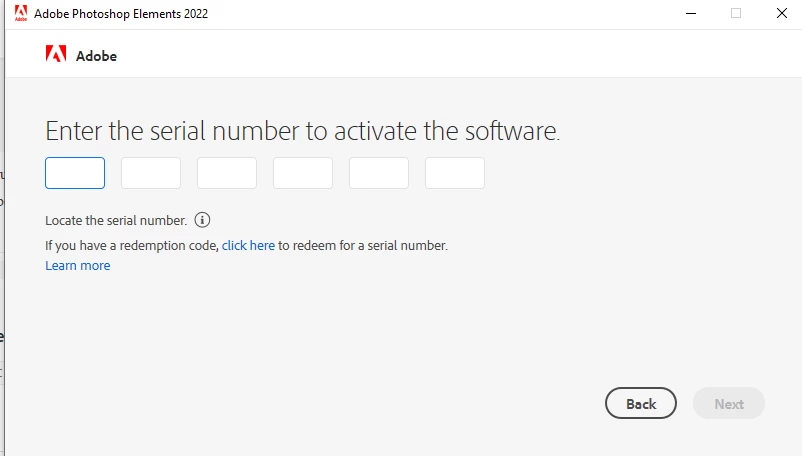
- If you entered the license/product key correctly, you should get to this window.
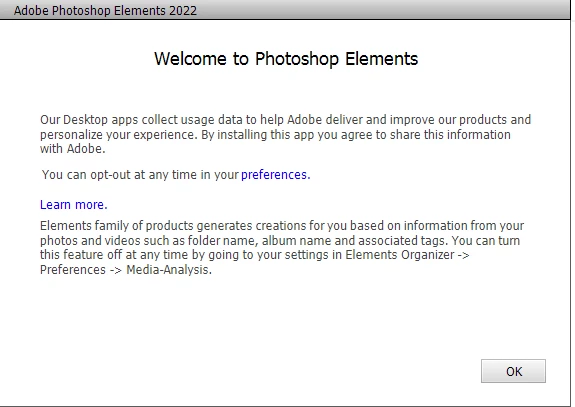
- click on OK and it should open the window to start using the product, which should appear like this:
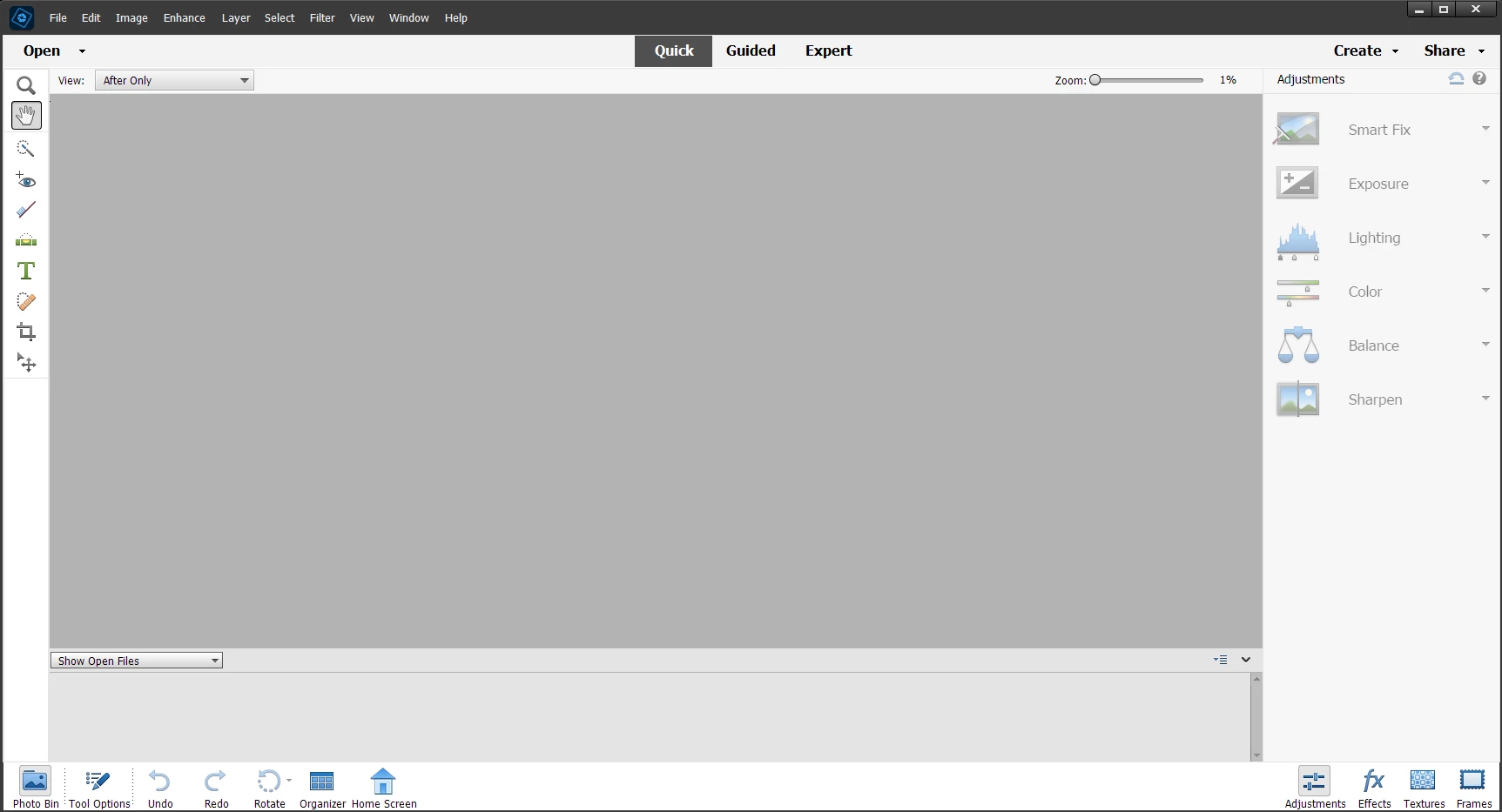
You are now done and have successfully installed your software.
You're Welcome
(I am just common end user who isn't affiliated with Adobe or its partners, or whatever).
 AdChoices