arielleb81365759
Participating Frequently
May 30, 2017
Answered

AJX Menu Bar will not operate correctly in my website

  • May 30, 2017
  • 1 reply
  • 810 views

Please bare with me as I am very new to dreamweaver. I created an entire website from scratch, very proud of myself, but now I've uploaded it onto my server and the ajx menu I found and inserted into the template files for my site does not look the way it does when I view it on dreamweaver. I think it is where I have it housed in my folder on the computer but I can't find anything online telling me where it needs to be saved to operate correctly in my files. Can anyone help me that knows how to do this correctly or knows HTML to see what I have set up incorrectly? Any help is greatly appreciated at this point in time. I am starting to get really frustrated. Thanks,

Arielle
This topic has been closed for replies.
Correct answer Nancy OShea

It is still there on the landing page of the website, I haven't removed it from there yet.


This is one heck of a mess. 

Notice this link location:

http://lovelandmediacenter.com/Templates/lovelandmediacenter/public_html/websitepages/adjuvantlogopage.html

Too many sub, sub-folders.  If your site was properly defined, the link path would look like this:

adjuvantlogopage.html

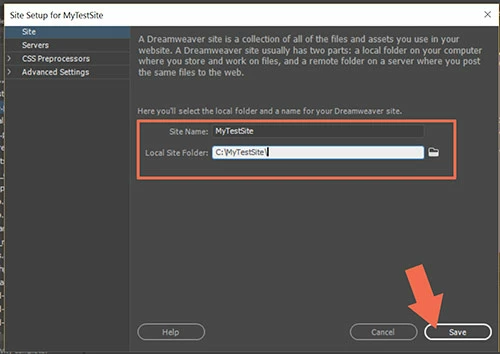
Let's start with your site definition.  Where do you keep your local site folder?  It should be something very simple like C:\\MyTestSite  or C:\\lovelandmediacenter    See screenshot from Site > Manage Sites.

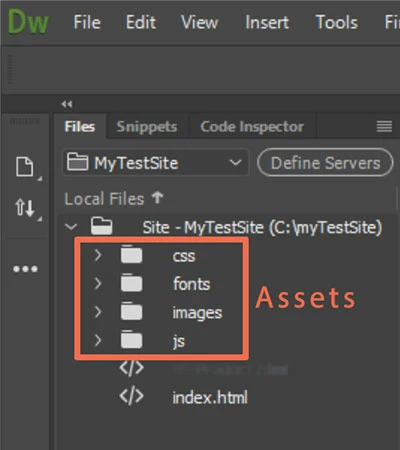
Once your local site is defined, you can open your Files Panel to see the file hierarchy.  Ideally it should be very simple like this screenshot where index.html is the site's home page.  Assets are in their respective folders -- css, js, images, etc....

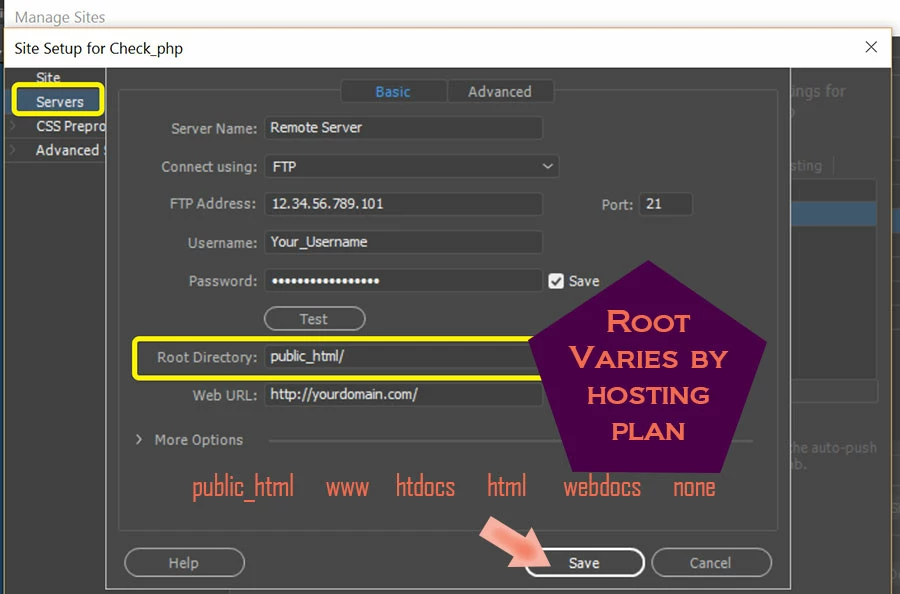
Now if you click on Define Servers, you can make sure your remote server is properly defined.   In your case, the server's Root Directory appears to be public_html.

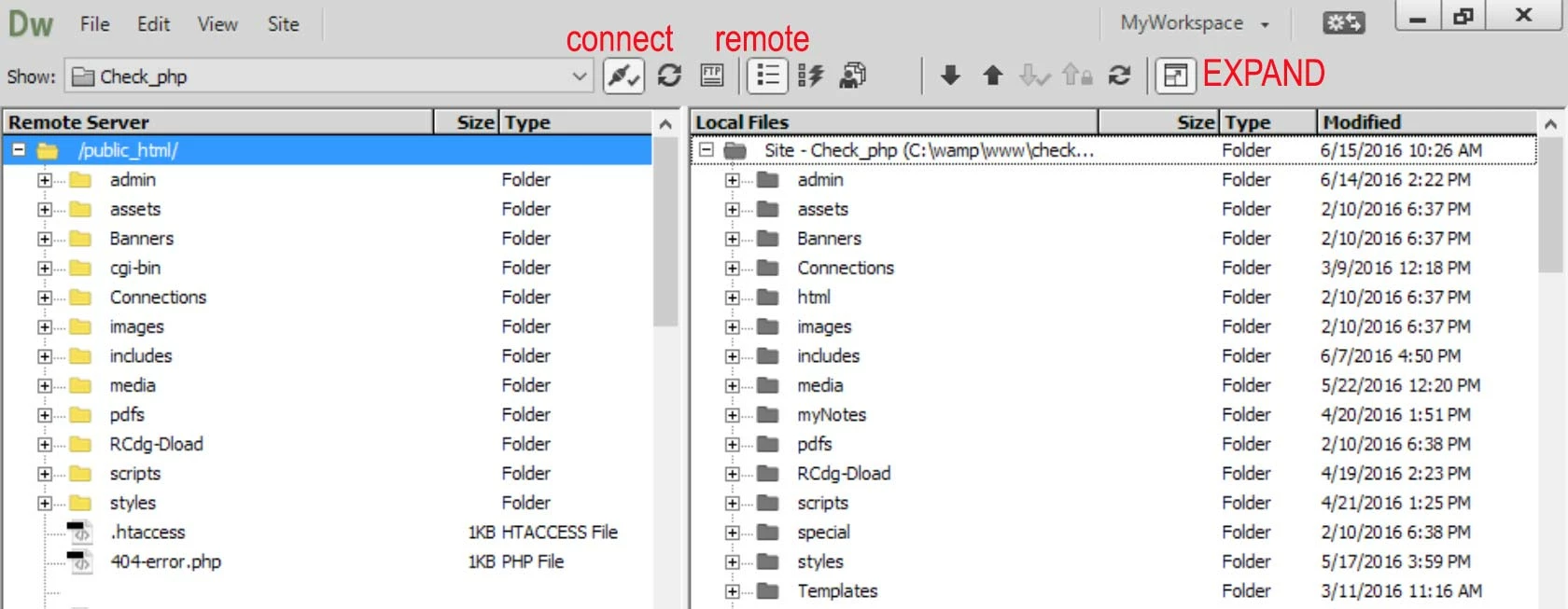
Once your site is defined, you can Expand your Files Panel and compare the Remote server with Local Files.  NOTE:  these should be nearly identical.

Nancy

1 reply

Captiv8r
Legend
May 30, 2017

Moved here from Adobe Robohelp forum.

arielleb81365759
Participating Frequently
May 30, 2017

Can you answer my question?

Nancy OShea
Community Expert
Community Expert
June 2, 2017

I fixed the url and the web folder now shows up. It has the old websites files and information in it currently. How can I replace those with my files that are currently in public_html, that is what my hosting site is telling me I need to do, move all  my files into web on the server. But the old files will not delete. Thanks for  all your help Nancy, and everyone else who has commented  on this feed.


That's a permissions problem on public_html folder.   You need to contact your host about that  

Can you overwrite existing files on the server?  In other words, create a test page called TEST.html with today's date on it. Upload to server.   Then change the date on your TEST page, save and upload a 2nd time.  Expand your Files Panel and check the last modified date and time stamp.  Are they identical?

Nancy O'Shea— Product User & Community Expert