


- Home
- Dreamweaver
- Discussions
- Re: an error message saying that the testing serve...
- Re: an error message saying that the testing serve...
an error message saying that the testing server doesn't map to the URL for _mmServerScripts/MMHTTPDB

Copy link to clipboard
Copied
I see this has been discussed on a few threads, but I'm still stuck.
I'm walking through the tutorial: Building your first Dynamic Website. I'm on part 2, where I'm trying to connect to the test DB.
My local site folder is: C:\xampp\htdocs\check_php\
MySQL is running as well as the Apache server. DB created correctly, with the two tables also from the zip file provided for the tutorial.
Under site setup|advanced Settings my Web URL is: http://localhost/
(I can use the http://localhost/phpmyadmin site through my browser to check the DB files, query, etc. So this looks good.)
The C:\xampp\htdocs\check_php\_mmServerScripts folder is present with the MMHTTPDB.php file present also.
One thing I notice is that the _mmServerScripts folder does not show up in my Local Files folder - even after refreshing. (The underscore must hide this folder?)
When I change the drop-down from Local View to Testing Server I don't see the _mmServerScripts folder, and all folders are red.
I'm on this page: http://www.adobe.com/devnet/dreamweaver/articles/first_dynamic_site_pt2.html under the section "Create a MySQL Connection".
I've changed URL and reentered the connection info multiple times to try to get this to work.
Thanks in advance, sorry for the Newbie question!


 2
Replies
2
2
Replies
2




Copy link to clipboard
Copied
You don't say which release you're running, but make sure that the "URL Prefix" (CS4 and earlier) or "Web URL" (CS5) field is correct in the Server settings of your Site definition.
Randy

Copy link to clipboard
Copied
HouFunGuy wrote:
One thing I notice is that the _mmServerScripts folder does not show up in my Local Files folder - even after refreshing. (The underscore must hide this folder?)When I change the drop-down from Local View to Testing Server I don't see the _mmServerScripts folder, and all folders are red.
The underscore at the beginning of the folder name hides it in the Files panel, although you can turn on the option to display hidden files by accessing the panel options menu.
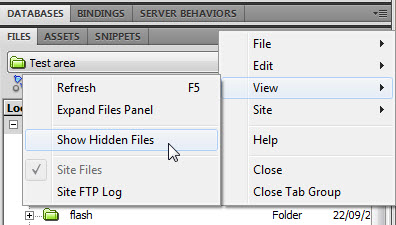
The folder icons in the Files panel are colour coded: green is for local files, red represents the testing server (or Subversion repository, if defined), and yellow (Windows) or blue (Mac) represents your remote server.
As Randy says, check the Web URL in your testing server definition. It should be http://localhost/check_php/.

Get ready! An upgraded Adobe Community experience is coming in January.
Learn more
 AdChoices