Copy link to clipboard
Copied
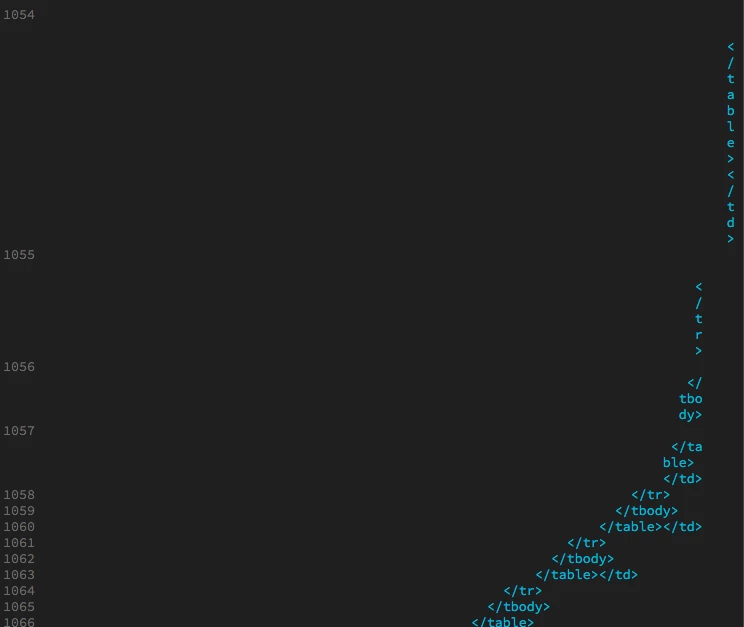
Colleagues code displays fine but when I open same file some characters are displayed one per line to far right of display window.
I am using split screen. Have tried "apply source formatting" and "word wrap". Preferences are the same between 2 computers. Thanks

Because you're using DW's Word Wrap, and the code appears to be excessively indented, along with a vertically oriented Code View window, this is what you will see. With all that indentation and a vertical Code View window, DW just doesn't have enough room to display the code correctly.
With Word Wrap turned off, you'll need to use the horizontal scroll bar to see a more "normal" code structure.
In the Common toolbar (the vertical one), add the Word Wrap option by clicking the 3 dot icon at the bot
...Copy link to clipboard
Copied
Do you & your colleague both use the same computer platform and same display set-up?
Nancy
Copy link to clipboard
Copied
We are both on MACS and are using the same Dreamweaver preferences. I am not quite sure what you mean by display set-up. I do work the code side by side with the design or live view. I don't like to let the code run so far to the right and not wrap since I need to use the design/live view of the program. We both use the same version of the operating system. Thank you
Copy link to clipboard
Copied
By display I meant same resolution & DPI?
Or are you using more than one display?
Copy link to clipboard
Copied
Display, res and DPI are the same. Only using the one display.
Copy link to clipboard
Copied
Because you're using DW's Word Wrap, and the code appears to be excessively indented, along with a vertically oriented Code View window, this is what you will see. With all that indentation and a vertical Code View window, DW just doesn't have enough room to display the code correctly.
With Word Wrap turned off, you'll need to use the horizontal scroll bar to see a more "normal" code structure.
In the Common toolbar (the vertical one), add the Word Wrap option by clicking the 3 dot icon at the bottom of the bar. In the dialogue that comes up, click Word Wrap. That will add the icon to the toolbar, but won't activate/deactivate it, so you'll need to click the newly added icon to disable it.
The only other option would be to clear out some of the indentation or switch to an over/under Split.

Copy link to clipboard
Copied
OK. Go to View > Code View Options. Turn off auto indent.

Then try Apply Source Formatting again. If you haven't already, define your code formatting in Preferences.

Nancy
Copy link to clipboard
Copied
Thanks Nancy and Fritz. I tried turning off auto indent and applying source formatting. Still having trouble but it is a bit better - less single line for each character instances. Some code is formatted fairly neatly but a lot appears as below. Colleagues display shows same code mostly left flush. Fritz you may be right that I just have to manually delete a bunch of indents.

Get ready! An upgraded Adobe Community experience is coming in January.
Learn more