

Galeodan
Known Participant
April 28, 2021
Answered

Reducing width < 100% shrinks text viewed on

  • April 28, 2021
  • 2 replies
  • 2598 views

When you reduce width <100%, the text shrinks when viewed on mobile only. 


On Regular Display:
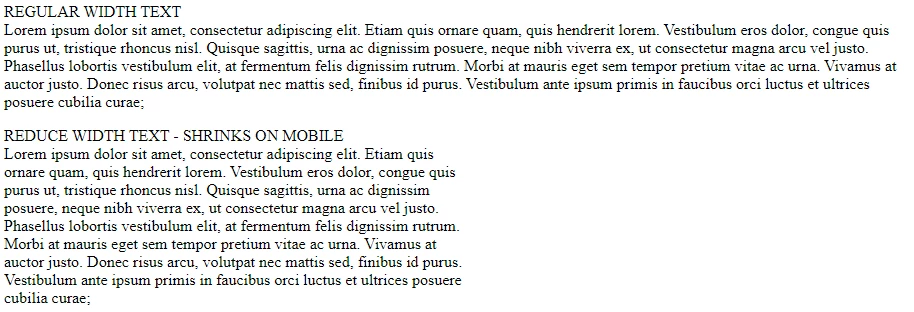
On Mobile Display
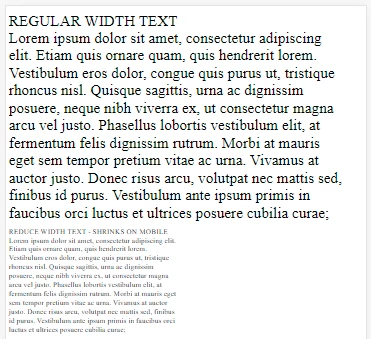
I want the reduced-width text to be the same size - How do I do this? 

Simple example follows:

_________________________________________

 
<!doctype html>
<html lang="en">

<head>
    <meta charset="utf-8">
    <meta name="viewport" content="width=device-width, initial-scale=1.0">
    <title>Test Reduced Width</title>
    <style>
        .reducedwidth {
            width: 50%;
        }
    </style>
</head>

<body>
    <p>REGULAR WIDTH <BR>
        Lorem ipsum dolor sit amet, consectetur adipiscing elit. Etiam quis ornare quam, quis hendrerit lorem.
        Vestibulum eros dolor, congue quis purus ut, tristique rhoncus nisl. Quisque sagittis, urna ac dignissim
        posuere, neque nibh viverra ex, ut consectetur magna arcu vel justo. Phasellus lobortis vestibulum elit,
        at fermentum felis dignissim rutrum. Morbi at mauris eget sem tempor pretium vitae ac urna. Vivamus at
        auctor justo. Donec risus arcu, volutpat nec mattis sed, finibus id purus. Vestibulum ante ipsum primis
        in faucibus orci luctus et ultrices posuere cubilia curae; </p>

    <p class="reducedwidth">REDUCE WIDTH TEXT - SHRINKS ON MOBILE<BR>
        Lorem ipsum dolor sit amet, consectetur adipiscing elit. Etiam quis ornare quam, quis
        hendrerit lorem.
        Vestibulum eros dolor, congue quis purus ut, tristique rhoncus nisl. Quisque sagittis, urna ac dignissim
        posuere, neque nibh viverra ex, ut consectetur magna arcu vel justo. Phasellus lobortis vestibulum elit,
        at fermentum felis dignissim rutrum. Morbi at mauris eget sem tempor pretium vitae ac urna. Vivamus at
        auctor justo. Donec risus arcu, volutpat nec mattis sed, finibus id purus. Vestibulum ante ipsum primis
        in faucibus orci luctus et ultrices posuere cubilia curae; </p>
</body>

</html>


    This topic has been closed for replies.
    Correct answer osgood_

    Also right now (it may have been different the other day), in Windows, viewing the local file:

    Chrome shows shrunken text in Device-mode, while FireFox does not - It shows full size. Chrome also does not show the page changing at the break-point correctly, while Firefox does. Gotta be a Chrome issue then. I'll be OK if I just stick to Firefox on desktop and mobile. As long as it is just me. 


    If you have established the problem is with the chrome browser then its most probably a default setting somewhere in the browser setting. I'm guessing an accessibility setting, that was the only information I could find when searching Google for simliar issues.

    2 replies

    Legend
    April 28, 2021

    Curious - what device/OS/browser are you viewing the page in? Seems to work ok here on Android tablet, both blocks of text look the same size.

    Galeodan
    GaleodanAuthor
    Known Participant
    April 28, 2021

    The first clue came in Chrome \ F12 (dev mode) - The text was smaller. Firefox showed the same. That behaviour was confirmed by viewing the uploaded page on a couple of old Asus Zen phones (3 & 5) and a Samsung tablet. All showed shrunken text. I have been trying Ben's solution and it seems to work, although I have experienced some very strange behaviour in the process (see my response to Ben).


    In my response to Ben, I reported: "This morning, I started again with a completely new file, typed in the <viewport> line and it works!". To test this further, I reinserted a <viewport> line with no shrink-to-fit setting specified and commented out the Ben version, so the text should be shrunken, like yesterday. But now the text appears full-size, even though there is no shrink-to-fit parameter set.  Presumably the same way you are seeing it. It's like the default behaviour was different on your system than it was on mine, but now mine has changed and we are seeing the same. Chrome and Firefox show the same, even after cache-clearing. Here is the latest code. I have commented out the line with shrink-to-fit specified and I still see full-size text on mobile (I have tried deleting the line completely - no diff). It all makes zero sense to me. 


    <!doctype html>
    <html lang="en">
    
    <head>
        <meta charset="utf-8">
        <meta name="viewport" content="width=device-width, initial-scale=1.0">
        <!-- <meta name="viewport" content="width=device-width, initial-scale=1.0, shrink-to-fit=no"> -->
        <title>Test Reduced Width</title>
        <style>
            .reducedwidth {
                width: 50%;
            }
        </style>
    </head>
    
    <body>
        <p>REGULAR WIDTH <br>
            Lorem ipsum dolor sit amet, consectetur adipiscing elit. Etiam quis ornare quam, quis hendrerit lorem.
            Vestibulum eros dolor, congue quis purus ut, tristique rhoncus nisl. Quisque sagittis, urna ac dignissim
            posuere, neque nibh viverra ex, ut consectetur magna arcu vel justo. Phasellus lobortis vestibulum elit,
            at fermentum felis dignissim rutrum. Morbi at mauris eget sem tempor pretium vitae ac urna. Vivamus at
            auctor justo. Donec risus arcu, volutpat nec mattis sed, finibus id purus. Vestibulum ante ipsum primis
            in faucibus orci luctus et ultrices posuere cubilia curae; </p>
    
        <p class="reducedwidth">REDUCE WIDTH TEXT - SHRINKS ON MOBILE<br>
            Lorem ipsum dolor sit amet, consectetur adipiscing elit. Etiam quis ornare quam, quis
            hendrerit lorem.
            Vestibulum eros dolor, congue quis purus ut, tristique rhoncus nisl. Quisque sagittis, urna ac dignissim
            posuere, neque nibh viverra ex, ut consectetur magna arcu vel justo. Phasellus lobortis vestibulum elit,
            at fermentum felis dignissim rutrum. Morbi at mauris eget sem tempor pretium vitae ac urna. Vivamus at
            auctor justo. Donec risus arcu, volutpat nec mattis sed, finibus id purus. Vestibulum ante ipsum primis
            in faucibus orci luctus et ultrices posuere cubilia curae; </p>
    </body>
    
    </html>


    Galeodan
    GaleodanAuthor
    Known Participant
    April 30, 2021

    I cant really work out what is wrong with your code. Although it contains errors and it is too overly-complex I can still copy it exactly and upload it to a server and it shows the text the same size on desktop and mobile, but on your server it shows the text at varying sizes. ie your side-by-side column text is much smaller than the text in the single column text.


    So I'm now thinking you maybe have a goofy server or I have one that is very forgiving.


    As a test to decide, can you copy the code below, dont alter anything and paste it into a new file named - test_text.html and upload it to your server and check it out on mobile - all the text should be the same size. If its not then your server is at fault, if it is then your code is somehow corrupt and your server doesnt like it.


    <!DOCTYPE html>
    <html lang="en">
    <head>
    <meta charset="UTF-8"> 
    <title>Same-Sized Text</title>
    <meta name="viewport" content="width=device-width, initial-scale=1"> 
    <style>
    body {
    font-family: Georgia, 'Times New Roman', Times, serif;
    font-size: 16px;
    line-height: 26px;
    padding: 50px;
    }
    @media screen and (max-width: 768px) {
    body {
    padding: 25px;
    }
    }
    .full-width-text {
    border-bottom: 2px solid #000;
    margin: 0 0 40px 0;
    }
    .full-width-text h3 {
    margin: 0 0 40px 0;
    padding: 0;
    font-size: 35px;
    line-height: 45px;
    }
    .full-width-text img {
    max-width: 100%;
    height: auto;
    }
    /* IMAGE BLOCKS */
    .image-blocks h3 {
    margin: 0 0 40px 0;
    padding: 0;
    font-size: 35px;
    line-height: 45px;
    }
    .image-blocks-wrapper {
    display: flex;
    flex-wrap: wrap;
    justify-content: space-between;
    }
    .image-block {
    width: 48%;
    }
    @media screen and (max-width: 768px) {
    .image-block {
    width: 100%;
    margin: 0 0 25px 0;
    }
    }
    .image-block h5 {
    margin: 0 0 10px 0;
    padding: 0;
    font-size: 25px;
    }
    .image-block figure {
    margin: 0;
    padding: 0;
    }
    .image-block figcaption {
    font-weight: bold;
    }
    
    .image-block img {
    max-width: 100%;
    height: auto;
    }
    /* PULL-OUT */
    .pull-out {
    border-top: 2px solid #000;
    border-bottom: 2px solid #000;
    }
    </style>
    </head>
    <body>
    <section class="full-width-text">
    <h3>Text in Full Width Image</h3>
    <img src="https://www.dummyimage.com/1600x350/" alt="Sunset">
    <p>Pellentesque ultrices, metus a gravida tempor, odio urna pharetra ex, at tincidunt nisi justo vel ligula. Duis
    at enim facilisis nisl molestie vehicula. Vestibulum facilisis est a ligula lacinia pellentesque. Curabitur a
    nunc consequat, aliquam lacus eget, egestas justo. </p>
    <p>Praesent gravida massa molestie metus suscipit elementum. Etiam mi nisl, volutpat at purus ac, fringilla
    scelerisque elit. In vitae neque imperdiet odio laoreet posuere non eu lectus.</p>
    </section>
    
    <section class="image-blocks">
    <h3> Image Blocks with Caption Below</h3>
    <div class="image-blocks-wrapper">
    
    <div class="image-block">
    <h5>Activity 1</h5>
    <figure>
    <img src="https://www.dummyimage.com/1600x300/" alt="Sunset">
    <figcaption>Activity 1 Caption</figcaption>
    </figure>
    <p>Pellentesque ultrices, metus a gravida tempor, odio urna pharetra ex, at tincidunt nisi justo vel ligula.
    Duis at enim facilisis nisl molestie vehicula. Vestibulum facilisis est a ligula lacinia pellentesque.
    Curabitur </p>	
    </div>
    <!-- end image-block -->
    
    <div class="image-block">
    <h5>Activity 2</h5>
    <figure>
    <img src="https://www.dummyimage.com/1600x300/" alt="Sunset">
    <figcaption>Activity 2 Caption</figcaption>
    </figure>
    <p>Pellentesque ultrices, metus a gravida tempor, odio urna pharetra ex, at tincidunt nisi justo vel ligula.
    Duis at enim facilisis nisl molestie vehicula. Vestibulum facilisis est a ligula lacinia pellentesque.
    Curabitur </p>	
    </div>
    <!-- end image-block -->
    </div>
    <!-- end image-blocks-wrapper -->
    </section>
    
    
    <section class="pull-out">
    <p>Pellentesque ultrices, metus a gravida tempor, odio urna pharetra ex, at tincidunt nisi justo vel ligula.
    Duis at enim facilisis nisl molestie vehicula. Vestibulum facilisis est a ligula lacinia pellentesque.</p>
    </section>
    
    </body>
    </html> 


    I have uploaded it and everything looks great - Desktop & mobile. The tablet in landscape even shows the blocks side-by-side. So something wrong with my files, not just file, because I have tried it with several. I even copied one to Notebook and back, hoping to strip out any hidden characters or nasties - Didn't help. Maybe if I work on your file a bit, I can corrupt it too. It may explain why it's been so hard to track down. A file that seemd OK one day, misbehaved the next. Harking back to my reply to Ben:

    "First I edited my 'viewport> line so it matched yours. But it made no difference - It still shrank. Then I cut and pasted the line from your message and it worked OK. The two lines, next to each other, appeared to be identical, but yours worked and mine did not..."

    I do notice that when I run W3C validation on the file which is now index.html on the server, I get a whole bunch of error reports associated with the <viewport> element, none of which seem to make sense. Here is the code:

    Here are the errors:

    So what I have done now:

    > Deleted the <viewport> line from my file

    > Copy\pasted the line from your file.

    > Rerun validation - No errors

    > Reposted to server (actually a slightly updated version with a few more blocks (I am using this as a "learning" file).

    > Checked on Mobile - Looks OK!

    Please check the index.html file at www.gosolargalapagos and let me know what you find. 


    BenPleysier
    Community Expert
    Community Expert
    April 28, 2021

    Try changing the meta tag to

    <meta name="viewport" content="width=device-width, initial-scale=1, shrink-to-fit=no">
    Wappler is the DMXzone-made Dreamweaver replacement and includes the best of their powerful extensions, as well as much more!
    Galeodan
    GaleodanAuthor
    Known Participant
    April 28, 2021

    Thanks Ben - Looks like that works fine. But I did have some trouble along the way.... 


    First I edited my 'viewport> line so it matched yours. But it made no difference - It still shrank. Then I cut and pasted the line from your message and it worked OK. The two lines, next to each other, appeared to be identical, but yours worked and mine did not (I would comment out one of the lines so only one was active>. I cleared cache and tried other browsers but it didn't help. This morning, I started again with a completely new file, typed in the <viewport> line and it works! Sometimes HTML seems to have a mind (maybe a hex) of its own. It can be very frustrating. Does this sort of thing happen often?

    Now to Osgood's observation... It just seems to get weirder