
Inspiring
November 29, 2022
Answered

WebP formatted images don't appear in DW

  • November 29, 2022
  • 1 reply
  • 2536 views

Hello:

I attempted to convert my JPEG thumbnails to WEBP thumbnails using Photoshop (on a Mac). It worked well. The image size was smaller for WebP files as expected. See the first screenshot that compares sizes. 
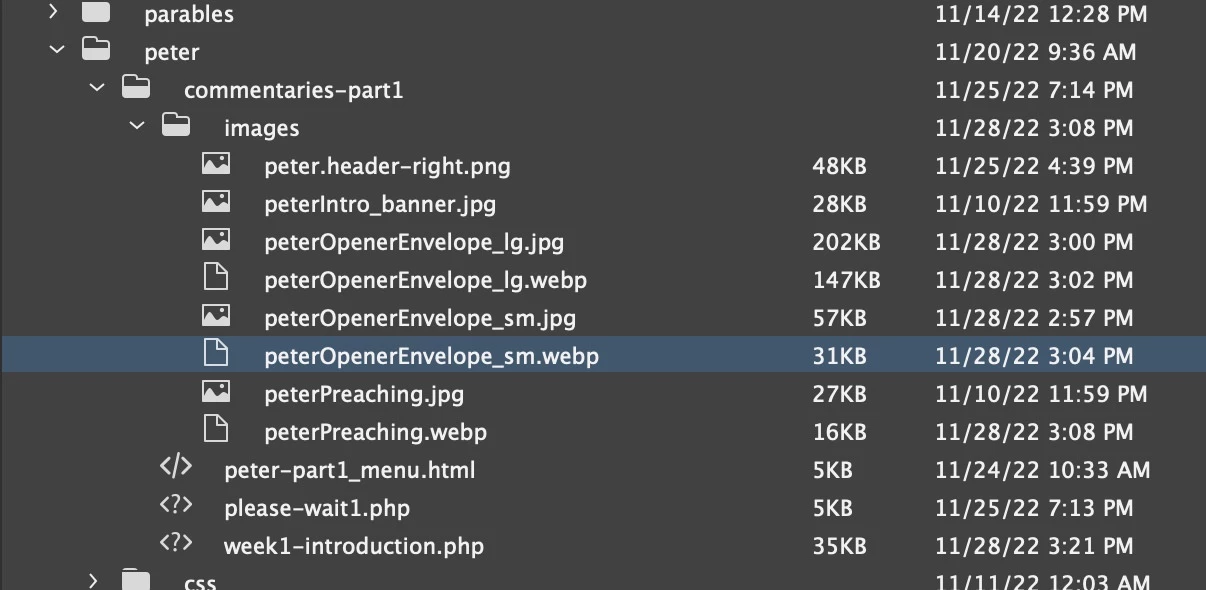
 

Uploading the page with the new WebP files was successful.


My concern is this: When I view the WebP files in the Split and Design views of Dreamweaver, I see only a placeholder, not the actual WebP image file.


Because this prevents me from seeing how my new WebP images look on a page, I need to learn how to make them visible. The following two screenshots compare how the JPEG and WebP file look (or don't look).
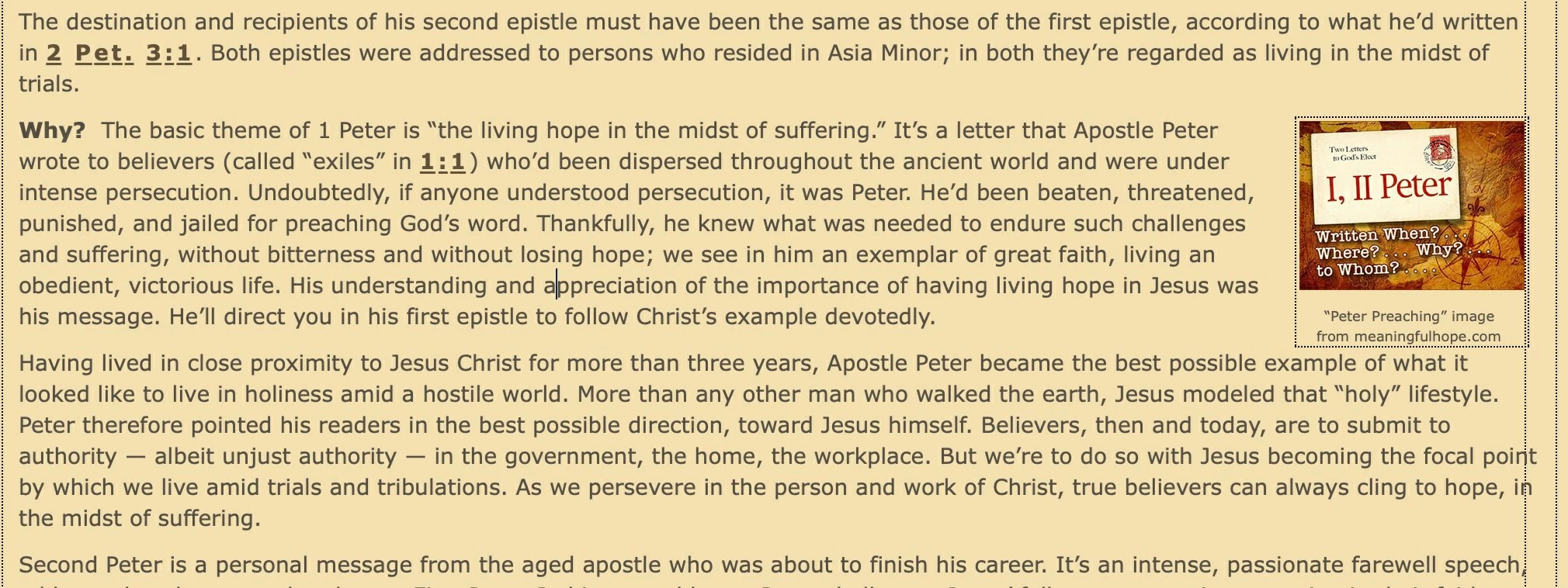
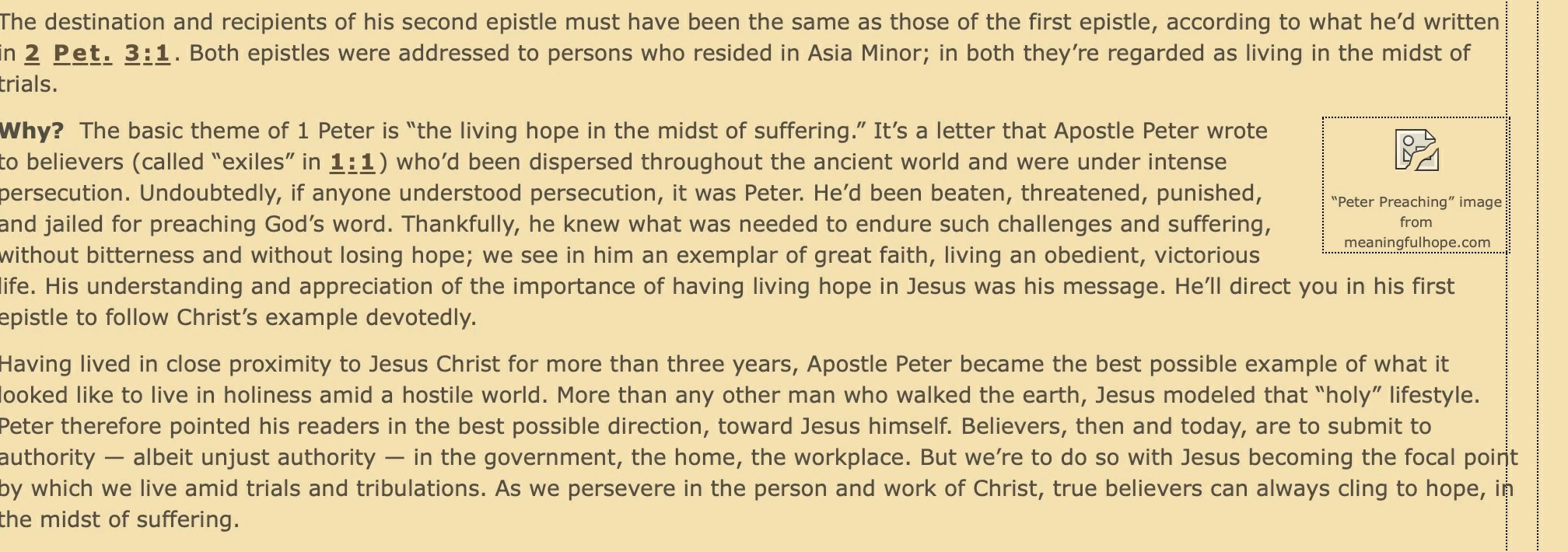


How can I get the WebP files to appear in Dreamweaver windows?

    Correct answer Jon Fritz

    You're not missing a setting or anything, DW is just showing its age... again.

    Unfortunately, Adobe is no longer adding new features or fixing bugs in the program. They're only planning to do OS compatibility updates, third party bolt-on library updates, and security patches going forward.

    I believe one of those third party bolt-ons is the browser emulator though. They do show in the latest version, in Live View.

    You can quickly change between Design and Live by hitting Ctrl + Shift + F11.

    1 reply

    Jon Fritz
    Community Expert
    Jon FritzCommunity ExpertCorrect answer
    Community Expert
    November 29, 2022

    You're not missing a setting or anything, DW is just showing its age... again.

    Unfortunately, Adobe is no longer adding new features or fixing bugs in the program. They're only planning to do OS compatibility updates, third party bolt-on library updates, and security patches going forward.

    I believe one of those third party bolt-ons is the browser emulator though. They do show in the latest version, in Live View.

    You can quickly change between Design and Live by hitting Ctrl + Shift + F11.

    wcampAuthor
    Inspiring
    November 29, 2022

    Thanks (again), Jon!


    It's disappointing to learn from you what Adobe prioritizes in its application updates. I hope that Adobe decision-makers will read this forum thread and realize how important it is to not only extinguish the fires that it ignites on each upgraded version but to accommodate subscribers' needs, preferences, and efficient workflow.


    Until that happens, I'll follow your advisory to switch from the "Split" view to the "Live," view to check on the appearance of WebP images.

    wcampAuthor
    Inspiring
    November 29, 2022

    Dear Jon:


    I've got a follow-up concern. . .

    On the page that I'd opened, I activated the "Live" view and the WebP files appeared as you suggested.

    But when I then opened other pages (which don't yet have any WebP files in them) in the "Live" view, I get a totally white screen! Page after page shows only a white window when the "Live" view is selected.


    Is there a prescribed order I need to follow either when opening a web page or switching from Split to Live?


    BTW 1:  I'm running DW v. 21.2 because v. 21.3 has a bug that prevents the uploading of files.  Must I wait until v. 21.4 comes out before I can get the "Live" view to present itself, instead of a white window?


    BTW 2:  On a Mac, when I use the keyboard shortcut you provided — Control + Shift + F11 — I wind up getting a slight reduction in the machine's audio level. I tried changing "Control" to "Command" but the same effect occurred.