
Participating Frequently
December 7, 2011
Question

Flash Player 11 will not install on Windows 7

  • December 7, 2011
  • 2 replies
  • 20278 views

I have tried EVERY option in trying to get version 11 installed - even system restore - all I get is this error (see image below) I use Dell Inspiron 1501, AMD Turion 64 x2 Mobile Technology, 2GB RAM, Windows 7 Pro, SP1. IE9 and Google Chrome is installed. I use IE9 for Windows and development purposes.
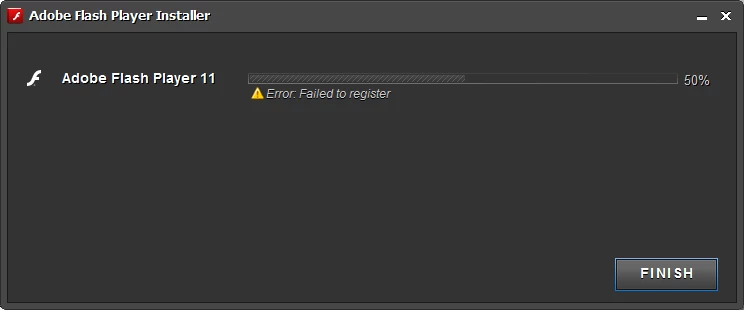
Has anyone actually been able to resolve this?

Thank you.

This topic has been closed for replies.

2 replies

December 8, 2011
pwillener
Legend
December 8, 2011
m_55Author
Participating Frequently
December 9, 2011

I tried that (http://kb2.adobe.com/cps/494/cpsid_49419.html) already and for kicks, tried it again. No luck. Though in the DOS window, it does say that it can't reach certain priviledges. I know what that statement means, just not sure why it happens - even as an admin and UAC turned off.

I also tried http://support.microsoft.com/mats/Program_Install_and_Uninstall and it doesn't even show Adobe Flash Player (of any version) but besides that, it didn't find anything to fix.

So, in my opinion, Adobe has really screwed up and should not only fix this but compensate us for our trouble.

In the mean time, Google Chrome works and maybe M$ should follow their lead and include flash with their browser.

So... any other ideas other than what's been tried?

December 10, 2011

m@penman wrote:

I tried that (http://kb2.adobe.com/cps/494/cpsid_49419.html) already and for kicks, tried it again. No luck. Though in the DOS window, it does say that it can't reach certain priviledges. I know what that statement means, just not sure why it happens - even as an admin and UAC turned off.

Please do the following. Make sure you disable your antivirus and all "Web shields", "File Shields" etc., before proceeding with the installation.

  1. Download the uninstaller from here: http://download.macromedia.com/pub/flashplayer/current/uninstall_flash_player_64bit.exe
  2. When you see the IE9 prompt, choose "Save". Do not choose "Run".
  3. Close IE9, find the uninstaller you just downloaded and then right click it and choose "Run As Administrator".
  4. After the uninstaller terminates, reboot.
  5. Once the system reboots to the desktop, disable your antivirus app again.
  6. Download the installer from here: http://download.macromedia.com/pub/flashplayer/current/install_flash_player_ax_64bit.exe Once again, choose to Save, not Run.
  7. Close IE9.
  8. Find the installer you just downloaded and then right click it and choose "Run As Administrator" once more.