


- Home
- Flash Player (read-only)
- Discussions
- Re: Why do all of the original swf's play, but onl...
- Re: Why do all of the original swf's play, but onl...
Why do all of the original swf's play, but only 1 plays when copied?

Copy link to clipboard
Copied
Hi all,
I joined this forum after searching it, and Google, for this answer. I am running Windows XP SP3. The Adobe Flash Player home page ran a test and says that I'm running version 11.1.102.55, although whenever I open a swf file in Adobe, the Flash Player window that opens says that it's Flash Player 10. The problem is that I have 6 swf files on my slave drive. All 6 play fine from that original location. I've noticed that when I copy them and try to play them on either another computer, the same computer's master drive, or even the same computer's slave drive in a different folder, 5 of the 6 won't play. The 1 that does play is always the same one. I also noticed a difference in the 1 that plays everywhere. It doesn't start automatically like the rest of them do. It has an arrow to click to play it. When the 5 swf files that will only play from the original folder are played, they start to play automatically when clicking on them. The Flash Player window opens without showing an arrow to click on. I hope that this information is helpful, and that someone knows what is happening. Thanks.


 18
Replies
18
18
Replies
18


Copy link to clipboard
Copied
Joe McDoakes wrote:
the Flash Player window that opens says that it's Flash Player 10.
You mean the standalone player? You can download the latest (Projector) from http://www.adobe.com/support/flashplayer/downloads.html
Copy link to clipboard
Copied
Thanks for the help. I appreciate you taking the time to respond
I followed the link to Adobe and downloaded the Adobe Flash Player 11.1 projector. The window that opens that used to say Flash Player 10 now says Flash Player 11. The results, however, have not changed at all. The 6 .swf files all play from the original folder, but only 1 of the copies plays.
Also, I installed Swiffplayer and tried playing the same 6 files, as originals and copies, with the same results.
This is a very strange situation. I don't think that a different player will be better than what I'm using, but I've tried a few more just in case, all with the same results. I also tried copying the originals a few times, in case something went wrong while copying the first time, but it hasn't made a difference. 5 of these 6 files will just not play correctly when copied.
Copy link to clipboard
Copied
Are the file sizes exactly the same after copying? Check the file properties for the exact number of bytes.
Also, are the permissions the same after copying? Maybe you need to remove the read-only attribute?
But why one file file would play, and the others not - that is a mystery to me too...

Copy link to clipboard
Copied
It sounds to me like one file copied correctly while the others didn't.
Try doing it this way. Using the right mouse button, drag and drop the files from one folder to another. When you let go of the right mouse button, you'll get a menu. Choose "Copy here".
You might find it easier to open two copies of Windows Explorer. So hit Windows logo key + E twice, then right click a blank part of the Task Bar and choose "Tile Windows Vertically". After copying, right click a blank part of the Task Bar again and choose "Undo Tile".
Copy link to clipboard
Copied
Thanks again to both of you for the input. Here are the results.
I checked the exact file sizes of the originals and the copies. Both the "size" and the "size on disk" are exactly the same in every case. I like your thinking though, because I hadn't thought of checking that. I checked the attributes also. I never thought of that either. They are all the same. The "read only" and "hidden" boxes are not checked. In the "advanced attributes" screen, the 4 boxes are all the same from original to copies, that is, 2 are checked and 2 are not checked. There is no difference.
I also tried the copying method suggested in the previous post on the 5 .swf files that won't copy and play. I've never copied that way, so I was hopeful to try something different. Unfortunately, none of them played. I tried opening them 2 different ways, by double-clicking, and by right-clicking and choosing "open with Flash Player".
This is a real stumper. Could there be any significance to what I said in my original post about the 1 copy that has no problem playing being the only one that shows an arrow when the player opens that needs to be clicked to play? These are all from the same source, but they behave differently in that respect. When playing the 5 that will only play from the original folder, they all start playing just by either double-clicking or right-clicking and opening.
Copy link to clipboard
Copied
The only thing I can think of is that the files have some kind of DRM copyright protection which is preventing them from being copied.
Copy link to clipboard
Copied
Thanks again for the input Xircal. I looked up DRM on WikiPedia. You might be right about that. It's still confusing since these all came from the same place. You would think that they would all be made the same way. There's not much that I can do with these, other than play them from the original folder. Thanks for everything.
Copy link to clipboard
Copied
Joe McDoakes wrote:
Thanks again for the input Xircal. I looked up DRM on WikiPedia. You might be right about that. It's still confusing since these all came from the same place. You would think that they would all be made the same way. There's not much that I can do with these, other than play them from the original folder. Thanks for everything.
You could maybe try this app to determine if there's a lock of some kind on the files that won't play after being copied: http://www.iobit.com/iobit-unlocker.html
Copy link to clipboard
Copied
Great idea Xircal!
I installed the IObit Unlocker. I loaded the copies and the originals, because I wasn't sure which ones, if any, would be locked. They all showed a "not locked" status. Even though that doesn't solve the problem about playing the copies on other computers, it's nice to be able to eliminate that as the cause of the problem. I tried a couple of programs to unlock the files after you gave me the idea, but they didn't show a "locked" or "not locked" status like IObit Unlocker did. If you hadn't told me about that program, I would have wasted more time by trying more programs. I appreciate the advice. It looks like an app that might come in handy in the future.
Copy link to clipboard
Copied
I'm wondering if this is a patch issue. I dug up an old Macromedia KB article which explains cross-domain policy for Flash files which you can read here: http://kb2.adobe.com/cps/142/tn_14213.html
So I'm wondering whether by copying the file to another folder or drive, the patch no longer matches the data in the original location and therefore the file won't play. It's just guesswork on my part and since you're not changing domains, it shouldn't really matter, but you never know.
Copy link to clipboard
Copied
Thanks again Xircal.
It took me a while to look the article over. I really appreciate the effort, but it's beyond my understanding. Remember, I didn't know what DRM was until I saw your post and looked it up. I think that I'll just have to give up on this one.
Copy link to clipboard
Copied
Joe McDoakes wrote:
Thanks again Xircal.
It took me a while to look the article over. I really appreciate the effort, but it's beyond my understanding. Remember, I didn't know what DRM was until I saw your post and looked it up. I think that I'll just have to give up on this one.
You could try doing the following to see if it produces the desired result.
- Hold down CTRL while you click each file until all six are highlighted.
- Right click the last highlighted file and choose "Sent To" and in the second menu which appears, choose "Compressed (zipped) folder" (the originals will remain intact in their current location).
- Move the zipped folder to the new location and then right click it and choose "Extract All". Windows will create a folder and extract to that.
- Open the folder and then try and play them all.
One other question. Is the slave drive where these files are located a hard drive or a USB stick? If it's the latter, did you format it before using it and if so, did you format it as NTFS, or FAT32 or exFAT?
Copy link to clipboard
Copied
Once again Xircal, many thanks!
The 6 .swf files are each in different folders, so I zipped 1 to experiment. I left-clicked and dragged it to my other drive, then un-zipped it and tried playing, but I got the same white screen as usual. I always try a second player besides Flash Player, but there was no difference with that one either. I also tried right-clicking and choosing "move to here" instead of dragging-and-dropping, but the results were the same.
To answer your question about the slave drive where these files are located, it is a hard drive, not a USB stick. Good thinking though.
Copy link to clipboard
Copied
Joe McDoakes wrote:
Once again Xircal, many thanks!
The 6 .swf files are each in different folders, so I zipped 1 to experiment. I left-clicked and dragged it to my other drive, then un-zipped it and tried playing, but I got the same white screen as usual. I always try a second player besides Flash Player, but there was no difference with that one either. I also tried right-clicking and choosing "move to here" instead of dragging-and-dropping, but the results were the same.
To answer your question about the slave drive where these files are located, it is a hard drive, not a USB stick. Good thinking though.
Which player are you using to open these files with? Can you try installing this one which doesn't require any codecs to be installed and will play virtually anything: http://www.videolan.org/
After you install it, right click one of the files and choose "Open With..." and then in the menu which appears, choose "VLC Player".
Copy link to clipboard
Copied
Thanks for the suggestion Xircal.
I tried many different players to play these .swf files, all with the same results. The one player that I kept, aside from Flash Player, is simply called "Free Opener". It opens 75+ file types. I installed "VLC Player" today from your suggestion. It looks familiar. I think that it's one of the many players that I tried and then uninstalled. When I tried to open a .swf file, "VLC Player" just closes. The window that opens that asks you to choose a file, does not show .swf files as an option, so I had to use the pull-down menu and choose "all files". Looking on the official site, the player does not claim to open .swf files.
Joe McDoakes
Copy link to clipboard
Copied
Joe McDoakes wrote:
Thanks for the suggestion Xircal.
I tried many different players to play these .swf files, all with the same results. The one player that I kept, aside from Flash Player, is simply called "Free Opener". It opens 75+ file types. I installed "VLC Player" today from your suggestion. It looks familiar. I think that it's one of the many players that I tried and then uninstalled. When I tried to open a .swf file, "VLC Player" just closes. The window that opens that asks you to choose a file, does not show .swf files as an option, so I had to use the pull-down menu and choose "all files". Looking on the official site, the player does not claim to open .swf files.
Joe McDoakes
Can you do the following please.
- Go to: http://www.headbands.com/gspot/v26x/index.htm and download Gspot 2.70a at the top of the list.
- Right click, then "Extract all" when the Wizard starts to extract the contents of the zip file.
- Run Gspot.exe to start. It's a standalone app which means you don't have to install it.
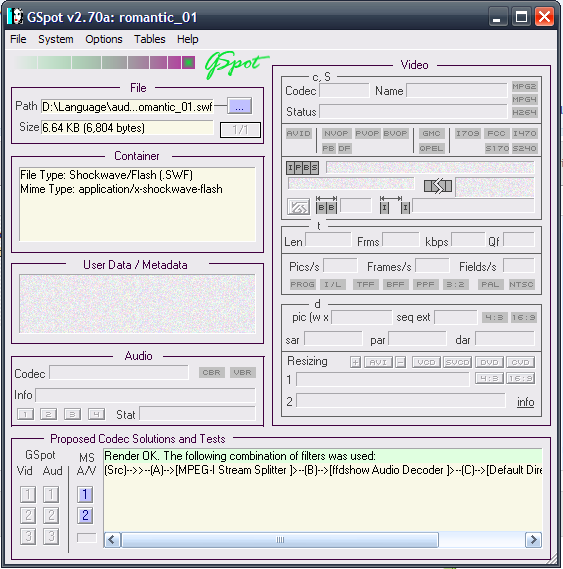
- In the first screenshot, you see the app as it looks when launched. Click the button shown by the arrow and then navigate to one of the files which won't play.
- In the second screenshot, click the #1 button indicated by the arrow to get an analysis.
- Another button will appear underneath that (#2) after the analysis appears which will open a preview screen. It should play about 5 seconds of audio/video. You should be able to see in the analysis window what the file format is and which program can play it by default. Hover the mouse over the results to get more info.


Copy link to clipboard
Copied
OK Xircal, here's what happened.
I opened a .swf file copy that won't play into GSpot. I got the message
"Rendering failed. Following is the error reported by DirectShow:0x80040265:[unknown]".
I did the same thing with all 6 of the .swf files that play from the original folder. I got the same message, with the same number. I don't know why the files that are working get this error message since they work.
I installed the Direct Show Filter Pack 4.01 some time in 2011, in case that tells you anything. I don't recall why I needed it. It also came with DirectShow Filter Manager 0.5, although I'm not sure how to use it. There doesn't seem to be a help file.
Copy link to clipboard
Copied
Try using this portable player version which runs from a USB stick: http://www.pendriveapps.com/swiff-player-swf-flash-player/

Get ready! An upgraded Adobe Community experience is coming in January.
Learn more
 AdChoices