


Underline Superscript

Copy link to clipboard
Copied
Is there a way to underline superscript and normal text while keeping the underline all at the same level?


 13
Replies
13
13
Replies
13



Copy link to clipboard
Copied
I don't think this is possible, because the underline is spaced at a fixed distance from the bottom of the character's bounding box, so if the character is superscripted the underline is also.
Sheila

Copy link to clipboard
Copied
If you are using Unicode-supporting FrameMaker 8 or 9 and a font with the necessary glyphs, you can use the designated superscript characters, they are treated like regular characters for underline purposes (see image, the font is Minion Pro).
Working with subscripts is never easy, because they would look strike-through with most underlines.
Another option, if the underline applies to a full, single-line paragraph would be to use a Frame Below which contains the under-line.
And the last option I currently think of, would be to not use underlining at all. 😉
- Michael

Copy link to clipboard
Copied
Good catch on the superscript numbers from the font, Michael, I'd forgotten about them.
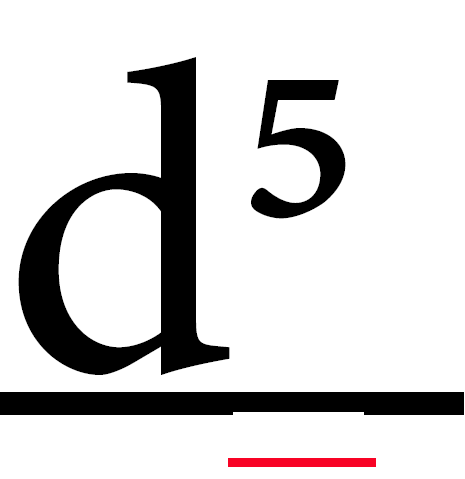
However, I see a slight variation in the positioning of the underline; it's only visible at higher magnifications (800-1200), do you see it too? I'll post a screenshot below (hopefully it's not too huge for displaying...) This is Minion Pro.

Copy link to clipboard
Copied
Have you set the superscript scaling to 100% ? If not, that might cause the slight downscaling of the underline. Just a thought...
Copy link to clipboard
Copied
Thank you so much for responding. I am a new Frame Maker user and really appreciate the help. Your advice sounds really good but how do I get to the designated superscript characters? Thanks a ton!!!
Copy link to clipboard
Copied
Some (but not all) fonts have superscripted characters in their extended character sets.
If you look at Character map with Minion Pro, enter 2070 in the Go to Unicode box. that will jump to the start of the superscript characters, and just past that will be the subscript set.


Copy link to clipboard
Copied
If you use FrameMaker’s “numeric underline” rather than simple underline you get the effect I think you’re looking for.

Copy link to clipboard
Copied
That doesn't seem to work for alphabetic superscripts, I need to deal with Wm, and trying to get the entire thing to base
line.
What I am trying to underline at the baseline is below. Numeric underline just increases the spacing below the m but doesn't put it at the baseline.


Copy link to clipboard
Copied
You could tweak the spread of the superscript character and add an extra space to the right to get an underline that looks continuous. The following values work for Times New Roman (at any font size):
1) Superscript "m": no underline, superscript, spread -80%
2) Extra n space (type Esc, space, n): underline, no superscript, spread -35%
You'd have to make sure, however, that the extra space or formatting does not cause you any trouble elsewhere, e.g. in generated lists or cross-references.
Johannes
Copy link to clipboard
Copied
What works for me, is to take the special character, be it a superscript number or registered trademark for example, and select that one character, reduce its font size and do a baseline shift. Works pretty good since an underline styling is normally used in subheads and what not, so not that many instances to manually adjust.
Copy link to clipboard
Copied
sorry, that did not work after all 

Copy link to clipboard
Copied
One fix (depending on the symbols that need a superscript underline) is to apply an OpenType font that has the required unicode. For example, I needed a superscript reg mark (®) underlined within a sentence, so I applied Benton Sans (Gotham also works) to that symbol and then highlighted the reg mark and selected the superscript option. There are likely other fonts that allow this. Hope that helps!

Copy link to clipboard
Copied
When using a composite font in the Japanese version of FrameMaker 10, the underline was connected to one line as shown in the screenshot.
1. Create a composite font for regular text.
2. Create a composite font for superscripts.
3. Apply the composite font from 1. to the paragraph.
4. Apply the composite font from 2. to the superscript character format.
5. Apply underlining where necessary.


Get ready! An upgraded Adobe Community experience is coming in January.
Learn more
 AdChoices