Exit
  • Global community
    • Language:
      • Deutsch
      • English
      • Español
      • Français
      • Português
  • 日本語コミュニティ
  • 한국 커뮤니티
0

alignment problem

New Here ,
Jun 17, 2017 Jun 17, 2017

Hi, I created a text, oulined it, made a swoosh, united everything with path, 3D effect, arc it and add some line on the letters as accent. but the accent line are not following the rest when I want to rotate and when I save, my work is not in the center. I tried ctrl a and there is nothing else around. any idea?newlogo.jpg

1.4K
Translate
Report
Community guidelines
Be kind and respectful, give credit to the original source of content, and search for duplicates before posting. Learn more
community guidelines

correct answers 1 Correct answer

Community Expert , Jun 17, 2017 Jun 17, 2017

OK, thank you. That helps a lot.

So when you export, do you put a checkmark at "Use artboard"?

This option is usually in the first dialog box when exporting.

It will export your artwork with the whitespace you have on the artboard.

Translate
Adobe
Community Expert ,
Jun 17, 2017 Jun 17, 2017

Which version, which system?

How is the artboard set up?

WHich file format do you save?

Which options?

And what do you mean "not in the center"?

Translate
Report
Community guidelines
Be kind and respectful, give credit to the original source of content, and search for duplicates before posting. Learn more
community guidelines
New Here ,
Jun 17, 2017 Jun 17, 2017

That's some questions....

how to setup artboard?

jpg, ai, png, tiff,....

tried all...

Translate
Report
Community guidelines
Be kind and respectful, give credit to the original source of content, and search for duplicates before posting. Learn more
community guidelines
Community Expert ,
Jun 17, 2017 Jun 17, 2017

That's some questions....

how to setup artboard?

jpg, ai, png, tiff,....

tried all...

You could start by showing a screenshot of how the artwork sits on the artboard.

And then: what did you export and with which options?

That's not too difficult: just quote where you put a checkmark.

Please show some effort or we can't help you.

And I still don't quite understand your issue. Can you please describe it better?

Translate
Report
Community guidelines
Be kind and respectful, give credit to the original source of content, and search for duplicates before posting. Learn more
community guidelines
New Here ,
Jun 17, 2017 Jun 17, 2017

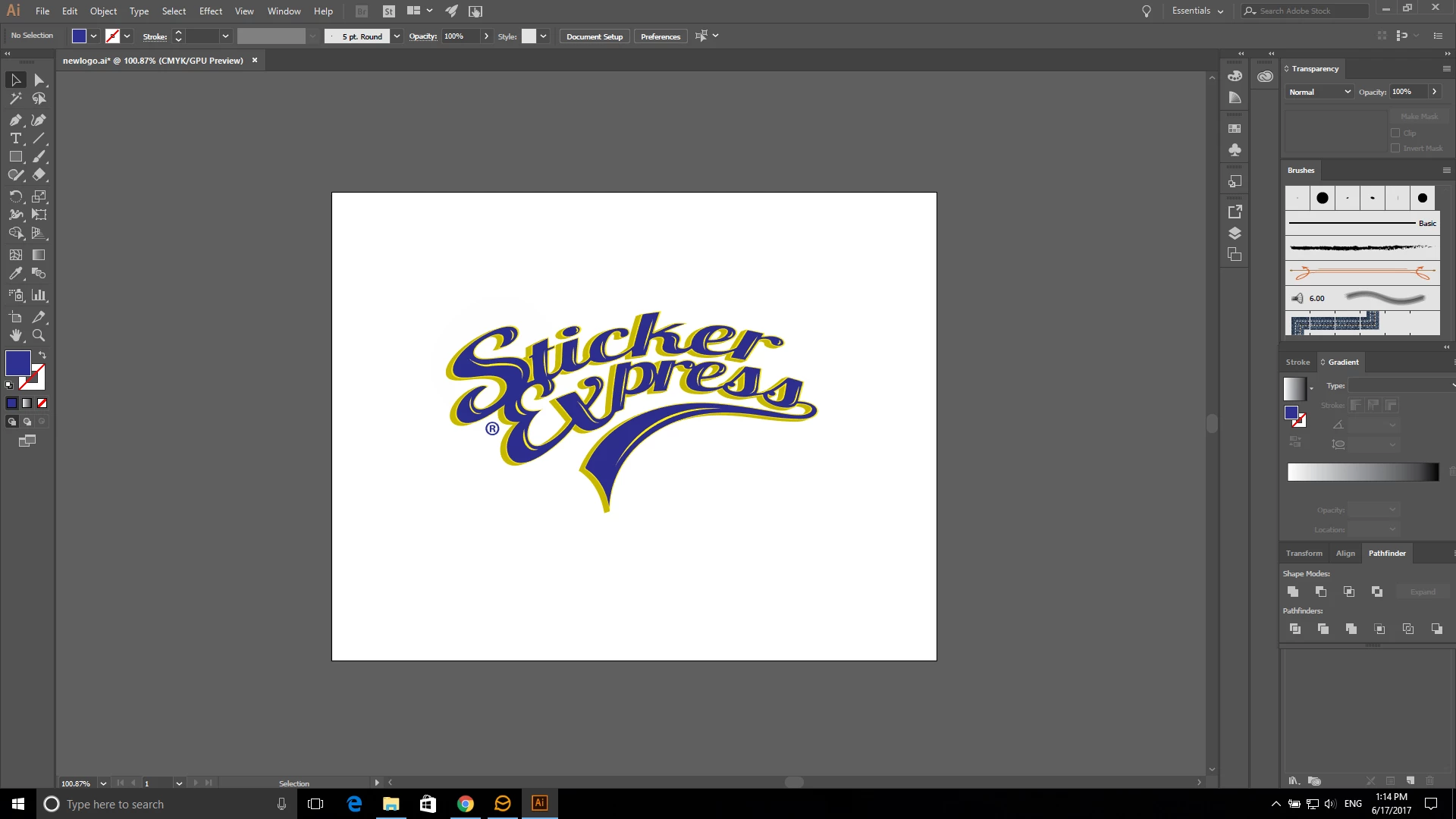
this what I made.

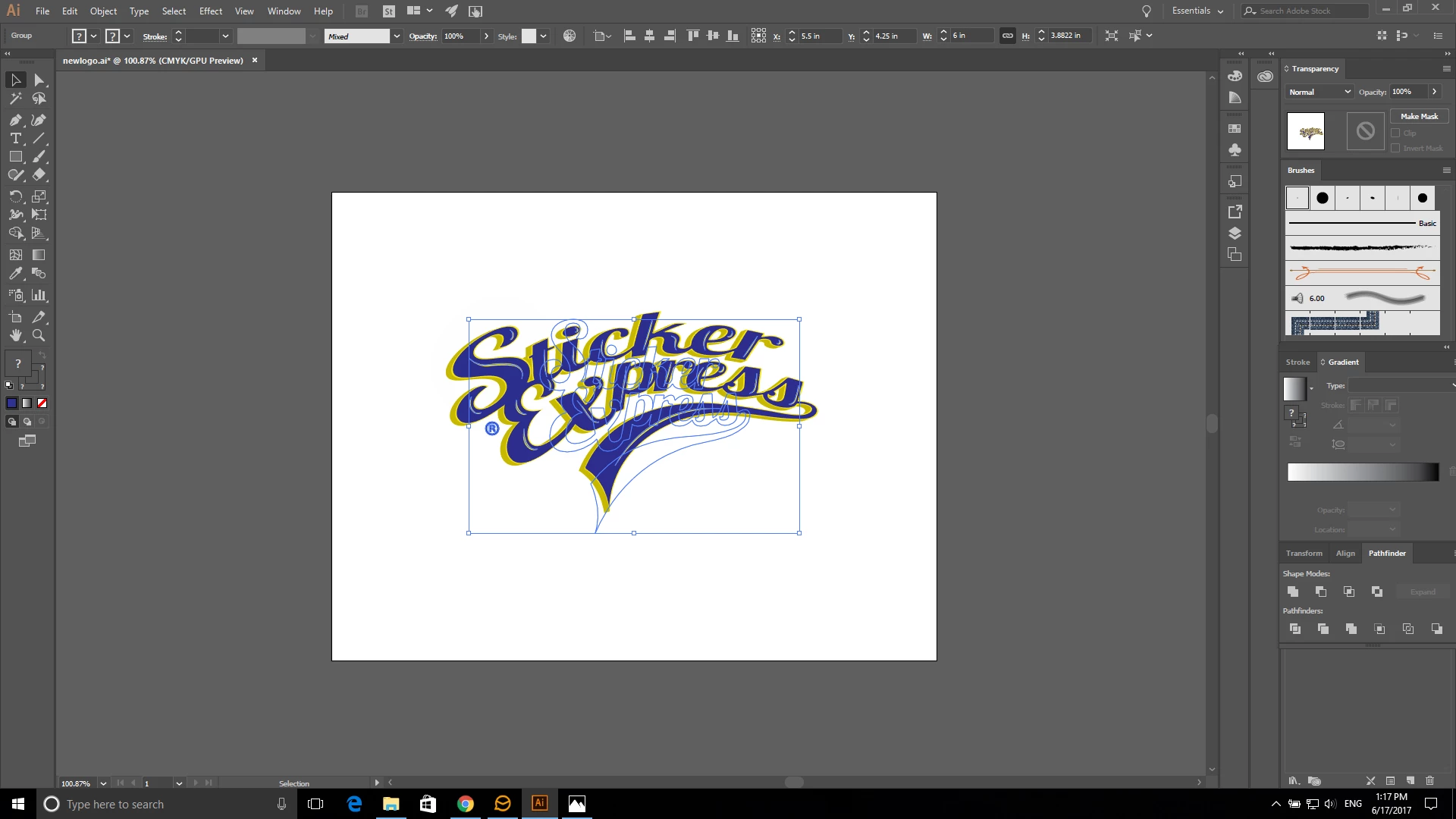
this is with ctrl a

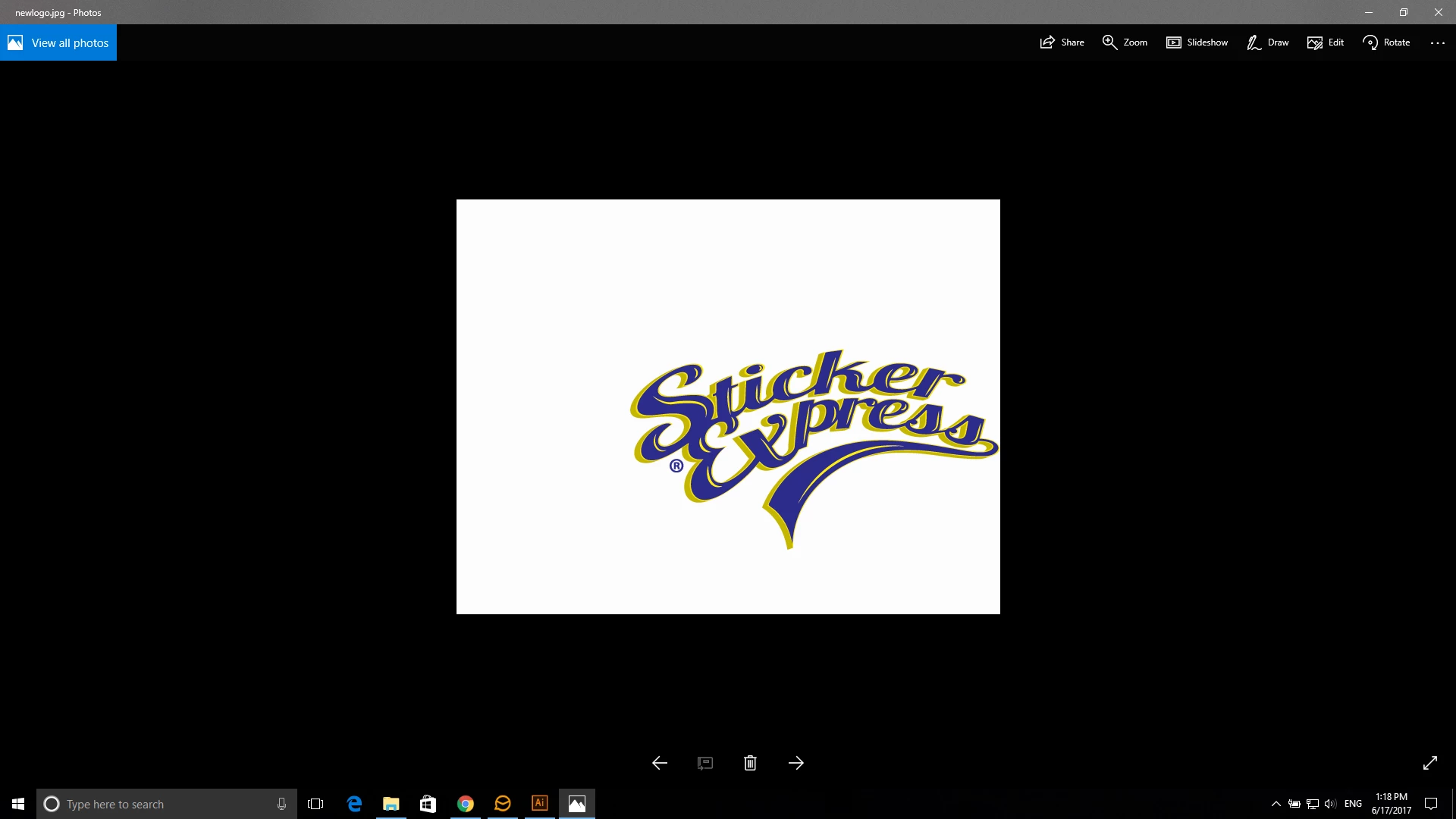
this the result when I'm trying to save or export...

I tried all option with jpg, png, tiff.

I'm new to this, I dont have courses and I'm making effort...I have been trying averything I know for the last 3 days so far.....

english is not my primary language, its hard to explain in my own word...dont judge please

Translate
Report
Community guidelines
Be kind and respectful, give credit to the original source of content, and search for duplicates before posting. Learn more
community guidelines
Community Expert ,
Jun 17, 2017 Jun 17, 2017

OK, thank you. That helps a lot.

So when you export, do you put a checkmark at "Use artboard"?

This option is usually in the first dialog box when exporting.

It will export your artwork with the whitespace you have on the artboard.

Translate
Report
Community guidelines
Be kind and respectful, give credit to the original source of content, and search for duplicates before posting. Learn more
community guidelines
New Here ,
Jun 17, 2017 Jun 17, 2017

I dont have this option for png

neither for jpg

Translate
Report
Community guidelines
Be kind and respectful, give credit to the original source of content, and search for duplicates before posting. Learn more
community guidelines
Community Expert ,
Jun 17, 2017 Jun 17, 2017

As I said: it's in the first dialog box. The dialog box where you enter a name for the file. Directly below the menu where you select the file format.

Translate
Report
Community guidelines
Be kind and respectful, give credit to the original source of content, and search for duplicates before posting. Learn more
community guidelines
New Here ,
Jun 17, 2017 Jun 17, 2017

I just seen it and its uncheck

Translate
Report
Community guidelines
Be kind and respectful, give credit to the original source of content, and search for duplicates before posting. Learn more
community guidelines
Community Expert ,
Jun 17, 2017 Jun 17, 2017

I just seen it and its uncheck

You need to check it.

Translate
Report
Community guidelines
Be kind and respectful, give credit to the original source of content, and search for duplicates before posting. Learn more
community guidelines
New Here ,
Jun 17, 2017 Jun 17, 2017

ok that work, but why it never did that before?

Translate
Report
Community guidelines
Be kind and respectful, give credit to the original source of content, and search for duplicates before posting. Learn more
community guidelines
Community Expert ,
Jun 17, 2017 Jun 17, 2017

Maybe the checkbox was always checked?

Maybe you always had an invisible or white object that centered the artwork?

Translate
Report
Community guidelines
Be kind and respectful, give credit to the original source of content, and search for duplicates before posting. Learn more
community guidelines
New Here ,
Jun 17, 2017 Jun 17, 2017

Thank a lot...

Translate
Report
Community guidelines
Be kind and respectful, give credit to the original source of content, and search for duplicates before posting. Learn more
community guidelines
Community Expert ,
Jun 17, 2017 Jun 17, 2017
LATEST

You're welcome

BTW: the export without using the artboard in your file shows that there must be some invisible elements. Or maybe stray anchor points. You might want to search them and delete them in case you don't need them.

You couls select all and see what is highlighted or use the layers panel.

Translate
Report
Community guidelines
Be kind and respectful, give credit to the original source of content, and search for duplicates before posting. Learn more
community guidelines
Community Expert ,
Jun 17, 2017 Jun 17, 2017

Once you've used the 3D filter, rotation should be done using that filter (not the rotation tool).

Maybe it would help if you select your artwork, then choose Object > Artboards > Fit to Artwork Bounds. And then export your artwork.

You could also try Object > Expand before exporting the file. You could save a copy before doing that in case you want to edit the original later.

Translate
Report
Community guidelines
Be kind and respectful, give credit to the original source of content, and search for duplicates before posting. Learn more
community guidelines
New Here ,
Jun 17, 2017 Jun 17, 2017

if I do that, my image go like my saved one but on the artboead

Translate
Report
Community guidelines
Be kind and respectful, give credit to the original source of content, and search for duplicates before posting. Learn more
community guidelines
Community Expert ,
Jun 17, 2017 Jun 17, 2017

Based on the artwork's placement in your screenshot, I'm guessing there may be some point you're not seeing off to the left side. Instead of using Ctrl+A, can you select it all by dragging around your art? Then try grouping it and centering.

You could also try going through your layers in the Layers Panel to see if there is anything you can't identify. If it helps, you can enlarge the thumbnails by using the flyout menu on the top right of the panel and go to Panel Options... where you can change the thumbnail to Large.

Translate
Report
Community guidelines
Be kind and respectful, give credit to the original source of content, and search for duplicates before posting. Learn more
community guidelines
New Here ,
Jun 17, 2017 Jun 17, 2017

I did that too and there is nothing

Translate
Report
Community guidelines
Be kind and respectful, give credit to the original source of content, and search for duplicates before posting. Learn more
community guidelines