
Jason Burnett
Inspiring
July 12, 2018
Question

Distribute Space Between Objects Along Path?

  • July 12, 2018
  • 3 replies
  • 1365 views

I have a series of objects or possibly symbols that I need to space equidistant between each other along a path. I am trying to illustrate how some boards can be aligned to simulate a curve. I have tried to use the blend tool, but it has its quirks which I try to compensate for. Here are my steps:
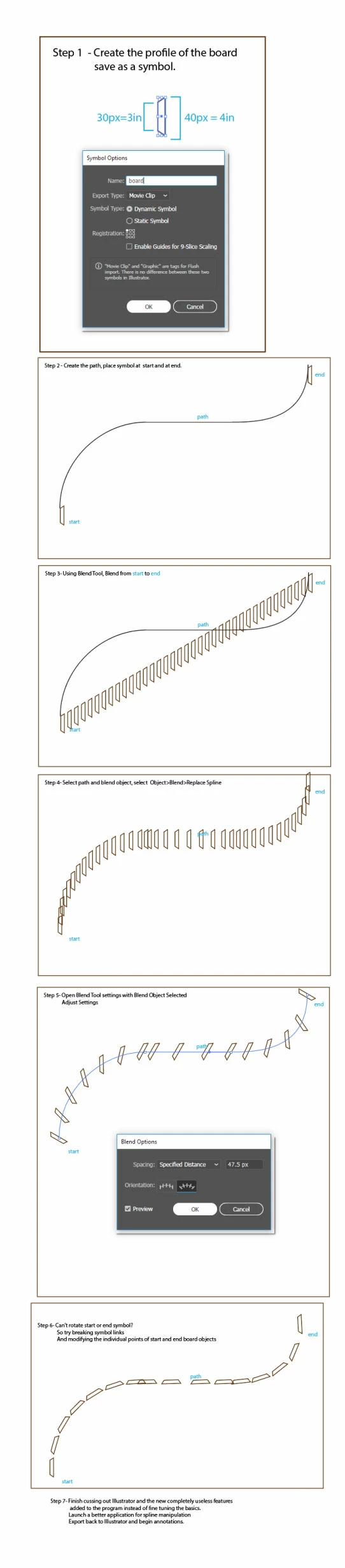
Needless to say, I would prefer a different way to handle this in the future since I seem to run into this all the time. Notice that as early as Step 4 you can tell that it's not going to work very well. Not to mention that if you blend from a start point to and end point, you pretty much should be able to expect that the start point and end point won't move. If, for example, the start point is not touching the path when you replace spline, it should add the offset angle and distance from the spline to the list of calculations it performs to get the endpoint (including it's offset and rotation). I still don't see why it isn't a blatant error that the blend tool modifies your start and end points...If I wanted them modified to blend, I would have moved them to begin with.

Anybody know of any way to effectively distribute shapes along a path that A) preserves start and end orientation and offset from the path, and B) actually distributes the space between the elements along the path?

Thanks in advance for any advice.

This topic has been closed for replies.

3 replies

tromboniator
Community Expert
Community Expert
July 13, 2018

I don't understand what you mean by the start and end points moving/not moving. The start and end points of the original blend are determined by the center points of the starting and ending objects. When you replace the spine, the endpoints of the spine determine the new location of the centers of the starting and ending objects.

Jason Burnett
Inspiring
July 13, 2018

The bottom line is that when I choose to blend from one shape to another, I expect the first shape to stay exactly like it is and I expect the last shape to stay exactly like it is. Period.

Even if I blend along a spline, the start and end shapes should not change. If the start point is offset from the start of the spline path than the offset becomes another value to translate between the two shapes, but point A should not move.

Jacob Bugge
Community Expert
Community Expert
July 13, 2018

Whirled Creative,

I believe you will be fine if you prepare the Spine path by using Object>Path>Add Anchor Points until you have enough segments to ensure an even Blend; you may go back and forth between adding Anchor Points and replacing Spine (Ctrl/Cmd+Z is your friend) until you are satisfied.

Eugenio.NYC
Participating Frequently
July 12, 2018

Another brush that works also is the Pattern brush

Drag and drop your shape inside the swatches panel

Then crate a new brush and select pattern brush

if you want more space between shapes, you can edit the pattern

Select te pattern tile tool and increase the size

Let me know if you have more questions

Regards

E

S_Gans
Community Expert
Community Expert
July 12, 2018

I think this may be resolved by creating an Art Brush, instead of a blend. With the Art Brush, you can tell it to Stretch to Fit Stroke Length, and that may accomplish what you ask...

Adobe Community Expert / Adobe Certified Instructor