varxtis
Inspiring
January 17, 2023
Answered

Image Trace - Grunge vector texture from Grunge texture image with transparency?

  • January 17, 2023
  • 3 replies
  • 2886 views

So, I really have know idea how to phrase my question in text, so here is a video link
https://youtu.be/f_jWJVRMNBo

*Please know tht in the video I have white grunge image and  black grunge image in Illustrator. Please forgive me if I say "Black" when it's clearly White, or visa versa.


Basically, Im wanting to take a grunge texture image that has transparency, and convert it to vecter, where every thing white/black in the texture is converted, but everything transparent is left out, or seperate somehow for deletion. Ive tried image trace using high and low fidelity, as well as shades of gray. Ive also tried to impor the image as a solid image, no transparency, and used "ignore White". No matter what I do, the Transparent/White sections remain overlapped and mixed in with the rest of the shapes, being nearly impossible to weed out and retin the orginal grunge look. I start deleting too many chunks.
This topic has been closed for replies.
Correct answer Kevin Stohlmeyer

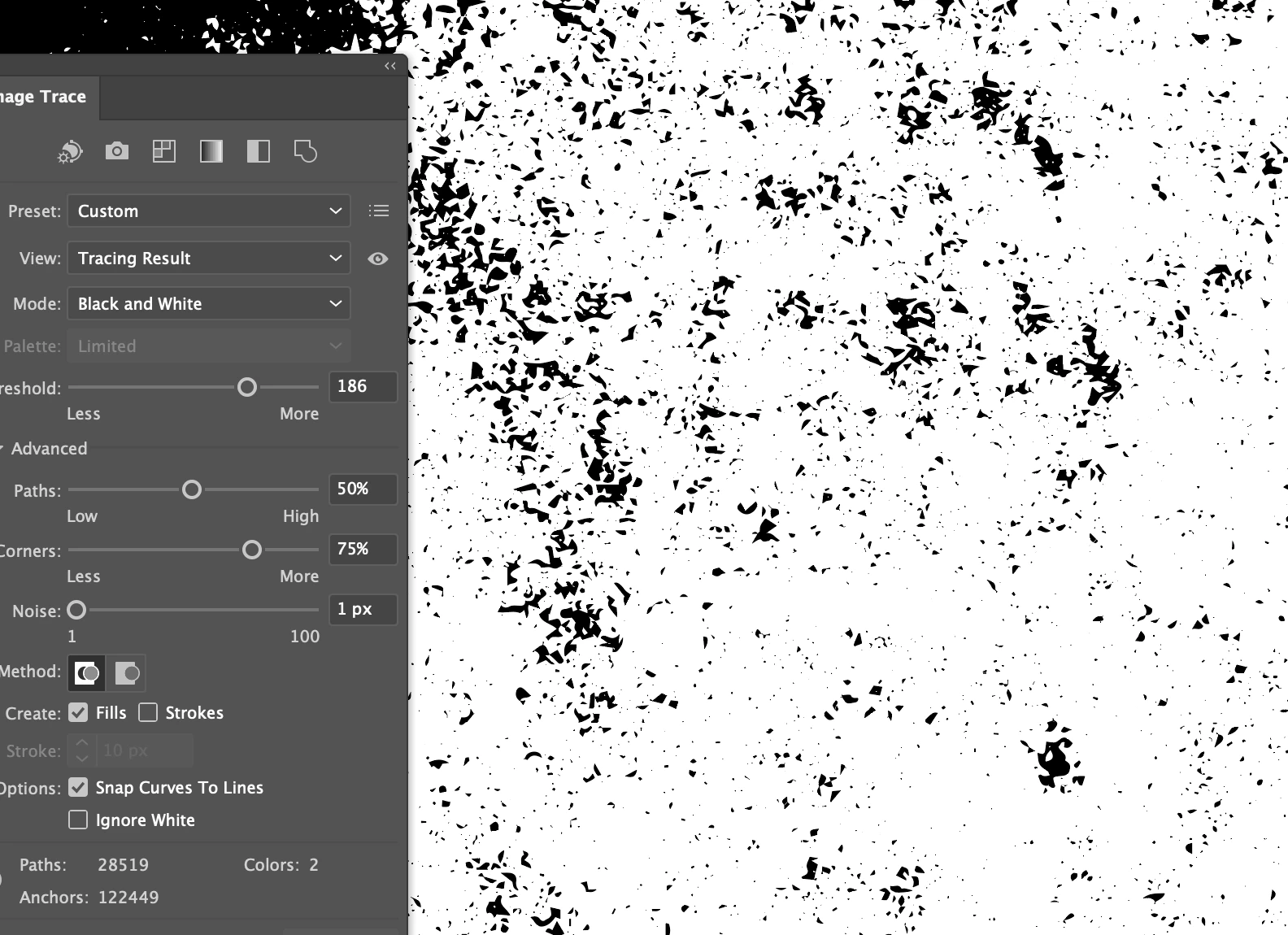
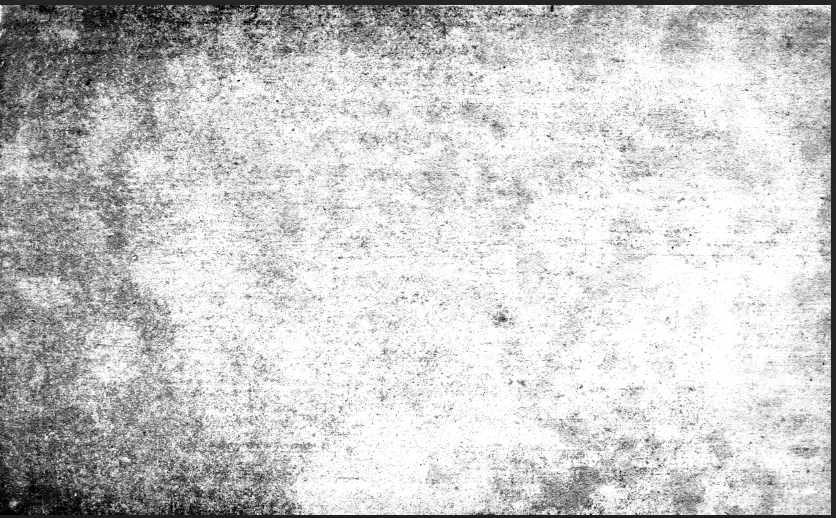
The issue with this image is there is very little contrast between values - its a poor source file to start with. 

However you can get some results with adjusting your advanced settings.

To achieve better results, I would adjust the contrast in Photoshop first:

Then Image Trace the adjusted image. You'll get a much more detailed result.


3 replies

Anubhav M
Community Manager
Community Manager
January 26, 2023

Hello @varxtis,


Thanks for reaching out. I hope the suggestions shared by Monika, Kevin, and Doug helped with your queries.

Feel free to reach out if you have more questions or need assistance. We'd be happy to help.


Thanks,

Anubhav

Kevin Stohlmeyer
Community Expert
Community Expert
January 17, 2023

In Image Trace make sure you are using Black and White logo and then click "Ignore White". 

That will give you only a black trace result.

varxtis
varxtisAuthor
Inspiring
January 17, 2023

I had done this too (sorry for not listing it. My bad), but it resulted in very blotchy  shapes. A lot of the imge, even the black portions were left out. I posted the image Im working with in the reply to @Doug A Roberts if that helps.

Kevin Stohlmeyer
Community Expert
Community Expert
January 17, 2023

Did you adjust the threshold and other advanced controls?

I use this method almost weekly to create texture overlays for my AI work.

Doug A Roberts
Community Expert
Community Expert
January 17, 2023

Can you share the image you're trying to use?

varxtis
varxtisAuthor
Inspiring
January 17, 2023

Kevin Stohlmeyer
Community Expert
Kevin StohlmeyerCommunity ExpertCorrect answer
Community Expert
January 17, 2023

The issue with this image is there is very little contrast between values - its a poor source file to start with. 

However you can get some results with adjusting your advanced settings.

To achieve better results, I would adjust the contrast in Photoshop first:

Then Image Trace the adjusted image. You'll get a much more detailed result.