Exit
  • Global community
    • Language:
      • Deutsch
      • English
      • Español
      • Français
      • Português
  • 日本語コミュニティ
  • 한국 커뮤니티
0

Adding To A Collection

Explorer ,
May 13, 2018 May 13, 2018

I know how to create a new Lr "collection", but how do I add more photos to an already existing collection ?  For instance, is it possible to assemble an Lr collection with selections from several different import folders ?  Thanks !!! ... Joe Kulik

1.2K
Translate
Report
Community guidelines
Be kind and respectful, give credit to the original source of content, and search for duplicates before posting. Learn more
community guidelines
Community Expert ,
May 13, 2018 May 13, 2018

Just drag the images from anywhere into the collection. Make sure to drag from the image area instead of from the border. You can also set the collection as the target collection (control or right click on it and you'll see the option) and then hit the b key when you have an image selected to add it to that collection.

Translate
Report
Community guidelines
Be kind and respectful, give credit to the original source of content, and search for duplicates before posting. Learn more
community guidelines
Explorer ,
May 15, 2018 May 15, 2018

Thank You for your response, but I have no idea what you mean when you tell me to just drag images into a collection.  I can only display one input folder of images at one time, so how do I get both the input folder and the Lr collection to appear on the screen at the same time so that I can drag an image from one place to another ???

Thanks !!!

Joe Kulik

Translate
Report
Community guidelines
Be kind and respectful, give credit to the original source of content, and search for duplicates before posting. Learn more
community guidelines
Community Expert ,
May 15, 2018 May 15, 2018

Just display your folder as a grid (hit G). Select the images you want in your collection you already created. Drag them into the collection on the left side of the Lightroom window.

Lots of videos on how to use these:

Lightroom CC - Creating Custom Collections of Images - YouTube

Lightroom 6 / CC Tutorial - How to use Collections In Lightroom - YouTube

Translate
Report
Community guidelines
Be kind and respectful, give credit to the original source of content, and search for duplicates before posting. Learn more
community guidelines
Community Expert ,
May 15, 2018 May 15, 2018
LATEST

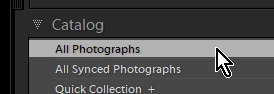
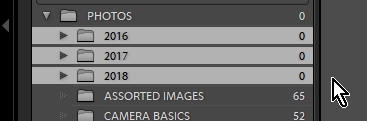
In Library module and Grid view you have ways of seeing your photo thumbnails:

1) You can view "All Photographs" by selecting that option in the Catalog Panel-
ScreenShot016.jpg

2) You can select multiple Folders in the Folder Panel to see all photos in all the selected folders-
ScreenShot017.jpg

When you then have the thumbnails selected, you mouse drag them onto the Collection that is named in the Collections Panel.

ScreenShot029.jpg

Note:

Collections are NOT folders. Collections are NOT physical locations where you can 'move' photos into. There is NO "from one place to another ???"

Collections are virtual lists of photos you have collected for a special purpose eg. a Book, or Slideshow. Collections are like a shopping list in your mind of items to buy in the grocery store, or a playlist in iTunes.

When you add photos to a Collection by the 'Drag&Drop' method, you must start the drag with the mouse cursor visually ON a photo image, and not on a thumbnail grey border. The destination Collection name will (very slightly!) change tone when you hover the cursor of mini photos above it, then let the mouse button go to drop the photos to that collection.

You can add (or delete) photos to (from) any collection at any time, any day.

As Jao mentions above- a Target Collection makes it very easy to add photos- just select photos in the Grid and press keyboard , at any time, from any folder!

Regards. My System: Windows-11, Lightroom-Classic 15.1, Photoshop 27.2, ACR 18.1.1, Lightroom 9.1, Lr-iOS 10.4.0, Bridge 16.0.1 .

Translate
Report
Community guidelines
Be kind and respectful, give credit to the original source of content, and search for duplicates before posting. Learn more
community guidelines