Exit
  • Global community
    • Language:
      • Deutsch
      • English
      • Español
      • Français
      • Português
  • 日本語コミュニティ
  • 한국 커뮤니티
0

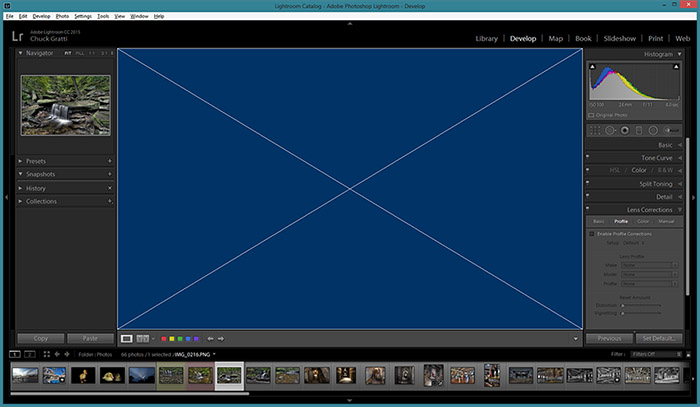
Lightroom 6 is displaying a blue screen with a white X through it in the Develop module for all my photos

New Here ,
Apr 21, 2015 Apr 21, 2015

I can see a large version of my photo in Library mode, but in Develop module, all that appears is a blue screen with an X in it. Has anyone else experienced this? How can it be fixed?


53.7K
Translate
Report
Community guidelines
Be kind and respectful, give credit to the original source of content, and search for duplicates before posting. Learn more
community guidelines

correct answers 1 Correct answer

Adobe Employee , Apr 21, 2015 Apr 21, 2015

This blue screen with a cross indicates that Lightroom encountered a OpenGL runtime error. First try to make sure that you've updated the latest driver from the vendor. See Adobe Photoshop Lightroom Help | Lightroom GPU FAQ.

Translate
Community Beginner ,
Apr 21, 2015 Apr 21, 2015

Same issue here.   Windows 8, 64bit.

Translate
Report
Community guidelines
Be kind and respectful, give credit to the original source of content, and search for duplicates before posting. Learn more
community guidelines
Community Beginner ,
Apr 21, 2015 Apr 21, 2015

Untitled-1.jpg

Translate
Report
Community guidelines
Be kind and respectful, give credit to the original source of content, and search for duplicates before posting. Learn more
community guidelines
Community Expert ,
Apr 21, 2015 Apr 21, 2015
Translate
Report
Community guidelines
Be kind and respectful, give credit to the original source of content, and search for duplicates before posting. Learn more
community guidelines
Adobe Employee ,
Apr 21, 2015 Apr 21, 2015

This blue screen with a cross indicates that Lightroom encountered a OpenGL runtime error. First try to make sure that you've updated the latest driver from the vendor. See Adobe Photoshop Lightroom Help | Lightroom GPU FAQ.

Translate
Report
Community guidelines
Be kind and respectful, give credit to the original source of content, and search for duplicates before posting. Learn more
community guidelines
Community Expert ,
Apr 21, 2015 Apr 21, 2015

It might be that there are some gaming preferences set on the graphics card (outside Lightroom). As a test, disable Lightroom's use of the GPU (Preferences>Performance tab) to see if that fixes the problem. If it does, you'll need to investigate the graphics card settings.

Translate
Report
Community guidelines
Be kind and respectful, give credit to the original source of content, and search for duplicates before posting. Learn more
community guidelines
Community Beginner ,
Apr 21, 2015 Apr 21, 2015

FIXED IT!

Thanks

Translate
Report
Community guidelines
Be kind and respectful, give credit to the original source of content, and search for duplicates before posting. Learn more
community guidelines
New Here ,
Jul 16, 2015 Jul 16, 2015

How did you fix it?

Translate
Report
Community guidelines
Be kind and respectful, give credit to the original source of content, and search for duplicates before posting. Learn more
community guidelines
LEGEND ,
Jul 16, 2015 Jul 16, 2015

Turn off Graphics Acceleration in LR / Prefs / Performance. The white-X-on-blue means that LR is having problems using the GPU. I see this when I have both LR and PS open and they are each trying to do things with the GPU and it doesn’t have enough resources.

Translate
Report
Community guidelines
Be kind and respectful, give credit to the original source of content, and search for duplicates before posting. Learn more
community guidelines
New Here ,
Aug 08, 2015 Aug 08, 2015

Thank you Jim Wilde‌‌, disabling Lightroom's use of the GPU (Preferences>Performance tab) fixed my issue and improved overall performance

Translate
Report
Community guidelines
Be kind and respectful, give credit to the original source of content, and search for duplicates before posting. Learn more
community guidelines
New Here ,
Aug 19, 2015 Aug 19, 2015

Thank you SO much for this!  So appreciative!

Translate
Report
Community guidelines
Be kind and respectful, give credit to the original source of content, and search for duplicates before posting. Learn more
community guidelines
New Here ,
Jan 27, 2016 Jan 27, 2016

I had a similar problem:  everything would show as expected at the Library but when I went to the Develop mode, the image was reduced to a green rectangle (no X).  I had been looking everywhere for help, spent 2 nights awake trying to fix it and all I had to do was disable the graphic card option.  Thank you so much!!!!

Translate
Report
Community guidelines
Be kind and respectful, give credit to the original source of content, and search for duplicates before posting. Learn more
community guidelines
New Here ,
May 28, 2016 May 28, 2016

It worked for me. Thanks!

Translate
Report
Community guidelines
Be kind and respectful, give credit to the original source of content, and search for duplicates before posting. Learn more
community guidelines
New Here ,
Sep 17, 2016 Sep 17, 2016

Thanks, I did this and it worked, but now the large screen in develop still shows little gaps of blue and red in the picture.  I also can't get the presets to work like the black and white.   Any Ideas for that?  Thanks

Translate
Report
Community guidelines
Be kind and respectful, give credit to the original source of content, and search for duplicates before posting. Learn more
community guidelines
New Here ,
Sep 17, 2016 Sep 17, 2016

Just to add to that, white shows as red and black shows as blue. 

Translate
Report
Community guidelines
Be kind and respectful, give credit to the original source of content, and search for duplicates before posting. Learn more
community guidelines
LEGEND ,
Sep 17, 2016 Sep 17, 2016

Those are Highlight and Shadow clipping indicators.  You can turn them on and off individually by clicking the little triangles in the top corners of the histogram, and the J key turns them both on and off.

Translate
Report
Community guidelines
Be kind and respectful, give credit to the original source of content, and search for duplicates before posting. Learn more
community guidelines
New Here ,
Apr 21, 2015 Apr 21, 2015

Not fixed here. Seeing the blue screen with white x.

Windows 7, Nvidia GeForce GTX 660M.

Translate
Report
Community guidelines
Be kind and respectful, give credit to the original source of content, and search for duplicates before posting. Learn more
community guidelines
Community Beginner ,
Apr 21, 2015 Apr 21, 2015

Not fixed here either, Windows 8, Nvidia GeForce GTX 860M.

Translate
Report
Community guidelines
Be kind and respectful, give credit to the original source of content, and search for duplicates before posting. Learn more
community guidelines
Community Beginner ,
Apr 21, 2015 Apr 21, 2015

I went to the performance tab and LR6 is not even using my GTX860 card, it's using the onboard Intel HD Graphics 4600. Lame. And I'm still getting the blue screen.

I disabled the GPU use and LR6 sped up considerably, oddly enough, especially the crop tool, which was very slow with LR6. Everything was always lightning fast with 5 and appears to be back to normal after disabling the PGU, so I'm fine with just leaving it disabled. Yeesh.

Will try to update the NVidia drivers and post back.

Translate
Report
Community guidelines
Be kind and respectful, give credit to the original source of content, and search for duplicates before posting. Learn more
community guidelines
Adobe Employee ,
Apr 21, 2015 Apr 21, 2015

You might consider Adobe Photoshop Lightroom Help | Lightroom GPU FAQ to configure Lightroom to use the more capable Nvidia GPU.

Translate
Report
Community guidelines
Be kind and respectful, give credit to the original source of content, and search for duplicates before posting. Learn more
community guidelines
New Here ,
Apr 21, 2015 Apr 21, 2015

‌not fixed here either

nvidia k1000m, win 7 pro, updated nvidia drivers

Translate
Report
Community guidelines
Be kind and respectful, give credit to the original source of content, and search for duplicates before posting. Learn more
community guidelines
New Here ,
Apr 21, 2015 Apr 21, 2015

Installed latest Nvidia driver that was for some video game and now the problem with the blue square is fixed. It did include the latest physx driver as well, so maybe that did it.

Translate
Report
Community guidelines
Be kind and respectful, give credit to the original source of content, and search for duplicates before posting. Learn more
community guidelines
Community Beginner ,
Apr 21, 2015 Apr 21, 2015

I update my Nvidia driver and the problem went away. But oddly LR still says it's using the Intel 4600. Lame, what's going on?

Translate
Report
Community guidelines
Be kind and respectful, give credit to the original source of content, and search for duplicates before posting. Learn more
community guidelines
New Here ,
May 05, 2015 May 05, 2015

click Edit>Preferences. Under the Performance tab, uncheck Use Graphics Processor. Done.

Translate
Report
Community guidelines
Be kind and respectful, give credit to the original source of content, and search for duplicates before posting. Learn more
community guidelines
New Here ,
May 11, 2015 May 11, 2015

This worked for me, thanks!

Translate
Report
Community guidelines
Be kind and respectful, give credit to the original source of content, and search for duplicates before posting. Learn more
community guidelines