
Participating Frequently
February 27, 2020
Answered

Lightroom "The file could not be found" but photos are linked

  • February 27, 2020
  • 5 replies
  • 19337 views

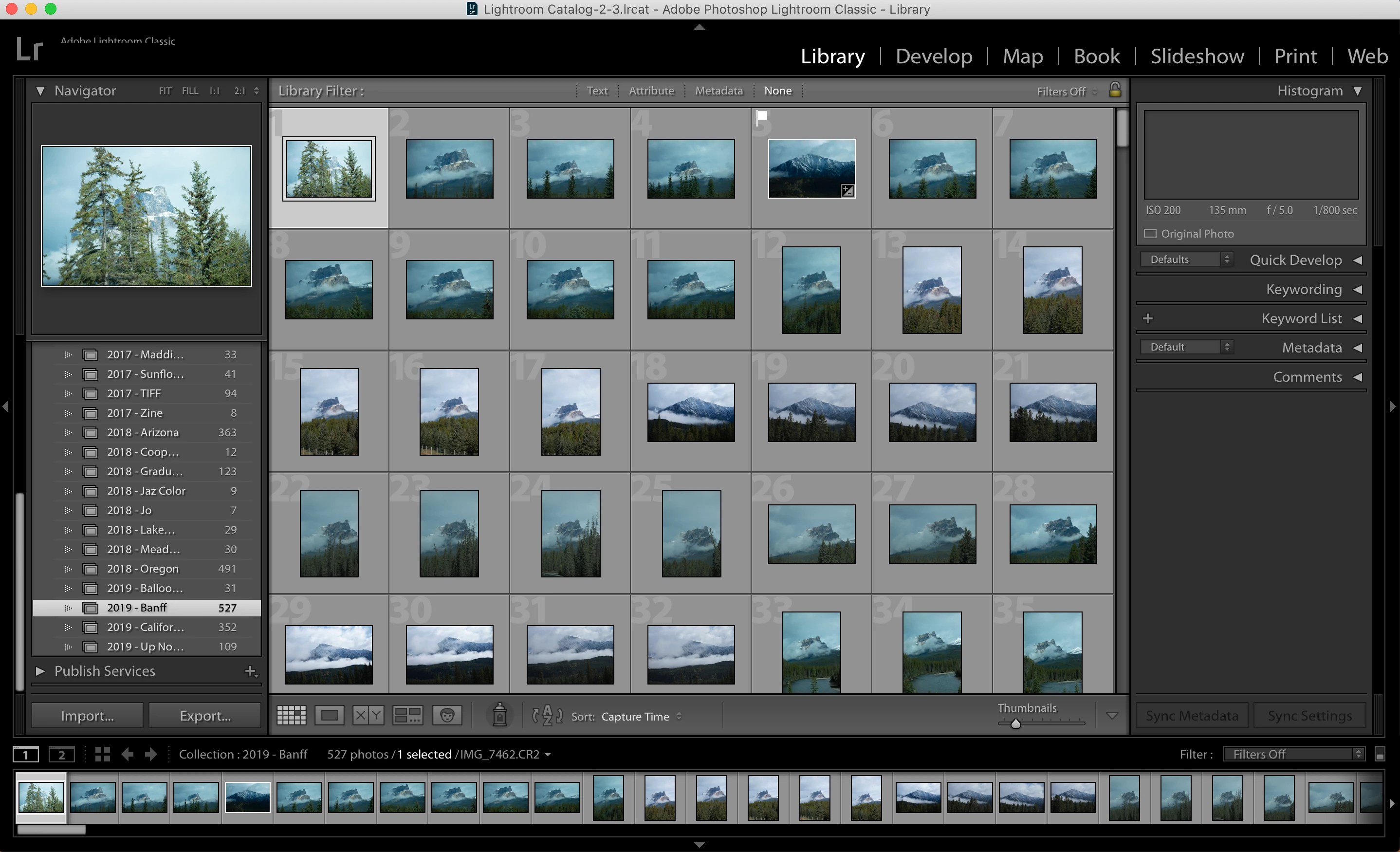
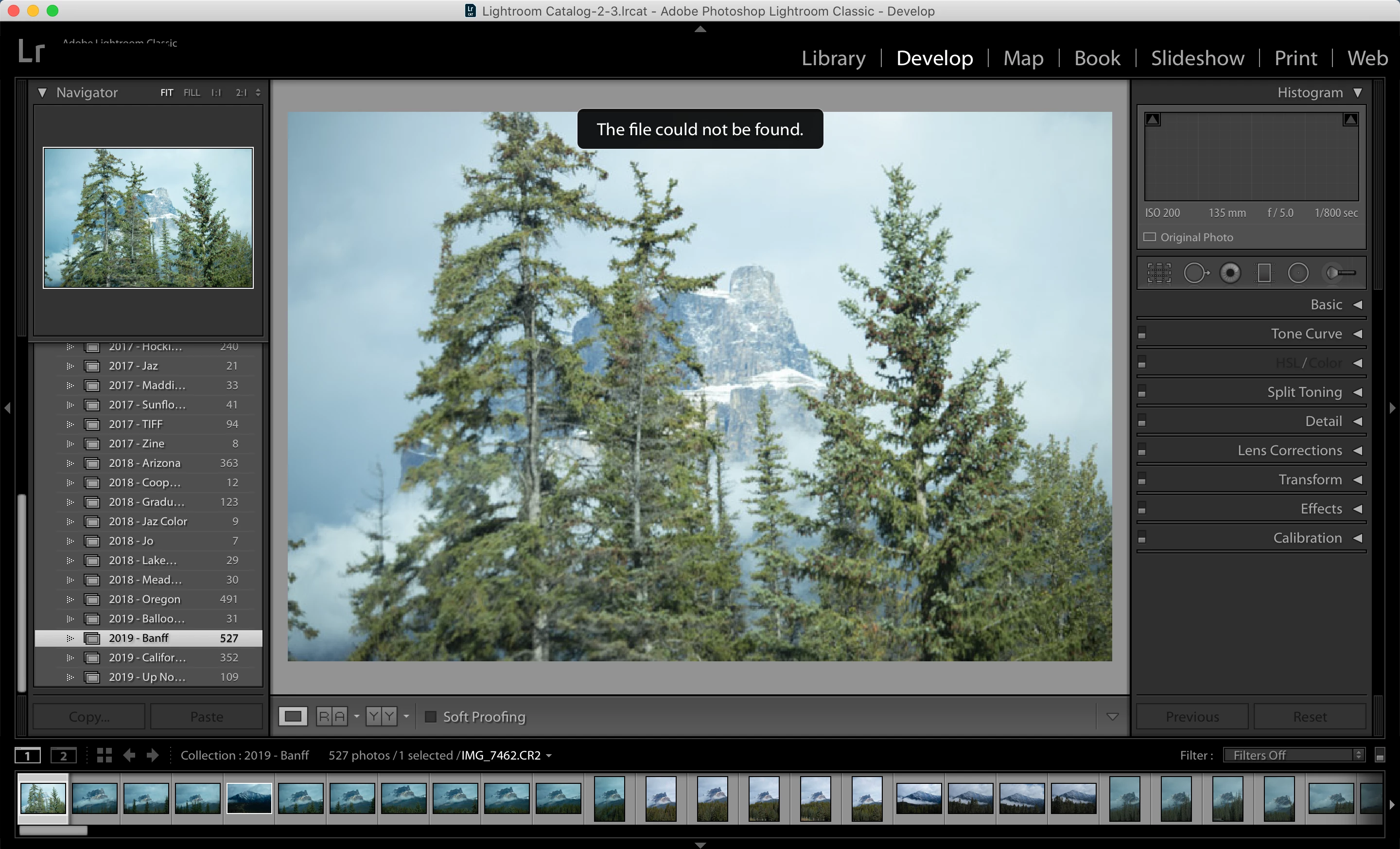
I opened up Lightroom and when I go to develop it says "The file could not be found." However, there is no [!] indicating that the file is missing and needs to be relinked. I have not changed the name of the photos, the location of the photos, or the name of the drive the photos are on. I know the direct path to all of the photos, but it does not show me the option to relink. Any help would be appreciated.
Correct answer GoldingD

If you are running MACOS Catalina


As a what if or just in case


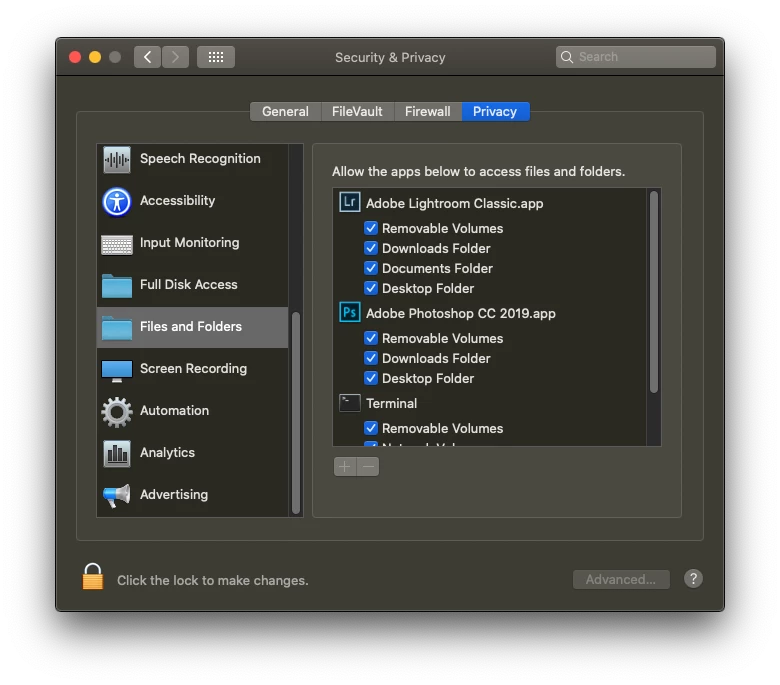
Close Lightroom Classic, on the MACOS bring up System Preferences, select Security and Privacy, select the Privacy tab, scroll down to Files and Folders, and for Lightroom Classic, and while at it Photoshop, make sure all boxes are checked.


https://nektony.com/duplicate-finder-free/folders-permission


5 replies

GoldingD
GoldingDCorrect answer
Legend
February 27, 2020

If you are running MACOS Catalina


As a what if or just in case


Close Lightroom Classic, on the MACOS bring up System Preferences, select Security and Privacy, select the Privacy tab, scroll down to Files and Folders, and for Lightroom Classic, and while at it Photoshop, make sure all boxes are checked.


https://nektony.com/duplicate-finder-free/folders-permission


Participating Frequently
February 29, 2020

That was the issue! I went to privacy folder and not all of the boxes were check. Now when I open Lightroom it shows [!] and I am able to relink the photos. Perhaps this happened during an update and I did not allow all folder permissions because I have been working off of this drive for a few years with no issues. Thank you so much for your help!

GoldingD
Legend
February 27, 2020

And in that screenshot, scroll to the top of the folder structure, show the parent folder, the absolute parent folder. What shows?


GoldingD
Legend
February 27, 2020

In that previous set of screenshots, the second screenshot, the one showing you in folder Banif, expand Banif, scroll down to the sub folder the photo is in, what shows?


Just Shoot Me
Legend
February 27, 2020

You are in a Collection. With that image selected go to All Photographs in the Catalog section of the left hand panel of the Library module and be in the Grid View. Does it then show an Exclamation mark?


Expand, Enlarge, the Film strip, the bottom row of image thumbnails. Right now you have it so small it will not show icon badges for anything, Edited, Cropped oe whatever. So you won't see the Exclamation mark.


Also do you have the options turned on to show Badges? There are 2 different settings for that. One for the film strip and one for the Grid and loupe views. Maybe all of them are set to not show.


Post a screen shot of the FOLDERS section, Expanded and not the Collections section.

Participating Frequently
February 27, 2020

Thank you for your help so far! When I go to All Photographs it still does not show the exclamation mark. It also does not show when I expand the film strip or when I go to folders. Some of my other photos that were linked are not even showing previews. I checked to make sure both badges are turned on to show, and it looks like they both are. 

dj_paige
Legend
February 27, 2020

Please tell us the full path name and file name and file type of one of these photos that is having the problem you mentioned; something like this:


D:\my pictures\2019-09-19\dsc_2019.nef

GoldingD
Legend
February 27, 2020

Two things I notice in your screenshot that has me googling to understand.


1. In the Folder Panel, those folder icons. Instead of looking like a single folder, like a single manilla folder, they look like two rectangles. Symbolic of ???


2. In the film strip. One photo clearly selected, no photos clearly also selected. However, faith photo has white thin border around it.


In your screenshots, in the Folder Panel, you are showing Collections, not Folders, Scroll up to the actual Folders. I suspect an issue with folder locations.


Remember, photos are not actually stored in Collections.