


- Home
- Lightroom Classic
- Discussions
- Re: Photoshop PSD files don't go back into Lightro...
- Re: Photoshop PSD files don't go back into Lightro...

Copy link to clipboard
Copied
I have just updated PS and Lightroom Classic CC to 20.0.2 and 8.1 respectively.
When in LR Classic, I do most of my editing there, then click on 'edit in' and select and open PS. Then I do the necessary editing and do a 'save as' as a PSD file. This file is then automatically shown in LR Classic (as a PSD file next to the original in the Library). Then I would export from LR Classic with my watermarks etc. This all worked fine before I updated yesterday!
Now, with the new updates, the newly edited file in PS does not appear in LR Classic....
I have looked through the forum and there are similar questions from 5-10 years ago but things have changed since then and I can't get them to work.
Please help a novice! Thank you.


 1 Correct answer

"When you do a "save" from Photoshop the file will be added to the Lightroom Catalog file, if you "save as" the file will not be added to the Catalog.
That is as designed."
On my copy, and my preferences are to Edit in PS as a TIFF, when in PS (edit in) and I accomplish a Save As (and change it to PSD) the image immediately shows up in LR
LR Classic CC 8.1 PS CC 20.0;2

 12
Replies
12
12
Replies
12


Copy link to clipboard
Copied
When you do a "save" from Photoshop the file will be added to the Lightroom Catalog file, if you "save as" the file will not be added to the Catalog.
That is as designed.
Copy link to clipboard
Copied
HI, thanks for your reply, I have tried this but no luck! The edited PS file, done as just a save, does not appear in my LR Classic anywhere ;-(
Copy link to clipboard
Copied
"When you do a "save" from Photoshop the file will be added to the Lightroom Catalog file, if you "save as" the file will not be added to the Catalog.
That is as designed."
On my copy, and my preferences are to Edit in PS as a TIFF, when in PS (edit in) and I accomplish a Save As (and change it to PSD) the image immediately shows up in LR
LR Classic CC 8.1 PS CC 20.0;2
Copy link to clipboard
Copied
Similar thread:Lightroom & Photoshop Problems since last Update
turned out to be a One Drive issue.
Copy link to clipboard
Copied
When you are in LR, is your edit in Photoshop 2019, st the top of the edit panel, not grayed out, not some other spelling?
Copy link to clipboard
Copied
Got off by rear end and turned on the PC. what i am referring to, an unlikely possibility, is shown in this screen shot. I f the line the arrow points to is something different, then a install issue occurred with PS.

Not the only indicator of such.
Copy link to clipboard
Copied
Oh frigg, painfully obvious question to ask. got this from Lightroom "Edit in..." to Photoshop not coming back to Lightroom
So, in Lightroom, did you click on that image while you were in a collection? The image from PS will not show up in the collection, it will show up in the folder.
Copy link to clipboard
Copied
By the way, in LR preferences, for external editing, do you have that stack with original box checked? The image could be hidden in a stack.
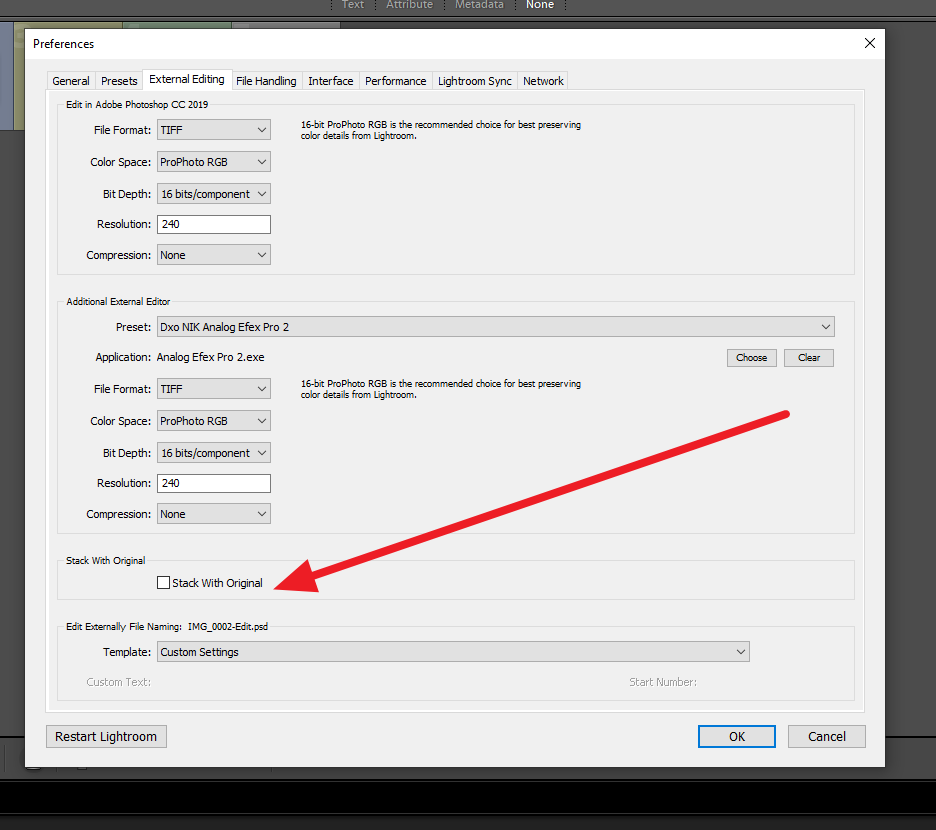
And a extra link just on setting up external editors with PS in mind: Setting up Lightroom and Photoshop for smooth integration > Lightroom-Photoshop Roundtrip Workflow

Copy link to clipboard
Copied
I have the same issue since 2019. To resolve it I changes my policy for saving files only in ,tif and never .psd
After a long brake from using photoshop I accidentally save 10 files as .psd (today) an then wasted 45 minutes wondering why they did not appear in LR. Even they could not show up on the Sync Files process. So it obviously it was never a 'fixed issue'.
So my policy of never save in .psd format has to be adhered to strictly.
Copy link to clipboard
Copied
I have the same issue since 2019. To resolve it I changes my policy for saving files only in ,tif and never .psd
After a long brake from using photoshop I accidentally save 10 files as .psd (today) an then wasted 45 minutes wondering why they did not appear in LR. Even they could not show up on the Sync Files process. So it obviously it was never a 'fixed issue'.
So my policy of never save in .psd format has to be adhered to strictly.
By @cerity

I note from that:
"save 10 files as"
When in PS (coming from LrC) are you clicking on Save As? or Save?
Copy link to clipboard
Copied
I am coming from the indisputable fact that any .psd saved file is no longer recognised properly.
Even when using the SYNC files facility the .psd is not recognised.
I paid well over £1000 for this software, and which Adobe has updated to a point where it has a stupid issue, and users are supposed to do getaround tricks debated in a Comminity Forum.
Simple Solution:- Just put in the User Manual "do not use .PSD, instead stick to .TIFF".


Copy link to clipboard
Copied
You’ve posted to an ancient thread. It is highly unlikely that the issue described in this thread, though not impossible, is the same one you are currently experiencing. Rather than resurrect an old thread that is seemingly similar, you are better off posting to a new thread with fresh, complete information, including system information, a complete description of the problem, and step-by-step instructions for reproduction.
If the issue is the same, we will merge you back into the appropriate location.
Thank you!


Get ready! An upgraded Adobe Community experience is coming in January.
Learn more
 AdChoices