I totally understand wanting the exports to be in the catalog, I often use Lightroom Classic as a source for drag-and-drop import into other applications.
There are ways to streamline this a little. For projects like this, you can try some of these ideas.
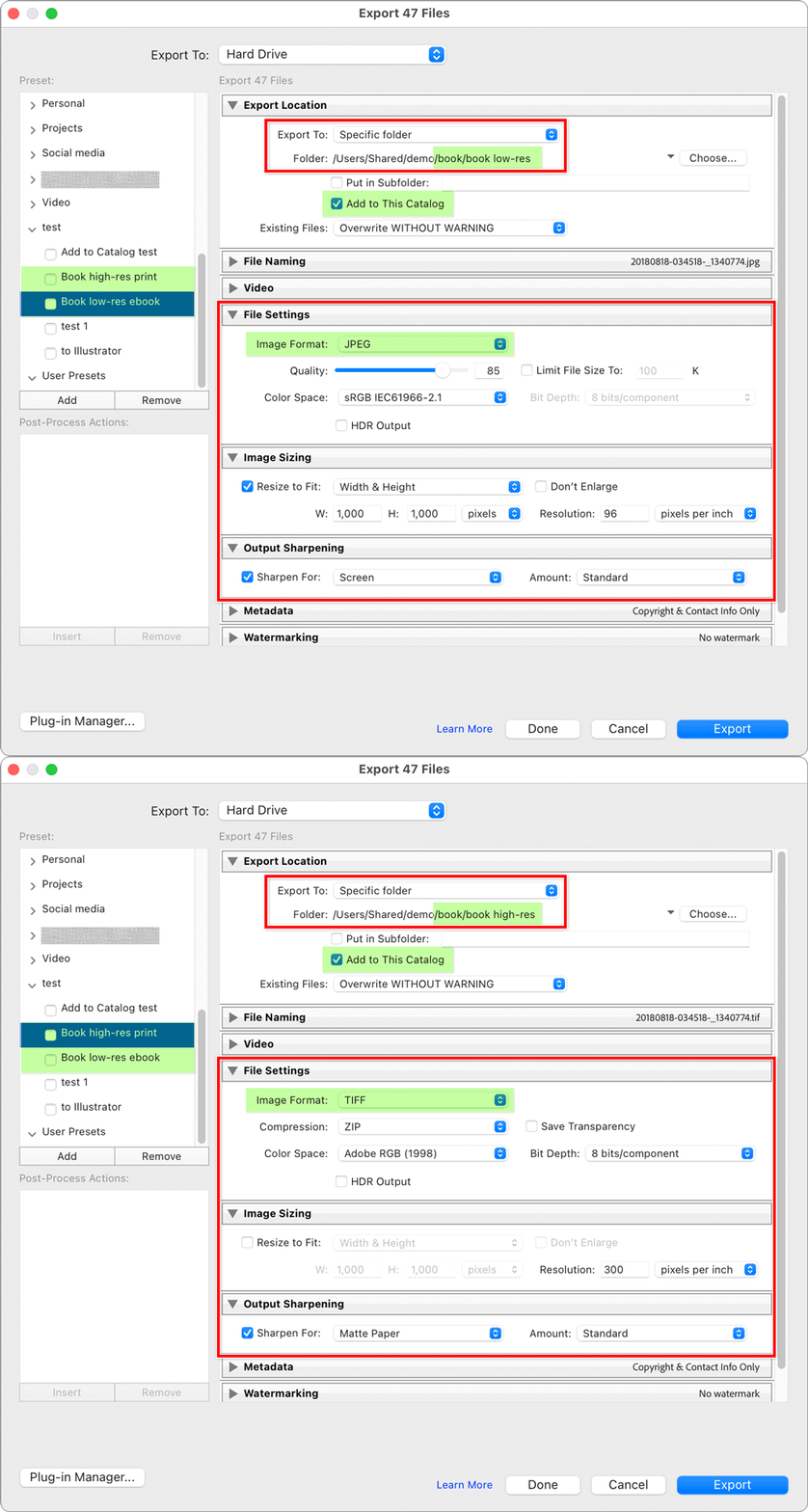
Export presets might save time and labor. The animation below shows export presets customized for TIFF print and JPEG screen versions, and each preset sends selected images to its own separate folder. In each preset, I have enabled the Add to Catalog option, so that there is no re-importing needed: All images exported with the Add to Catalog option are automatically imported.
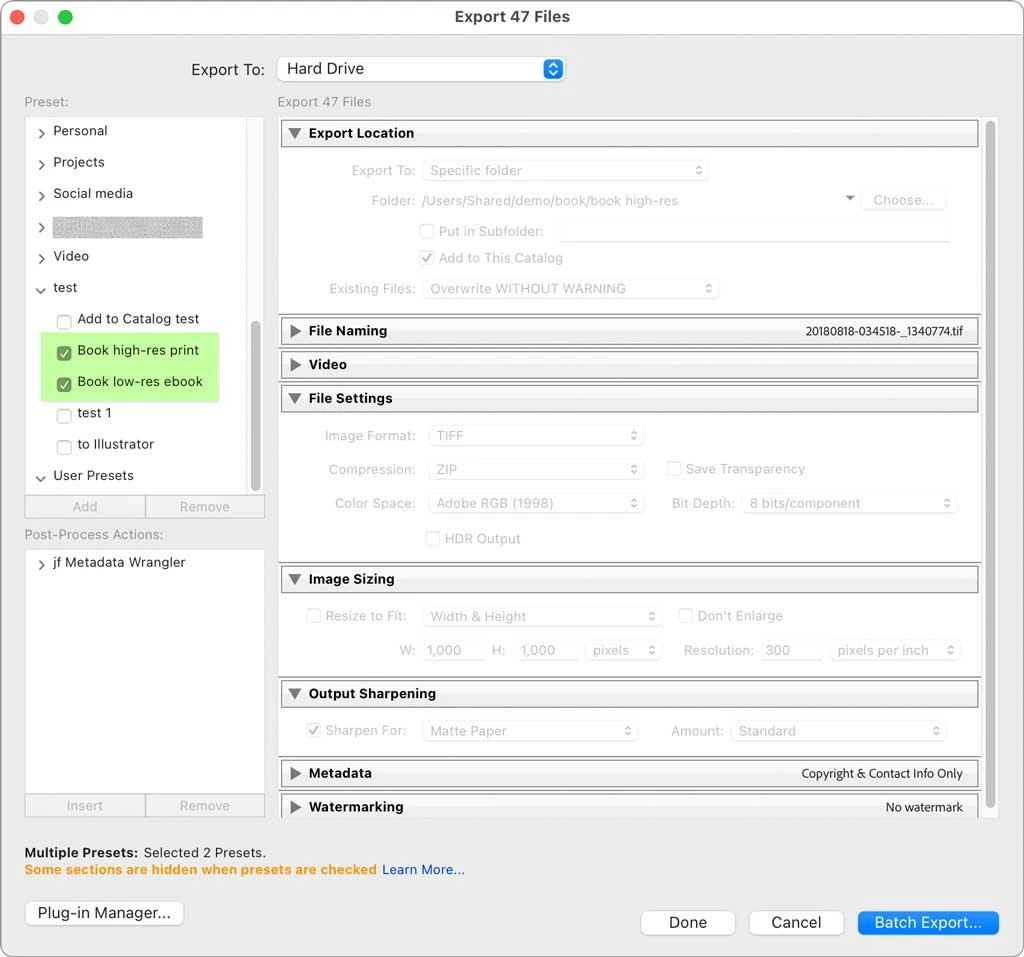
Also note that it is possible to select multiple export presets per job, so you could select for example, 47 images, select both a high-res print and low-res screen preset, and you would get 47 TIFFs in one folder and 47 JPEG images in another folder, and all imported into the catalog automatically…all from a one-click export. The picture below shows the two presets being selected, to create both TIFF and JPEG versions of all selected images in the same export run.
The only thing not covered is how to add them back to the collection. It seems like you should only have to do that once, after the first export:
1. In the Library panel Folders list, right-click the folder containing the auto-imported TIFF exports, and choose Create Collection [folder name].
2. Repeat for the folder containing the auto-imported JPEG exports.
Once the images in those two folders are also added as collections, all images in those folders should auto-update if they are ever replaced in the same folder by updated versions with the same name. If you export using project-specific presets, and those presets are set to overwrite existing images with the same name, then if you export corrected copies:
1. Those are exported into the TIFF or JPEG folder, according to their preset.
2. The new corrected export replaces the earlier export with the same name.
3. Because they are already cataloged, Lightroom Classic notices the change to certain filenames in that imported folder, so it updates its database and preview.
4. Any instances of those images used in collections should update accordingly.
If I need to revise an image, I will make changes in Develop, and if I want to use the last-used export preset I will just press the keyboard shortcut for File > Export > Export with Previous. That exports using the previously used preset, and if it replaces an earlier export to the same name, any other applications linking to that export (such as Adobe InDesign or Adobe Premiere Pro) will have an opportunity to update the link on their end.
It is also possible to do a quick export to any preset by choosing File > Export with Preset > [choose preset]. In those ways, an export can be updated without having to stop at the Export dialog box.

 AdChoices