Exit
  • Global community
    • Language:
      • Deutsch
      • English
      • Español
      • Français
      • Português
  • 日本語コミュニティ
  • 한국 커뮤니티
1

Develop Module image distorted

Community Beginner ,
Jun 11, 2019 Jun 11, 2019

Last week the image displayed in the Develop Module became distorted like an old fashioned TV screen. See the screen grab I have posted in drop box

Dropbox - LR Screen Develop.pdf - Simplify your life

I can zoom in and out and the distorted image reacts the same as if there was a real image. I have uninstalled LR and Reinstalled and the same happened. It happens with all photos RAW or Jpeg.

Any suggestions??

Thanks

Neil

1.1K
Translate
Report
Community guidelines
Be kind and respectful, give credit to the original source of content, and search for duplicates before posting. Learn more
community guidelines

correct answers 1 Correct answer

Adobe Employee , Jun 11, 2019 Jun 11, 2019

Hi Neil,

That should not be happening, let's fix it!

As the image is distorted in Lightroom, could you please try turning off the GPU option from Lightroom's preferences? Go to Lightroom > Preferences > Performance tab > Uncheck "Use Graphics Processor" > Restart Lightroom.
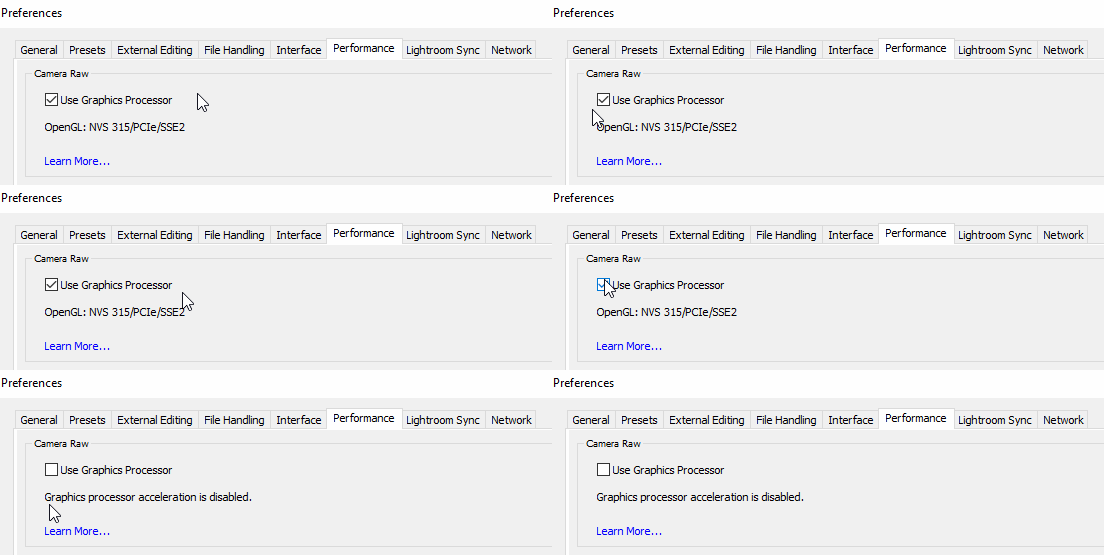
gpu lightroom.gif

If that helps then update the graphic card drivers from the manufacturer's website.
You may also check this article: Troubleshoot Photoshop graphics processor (GPU) and graphics driver issues

Let us know if it helps.
Regards,
Sahil

Translate
Community Expert ,
Jun 11, 2019 Jun 11, 2019

Disabling the GPU should fix this.

Go to Edit > Preferences > Performance, and uncheck Use graphics processor.

Updating the graphics driver may allow you to work with the GPU enabled.

Translate
Report
Community guidelines
Be kind and respectful, give credit to the original source of content, and search for duplicates before posting. Learn more
community guidelines
Adobe Employee ,
Jun 11, 2019 Jun 11, 2019

Hi Neil,

That should not be happening, let's fix it!

As the image is distorted in Lightroom, could you please try turning off the GPU option from Lightroom's preferences? Go to Lightroom > Preferences > Performance tab > Uncheck "Use Graphics Processor" > Restart Lightroom.

gpu lightroom.gif

If that helps then update the graphic card drivers from the manufacturer's website.
You may also check this article: Troubleshoot Photoshop graphics processor (GPU) and graphics driver issues

Let us know if it helps.
Regards,
Sahil

Translate
Report
Community guidelines
Be kind and respectful, give credit to the original source of content, and search for duplicates before posting. Learn more
community guidelines
Community Beginner ,
Jun 11, 2019 Jun 11, 2019
LATEST

Thanks

I did as you said and the image appeared. So then I went onto the Graphics Card site and downloaded the latest driver, restarted and it all is working as it was last week.

Thanks for your support.

Neil

Translate
Report
Community guidelines
Be kind and respectful, give credit to the original source of content, and search for duplicates before posting. Learn more
community guidelines
