Exit
  • Global community
    • Language:
      • Deutsch
      • English
      • Español
      • Français
      • Português
  • 日本語コミュニティ
  • 한국 커뮤니티
0

Lightroom not using notebook's GPU...(?)

Contributor ,
Apr 25, 2019 Apr 25, 2019

Hello,

I have a HP Spectre x360 Convertible with a 4K display and a GeForce 940MX GPU. I can select it in Lightroom Preferences>Performance ("use graphics processor) and Lightroom seems to accept this card (i.e., doesn't complain or show errors). Also, the 940MX by all evidence is compatible with Lightroom according to Adobe.

Through the NVIDIA Control Panel, I've set Lightroom to use the high-performance GPU (not the motherboard GPU), and it does seem to show loads when I move the Lightroom window around on the Windows desktop, but Lightroom itself chooses CPU for everything leaving the GPU unused.

When using Lightroom in any module (develop, grid, full-screen previews, etc.) the Task Manager shows that all work is done by the CPU, and my GPU load  and memory remains near-zero. However, if I use the adjustment brush in the develop module, I do see GPU spike up to 20% or so, but I cannot tell if this is Windows drawing work or Lightroom.

According to the Adobe GPU FAQ page (Adobe Lightroom GPU Troubleshooting and FAQ ), I should see GPU work being done when opening a grid of previously-uncached photos, but I only see the CPU at 100%, and no GPU work being done (same with flipping photos in the Loupe or full-screen views).

In general, by far, the bottleneck is the CPU (i7-7500U 2.7GHz overclocked until too hot), but I though more work would be offloaded to the GPU. Like everyone else, I want my Lightroom to perform faster, especially when switching between photos. I do generate 1:1 previews upon import and walk away while the CPU maxes-out for 10 minutes, bit it's still sluggish on my 4K monitor.

The Lightroom "system info" dump shows some oddities: "GPUDeviceEnabled: false"

Any suggestions on how to get more out of my GPU, or make Lightroom not a pain to use? Thanks for your help!

Here's my system info dump, if it helps.

Lightroom Classic version: 8.2.1 [ 1206193 ]

License: Creative Cloud

Language setting: en

Operating system: Windows 10 - Business Edition

Version: 10.0.17763

Application architecture: x64

System architecture: x64

Logical processor count: 4

Processor speed: 2.9 GHz

Built-in memory: 16266.1 MB

Real memory available to Lightroom: 16266.1 MB

Real memory used by Lightroom: 2790.9 MB (17.1%)

Virtual memory used by Lightroom: 2832.6 MB

GDI objects count: 683

USER objects count: 2279

Process handles count: 2135

Memory cache size: 3058.1MB

Internal Camera Raw version: 11.2.1 [ 159 ]

Maximum thread count used by Camera Raw: 3

Camera Raw SIMD optimization: SSE2,AVX,AVX2

Camera Raw virtual memory: 1495MB / 8133MB (18%)

Camera Raw real memory: 1498MB / 16266MB (9%)

System DPI setting: 240 DPI (high DPI mode)

Desktop composition enabled: Yes

Displays: 1) 3840x2160, 2) 1920x1200, 3) 1920x1200

Input types: Multitouch: Yes, Integrated touch: Yes, Integrated pen: Yes, External touch: No, External pen: No, Keyboard: Yes

Graphics Processor Info:

DirectX: NVIDIA GeForce 940MX (26.21.14.3039)

Application folder: C:\Program Files\Adobe\Adobe Lightroom Classic CC

Library Path: C:\Users\username\Pictures\Lightroom\Lightroom Catalog-2.lrcat

Settings Folder: C:\Users\username\AppData\Roaming\Adobe\Lightroom

Installed Plugins:

1) AdobeStock

2) Facebook

3) Flickr

4) Nikon Tether Plugin

Config.lua flags: None

Adapter #1: Vendor : 10de

Device : 134d

Subsystem : 82c1103c

Revision : a2

Video Memory : 2010

Adapter #2: Vendor : 8086

Device : 5916

Subsystem : 82c1103c

Revision : 2

Video Memory : 80

Adapter #3: Vendor : 1414

Device : 8c

Subsystem : 0

Revision : 0

Video Memory : 0

AudioDeviceIOBlockSize: 1024

AudioDeviceName: Speaker/Headphone (Realtek High Definition Audio(SST))

AudioDeviceNumberOfChannels: 2

AudioDeviceSampleRate: 48000

Build: 12.1x4

Direct2DEnabled: false

GL_ACCUM_ALPHA_BITS: 16

GL_ACCUM_BLUE_BITS: 16

GL_ACCUM_GREEN_BITS: 16

GL_ACCUM_RED_BITS: 16

GL_ALPHA_BITS: 0

GL_BLUE_BITS: 8

GL_DEPTH_BITS: 24

GL_GREEN_BITS: 8

GL_MAX_3D_TEXTURE_SIZE: 2048

GL_MAX_TEXTURE_SIZE: 16384

GL_MAX_TEXTURE_UNITS: 4

GL_MAX_VIEWPORT_DIMS: 16384,16384

GL_RED_BITS: 8

GL_RENDERER: GeForce 940MX/PCIe/SSE2

GL_SHADING_LANGUAGE_VERSION: 4.60 NVIDIA

GL_STENCIL_BITS: 8

GL_VENDOR: NVIDIA Corporation

GL_VERSION: 4.6.0 NVIDIA 430.39

GPUDeviceEnabled: false

OGLEnabled: true

GL_EXTENSIONS: .... a lot of misc extensions, probably not improtant

2.1K
Translate
Report
Community guidelines
Be kind and respectful, give credit to the original source of content, and search for duplicates before posting. Learn more
community guidelines
LEGEND ,
Apr 25, 2019 Apr 25, 2019

With LR closed, try deleting your LR Preference file.

Preference file and other file locations | Lightroom Classic CC and Lightroom 6

Then restart Lightroom, make sure that "Use Graphics Processor" is used in LR preferences, and see what happens.

Translate
Report
Community guidelines
Be kind and respectful, give credit to the original source of content, and search for duplicates before posting. Learn more
community guidelines
LEGEND ,
Apr 25, 2019 Apr 25, 2019

If resetting LR preferences doesn't help, then:

Your Help > System Info shows the GPU isn't enabled:

GPUDeviceEnabled: false

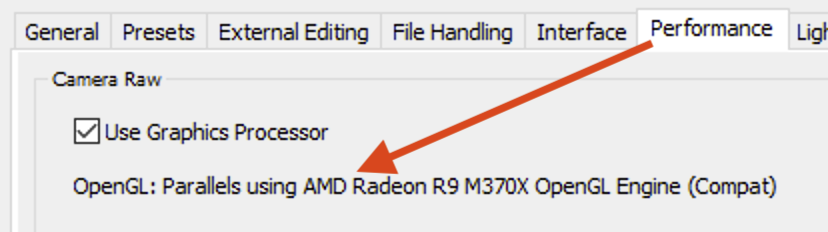
Further, System Info doesn't show that OpenGL is working. Normally, regardless of whether the GPU is enabled, on a supported GPU you should see lines like this:

Graphics Processor Info:

OpenGL: Parallels using AMD Radeon R9 M370X OpenGL Engine (Compat)

Check OpenGL support: Passed

Vendor: Parallels and ATI Technologies Inc.

Version: 3.3 ATI-2.4.10

Renderer: Parallels using AMD Radeon R9 M370X OpenGL Engine (Compat)

LanguageVersion: 3.30

But your System Info shows that LR is using the older DirectX library rather than OpenGL:

Graphics Processor Info:

DirectX: NVIDIA GeForce 940MX (26.21.14.3039)

Further troubleshooting steps:

1. Please post a screenshot of Edit > Preferences > Performance.  It should explicitly show that OpenGL is enabled for the GPU, but I'm guessing yours will show something different:

2. Do a full "clean install" of the graphics driver, as described in step 4: Adobe Lightroom GPU Troubleshooting and FAQ . (Your System Info shows you have the latest Nvidia driver, but doing a full clean install sometimes fixes things, probably due to installation bugs with the drivers.)

Translate
Report
Community guidelines
Be kind and respectful, give credit to the original source of content, and search for duplicates before posting. Learn more
community guidelines
Contributor ,
Apr 25, 2019 Apr 25, 2019

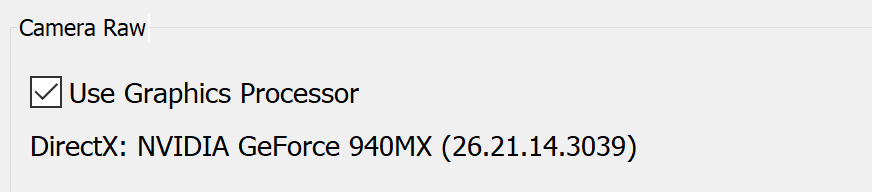
Thanks for the suggestions. I re-installed my graphics driver (with the "clean install" option), and reloaded Lightroom after deleting the preferences files. However, there's apparently no change to the problem behavior: bottleneck is almost always the CPU while GPU is lonely.

Here is the portion of the preferences page relating to enabling the GPU.

Annotation 2019-04-25 151849.png

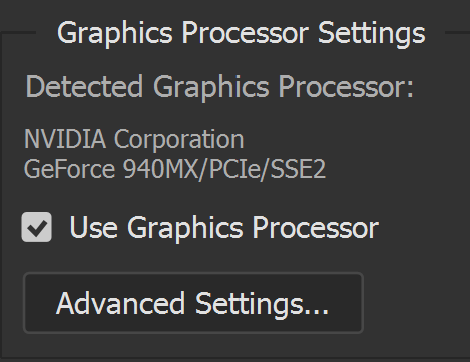
For what it's worth, here's the Photoshop GPU preference... Photoshop will hit the GPU at about 60% while I'm twirling the canvas with the rotation tool.

Annotation 2019-04-25 151922.png

Finally, here are the relevant notebook graphic card specs:

Technology Support:

OpenGL: 4.5

CUDA: yes

Microsoft DirectX: 12 API

Thanks again.

Translate
Report
Community guidelines
Be kind and respectful, give credit to the original source of content, and search for duplicates before posting. Learn more
community guidelines
LEGEND ,
Apr 25, 2019 Apr 25, 2019

It sure seems something is screwy -- Use Graphics Processor is checked, but it shows DirectX being used, not OpenGL, and System Info shows GPUDeviceEnabled: false.

I suggest you post a bug report on the official Adobe feedback forum: Lightroom Classic | Photoshop Family Customer Community . Adobe product developers read everything posted there (but rarely participate in this forum), and they often reply to reports of display problems.  Be sure to include all the detail you've included here -- they're less likely to pay attention to posts that simply link off to another thread.

Translate
Report
Community guidelines
Be kind and respectful, give credit to the original source of content, and search for duplicates before posting. Learn more
community guidelines
Contributor ,
Apr 26, 2019 Apr 26, 2019
LATEST

Thanks. I've posted there too.

Do others generally see a l of GPU activity when flipping between photos/folders in the loupe or grid views? Or am I looking for something that's not expected?

Translate
Report
Community guidelines
Be kind and respectful, give credit to the original source of content, and search for duplicates before posting. Learn more
community guidelines