


- Home
- Lightroom Classic
- Discussions
- Minimize, Restore Down/Maximum and Close Button ar...
- Minimize, Restore Down/Maximum and Close Button ar...

Copy link to clipboard
Copied
I have LR 6.8 standalone on a Windows 10 64 bit computer. The Minimize, Restore Down/Maximum and Close Button buttons on the upper right of the program do not show. I have to go to the task bar to minimize or close the program. Also, I have two monitors and I cannot drag it from monitor 1 to monitor 2. I have uninstalled LR and reinstalled it which didn't fix the problem
These buttons are standard buttons for all window programs, they work for all of my other programs. I had this problem with an earlier update. They mysteriously came back. Every update since then I have had the same problem as the one I'm having now.
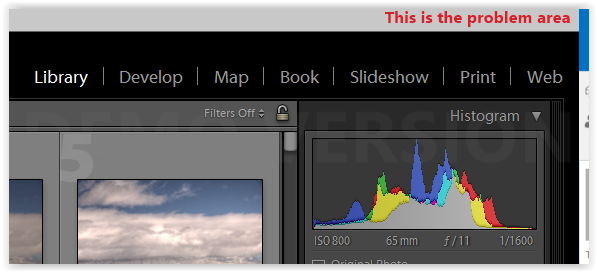
This is what is missing

Thank you,
John Baesemann


 1 Correct answer

Shift-F once or twice

 10
Replies
10
10
Replies
10

Copy link to clipboard
Copied
Shift-F once or twice
Copy link to clipboard
Copied
Thanks, that worked

Copy link to clipboard
Copied
It no longer works. Got a new solution? Tia!
Copy link to clipboard
Copied
Works for me. On older version of Lightroom, I think just the plain old F key was used.
Hint, hint, always state your version NUMBER of Lightroom.

Copy link to clipboard
Copied
Alternatively, do the menu command Window > Screen Mode > Normal.

Copy link to clipboard
Copied
Thanks - I use an old version and plain old F key worked!

Copy link to clipboard
Copied
Yay! That worked!!!!
desmeralda
Copy link to clipboard
Copied
I cannot minimize or resize screen


Copy link to clipboard
Copied
It sounds like Lightroom Classic might be in a full screen mode. Lightroom Classic supports both macOS Full Screen mode, and its own full screen mode that existed earlier.
First, see if it’s in macOS Full Screen mode. Move the pointer to the top of the screen to reveal the menu bar. If that also reveals the application window title bar with the three buttons, then click the green button to restore the window., as shown in the demo below. This is the same way Full Screen Mode works in most other Mac applications.

If you try that and it doesn’t reveal the three buttons, that means Lightroom Classic is in its own full screen mode. In this case, when the menu bar is made visible, this time click the Window menu and then the Screen Mode submenu. If the command selected on the Screen Mode submenu is Full Screen or Full Screen with Menu Bar, choose Normal, as shown in the demo below. On the Screen Mode submenu, you can also see that another way to get out of Lightroom Classic Full Screen mode is to press the keyboard shortcut shown for Next Screen Mode, which is Shift + F .


Copy link to clipboard
Copied
You’ve posted to an ancient thread. It is highly unlikely that the issue described in this thread, though not impossible, is the same one you are currently experiencing. Rather than resurrect an old thread that is seemingly similar, you are better off posting to a new thread with fresh, complete information, including system information, a complete description of the problem, and step-by-step instructions for reproduction.
If the issue is the same, we will merge you back into the appropriate location. This thread will be locked.
Thank you!


Get ready! An upgraded Adobe Community experience is coming in January.
Learn more
 AdChoices