

Harm_Millaard
Inspiring
June 18, 2010
Question

Generic Guideline for Disk Setup

  • June 18, 2010
  • 53 replies
  • 377239 views

There have been many questions about how to set up your disks.

Where do I put my media cache files, where the page file, and what about my preview files?

All these allocations can be set in PR, so I made this overview to help you find some settings that may be beneficial. It is not a law to do it like this, it is a generic approach that would suit many users, but depending on source material, workflow and backup possibilities, it is not unthinkable you need to deviate from this approach in your individual case.

The reasoning behind this overview is that you want to distibute disk access across as many disks as possible and get the best performance.

Look for yourself:
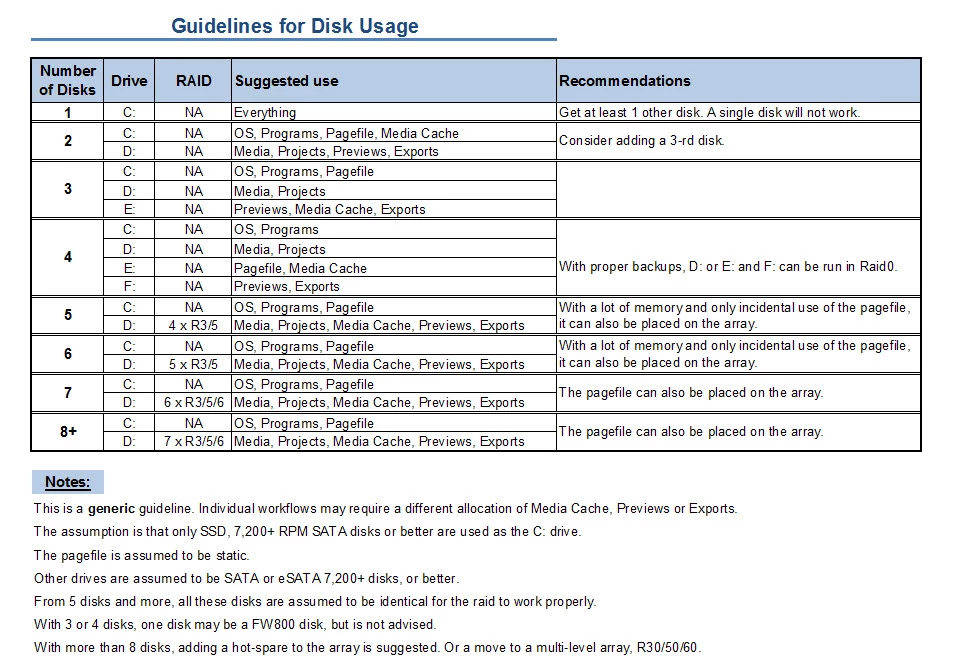
I hope this helps to remove doubts you may have had about your setup or to find a setup that improves performance.

    This topic has been closed for replies.

    53 replies

    Participant
    July 16, 2011

    Are there pagefiles on Mac OS X?   If so, where do you find them and specify their location??

    Thanks!

    PaulieDC
    Inspiring
    July 16, 2011

    Sure are, roctagon. This should answer all your questions: http://hints.macworld.com/article.php?story=20001215021440138

    Participant
    July 5, 2011

    Hi Harm,

    One quick question based on the 'Guidelines for Disk Usage' please...

    Is Pagefile the same as Scratch Disks?

    Thanks!

    Ted

    Harm_Millaard
    Inspiring
    July 5, 2011

    No, pagefile is a Windows OS wide 'virtual' memory which is set from the control panel. Scratch disks are used by Adobe to locate the preview files. They can be in different locations, depending on your disk setup.

    Participant
    July 5, 2011

    Ok... cool - but I don't see Scratch Disks listed on the sheet for Guidelines for Disk Usage... so are they a part of one of the categories listed? Where should they go for a 2 or 3 disk setup?

    Thanks!

    Ted

    Participant
    June 8, 2011

    Hi and many thanks to everybody: this forum is a wealth of informations.

    I need precisions about RAID configuration though.

    My future station will have an SSD for OS and programs and 12 Samsung Spinpoint  F3 HDD (Areca 1880-ix-12 controller) for working with Premiere.

    What is the best performance/reliability for the 12 drives:

         1) 11 RAID 3 + 1 Hotspare

         2) RAID 30 (2x6 RAID 3 layer)

         3) Other?

    Thank you for your suggestions.

    Harm_Millaard
    Inspiring
    June 8, 2011

    I consider 11+1 in raid3 too great a risk. I prefer 6 x 2 in raid30 more acceptable. For my next system I will be going for 7 x 2 (+ 2 hotspares) in raid30.

    Participant
    June 8, 2011

    Thank you, I will go for 6x2 RAID 30. One more question: is a stripe size of 128 KB significant in performance improvement?

    Participating Frequently
    June 2, 2011

    Harm,

    First post here, and am enjoying reading your wealth of knowledge on all of these topics! Been ripping my hair out trying to figure out the best upgrade options for my current system, and figure I would ask your expertise opinion...

    My current setup:

    Mac Pro

    • Two 2.4GHz Quad-Core Intel Xeon "Westemeres" (8 Cores)
    • 32GB RAM (8 x 4.0GB PC10600 DDR3 ECC 1333MHz)
    • 1TB 7200-rpm Serial ATA 3GB/s
    • ATI Radeon HD 5870 1GB
    • CS5 Suite (Mainly using PP and AE)
    • Shooting and editing all DSLR footage (T2i / 7D / 5dMkii)

    I know the ATI card will not take advantage of the accelerated MPE, which sucks but i'll deal with it for now. My main issue is the disk setup. I assume spreading the scratch disks out over multiple drives will help playback and render times (which is what i'm having major trouble with now). In your opinion what would be the best drives to purchase? I don't think I want to go SSD, as the price is just a little too steep. I love the guideline setup you put together, and want to know the best configuration that will yield the smoothest playback and fastest render times.

    I am willing to invest a pretty penny on more drives, as I just rendered a 10 minute, 1080p, H.264, keyed green screen sequence out at maximum render and it took just over 9 hours. My first export this large, so I wanted to see just how long it would take.

    Any help would be appreciated!

    Todd

    ECBowen
    Inspiring
    June 2, 2011

    Well without the Quadro 4000 the a 2 drive raid 0 internal is only going to improve those so much.  Spreading the files out among 3 drives wont speed up your export times on a MAC anymore than the Raid 0. The Raid 0 on OSX actually performs better than it does on the PC because of HFS+ so you would get the best times without the Quadro with your Media, cache, and export times on that. Beyond that the Quadro 4000 will be your best improvement for export times with the Mac Pro.

    Eric

    ADK

    Participating Frequently
    June 2, 2011

    Eric,

    Thanks for your reply. What kind of improvement are we talking about with the Quadro 4000?

    Also, so what i'm gathering is that purchasing 2-3 more Raid 0 drives won't improve performance that much for playback or render times?

    Thanks,


    Todd

    May 8, 2011

    Forgive me if this has already been asked. 

    Is there any good reason to shell out more money to get something faster than a non-raid 7200 rpm drive for the C: programs, etc, drive?  I don't care about boot times.  Just want to know if there will be any performance/rendering difference in Premiere/After Effects.

    Thanks!

    May 8, 2011

    Also, I'm doing raid 5 with 4 1TB drives (for editing After Effects files in Premiere and Canon 5d Mark II DSLR footage) and trying to decide between

    this:

    http://www.sansdigital.com/towerraid-/tr4utplusb.html

    or this:

    Areca ARC-1680iX-12

    Any advice on what has better performance?  If it's similar in speed I'll probably go with the Sans Digital for portability.

    Thanks for any insight!!!

    Harm_Millaard
    Inspiring
    May 8, 2011

    The Sansdigital has a four port controller. Surprisingly if offers raid3, so internally it may be an older Areca controller. The site gives no details. Anyway, the stated performance figures did not strike me as being very fast, just normal average performance.

    In contrast the Areca ARC-1680iX-12 and the newer 1880iX-12 is a 12 port controller with extensible cache up to 4 GB, which is not available on the Sansdigital. The Areca cards have much more tuning options than the Sansdigital.

    IMO the 12 port Areca is a much better buy.

    PaulieDC
    Inspiring
    May 2, 2011

    Truth be told Harm, I wouldn't touch an SSD with a 10 foot pole, not at THOSE prices, that's why I interjected the RAID card and drives, but I didn't want to scare Bill off. It's obviously easier to throw in an SSD, so I gave a totally neutral sappy safe answer. But I personally have never touched or seen one in person and have zero desire. I mean, $2.00USD per gigabyte is insane when you can get real drives for a nickle per gig. I also don't totally trust flash memory yet (if that's what an SSD uses). So, the real me agrees with you 100%.

    Participant
    May 2, 2011

    Harm,

    Thanks so much for sharing your vast knowledge on this Forum. I've recently moved to Adobe from another NLE platform and have learned a tremendous amount here.

    I plan on building a new dedicated NLE down the road but am waiting for the new Intel chips at the end of the year. Temporarily, I'm using a Dell Core 2 Quad Q6600 and I was wondering if you could verify that my current drive arrangement makes optimal use of Adobe Premiere Pro? I have CS5 but am limited to using CS4 on my Dell due to my 32-bit OS.

    C: OS & programs (Seagate 500GB 7200 internal)

    D: Stock Audio - Smartsound, sound effect libraries Plus Video/Audio Capture (raw files). (Seagate 500GB 7200 internal)

    E: Scratch Disc (Seagate 500GB 7200 internal.)

    F: Projects and final renders for Export (Seagate 500GB 7200 external - accessed thru USB 3.0 port.)

    G: Backups  (Seagate 500GB 7200 external - accessed thru USB 3.0 port.)  

    Thank you.

    PaulieDC
    Inspiring
    May 2, 2011

    Hey Tiger Bill, welcome to the forums!

    Harm should/will jump in here shortly, he's good at that kind of stuff, but I'll take a shot at the answer he might give: that is to go with what you have until you build the new rig. 32-bit Premiere and an older dual-core is only going to get so good and then you hit a wall where upgrading is pointless. However, if you wanted to do any one thing to make your world better, you'd want to speed up your Asset drive (the D drive) by buying an SSD, BECAUSE, you can yank that SSD and use it in your new rig later. You want to speed up your drive where you read source files from, so an SSD there makes sense. Or if you need way more room, you can spend $350 on an LSI 3Ware RAID card and get two Samsung Spinpoints and have 2TB of RAID0 speed (just make sure you back your assets up). If you're going to invest, do it for something you can take with you to the new rig. Just my $.02 (including VAT).

    BTW, you didn't mention RAM and paging file. I hope you have buckets of ram but being 32-bit I know your ceiling is 3.3GB, so you'll want an 8GB paging file on a different drive, not your OS drive. I'd probably set it up on that E drive where the Scratch Disks are set up. Don't try to place it on one of the USB 3.0 drives (I don't think you can anyway).

    Have fun! Let's see what Harm says, I could be off the mark on my assessment...

    Paulie

    Legend
    April 30, 2011

    Harm,

    I have been experimenting with the OS drive in my main rig these days. I have tried both smaller- and larger-capacity hard drives as the OS drive in my main rig. And the only reason why I currently have a 2TB WD Black as that system's OS drive is that it's the fastest of all of the single drives I have in my collection (not counting four 1TB hard drives set up as two separate RAID 0 arrays). I have a spare 1TB WD Black SATA 6.0 Gbps drive, plus very old 320GB Caviar SE16 and 74GB Raptor drives that could barely sustain even half of what the 1TB and 2TB hard drives could achieve (in fact, the maximum sustainable transfer speeds of both the SE16 and the first-gen Raptor are only 65 MB/s and 71 MB/s, respectively - even slower than nearly all of the recent 5400 to 5900 RPM "Green" drives - versus about 130 MB/s and 140 MB/s for the 1TB Black and the 2TB Black, respectively). I'm tempted to drop down to the 1TB drive unless I were to spend additional money for a smaller-capacity yet fast-performing hard drive for the OS.

    April 29, 2011

    Thank you very much for your guide this is just the information I am looking for but would like your help further.  I have decided to replace my Dell XPS720 PC and I am awaiting delivery of my HP Z400 workstation.  I am an enthusiast photographer and videographer with CS5 Premium Production.  The Z400 comes with a 1TB drive (Win7 Professional 64 bit).  It will hold 4 drives SATA300.  I was advised against RIAD0 due to likelihood of completely losing all data on these drives, I considered a SAS drive but that would require a SAS controller.  So instead I bought an INTEL 320SSD with 300gb and a Western Digital WD1002FAEX Caviar Black 1 TB 7200 RPM, finally I was going to re-use one of the drives from my existing PC's.  Although I did research on what workstation to buy and whether I wanted RAID0 or not I had not really given a lot of consideration on how to use the drives, until now.  (I should also say I bought an Nvidia Quadro 4000 graphics card, and I have a Panasonic TM700 which produces AVCHD files).

    Looking at your guidelines I am now wondering if I have made a mistake on how I planned to use my drives.

    I did not intend to use the SSD as the OS drive but to leave the existing 1tb drive as the OS drive and to use the SSD for the video files.  I would use the 3rd (WD Caviar Black) and 4th drive for general storage and perhaps to spread the project files around on.  I had chosen the SSD drive as I felt it would provide me with the performance required to give smooth real time rendering and previews rather than the juttering slow rendering I currently have.  I am told that perhaps SSD is not the best option for video file processing.

    I would greatly appreicate any advice you can give me on how I should set up my drives.  Since my workstation doesn't arrive until next week I now have the time to plan it out properly.  Many thanks. 

    Harm_Millaard
    Inspiring
    April 30, 2011

    @ Randall,

    The argument that using a 1 TB or larger disk is a waste of storage space no longer holds with the dropping prices of disks. Today the price of a Samsung F3 1 TB disk, including 19% VAT, is only € 37.74. If one compares that to the 320 GB Samsung F4 @ € 31.00 the price difference is so small and the fill rate so low on a 1 TB disk, that is makes sense to use a large disk instead of a smaller one, especially if one has such a large disk laying around.

    @ Shay,

    SSD's are very fast for reading, but writing can be be a lot slower, even when the trim function is enabled. For source files, media, the use of an SSD makes a lot of sense, because it is reading what is required.

    I would consider the following setup, with C, D and E conventional disks:

    C: OS & programs

    D: Static pagefile, media cache, previews

    E: Projects and exports

    F: SSD for source media

    April 30, 2011

    Thank you Harm, another question though. I originally said I didn't intend to use the SSD as the OS drive but would this be a better option, so to recap the two options would be:

    Option 1:  As you suggested:

    C: OS & programs

    D: Static pagefile, media cache, previews

    E: Projects and exports

    F: SSD for source media

    Option 2:

    C: SSD for OS & programs

    D: Static pagefile, media cache, previews

    E: Projects and exports

    F: Source media

    Which of these two options would you recommend or if the SSD was used for OS & Programs would you recommend, something different?

    Many thanks Shay

    February 21, 2011

    When considering a 4 disk setup, what is a safe and easy way to satisfy "proper backups" when considering your 4 disk Raid-0 comment "With proper backups, D: or E: and F: can be run in Raid 0"? Do you have an ideal method for backups in this scenario?

    I've noticed no suggested 2 disk Raid-0 for drive C: OS/Programs setup for those that would like a faster boot drive and trying to avoid the costs of a single SSD. If anything I think you would rather see a Raid-1 setup for C: OS/Program.  Do I understand you correctly?  If true, could you please elaborate.  Isn't the only downside to a disk failure only to have to reinstall your OS and Programs and your time to do so?

    Thanks,

    Frank

    Harm_Millaard
    Inspiring
    February 21, 2011

    There are many ways to make back-ups. One could use a number of back-up software utilities and back-up to separate disks, to a local NAS, to a remote NAS over VPN, etcetera.

    Isn't the only downside to a disk failure only to have to reinstall your OS and Programs and your time to do so?

    Have you considered the problems you may encounter with reactivating software and it not letting you, because you have exceeded the allowed number of installations? When a raid0 dies on you, you can't deactivate first before installing the OS & programs again. Another negative effect is that you have to start tuning your system from scratch, uninstalling crap like MSN, games, setting up the services you require, disabling the sidebar, indexing, compression and recreating the pagefile, etcetera.

    Raiding the OS disk does not usually give you any performance benefit, the gain is in raiding the other disks you have.

    PaulieDC
    Inspiring
    February 21, 2011

    Harm is exactly correct. Windows 7 has a ghosting utility as part of its Backup Control Panel where you can make a system image of your C drive. After you install everything and get it registered and activated (and your login account setup), you just make an image of that drive onto a USB external or another hard drive, plus create a startup DVD. If your C drive crashes WHATEVER physical drive(s) that may be, no problem, pop in a new drive, boot up off of the DVD and reinstall your image and you're back in busness. In fact, I used that system image thing for my work PC... pulled out the tiny 80GB Seagate drive and popped in a bigger WD drive and restored my image to that bigger drive, and then used Disk Management to extend the image to the full size of the drive. Win 7 finally has the tools to do this stuff which is nice. So like Harm said, deactivating and reactivating software isn't a concern anymore as long as you have a good image. I recreate my image once a month or so being that there are always updates to Windows, Adobe software and plugins.

    Anyway, that's my model, may not work for everyone, but jus an example for you to bounce around as you plan.