rmthompson902
Known Participant
November 14, 2017
Answered

Premiere Pro using Integrated and not Dedicated Graphics Card

  • November 14, 2017
  • 49 replies
  • 452154 views

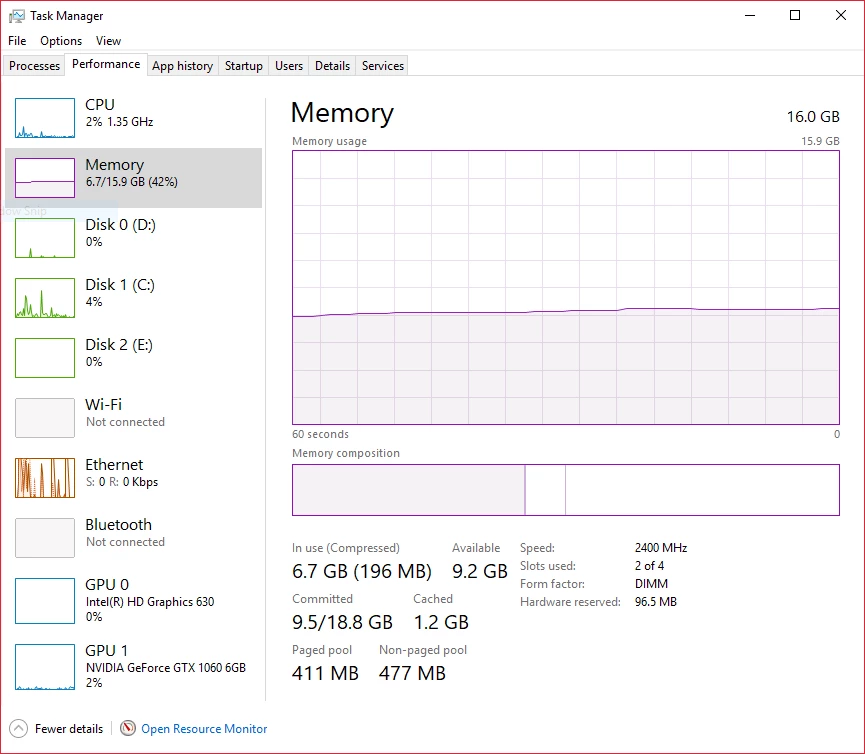
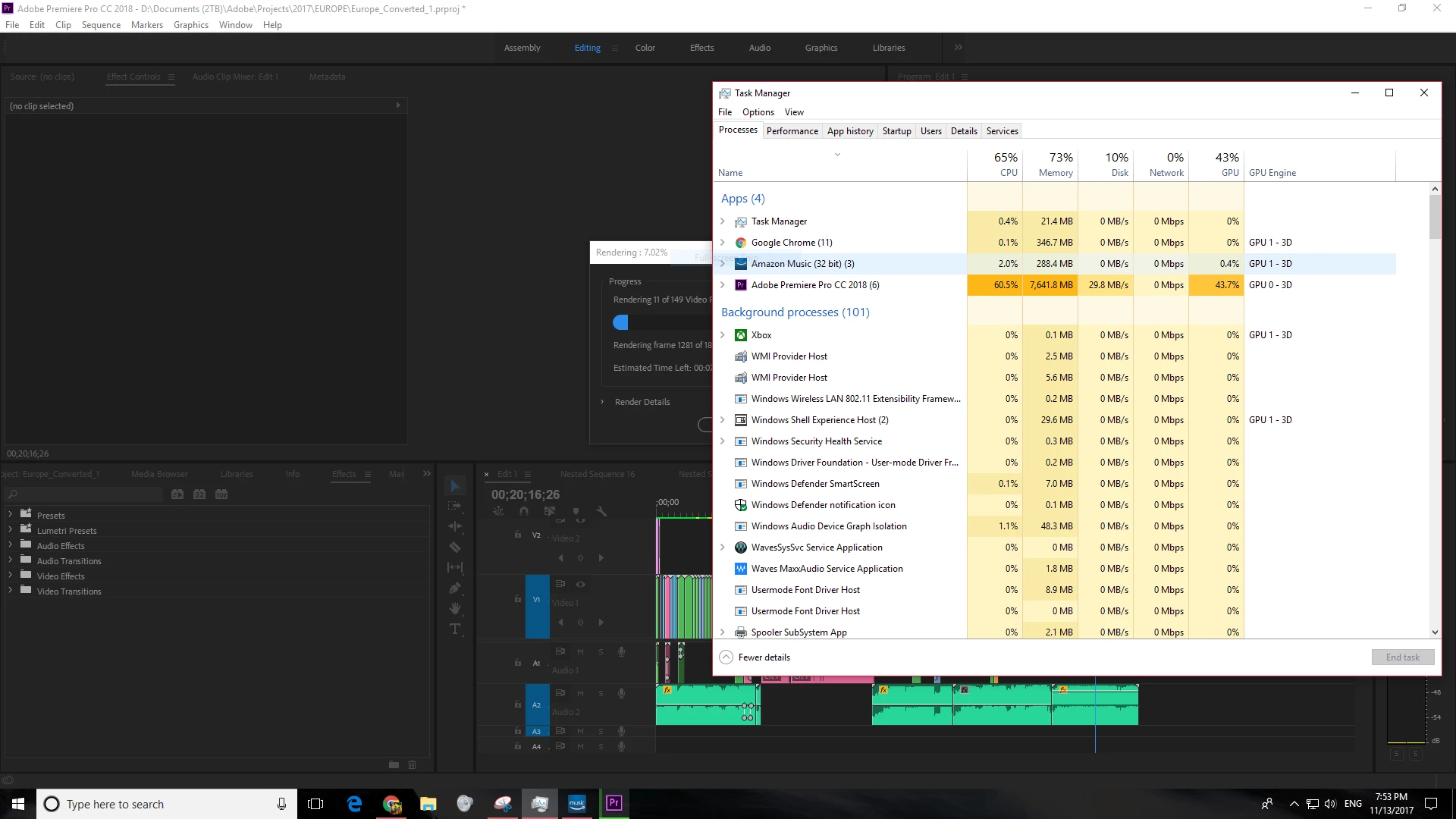
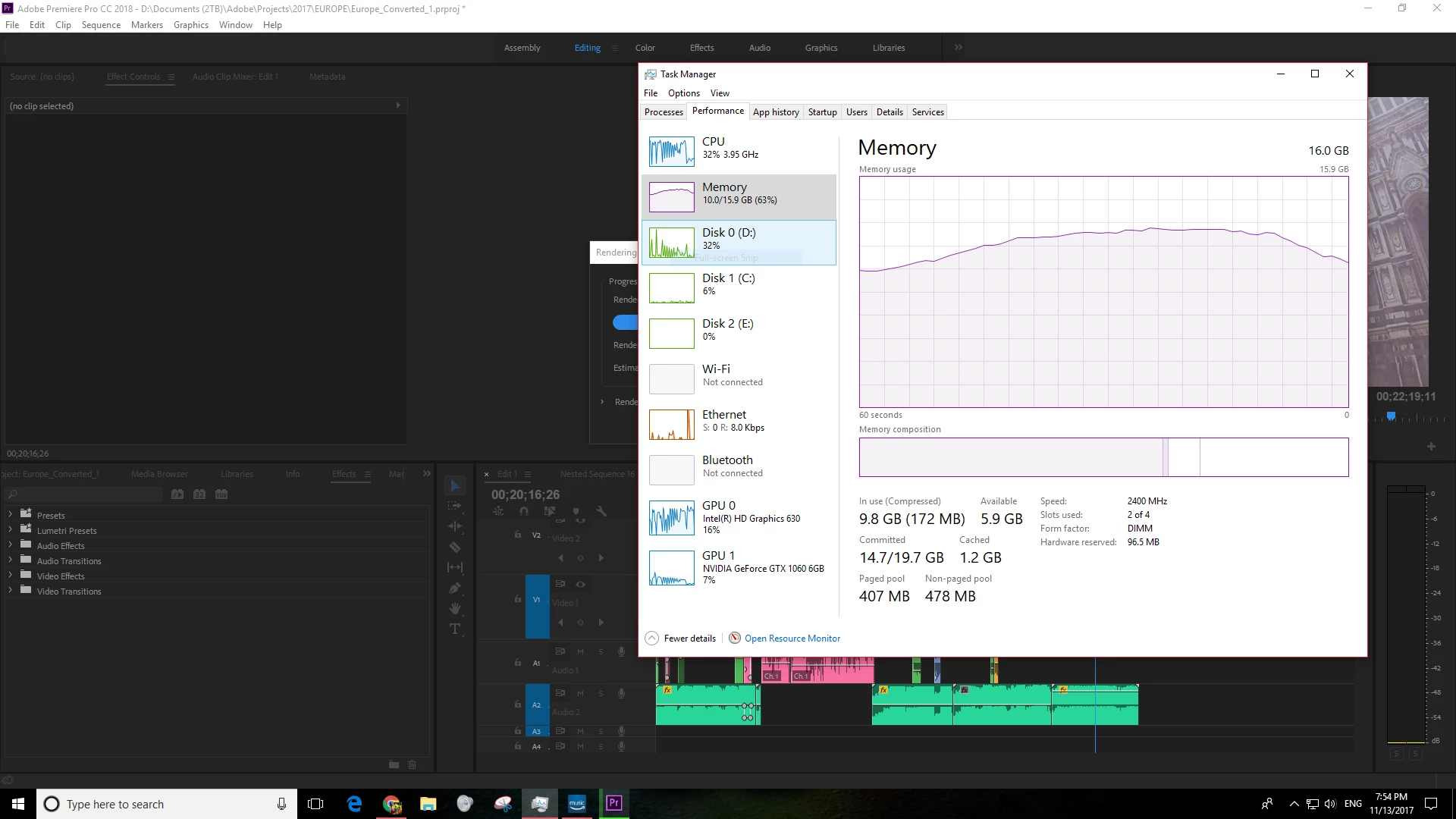
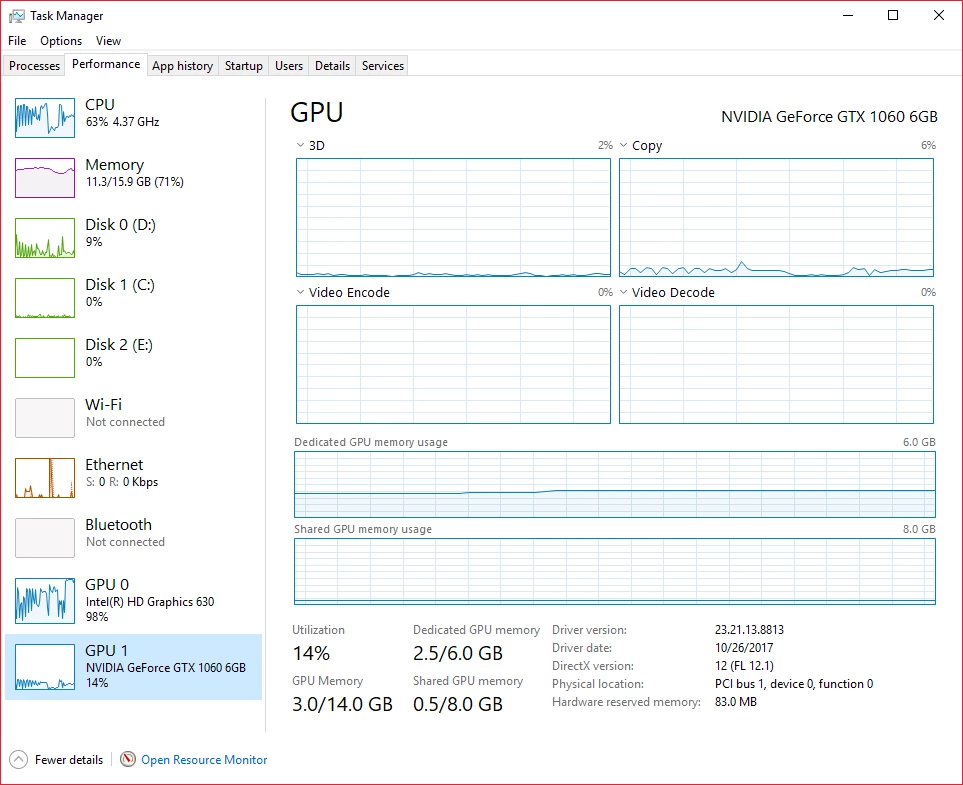
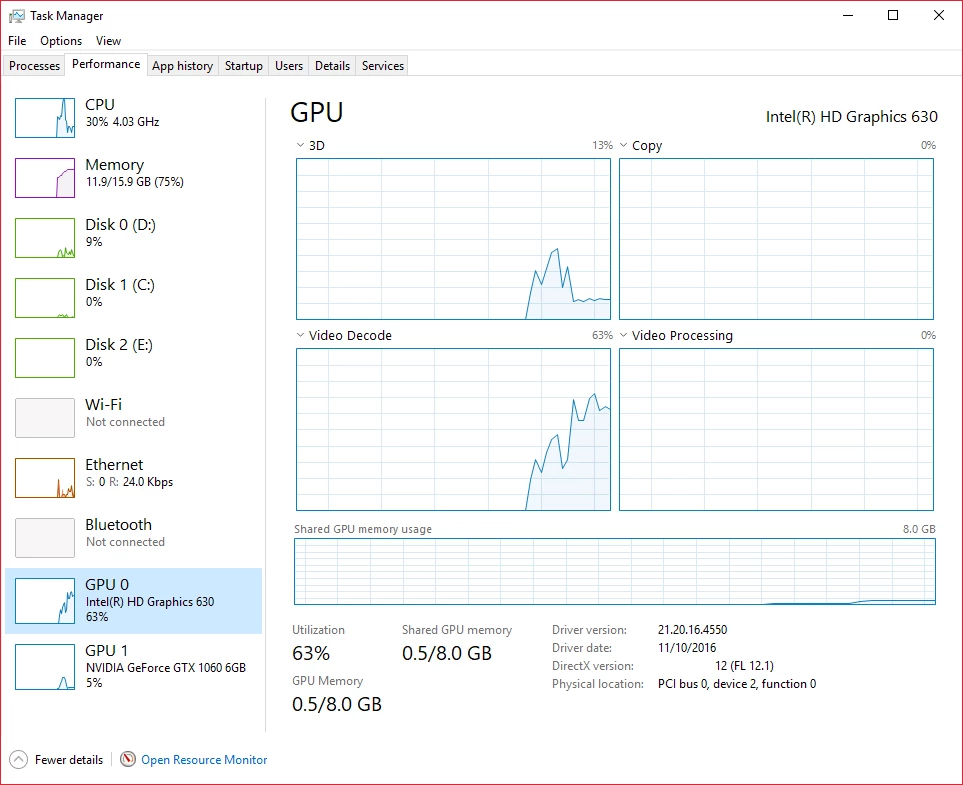
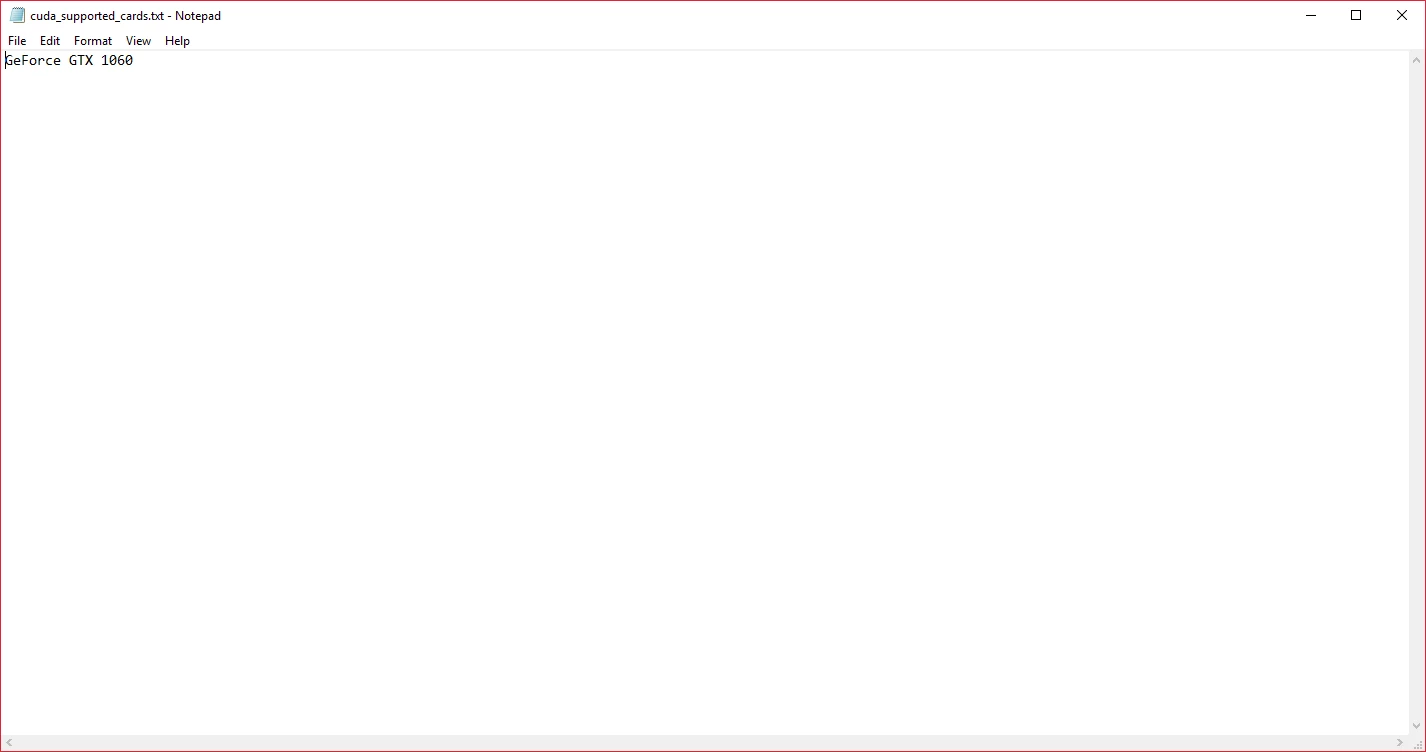
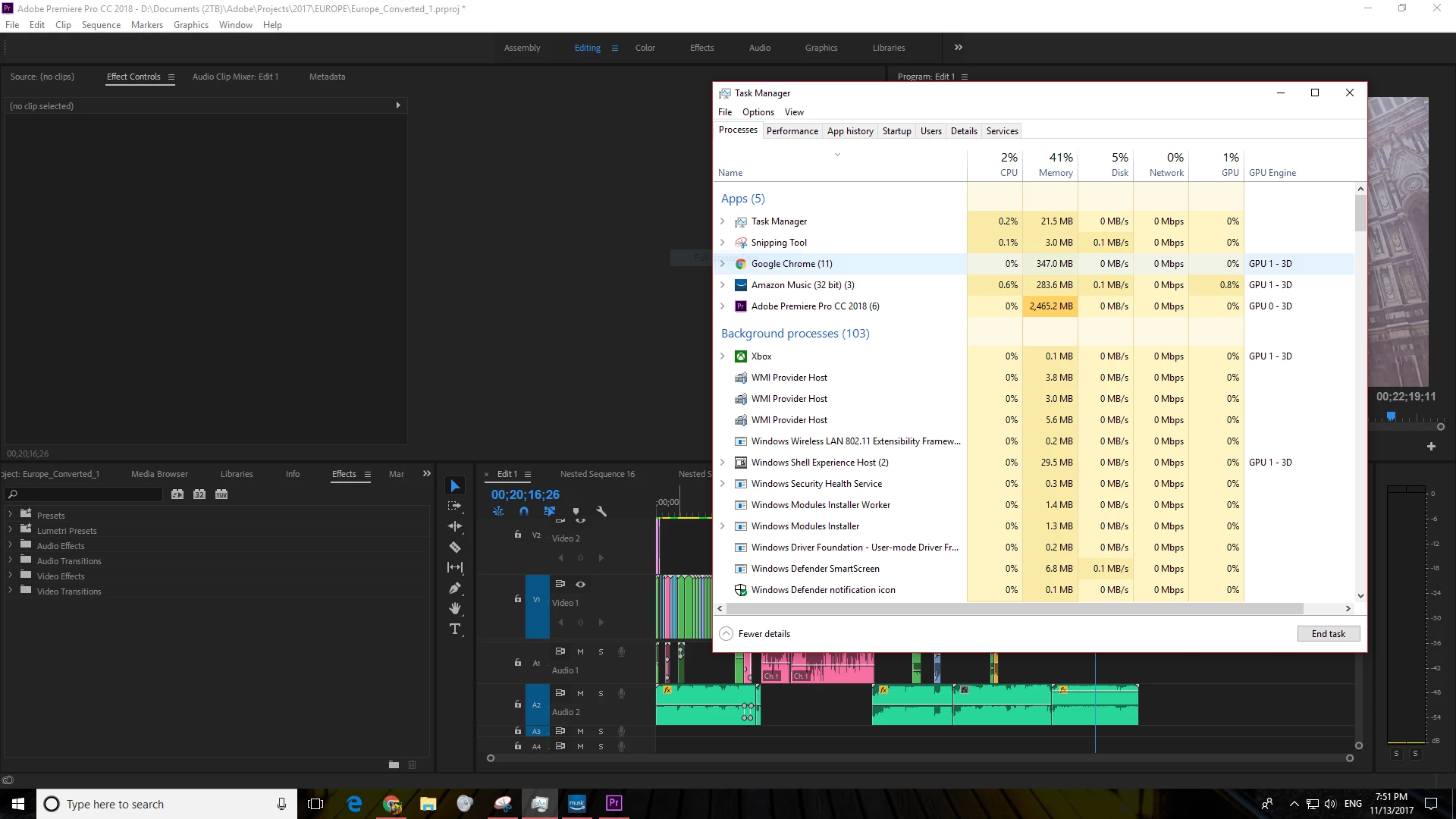
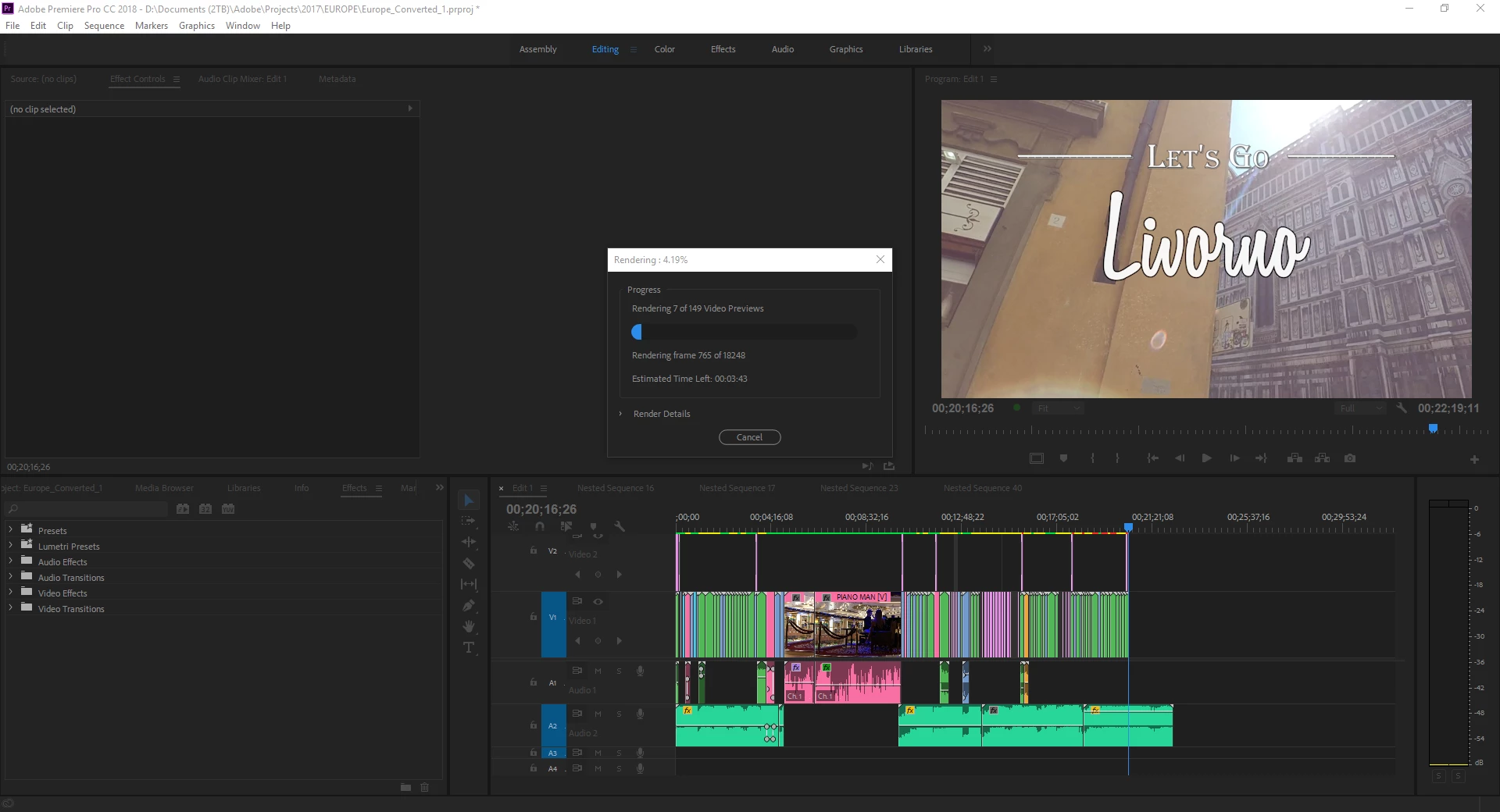
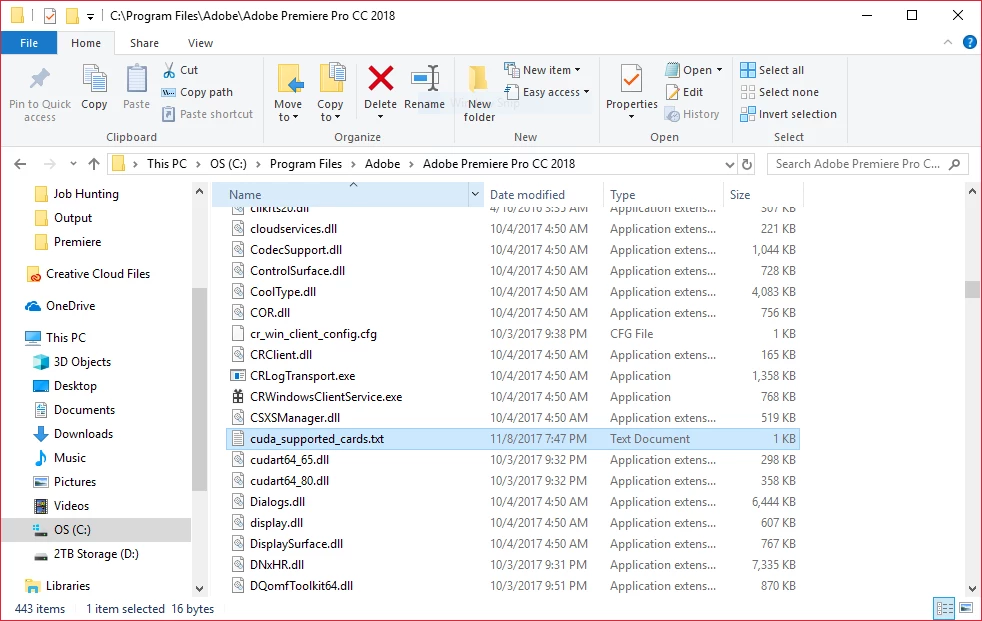
Hello all, I have a quick, but important question about Premiere Pro CC 2018. It seems that Premiere Pro is using my integrated graphics on my CPU rather than using my installed and working dedicated graphics card to render GPU accelerated effects and such. I am running a fresh install of Windows 10 with the latest updates. I also have a fully updated Creative Suite. Below I have listed my system specs and screenshots for reference to the issue. Notice that under GPU Engine in Task Manager, it lists GPU 0, my integrated graphics. I have also done some research of my own, and I have come across adding the "cuda_supported_cards.txt" into Premiere Pro's installation directory. I have done that, and I have tried both typing "GeForce GTX 1060" and "GeForce GTX 1060 6GB" into the document, but its the same story for both cases: it uses my integrated graphics. The file currently lists "GeForce GTX 1060".

Thank for any and all help,

Ryan

System:

7th Gen Intel i7-7700K Processor (No current overclock)

nVIDIA GeForce GTX 1060 6GB

256GB M.2 SSD

2TB 7200 RPM HDD

16GB of 2400MHz DDR4 Memory

Windows 10 Pro 64-bit

Screenshots (Idle, Premiere Pro loaded and open, not rendering):
Screenshots (Premiere running, Rendering previews for a project of mine):
Text Document:
[Moderator note: moved to best forum for technical issues.]

Correct answer caroline_edits

We created a video on how to optimize your GPU for Adobe apps here! Take it with a grain of salt, if you have an Intel GPU using QuickSync, you're best off using that GPU for H.264 and HEVC (H.265). 


Caroline

49 replies

New Participant
September 2, 2022

Hello Guys,


I was having the same problem and none of the answers mentioned in this thread worked for me. I found out the solution is to remove intel option from Edit > Preferences > Media > H. 264 decoding option.(You need to restart PP after that) Please check the images

New Participant
October 2, 2022

@Shalin25924240qznv you are a genius - this did it for me - thank you!

New Participant
October 4, 2022

Hello Thank you very much. For me its still the same issue but the intel is not available like in the screenshot. There is only nvidea and its checked... Are there any ideas about it?

caroline_edits
Community Manager
caroline_editsCommunity ManagerCorrect answer
Community Manager
February 22, 2021

We created a video on how to optimize your GPU for Adobe apps here! Take it with a grain of salt, if you have an Intel GPU using QuickSync, you're best off using that GPU for H.264 and HEVC (H.265). 


Caroline

New Participant
April 23, 2021

Followed the video Still not working in 2021. it's still use CPU for playback

R Neil Haugen
Brainiac
April 23, 2021

This is so freaking complex. Depending on the CPU and GPU ... and of course, what effects you use (some effects in PrPro do not involve the GPU at all anyway anytime). Some times what "we" users think should be happening won't be.


And just having a new or spendy CPU doesn't actually tell you ... diddly. As it depends on what features that CPU has and some low-end CPUs have more hardware for H.264 encode/decode than some of the spendy ones. Weirdly enough.


@RjL190365 is the person that can best track and explain this complicated morass.


Neil

Everyone's mileage always varies ...
Kevin-Monahan
Community Manager
Community Manager
March 10, 2020
  • The iGPU assisting encoding is actually the correct behavior for exporting HEVC and H.264 files.
  • The iGPU uses a technology requested by users for some years now: Quick Sync technology.
  • Quick Sync speeds up the decoding (assisting playback) and encoding (assisting exporting) for H.264 and HEVC files. 
  • Quick Sync technology is found only on Intel CPUs. There is currently no equivalent for AMD CPUs.
  • The discrete GPU assists the CPU for certain effects processing (scaling, color space, frame rate changes, etc.) and accelerated GPU effects, no matter the format.
  • If the discrete GPU is not functioning on export, it only means the iGPU (or CPU) is doing all the encoding work and the GPU is not currently required (perhaps there is no effects processing required nor GPU accelerated effects applied)—which is quite common, actually.
  • The discrete GPU does not assist the encoding of files whatsoever, it only works with effects processing and GPU accelerated effects. It should work in tandem with an iGPU if working with H.264/HEVC files that require effects processing or have GPU accelerated effects applied.


So, do not worry, Your system is just fine. Don't go crazy trying to disable the iGPU if H.264 is your target. You want that working and do not want to disable it if you export H.264 or HEVC.


Thanks,
Kevin

Kevin Monahan - Sr. Community & Engagement Strategist – Pro Video and Audio
Kevin-Monahan
Community Manager
Community Manager
March 10, 2020

Please create a new post if you are having any problems or need a further explanation. Locking this post.


Thanks,
Kevin

Kevin Monahan - Sr. Community & Engagement Strategist – Pro Video and Audio
December 17, 2019

After having some issues with the new Premiere options, in my case, my Motherboard is kinda old so the Intel Integrated one was not compatible with Premiere and it was giving me an error message. My GPU is an Nvidia RTX 2080, so what was the deal?


I read some comments and checked out my pc spects using HWinfo software. It was showing two GPUs, the Intel as the first and Nvidia as the second one. Knowing that I tried to find a way to change Premiere main GPU on windows and even on Nvidia Control Panel. It did not fix it.


The last thing I did was to get into my BIOS and look to find a way to change this priorities. I couldn't find it but I found a setting showing:

Intel Processor Graphics: ENABLE

After disabling it, voilà, Premiere loaded without any problems.

Hope that helps you guys.

December 17, 2019

Just disable the Intel GPU in BIOS

New Participant
November 13, 2019

Hi there,


After banging my head in numerous forums regarding the same issue, I believe I have come across the solution or rather a discovery.


First of all, are you having any performace lag while doing this or are you just curious about the values showing up in task manager?

I ask this because, it always bothered me even if the performance was okay.

So, Adobe is getting a lot of trash for this issue while in actuality, it seems to be a Windows problem, at least for me.

As it stands, the task manager is inaccurate.

I realized this while undervolting my cpu and by sheer luck working with HW monitor which showed awesome gpu usage values while using premiere pro. To cross check I also ran GPU-Z and showed results closer to HW monitor while task manager's value was way off.


So, I suggest to use some reputable third party monitoring tools to see if it is using the GPU.


Adobe is getting a lot of crap for this issue while it was windows fault. But again it is really disappointing that Adobe wasn't able to discover this.

Hope this helps and please let us know.


Cheers.

New Participant
November 8, 2019

Hi,


I was suffering from this problem exporting gameplay and the export time was over 8 hours and I searched everywhere on how to reduce export time and came to know about GPU rendering. So, I will clear you out 1st, I found out that software uses CPU/Integrated GPU only if the effects on your video does not use GPU acceleration. But if you have any effects on your video that uses this feature then search and turn it on. But if it does not then it will use CPU no matter what. I was using RSMB on my CODM video. After turning the GPU acceleration checkbox, my render time was reduced by almost 10 times. So, please check if you have any effects. 


Note: Simply color corrections, transitions, audio effects won't use GPU unless it has that feature.


I hope it helps you. 

New Participant
November 12, 2019

So this is obviously a pretty long thread, so TLDR... but from what it seems is that Adobe Premiere simply doesn't use GPU over integrated graphics... for whatever reason.

Literally all my other graphics and creative apps use my Quadro RTX 5000 card on this laptop.. except Adobe. So can an Adobe representative explain why exactly? It just boggles my mind that this $4,000 creative laptop spits out 4k Premiere Pro videos almost the same amount of time that my $1,000 laptop does.

Even Firefox is utilizes my GPU over the Integrated when *I specify* it to.

New Participant
September 18, 2019

I'm having the same issue here, and I found some workaround by now. I don't know if at this point things are working as it should be, but I thought sharing with you might help since I noticed some improving.


I have an Dell Inspiron 3000 series laptop, with the following config:


Core i7 8th gen

8GB RAM

Integrated Intel 620 GPU

Dedicated AMD ATI Radeon 520 2GB RAM


Same as you all, Premiere cc 2019 was exporting .mp4 (H264) video using a lot of processor capabilites and Intel integrated GPU. I've tried setting Radeon software to optimize performance and force Premiere to use Radeon GPU, with no effect. Then I've tried in Windows 10 (1903) Settings>System>Video>Advanced graphics config (or something like it, since my OS is in Brazilian Portuguese) adding Premiere Pro CC 2019 to a list and then setting it to High performance (fisrt through Search button, then options in Premiere once added to the list). No improve observed.


Following, I've foud a Intel Graphics Control Panel (in Start menu) and in the Energy tab I set on battery and plugged to Highest performance (or something equivalent). That finally triggered the Radeon GPU. While exporting video in Premiere, the processor usage dropped to 65-75%, Intel GPU remained the same ~95% and Radeon went to 12-14% (a small victory, but better than nothing).


One additional detail may be of interest. I was using the laptop on battery. When I plugged it back to the power, Radeon GPU dropped to 2% and processor went back to 100% instantly! To make a long story short, in Control Panel>Power Options (maybe energy?)>Change Power Plan Settings>Change advanced power plan settings - I found through the settings an item called Power settings of AMD graphic card (maybe wrong translation)>AMD Powerplay settings - On Battery was set to Enhance battery life and Plugged was set to Enhance Performance (mind translation errors). Curiously, enhance performance makes the CPU usage go to the roof and Radeon GPU usage drop to minimum. Changing config from both (on battery and plugged) confirmed it. It works like a switch both if I plug or unplug the AC adapter or if I alternante settings DURING video encoding. The performance of processor and GPU change immediately. I assumed that an enhanced battery life, in this case, means use less CPU (more power consuming?) and more GPU (less power consuming?).


Also I noted a difference between Intel and Radeon GPU usage when both are required. Intel processes 3D and copy, while Radeon does computing.


Bottom line: (1) Setting Premiere to Highest performance in Intel Graphics Control Panel and (2) setting AMD Powerplay (in advanced power plan settings) to enhance battery life triggered some usage of Radeon GPU while exporting video.

New Participant
September 12, 2019

I was using window 7 machine with Premiere pro cc 2018 and that machine had no graphics card, but when I migrated to window 10 with a different machine with NVDIA graphics card, with same software version  Premiere pro cc 2018 and opening old premiere files on this every time I am facing the crash issue. and whenever I am choosing the integrated graphics option in NVIDA  graphics setting the old files working fine but with NVIDIA Auto Global setting or high end setting not supporting, switching to these options I am again getting the crash issue.

For working on old file i have to switch to interrogated graphics option which is very annoying. is there any way to get rid of this.


If anyone has a solution for this please help.

Kevin-Monahan
Community Manager
Community Manager
September 29, 2019

Lalit,

Sorry for this issue. See if this remedy from another user might work:


  1. Go into the Windows 10 Graphics Settings & set the graphics for each app you need to High Performance.
  2. Photoshop, Lightroom & Premiere Pro are now working consistently for me.
  3. In PP you will still get the System Compatibility error message at startup & you do need to have this following option set: File> Project Settings> General> Renderer> Mercury Playback Engine GPU Acceleration CUDA.


Let us know if that helps.

Thank You,
Kevin Monahan


Kevin Monahan - Sr. Community & Engagement Strategist – Pro Video and Audio
New Participant
August 7, 2019

I am having the same issue everyone else is reporting. Even just trying to play back video before rendering, premiere is relying solely on CPU, and not using my graphics card at all. I have followed everyone's suggestions to no avail.

Intel 7700k

GTX 1080

64GB Ram

R Neil Haugen
Brainiac
August 7, 2019

I am having the same issue everyone else is reporting. Even just trying to play back video before rendering, premiere is relying solely on CPU, and not using my graphics card at all. I have followed everyone's suggestions to no avail.

Well ... I don't know how many times it needs to be said ... Premiere does NOT use the GPU very much if at all for general playback ... the GPU is primarily used for those things on the GPU Accelerated Effects List ...

GPU Accelerated Effects: https://helpx.adobe.com/premiere-pro/using/effects.html

Period. As with any video-post-processing app, the engineers have designed a system to what they think best uses the system resources over the various needs and demands of the main user-base. Some apps code certain things more for GPU, some CPU ... they all vary.

And they all are built by looking at what effect using some part of the system resources for X purpose will have under thirty different scenarios. The engineers make choices based again on the overall needs of the various code sections for hardware support.

It's always trade-offs. Which is ... Life.

Neil

Everyone's mileage always varies ...
New Participant
July 23, 2019

After a lot of messing around with my Alienware (Dell) laptop I finally got this sorted, or so it appears!

Go into the Windows 10 Graphics Settings & set the graphics for each app you need to High Performance. Photoshop, Lightroom & Premiere Pro are now working consistently for me. In PP I still get the System Compatibility error message at startup & you do need to have this following option set.

File> Project Settings> General> Renderer> Mercury Playback Engine GPU Acceleration CUDA

michaelp92032205
Inspiring
August 4, 2019

This seems to have worked for me as well. After making the above change in Settings>System>Display>Graphics Settings, I notice a spike in my Nvidia GPU activity in Task Manager when I play back realtime effects in the timeline.