





Design the future of fashion, win Firefly Pro 👗✨
Discover Adobe Scan tips from our global community.
Recently active
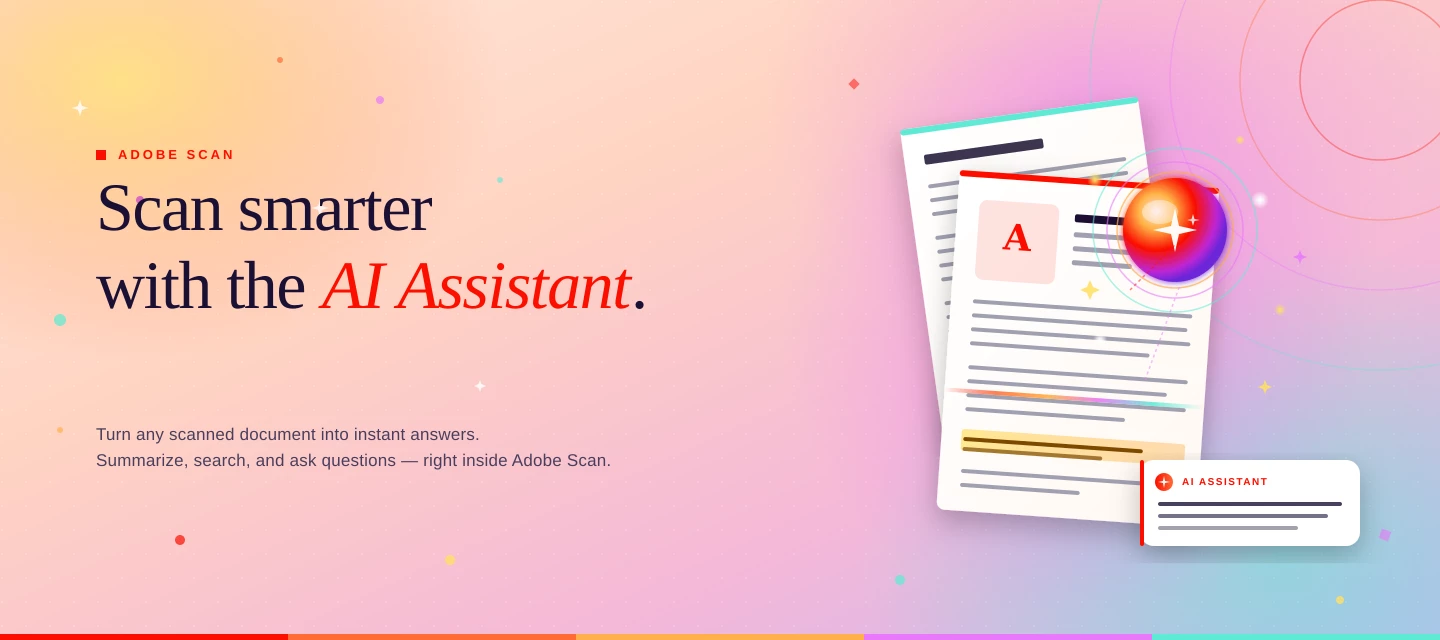
About this articleRead time: ~3 minutesPublished: May 12, 2026 TL;DR: AI Assistant in Adobe Scan is a generative AI feature in the Adobe Scan Android app that lets you ask questions about any scanned document by voice or text and get answers with citations. Think receipts, forms, handwritten notes, multi-page contracts: scan it, ask it, done.Ever scanned a 12-page rental agreement and spent 20 minutes hunting for the security deposit clause? That's exactly what AI Assistant in Adobe Scan is built for : you scan, you ask “what’s the deposit amount?” and it answers with citations pointing to the source. It’s not a new app, but a generative AI layer baked into the Adobe Scan mobile app you already use. The unique bit: AI Assistant only reasons over your scanned document and shows numbered citations pointing back to the exact section, so you can verify before you trust. What is AI Assistant in Adobe Scan?AI Assistant in Adobe Scan is a generative AI feature in the Android app that lets y
Hello Adobe Community, We are so excited to share that we have a new home and, it is better than ever! You can find the new homepage at community.adobe.com or adobe.com/community. The Adobe Community is more than just product forums—it’s a place to connect, get inspired, and grow as a creator. Our new Community homepage brings it all together in one central place, giving you a clearer view of everything available to you. Whether you’re here to learn, contribute, or just explore, this community is for you — a place where ideas grow, connections form, and your voice helps shape the future of our products. This is your Community. So, what’s new: A streamlined homepage where you can explore product forums, browse creative inspiration galleries, and discover upcoming events—all in one place. A new Creator Spotlight section featuring community members like you and highlighting your work and giving you quick access to starter
You can customize your community profile by clicking your profile avatar and Editing Your Community profile. Your profile picture and screen name will appear on the content you publish and in your private messages. You can update your profile picture. You can pick a new custom screen name or have the system auto-generate a new screen name for you. The information you enter in the signature section will appear in your posts. Using the toggles, you can display your online status and make recent activity on your profile public. Information under the “Add more to your profile” section can be edited and made public only when you enable the toggle “Show all information on Community Profile.” This is your public profile information from Adobe products and services such as Behance and Lightroom. Updating this information will propagate everywhere. Enter or edit your First Name and Last Name. Ent
Be the first to experience: Become a beta user for Acrobat Mobile Android! Acrobat Mobile always has exciting new features and updates! If you want to be among the first to try out the latest updates, join the Acrobat Mobile Play Store Beta program on Android. As a Beta user: You have exclusive early access to all new Acrobat Mobile features on Android, You determine the future of features on Acrobat with your valuable feedback. Become a Super User by enrolling in the Play Store Beta program for Acrobat on Android by clicking on the link. Alternatively, you can directly Open the Play Store on your Android device > Search for Adobe Acrobat Reader > Click on Adobe Acrobat Reader: Edit PDF and scroll below to click on ‘Join the Beta.’ If you no longer wish to be a part of the Beta, you can leave using the above steps. Your feedback is extremely valuabl
Remix with Firefly Community Gallery
Thousands of free creations to fall in love with and remix in Firefly.
Already have an account? Login
Enter your E-mail address. We'll send you an e-mail with instructions to reset your password.