




Run PDF Tasks Inside Copilot: Here's How
ABOUT THIS ARTICLE
· 4 min read
· Published June 30, 2026
| TL;DR: Acrobat for Copilot lets you create, edit, organize, and extract information from PDFs using natural-language prompts inside Microsoft Copilot. No switching apps. It's available to all Adobe Acrobat users, including the free plan, in English across all regions where Adobe products are offered. You activate it by typing @Adobe Acrobat followed by your request. |
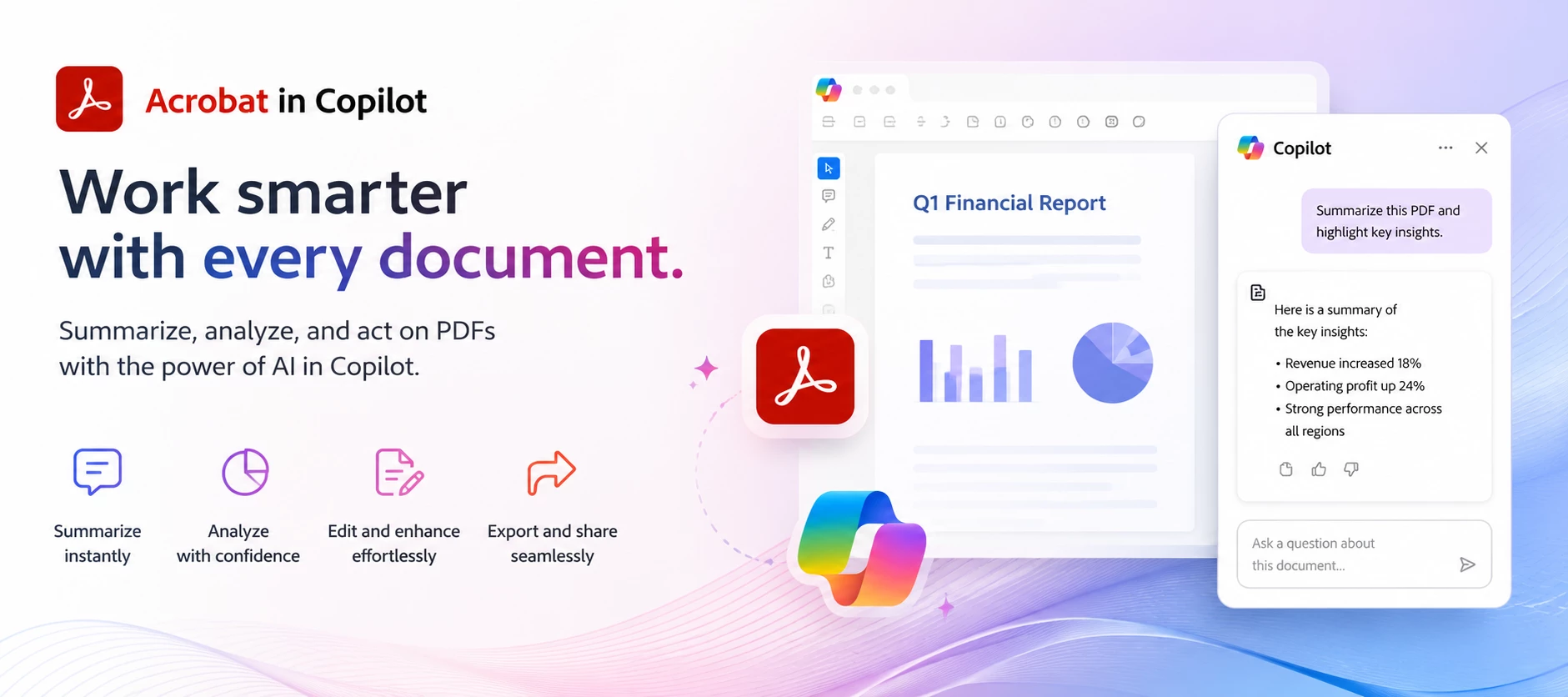
Adobe Acrobat for Copilot is a Microsoft Copilot extension that lets you handle PDF work without leaving the chat. If you've ever had a document task interrupt your flow: combining files before a meeting, redacting a name before sending something along, converting a scan into something editable. This is built to close that gap. You stay in Copilot, type what you need in plain language, and Acrobat picks it up from there.
This post walks through what the extension does, how it works, a few real use cases from Adobe's own documentation, and where to go if you want to try it or weigh in on what's next.
Before you begin
- Sign in with the Microsoft and Adobe accounts required by your organization or personal setup.
- Connect the Acrobat for Copilot extension before using @Adobe Acrobat.
- English is currently supported.
How does Acrobat for Copilot work?
- Connect the extension. Once Acrobat for Copilot is connected to your Copilot environment, you activate it inside any chat.
- Start your prompt with @Adobe Acrobat. This tells Copilot to route the request to Acrobat instead of handling it generically.
- Describe the task in plain language. For example: "@Adobe Acrobat, combine these PDFs" or "@Adobe Acrobat, redact sensitive information in this document."
- Finish the task in the Acrobat editor. Acrobat processes the request and, for steps requiring visual confirmation (like arranging page order or selecting redaction areas), opens the editor so you can review and save.
You, the reader, get a practical advantage here: the extension's task list reads less like a feature catalog and more like a checklist for document-heavy weeks: editing, converting, exporting, combining, removing pages, reordering, rotating, splitting, compressing, and redacting are all covered as named, repeatable prompts rather than buried menu actions. That's a meaningfully different mental model than opening Acrobat directly: you're describing an outcome, not hunting for a tool icon.
Supported PDF tasks
| Task | Example prompt |
| Combine PDFs | @Adobe Acrobat, combine these PDFs |
| Redact sensitive information | @Adobe Acrobat, redact personal information |
| Reorder pages | @Adobe Acrobat, move the pricing page to the front |
| Compress PDF | @Adobe Acrobat, compress this PDF for email |
| Extract information | @Adobe Acrobat, summarize the totals in these receipts |
Real workflows people are already using it for:
A few examples straight from Adobe's documentation give a sense of the range:
- Job application packet: combine a resume, cover letter, and references into one file, then edit a detail (like a company name) directly through a follow-up prompt.
- Medical data protection: redact sensitive information in a document before sharing it.
- Client proposal: combine proposal PDFs, reorder so pricing leads, then compress for email.
- Travel expense summary: combine scanned receipts into one PDF and extract totals into a summary.
- Personal finance review: identify spending patterns or flag expenses over a set threshold from scanned statements.
| Worth noting: Acrobat for Copilot is designed to protect sensitive information during processes like redaction and document editing, and that Adobe complies with industry standards and regulations for safeguarding user data. If your workflow involves anything regulated or sensitive, read the Acrobat for Copilot overview in full before relying on it for that use case. |
Frequently asked questions
Which Microsoft Copilot experiences are supported?
Use a supported Microsoft Copilot experience where Acrobat for Copilot is available. Check the latest Acrobat Help documentation for current availability.
Do I need an Adobe account?
Yes. Sign in as required for your Acrobat entitlement and Copilot environment.
Why does Acrobat open during some tasks?
Tasks requiring visual confirmation, such as redaction or page arrangement, are completed in the Acrobat editor before saving.
What if @Adobe Acrobat isn't recognized?
Confirm the extension is connected and that you're signed in to the appropriate accounts.
Current limitations
- English is currently supported.
- Some workflows require the Acrobat editor to complete.
- Availability may vary by supported Copilot environment and region.
Learn more
Edit and organize PDFs in Copilot
Join the discussion
If you've connected Acrobat for Copilot, what's the first task you handed it, and did it save you the app-switch you were hoping for? If you haven't tried it yet, the lowest-effort first prompt is probably "combine these PDFs" on something you already have open.
Drop your results, edge cases, or rough spots in the Adobe Community so Adobe's product team can see real usage patterns. If something didn't work as expected, report it directly.
 AdChoices