



How to Design Faster with AI Assistant in Adobe Express
Starting a design from scratch takes time you don’t always have. AI Assistant in Adobe Express changes that! Describe what you want, get four variations to choose from, and keep refining through conversation. You stay in control the whole time and can switch to manual editing whenever you want.
Here’s how it works, and how to get the most out of it.
What is AI Assistant in Adobe Express?
AI Assistant is a conversational design tool built into Adobe Express, now available for wider testing and feedback. Instead of starting with a blank canvas, you type a prompt in plain language and AI Assistant generates design variations to choose from. From there you can keep editing through the chat, make hands-on edits directly on the canvas, or open the full Express editor — all without losing your work.
The key thing that makes it different: it’s a split screen experience. The chat panel lives on one side, your design on the other. You can prompt and edit at the same time, back and forth, until it looks exactly the way you want.
Before you start
- AI Assistant is currently in beta and available for wider testing on Individual Premium and Free plans on desktop web only
- Not available on Teams, Enterprise, or Education plans yet
- New capabilities roll out gradually, so what you see may vary by account
How to generate a design with AI Assistant
1. Type your prompt on the homepage
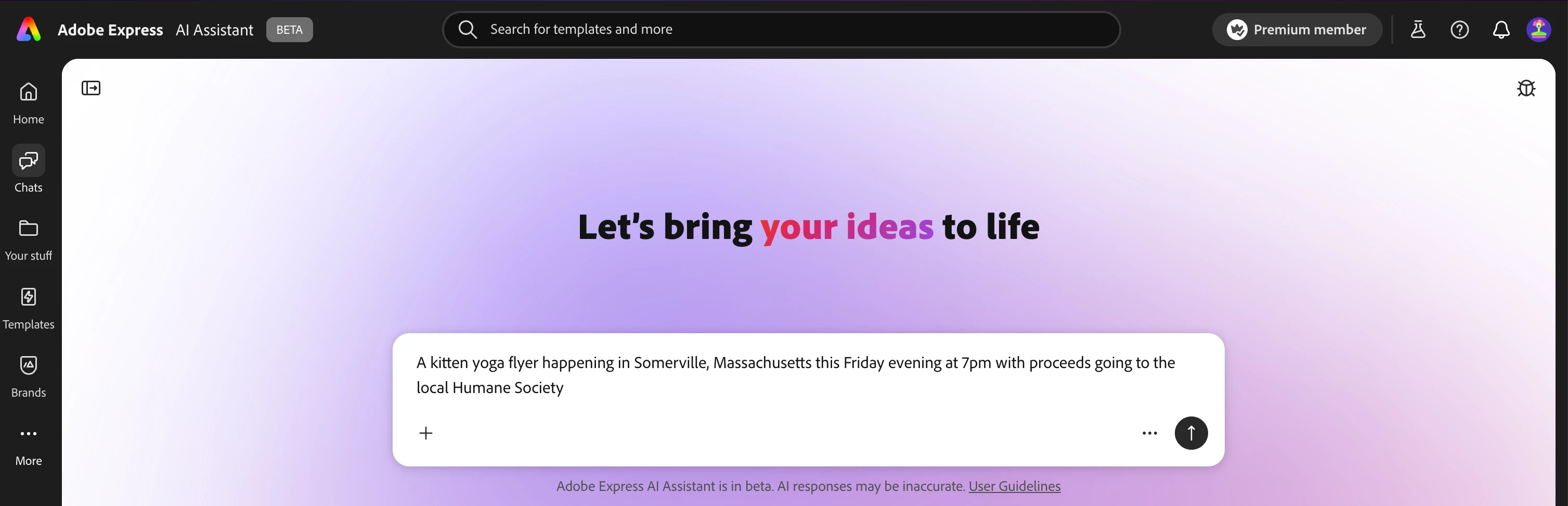
Go to Adobe Express and type what you want to make directly in the prompt bar. Be as specific as you like — the more detail you give, the closer the first result.
Try: “Create a kitten yoga flyer happening at [location] and [time] with proceeds going to the local humane society”
2. Add your details
AI Assistant will ask for specifics like event name, date, and location. Fill them in or use placeholders to keep moving — you can update them later.
3. Pick a variation
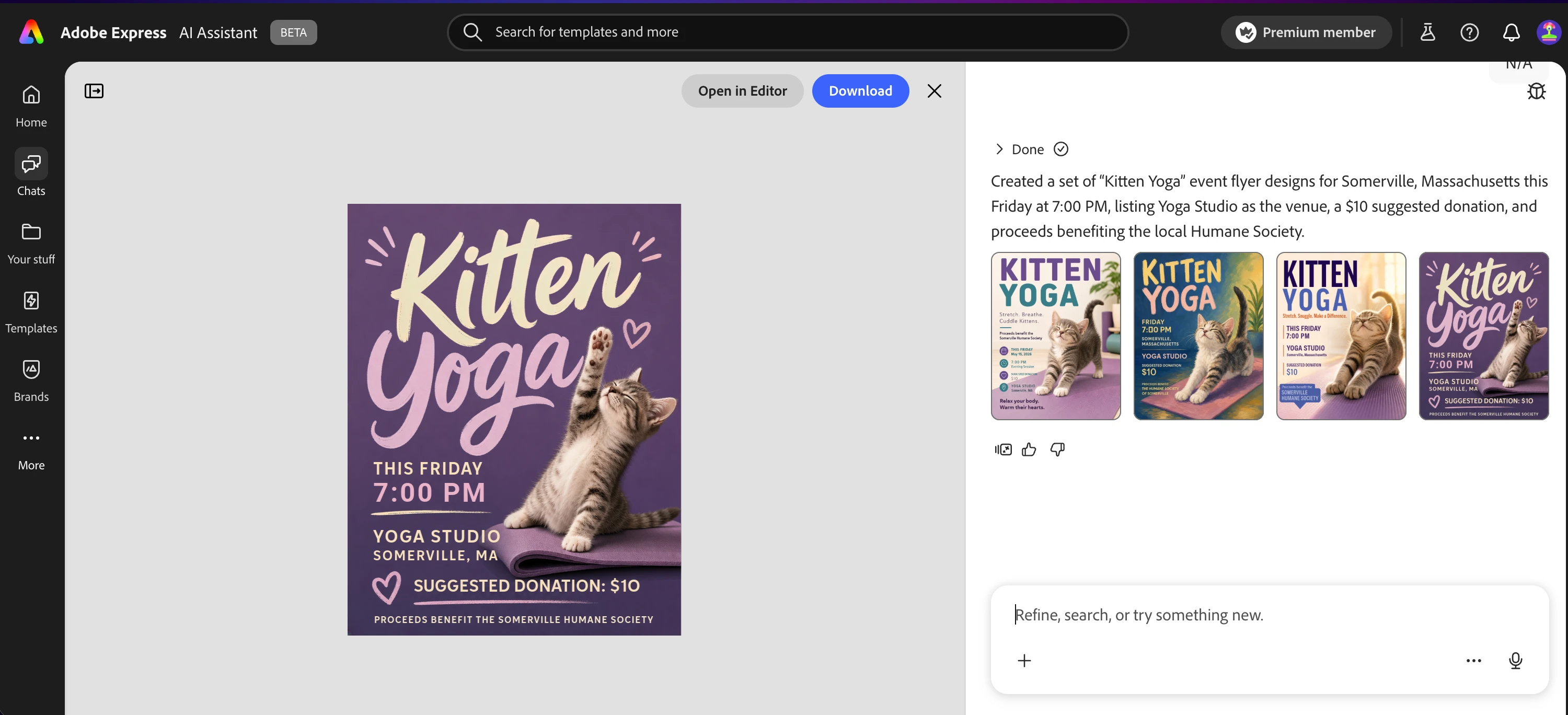
AI Assistant generates four design variations. Select one to preview it in the split screen conversation view, then select it again to continue working.
4. Refine through the chat
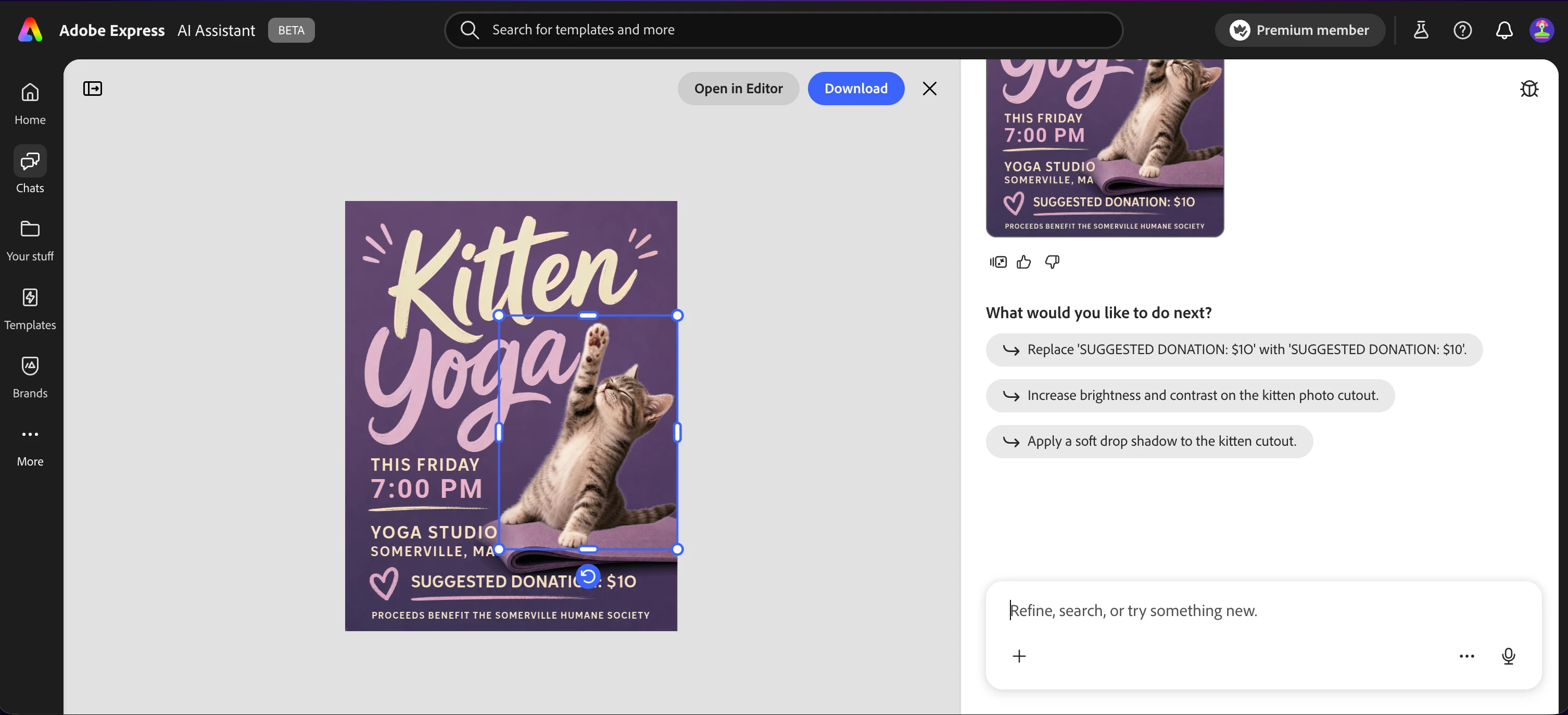
This is where the split screen really earns its place. Ask AI Assistant to update text, replace images, rearrange layers, change colors — all without leaving the conversation. You can also select text directly on the canvas to edit it, or drag elements to move them.
Tip: Select the + icon on the prompt bar to upload a photo to use in your design or as a reference.
5. Open in Editor if you need more control
If there’s something you can’t do through the chat, select Open in Editor. You’ll get the full Adobe Express editing toolkit without losing anything you’ve done.
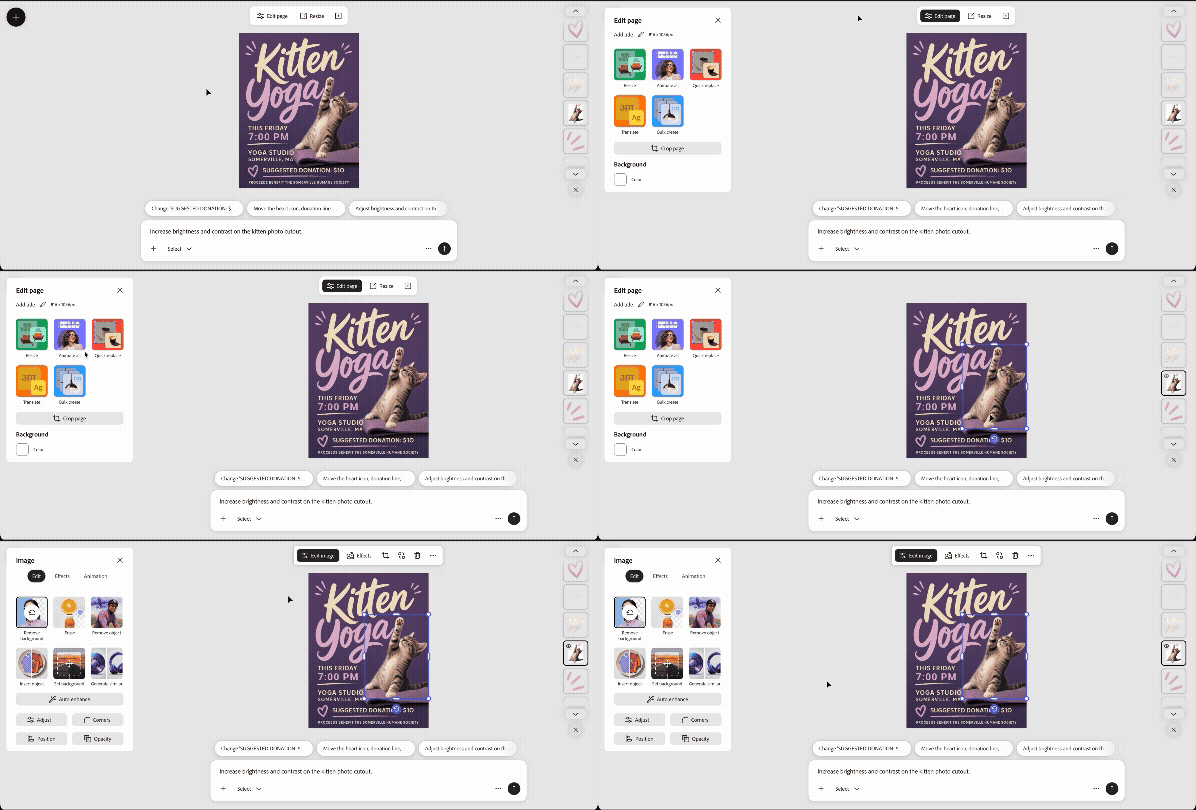
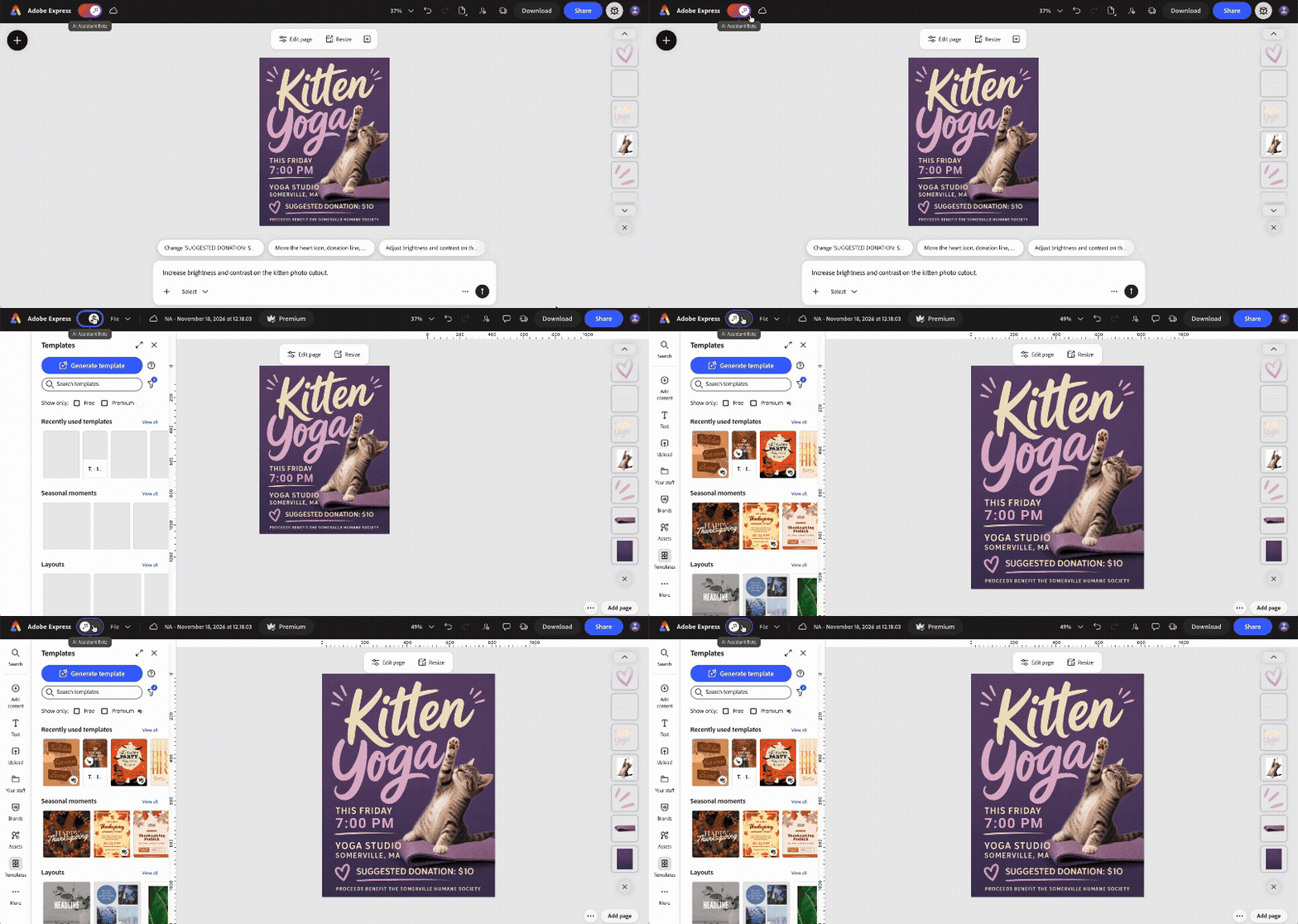
6. Toggle between AI and manual editing any time
Use the AI Assistant toggle in the header to switch between the AI Assistant editor and the standard Express editor. Your changes stay in sync either way.
7. Download or share when you’re done
Select Download to save to your device, or Share to send it out directly.
Pick up where you left off
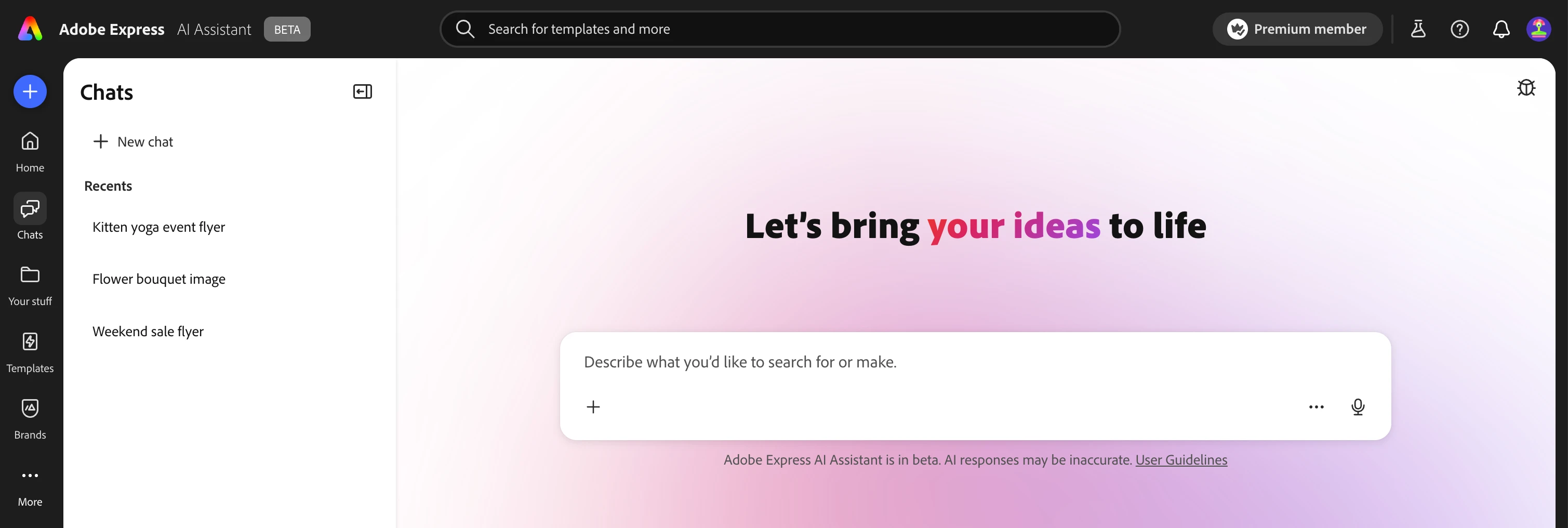
Your AI Assistant conversations are saved. Select Chats from the homepage to get back to any design you’ve been working on. Your chat history is private and not shared with co-editors.
What you can ask AI Assistant to do
| Task | What to say |
|---|---|
| Generate a design | Describe what you want in plain language |
| Update text | “Change the headline to [your text]” |
| Replace an image | “Replace the main image with my uploaded photo” |
| Restyle an image | “Make this look like a studio product shot” or “Add a soft shadow” |
| Fix alignment or spacing | “Fix the layout” |
| Apply a brand | Attach a brand in the prompt bar before generating |
| Animate | “Animate this design” |
| Edit a video | “Mute all my videos” |
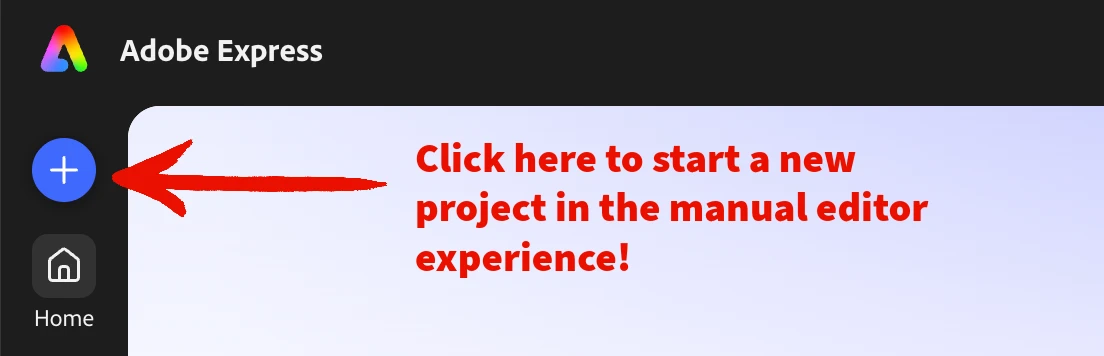
If you don’t see the AI Assistant toggle on your Home page for Express, and you’d prefer to start with the manual editor experience, you can click the blue plus button to open a new project and work from there!
AI Assistant is available more broadly now in Adobe Express — open the app and try your first prompt. What are you going to make first?
 AdChoices