




How to Set Up and Use Brand Kits in Adobe Express
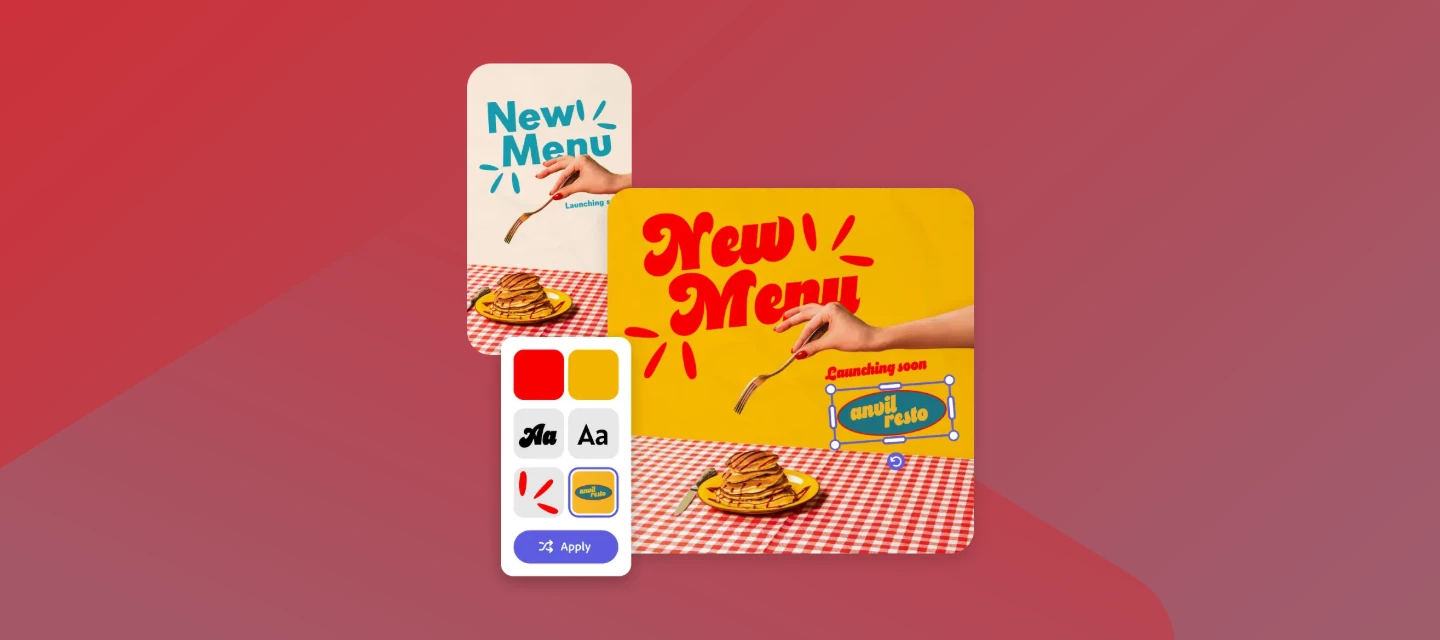
If you've ever found yourself hunting for that exact shade of blue or re-uploading your logo for the hundredth time, Brand Kits in Adobe Express are about to change your workflow.
Brand Kits let you store your colors, logos, fonts, and graphics in one place — so every design you create stays consistent, whether you're working solo or collaborating with a team!
What You'll Learn
In this tutorial, you'll learn how to create a Brand Kit in Adobe Express, the two ways to set one up, how to connect a Brand Kit to a project, and how to apply your brand to any template quickly.
Before You Begin: You'll need an Adobe Express account. Brand Kits are available on paid plans. If you're not sure what's included in your plan, check your account settings before diving in.
Step 1: Navigate to Brands
From the Adobe Express home screen, look for the Brands section in the left-hand navigation panel. This is your hub for creating and managing all your Brand Kits.
Step 2: Choose How to Create Your Brand Kit
Adobe Express gives you two ways to get started:
- Option A — Create from an upload (currently in beta): Upload an existing file and Adobe Express will automatically pull your colors, logos, and attempt to match your brand fonts. It's a fast way to get a starting point, especially if you already have brand assets ready to go.
- Option B — Build it manually: Add your colors, logos, fonts, and graphics yourself, one by one. This takes a little more time upfront, but it gives you full control over exactly what's included and how it's organized. If precision matters to your brand, this is the recommended approach.
Step 3: Add Your Brand Assets
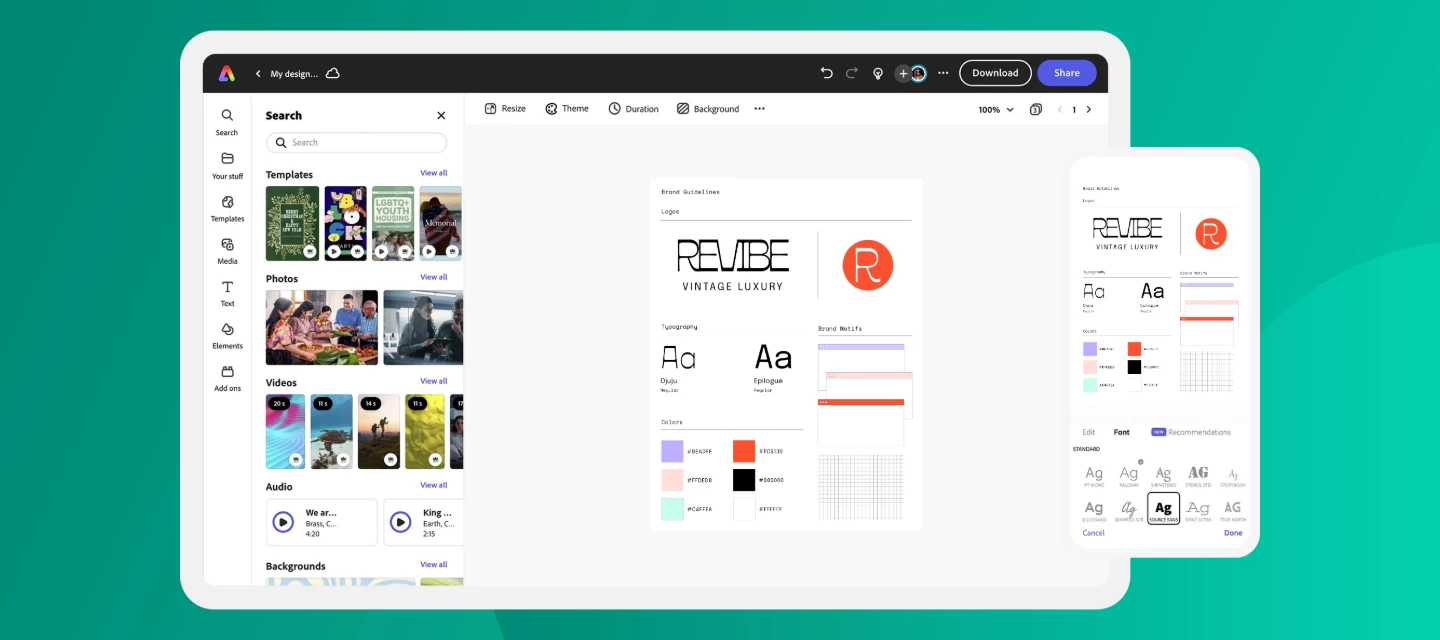
Whether you're building manually or refining an auto-generated kit, you can upload and organize the following: logo files, brand colors (exact hex codes recommended), fonts, and any recurring graphics or design elements. Label everything clearly (it'll save you time when you're working fast on a deadline!).
Step 4: Connect Your Brand Kit to a Project
Once your Brand Kit is set up, you can attach it directly to an Adobe Express project. Inside a project, you can connect a Brand Kit, link a social calendar, and save templates — all in one place! This makes it much easier to keep everything related to a client or campaign organized together.
Step 5: Apply Your Brand to a Template
When you create a new design from a template, you can apply your Brand Kit in two ways:
- Auto-apply: Adobe Express will swap in your brand colors and fonts automatically. Great for getting a quick first draft.
- Manual apply: Go element by element and choose exactly which brand color or font goes where. This is the best approach when layout or hierarchy matters. You can always mix both: auto-apply to get started, then fine-tune manually.
Tips & tricks:
- Share your Brand Kit with teammates so everyone is pulling from the same source of truth!
- You don't have to build a perfect Brand Kit on day one! Start with your core colors and logo, then add to it over time.
- If you manage multiple clients/brands, create a separate Brand Kit for each one to avoid any mix-ups.
Learn More
For full documentation on creating and managing Brand Kits, visit the Adobe Express Help Center.
 AdChoices