




Updates for the new Adobe Express as of April'24

Latest Release: Fixes & Enhancements
As we continue improving Adobe Express, we value your feedback and appreciate your patience. Following your feedback, here's the new Adobe Express with the following updates.
Recent Updates
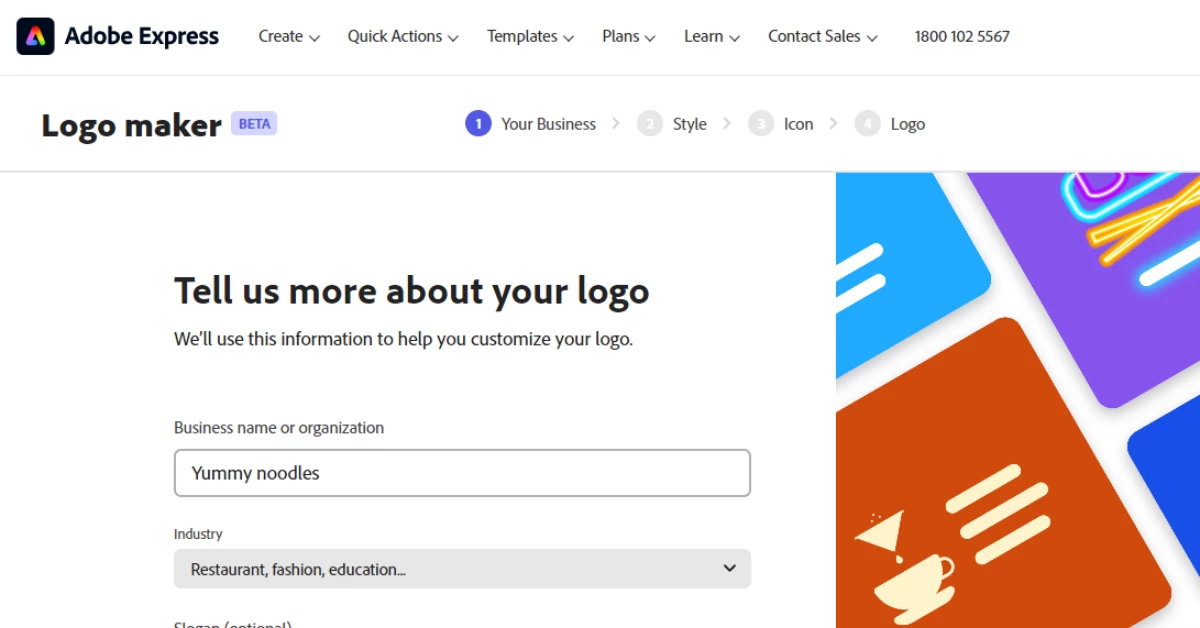
Instantly generate quality logos to share across all your printed and digital platforms.
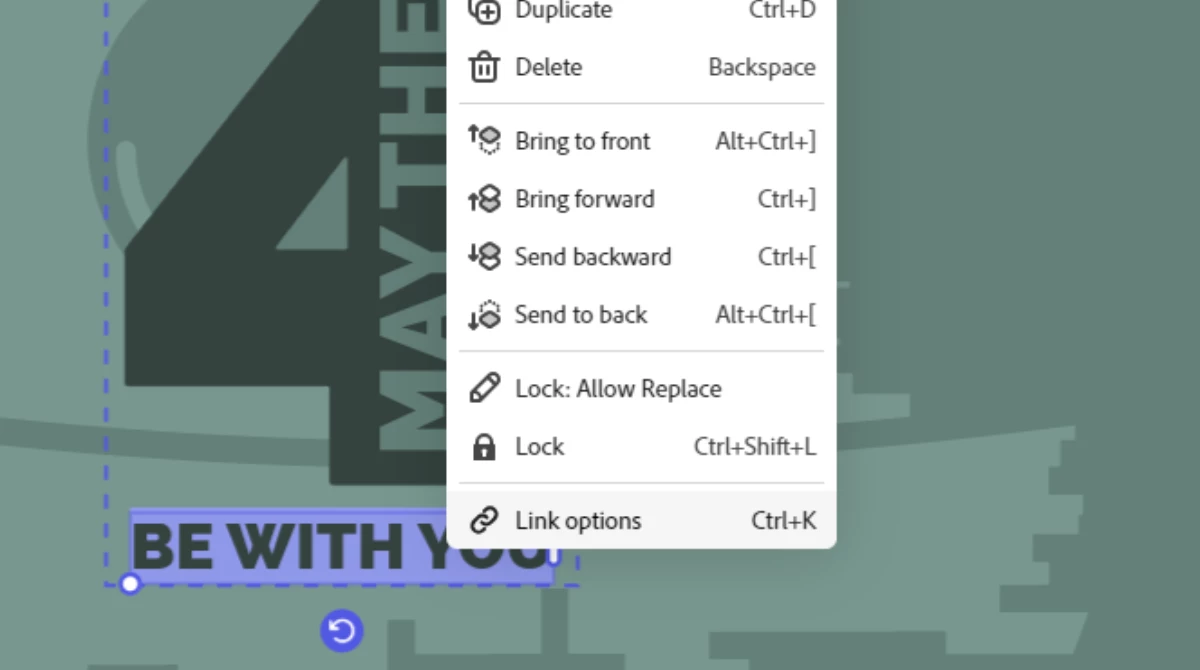
Add external links or edit PDFs with hyperlinks by uploading them to Express. All hyperlinks are supported upon upload.
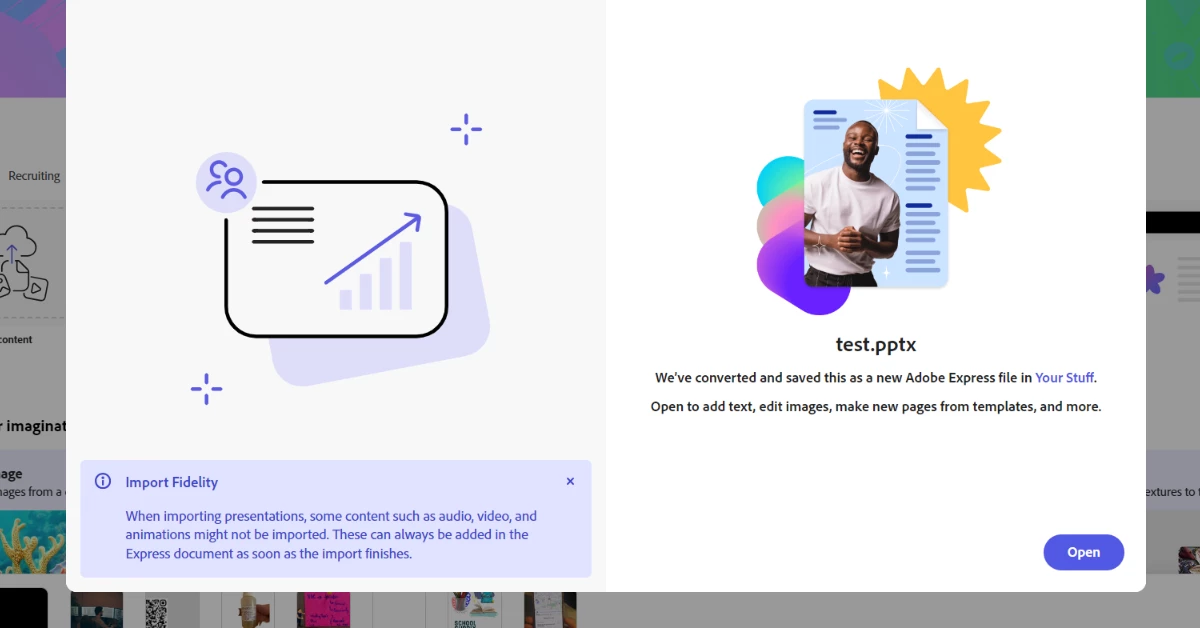
Upload PPTs so you can create beautiful presentations in Express.
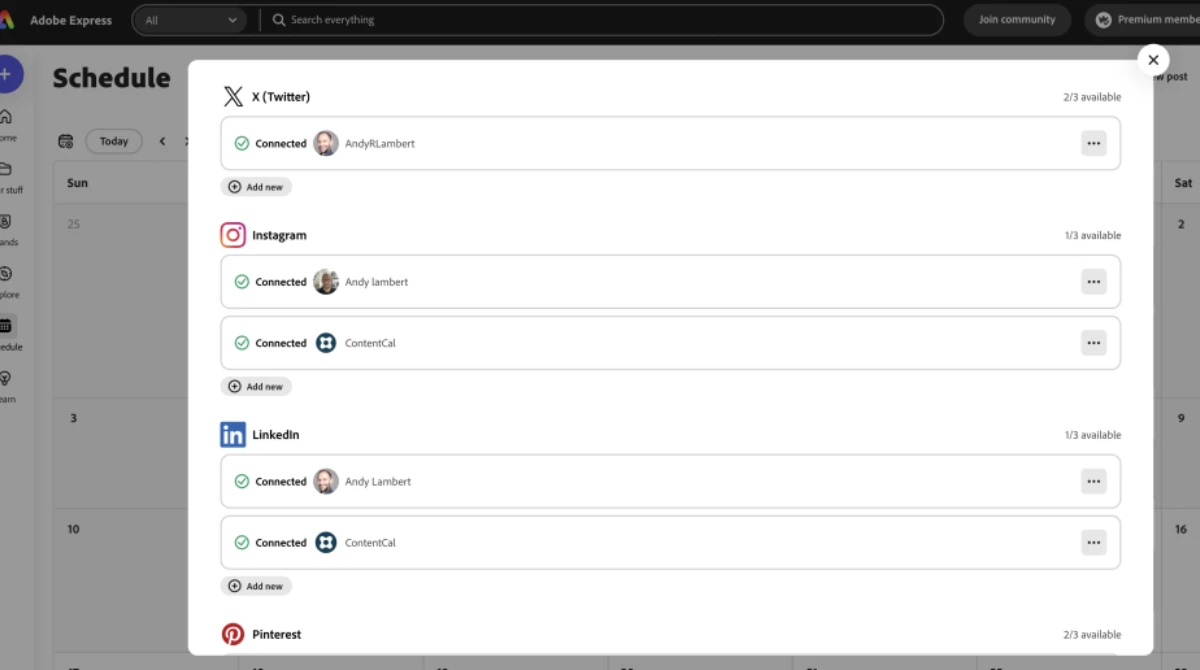
Connect and publish to multiple social media accounts directly from Adobe Express. This was a top request from you, and we are so excited to be able to offer it!
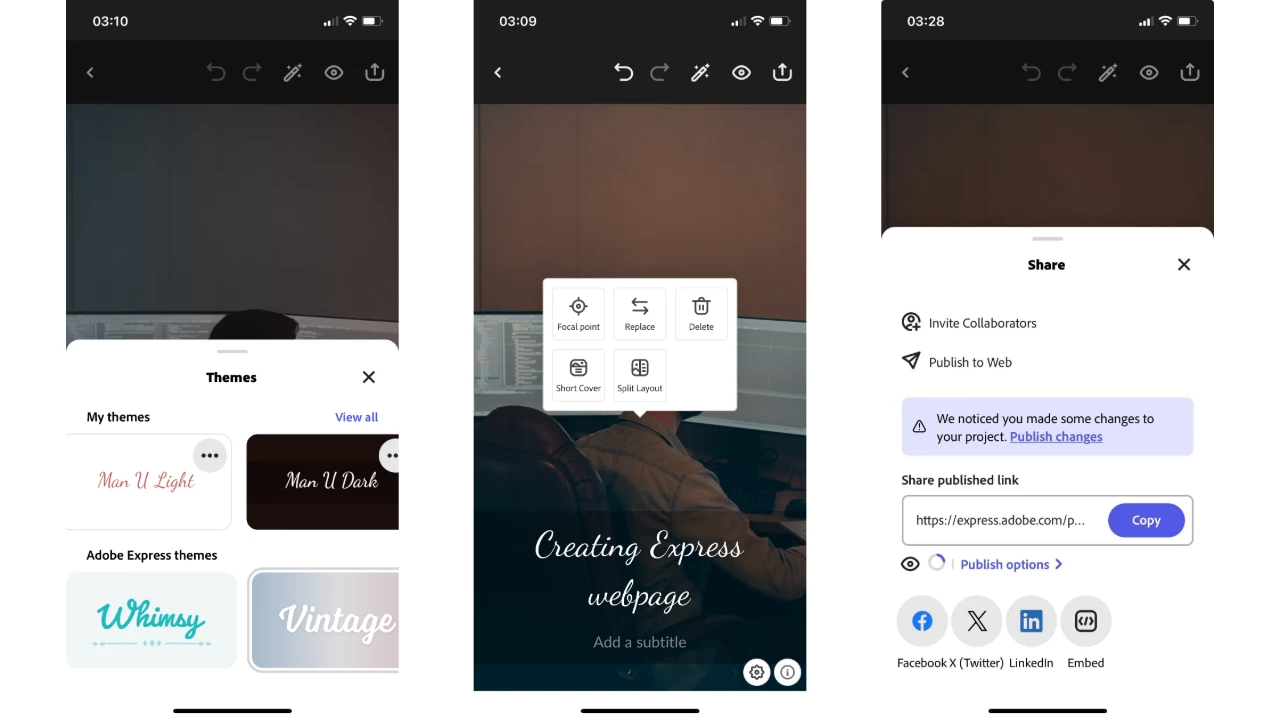
Create stunning, interactive webpages on the go with the Adobe Express Mobile app.
Known Issues & Workflows
Move ALL folders and files
You can now transition all folders & files to the new Adobe Express without moving files one by one or having to recreate folders. See the steps below.
- From Home, navigate to Your Stuff.
- Select "Access files" on the blue tile - this will take you to the folder organizer where your old files & folders live.
- Select the "Move all folders and files" option from the right corner.
- Select "Move for desktop" on the notification pop-up.
To move an individual file, hover over it and select "Move file," then select "Convert for desktop" on the notification.
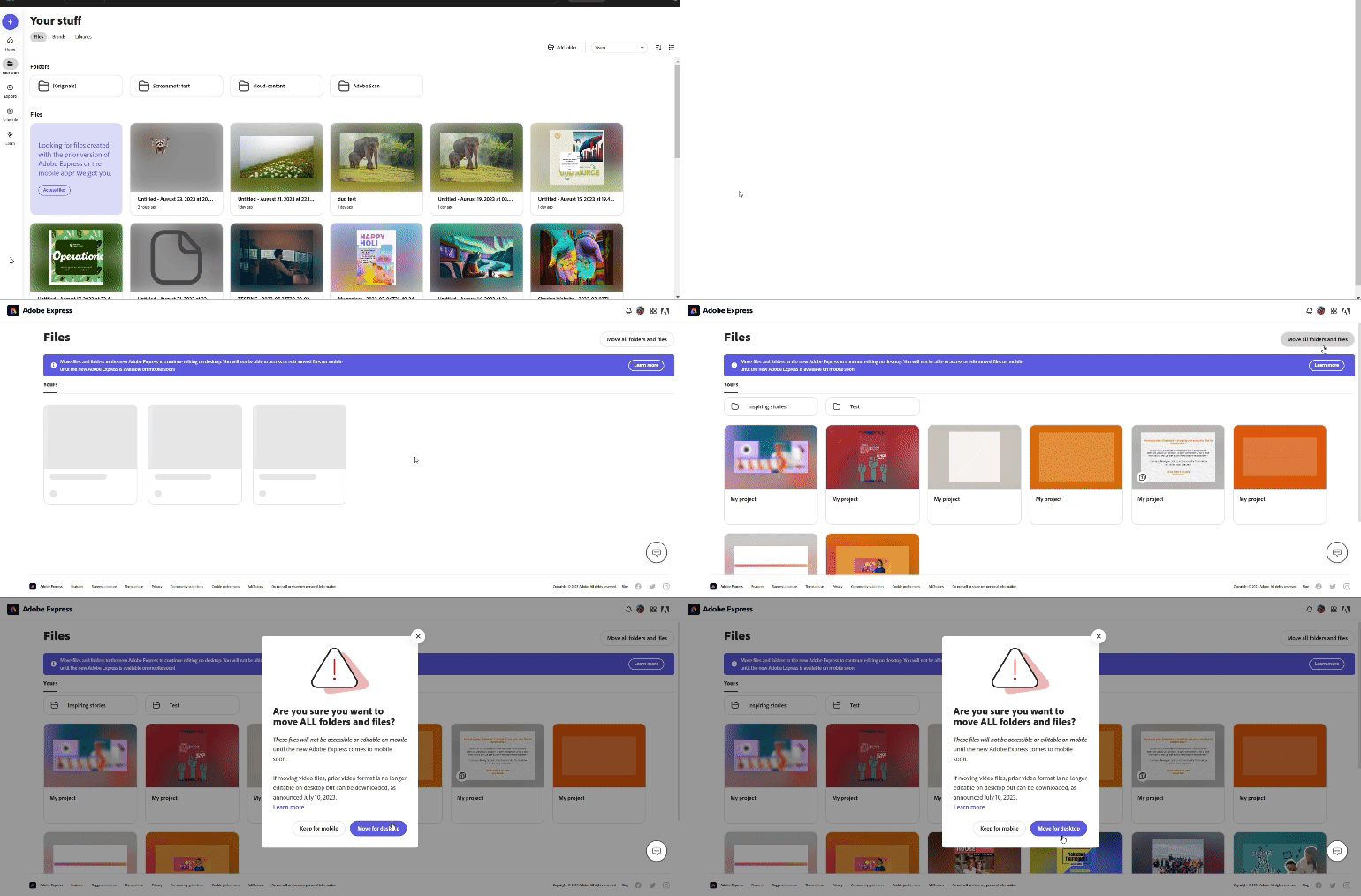
Note: The files & folders will be moved and no longer available to open or edit in the old mobile app. Cross-platform editing has returned with the all-new version of Adobe Express mobile.
Webpage conversion
Did your webpage not convert correctly to the new Adobe Express? Here are the steps to reconvert webpage files.
- Go to Your Stuff, then select & delete webpage files that didn't convert properly. Do not delete files in the [Originals] folder.
- Navigate to the [Originals] folder and select the original webpage file you want to reconvert.
- Select "Open converted file" from the "File already converted" message.
The reconverted files will be saved in the [Originals] folder.
Can't find files after migration.
Please contact Adobe Virtual Assistant so we can help you find your files.
Organized folders are missing.
To restore the old folder structure, visit https://new.express.adobe.com/restore-folders from a new browser. If files & folders have already been migrated, the 'Folders' hierarchy will remain as it was in the previous version.
Unable to download a video created in an older version of Adobe Express.
Older videos, especially from Spark, are taking longer to download. Please do not refresh the webpage until the download is complete to ensure your videos download completely.
Unable to Insert or Remove objects in the new Adobe Express Mobile app.
Close the Insert/Remove tool panel, then select the image and the tool to try again.
Unable to playback video in the new Adobe Express Mobile app.
Close and reopen the project to improve playback issues.
Useful Links
- FAQ: Get answers to common questions about Adobe Express.
- Known Issues: Stay up-to-date with Adobe Express's known issues and workarounds.
- Report abuse: Report offensive content or abuse within Adobe Express.
- System requirements: Find the minimum technical specifications for using Adobe Express.
- Discord: Join the Adobe Express Discord server to connect with others, get creative feedback, and share resources!
- UserVoice: How can we improve Adobe Express? Share your thoughts and ideas in UserVoice.
 AdChoices