




New in Ae 27.0: Use Layers as Material Sources in After Effects: Put Your Comp on a 3D Object 🎨
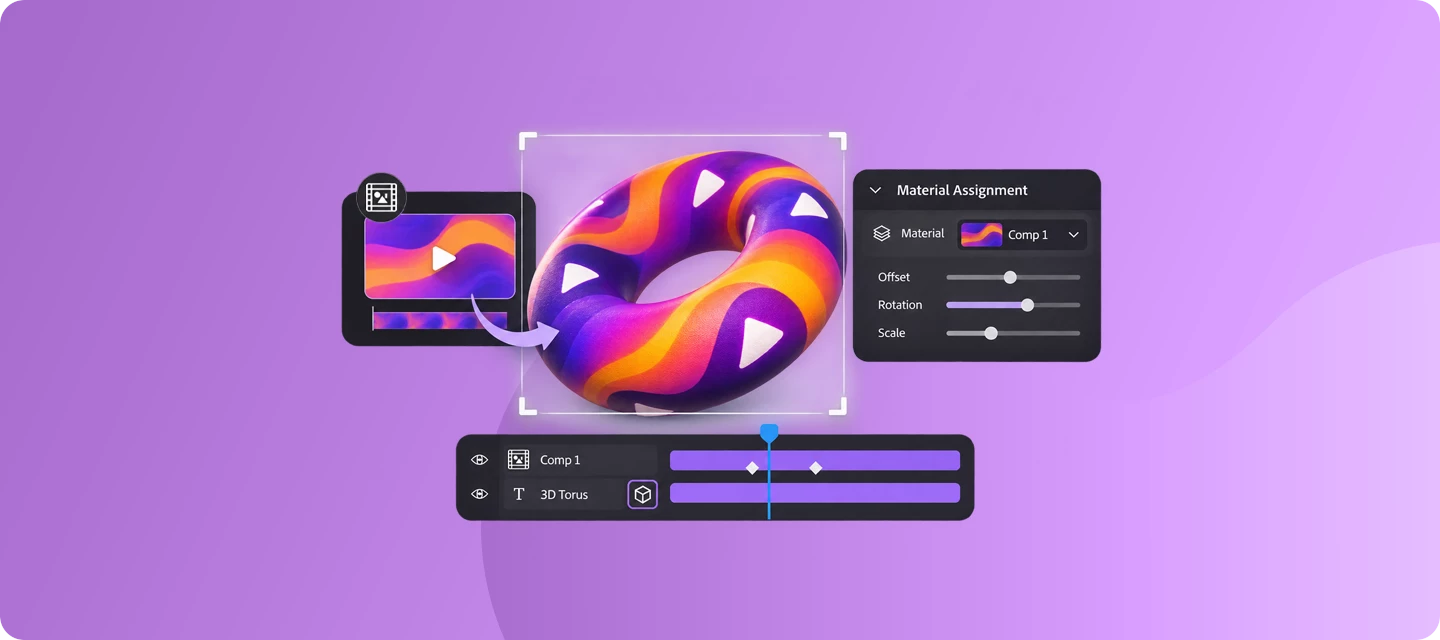
Stop exporting textures. Use your layers as the material in After Effects 27.0. 🎨
Getting a design onto a 3D object usually means importing a texture or picking from a fixed library. In After Effects 27.0, you can use any layers as material sources. A precomp, solid, image, or video already in your project becomes the surface. Animate the source and the 3D object updates with it, with no export or reimport.
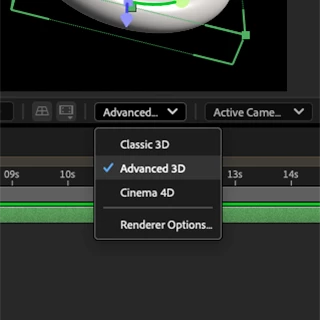
| 1. Set up your comp
| 
|
| 2. Drag your source into the comp Drop the precomp, solid, image, or video into the same composition as your 3D layer. | 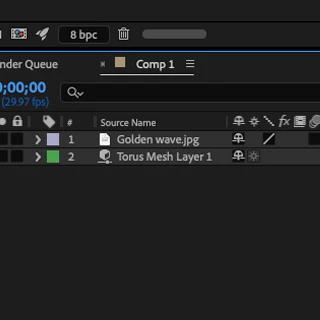 |
| 3. Assign it from the Material dropdown
You can also use the search field in the Properties panel to narrow the list to Compositions, Footage, or Substance 3D Materials (.sbsar file). | 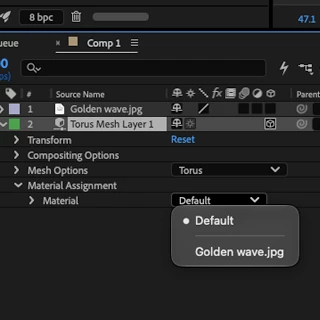 |
| 4. Place it with Offset, Rotation, and Scale Adjust how the material sits on the surface using the Offset, Rotation, and Scale controls. | 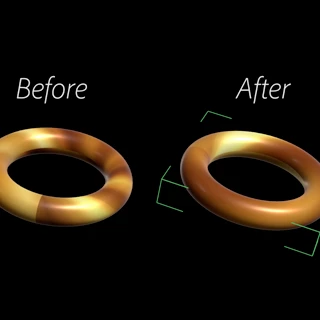 |
| 5. Tune the look with material streams Fine-tune with Roughness, Opacity, Metallic, Emission Color, Emission Intensity, and Ambient Response. | 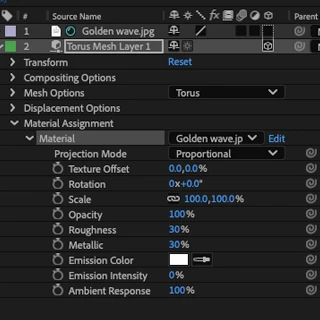 |
| 6. Animate it Material properties like Rotation and Opacity take keyframes, just like any other layer property. The streams are also keyframeable and expression-friendly. When the source composition animates, your 3D surface updates in real time. |  |
Challenge: Put a motion graphic on a 3D object
Build a short animated precomp and use it as the material for a 3D object.
- Success looks like: the animation visibly plays on the 3D surface, and at least one material property is keyframed.
- Beginner: use a solid or image as the material on a parametric mesh.
- Stretch: use an animated precomp, keyframe Rotation and Opacity, then adjust Roughness or Metallic.
- Share: Post your output as a GIF in the comments
Your turn: Post your output as a GIF in the comments. Take the challenge and share a short clip! 🎬
 AdChoices