
Tarun Saini
Community Manager
Community Manager
January 3, 2024

Changes to Adobe Creative Cloud Storage Experience
  • January 3, 2024
  • 18 replies
  • 11398 views


To enhance the Adobe Creative Cloud storage experience, we would like to inform you of the upcoming changes to the Creative Cloud file syncing service that may impact your workflow.


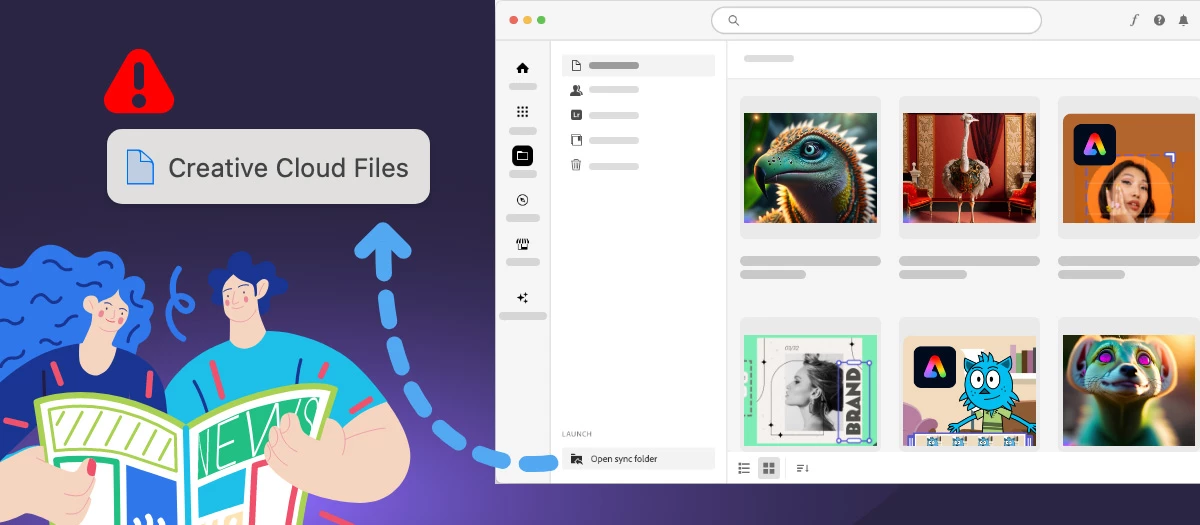
Creative Cloud has previously enabled personal users to save files on their local devices in a folder called Creative Cloud Files. The contents of this folder can be synced (copied) to the user’s cloud storage via a process that runs on the local device. You can access those files locally on the device in a folder named Creative Cloud Files or through the Creative Cloud website within the Launch More menu (from the Synced files option). 


Discontinuation of Synced Files: We would like to inform you that the Synced Files feature in Creative Cloud were discontinued. Starting February 1, 2024 (now extended through February 3, 2025), the Creative Cloud desktop synchronization service, folder, and the file-sharing capabilities of Creative Cloud Synced Files were phased out.


Impact on Users: If you are a personal user (free or paid) relying on Creative Cloud Synced Files for file syncing, folder sharing, or collaborative work, please be aware of the following changes:

  • Files in the Creative Cloud Files local folder will no longer be copied to cloud storage.
  • Copies of files in cloud storage related to Synced Files will be deleted.
  • Files and folders shared with other users from Synced Files will no longer be accessible.
  • Adobe apps leveraging Creative Cloud Synced Files for cross-device file sharing will remove those integrations.


If your Creative Cloud desktop version is less than 6.0, you should mandatorily make a copy or export files in your local Creative Cloud files folder to your chosen destination. They will be deleted from your local drive when cloud copies are deleted.


Your Assets are Secure: Rest assured, all assets in your local Creative Cloud Files folder on your device will remain intact and under your complete control. You have the option to leave the assets in the Creative Cloud Files folder, but we highly recommend to move them to a different local folder or to the other Adobe-supported storage solutions such as Frame.io or Adobe Experience Manager (AEM) assets. Additionally, third-party cloud storage solutions with sync capabilities are viable alternatives.


Adobe continues to offer and support cloud storage and syncing across Creative Cloud with Cloud Documents, Creative Cloud Libraries, Lightroom Cloud storage, and Frame.io cloud storage. None of these cloud storage solutions are impacted by this change.

Quick Links


 Hey community! Upvote if this post was helpful, and leave a comment to join the conversation.

    18 replies

    Noremac
    Participating Frequently
    January 18, 2024

    One step further into Adobe's planned locking ecosystem; this is a terrible idea! Remove a feature and put in no replacement, Adobe bad, Adobe bad!  I can't imagine how many businesses this will affect; what do we pay for now? Warning to all: this is your last time to get out of the Adobe ecosystem that's if you want to keep your client's files readable in years to come. They did it with fonts, and now it will be all in libraries, THIS is not good enough Adobe.


    Participant
    January 12, 2024

    To clarify - is sycning going away but we will still have access to cloud storage managed manually? Or, all storage abilities for personal users is gone totally from our plan? Respectfully, this communication to users is pretty horrible at providing a thorough explanation of what's happening. 

    kglad
    Community Expert
    Community Expert
    January 12, 2024

    only the local cc sync folder is going to have its files removed from online and its syncing to stop.  all other adobe cloud services continue.

    Inspiring
    January 12, 2024

    What in the world is going on with Adobe?  I just upgraded my adobe CC sync folder to 1TB and now it is going absolete? How am I supposed to sync files between computers that I currently require because of working in the office and from home? Adobe, what is your solution? Is the price of my CC subscription going down as a result of cutting down on features?

    Participant
    January 12, 2024

    I came here to ask the same thing - 100TB of storage is one of the only reasons I carry a full creative cloud account when i only use a few apps. Will our subscription be changing too? Seems like a very dumb idea when Canva is eating away about their market share for design services. 

    @mj
    Community Expert
    Community Expert
    January 11, 2024

    Hi @Tarun Saini ,


    It is what it is.


    My request is a clear and concise communique that tells users how to ensure our work will not be lost.


    Let's focus on the technical realities rather than the marketing fluff please.


    Step 1: Do this, etc.


    Tx

    mj


    Participating Frequently
    January 10, 2024

    Just informed the moderator about a factual error in this article:

    « Blocking functions is not an “enhancement“ of the experience – please correct to “To deteriorate the Adobe Creative Cloud storage experience“. Thanks in advance! »

    Carola_BHG
    Inspiring
    January 10, 2024
    I was blocked from replying anymore in this topic but I applaud your comment. I think this reply won’t make it but if it does, THUMBS UP.

    Also, some more respect from some Experts would be great. Please do not dismiss us, were paying angry customers, and we deserve more than this.
    @mj
    Community Expert
    Community Expert
    January 6, 2024

    Hi,

    Respectfully, this is a terrible idea.

    I agree with @Randy Hagan, how does removing a key feature result in it being an "enhanced" experience.

    It's best to be truthful and say it no longer makes business sense or whatever the reason.

    Best

    mj

    Ares Hovhannesyan
    Community Expert
    Community Expert
    January 9, 2024

    I notice a new folder in my Win Explorer. But I am not able to rename it? Also would be we able to delete all CC local files from our PC after February 1, 2024?

    kglad
    Community Expert
    Community Expert
    January 9, 2024

    @Ares Hovhannesyan 


    again, this is locked.


    again,  for other questions about this, start a new thread in the cc services forum.


    Randy Hagan
    Community Expert
    Community Expert
    January 4, 2024

    I've gotta say, that enhancing "the Adobe Creative Cloud storage experience" by killing features is a pretty hard sell.

    Carola_BHG
    Inspiring
    January 4, 2024

    Dear Randy, sometimes the jokes write themselves.

    Carola_BHG
    Inspiring
    January 4, 2024

    How can I share folders in the cloud, now that synced files will be discontinued?

    The instructions for "Collaborate on folders" on Adobe site are not working, since I do not have a Sharing icon or option as in the Help files, and I can't share my folders. Sharing documents one by one is not an option, wen cannot waste so much time sharing files one by one.

    This is the help file: 

    https://helpx.adobe.com/es/creative-cloud/help/collaboration.html

    In the section "Collaborate on folders" it states "Select the folder. Select the Share icon and then choose Invite." but there is no Share icon at all, I cannot share the folders. We are a team of people at the company and want to have all of our assets and documents automatically shared amongst the accounts, specially the two designers.


    And how can I share the files related to a project together with the Adobe documents if there are no more local folders? In the synced folders we shared and collaborated on Photoshop documents, for example, but also stored pictures, text files, and others, related to each project. How can we keep those organized while collaborating on the files now? So, do we have to maintain two sets of files and folders? Share Adobe documents in Adobe cloud and then another system like Dropbox, Sharepoint or else, to store the rest of the files? Synced files wasn't the best but discontinuing it is clearly problematic.


    How can I efficiently navigate the cloud folders? Every time I interact with these files, I hace to start browsing from the very beginning, I mean the first folder. In a few months when I have created a couple hundreds of files, how is that going to be manageable? What is the data space available for all this? We had 2 TB in our Creative Cloud, is that going to be the same? The same, but unmanageable I see.

    Edited to add a third question. Since we never used cloud files and used heavily synced files to keep all of our work updated and synced for everyone, we're having a hard time looking for a way to make this work. We're at a loss here.

    kglad
    Community Expert
    Community Expert
    January 4, 2024

    @Carola_BHG 


    you can't replace the adobe cc sync folder with the, still supported, adobe cloud features.  ie, you'll need to check elsewhere (eg, onedrive, google drive etc).