




AI-Powered Image Editing Features in Illustrator
Working with images in Illustrator used to mean bouncing between apps — open Photoshop to extend a background, reach for a third‑party tool to knock out a subject, then come back to finish the layout. Two new AI‑powered features in Illustrator change that. You can stay in one file, work with vectors and images side by side, and skip the manual cleanup that used to eat up half your afternoon. Here's a quick look at what each one does, when to reach for it, and where to find it in the interface.
Generative Expand for images — Extend any image to fit your layout, no cropping required.
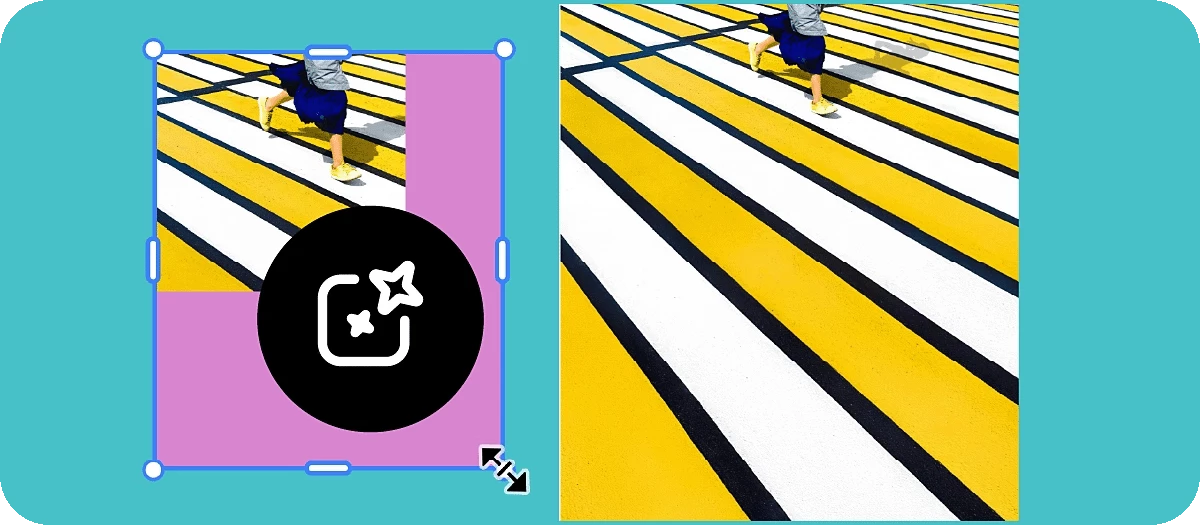
Need a wider banner? A taller social post? A different aspect ratio for the same hero shot? Generative Expand for images, powered by Adobe Firefly, lets you grow a placed image beyond its original bounds and fills the new area with generated content that blends naturally with the original.
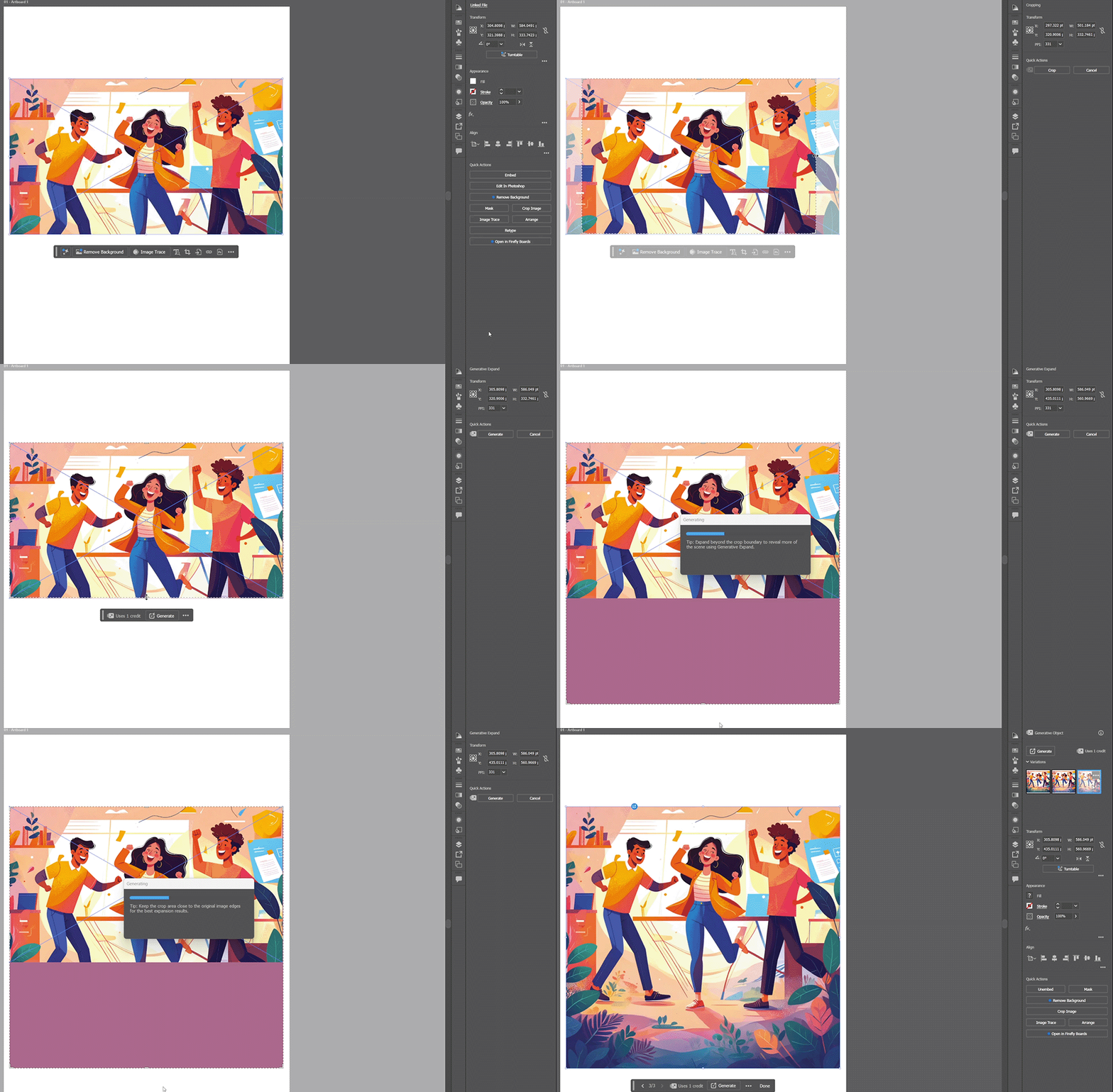
You'll find it tucked inside Crop Image. Select your image, choose Crop Image from the Contextual Task Bar (or the Properties panel, Control panel, right‑click menu, or Object menu), and drag the cropping frame outward — the new area appears in purple. Hit Generate, and Illustrator returns three variations of the expanded image. Use the arrows in the Contextual Task Bar to preview each one, then select Done on the variation that fits.
Your original image is preserved as a hidden object in the Layers panel, and the generated output becomes a Generative Object you can re‑run, copy with its linked variations, or manage from the Generation History panel.
Learn more about generating content to expand images in Illustrator here.
Remove Background — One click, transparent subject, ready to drop into any layout.

Cutting a subject out of its background used to mean a clipping mask, a pen tool selection, or a round trip through another app. Remove Background in Illustrator does it in a single click.
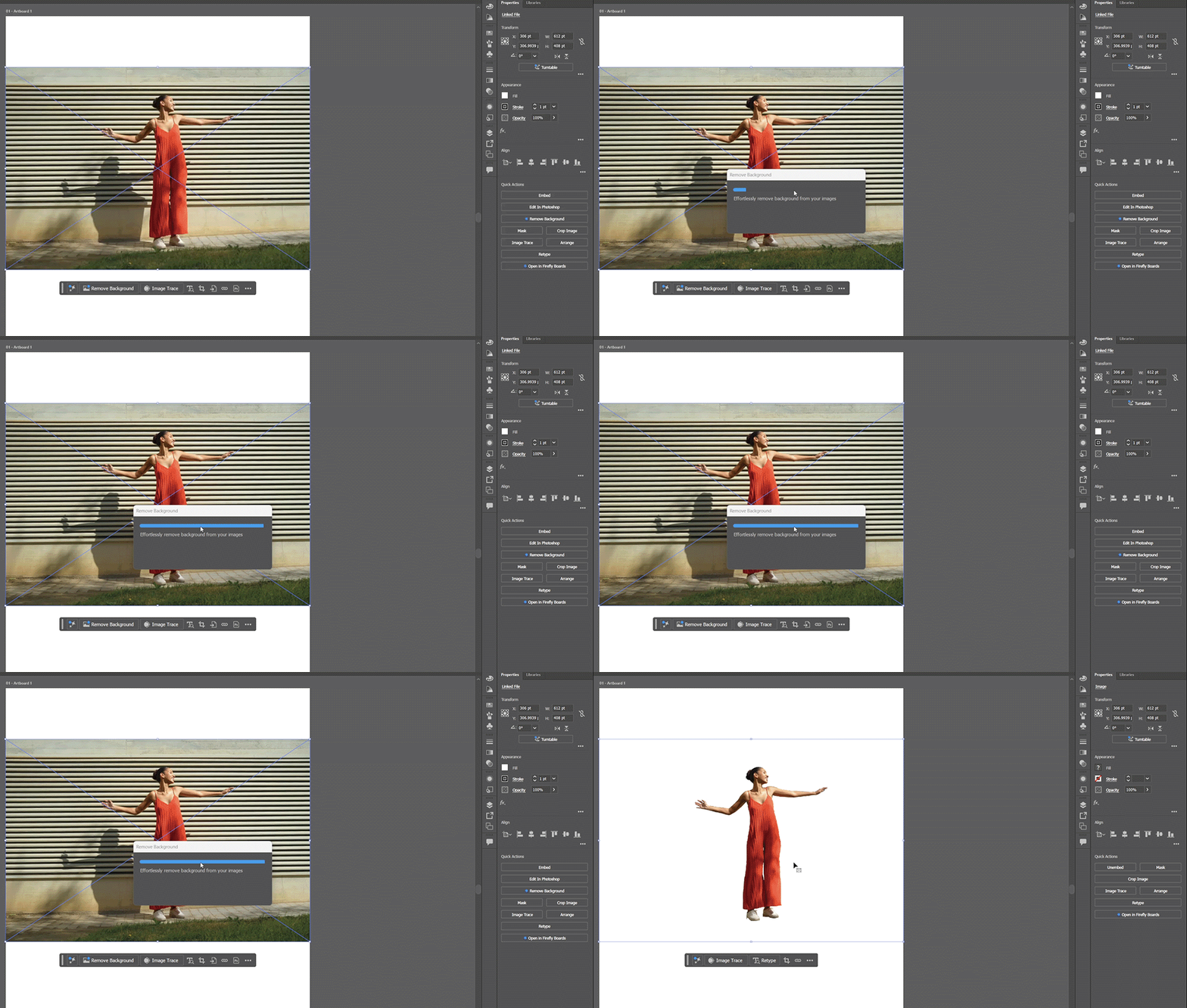
Select your image and choose Remove Background from the Contextual Task Bar. Illustrator analyzes the image, isolates the subject, and replaces the original with a version that has a transparent background. You can also access it from the Quick Actions section of the Properties panel, the Control panel, the right‑click menu, and the Object menu.
It's perfect for product shots heading into packaging, hero images for layouts, social graphics, and branding mockups where you need a clean subject without its surroundings.
Learn more about removing background from images in Illustrator here.
Better together — Two features, one image‑editing workflow.
These two new features in Illustrator pair naturally. Use Remove Background to isolate the subject of a placed image, then drop it into your layout and use Generative Expand to stretch a separate background to the exact aspect ratio you need. What used to be a multi‑app workflow is now a few clicks inside Illustrator — and everything stays editable.
Share Your Feedback
Have you tried Generative Expand for images or Remove Background on your own projects yet? Drop a comment and let us know how they're working for you — and if there's a specific image‑editing workflow you'd like us to break down next, we're listening.
If you found this post helpful, click 👍 Like. Use ⭐ Subscribe to stay informed about future updates. You may also share this post with others who might benefit from these enhancements.
 AdChoices