























Design the future of fashion, win Firefly Pro 👗✨
Announcements
Recently active
Hey all!We're working on something new—and we'd love your help.Many of you have shared how repetitive, non-creative tasks can slow down your creative flow. Things like renaming layers, duplicating artboards, organizing files, and preparing assets for export are important, but they're not the work that inspires you.That's why we're developing a new capability designed to help streamline these everyday tasks and save you time, so you can focus more on creating. Interested?If you'd like to be considered for the private beta, please complete the screener survey. We're Looking for Beta ParticipantsWe're inviting a small group of Illustrator community members to join an exclusive private beta program. As a participant, you'll:Get early access to upcoming features Test new workflow-enhancing capabilities Share feedback directly with our product team Help shape the future of the experience before it's releasedYour insights will play a key role in refining these features and ensuring they solve
Illustrator is full of tool pairs that seem to do the same thing, until you actually use them. Pick the wrong one and you'll spend ten minutes wondering why your shape won't behave. Pick the right one and the work feels effortless.We've put together three short videos that break down the most commonly confused tool pairs in Illustrator, so you can stop guessing and start choosing with intent. Eyedropper vs. Color Picker — Both deal with color. Only one copies it.The Eyedropper samples the fill, stroke, and appearance attributes already living in your artwork with a single click. The Color Picker lets you build a color from scratch using sliders, numeric values, or the color field. One copies what exists, the other creates what you want. Knowing which is which saves real time when you're matching styles or designing from a brand palette.Knife vs. Scissors — Two ways to cut, two very different results.The Knife slices through shapes freehand — drag across an object and Illustrator
Working with images in Illustrator used to mean bouncing between apps — open Photoshop to extend a background, reach for a third‑party tool to knock out a subject, then come back to finish the layout. Two new AI‑powered features in Illustrator change that. You can stay in one file, work with vectors and images side by side, and skip the manual cleanup that used to eat up half your afternoon. Here's a quick look at what each one does, when to reach for it, and where to find it in the interface. Generative Expand for images — Extend any image to fit your layout, no cropping required.Need a wider banner? A taller social post? A different aspect ratio for the same hero shot? Generative Expand for images, powered by Adobe Firefly, lets you grow a placed image beyond its original bounds and fills the new area with generated content that blends naturally with the original.You'll find it tucked inside Crop Image. Select your image, choose Crop Image from the Contextual Task Bar (or the Propert
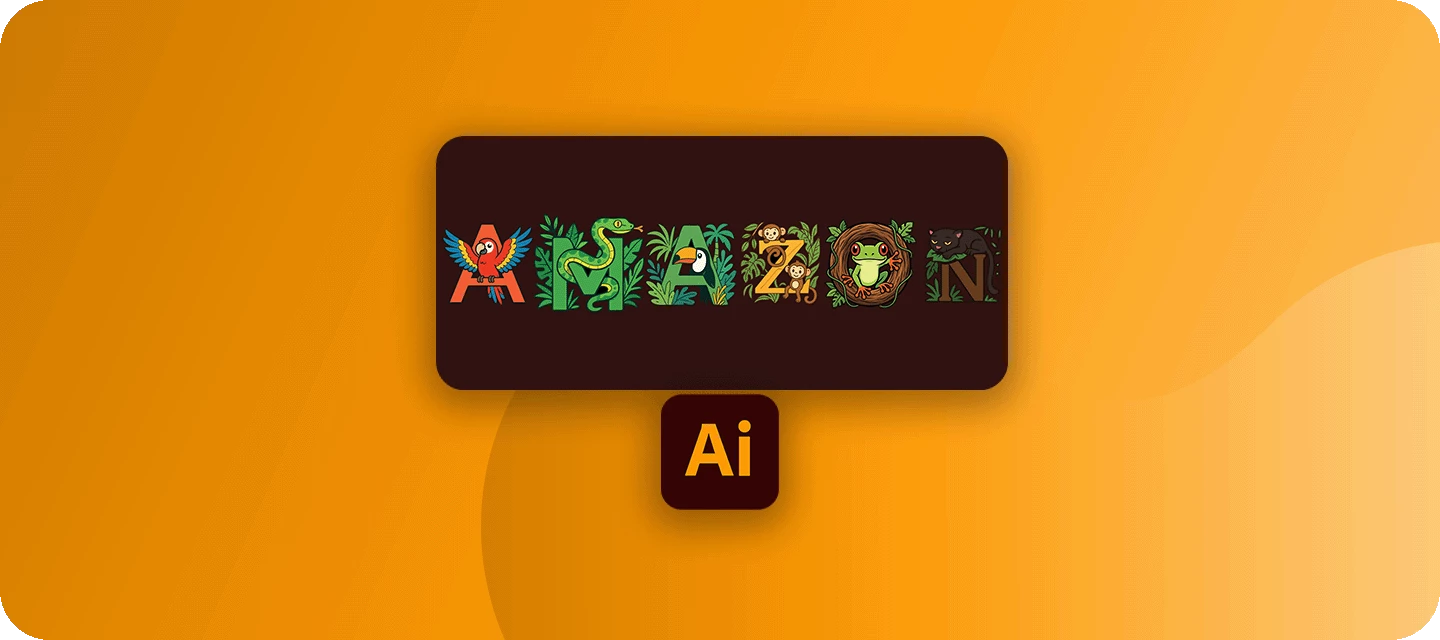
Welcome back to the Illustrator Creative Challenges, our monthly nudge to open Illustrator, learn something, and share it with the community. This time, we're zooming right in on a single, brilliant feature, the Intertwine tool, and using it to weave something through text. THE CHALLENGE: WEAVE SOMETHINGTake a word, your initials, or a monogram, and weave something through it, a ribbon, a vine, a strand of wool, so it laces over and under the letters like it was always tangled there.Need a spark? Pick a lane, or invent your own:A monogram, your initials with a ribbon or cord woven through them. A word, laced through with a vine, a string of fairy lights, or a scarf. A single big letter, with an illustrated creature or plant winding through it. A woven knot or emblem, skip the letters entirely, and interlace shapes into a Celtic-style badge.WHAT TO INCLUDEThe letters or shape, set big enough to actually weave something through. The thread, whatever laces through it, with at least one fu
Hello everyone, It’s time to reserve your spot at Adobe MAX - The Creativity Conference, taking place at the Miami Beach Convention Center. Get ready for what’s next - with three days of creative skill-building, visionary keynotes, and valuable connections. Featured Speakers - Big ideas, inspired voicesWho You’ll MeetIf you found this announcement helpful, click 👍 Like. Use ⭐ Subscribe to stay informed about future updates. You may also share this post with others who might want to stay updated on MAX.
Hey all!Illustrator 30.8 is a satisfying mix of workflow quality-of-life and creative firepower. On the practical side, relinking one missing file now brings its neighbors along, and you can click a shadow or effect without accidentally grabbing the object behind it. On the creative side, Concept to Vector can generate and compare up to eight style variations side by side (now powered by GPT Image 2.0), and the content libraries have been refreshed with new ready-to-use gradient and pattern swatches. This release also ships a batch of customer-reported fixes.For full details, check out the release notes. Relink missing files at onceWhen you relink one missing file, Illustrator automatically finds and relinks the other missing files sitting in the same folder, so you can fix a whole folder's worth of broken links in a single action. Learn how to relink images.Select through shadows and effectsIllustrator no longer selects an object when you click only on its drop shadow or the area of a
Welcome back to the Illustrator Creative Challenges, our monthly nudge to open Illustrator, learn something, and share it with the community. This time, we're zooming right in on a single, brilliant feature, the Clipping Mask, and using it to hide a whole world inside a single word. THE CHALLENGE: FILL A WORD WITH A WORLDPick a word, then fill its letters with a photo instead of a flat color, so the image only shows through where the letters are. It's the classic double-exposure lettering look: type as the frame, a whole scene living inside it.WHAT TO INCLUDEThe word is set big and bold. More letter area means more of the photo shows through. One photo positioned so something recognizable lands inside the letterforms, an eye, a horizon, a landmark, not just a random patch of color. A close crop. Zoom and reposition until the interesting part of the photo is actually where the letters are.The telltale sign you've nailed it: someone should recognize the photo and read the word at the sam
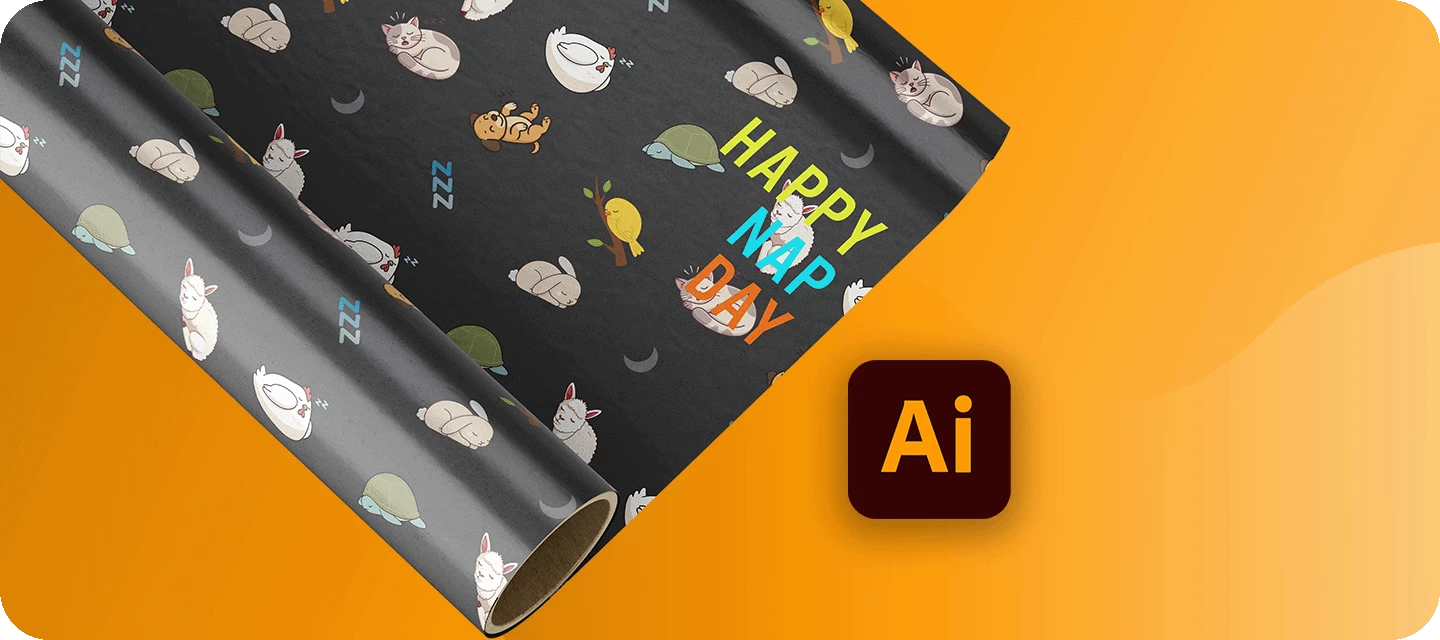
Welcome back to the Illustrator Creative Challenges - our monthly nudge to open Illustrator, learn something, and share it with the community. This time, we're zooming right in on a single, brilliant feature - the Pattern tool, and using it to design seamless gift wrap. THE CHALLENGE: WRAP A HOLIDAY THAT DOESN'T EXISTDesign a sheet of wrapping paper for an occasion nobody's ever celebrated. Invent the holiday, draw one small motif, and let the Pattern tool repeat it into seamless gift wrap. The tool is the point, the theme is yours.WHAT TO INCLUDEOne repeating motif (or a small set) - the star of your paper. A seamless tile - no visible seams or gaps where the pattern repeats. A defined palette - two to four colors that feel like a set. (Optional) show it as wrap - drop your pattern onto a box or roll so it looks real.The magic metric here: invisible seams. When you can't tell where one tile ends and the next begins, you've nailed it. HERE'S MINEI made wrapping paper for National Nap D
Somewhere out there is a coffee shop run by wolves, a gym for ghosts, and a surf school on Mars. This month, you're their creative director.Welcome back to the Illustrator Creative Challenges - our monthly nudge to open Illustrator, try something new, and share it with the community. This one takes you all the way from logo design to finished merchandise: invent a brand, design its logo in Illustrator, then use the Mockup tool to wrap it onto real products - t-shirts, totes, mugs, caps, whatever fits. Last month, we lit up neon diner signs; this month, we're building a brand you can actually hold.THE BRIEFDream up a brand for a business that probably shouldn't exist - the more unexpected, the better - then design its logo and put it on real products with Mockup.Need a spark? Pick something gloriously niche:🐺 The Unlikely Business - a coffee roaster run by wolves, a barber for Bigfoot, a gym for ghosts.🚀 The Impossible Brand - a surf school on Mars, a time-travel agency, an asteroid-m
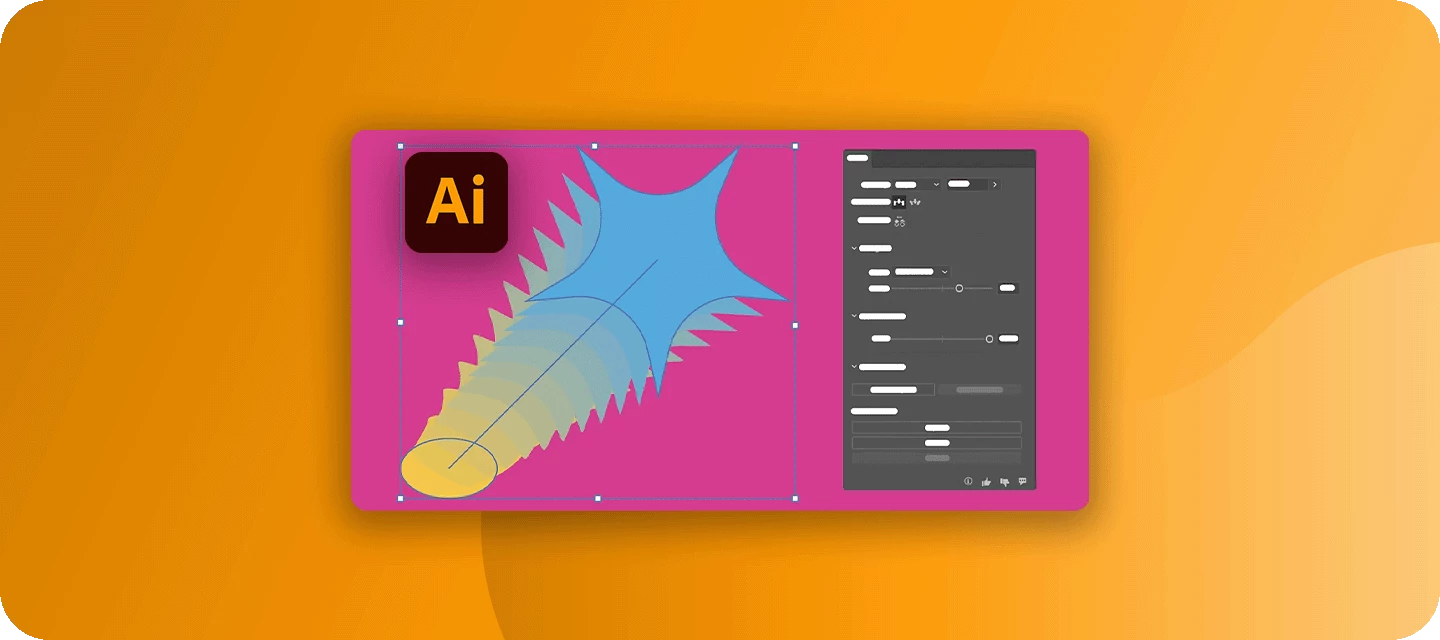
Hey all!Illustrator 30.7 gives one of the app's oldest features a serious upgrade and brings Firefly closer to where you start your work. There's a dedicated Blend panel with live on-canvas previews, new Ease In / Ease Out controls for how blend steps are distributed, and independent color acceleration for smoother transitions. On top of that, you can now generate artwork with Firefly straight from the New Document dialog and explore Firefly - vectors, image editing, and Boards - right from the home screen. This release also ships a large batch of customer-reported fixes. For more details, check out the release notes. Blend panel - every blend control in one placeBlends now have a dedicated panel that brings the whole workflow together: Make, Expand, Release, Reverse Spine, and Replace Spine, plus blend settings you can adjust with changes previewing live on the canvas.No more digging through menus to fine-tune a blend - build it, tweak it, and see the result as you go. Learn more here
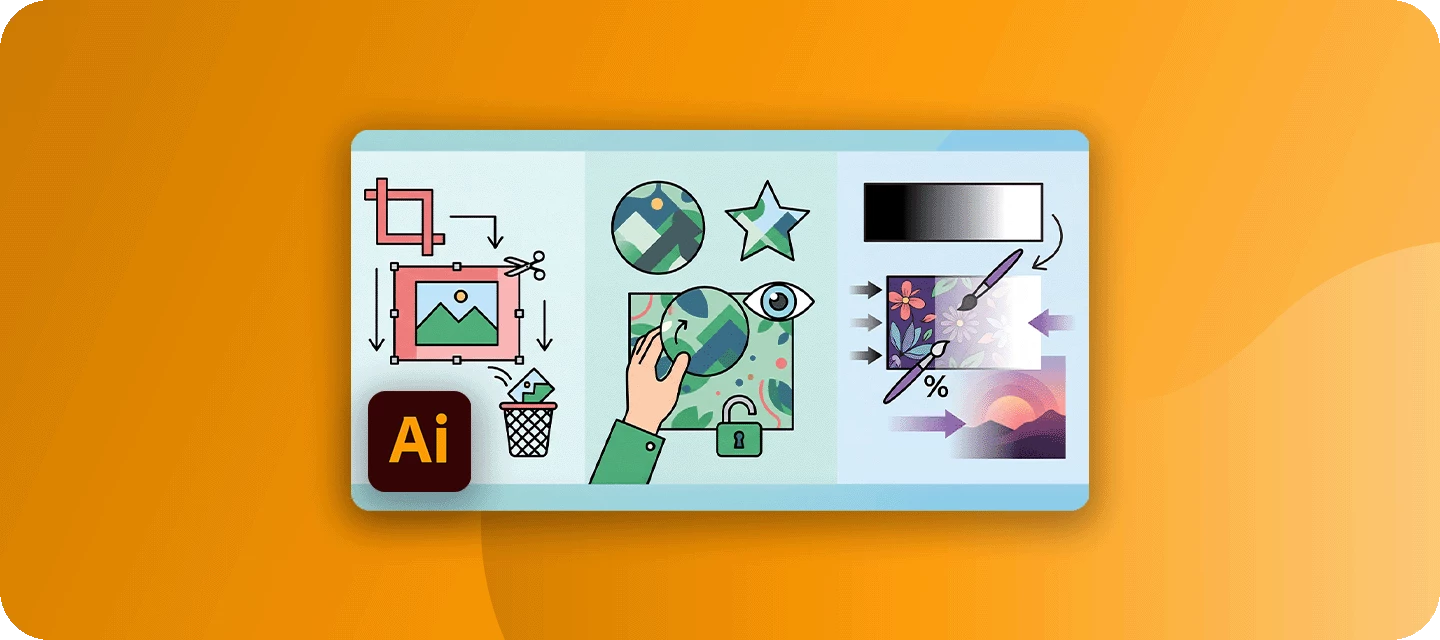
If you've come to Illustrator from Photoshop, cropping is one of the first things that trips you up - there's no single Crop tool sitting in the toolbar, and the methods that do exist behave in very different ways. Some permanently trim your image, others just hide the parts you don't want, and one lets you fade artwork out entirely.The good news: once you know which method does what, cropping stops being a guessing game. Here are the three you'll actually reach for, and when each one is the right call. Crop ImageThe Crop Image feature is the closest thing to a Photoshop-style crop, and it's the fastest way to trim a raster photo down to a rectangle. Select a single placed image, and you'll see Crop Image appear in the Properties panel. Click it, drag the handles to frame the area you want, then press Apply. Two things to keep in mind: it works on raster images only (the option stays hidden for vector art, groups, or multiple selections), and it's destructive - the trimmed pixels are d
Hey all!Illustrator 30.6 is a focused release aimed squarely at the workflows that quietly eat up time - swapping a linked image across a multi-artboard file, aligning and distributing objects you reach for dozens of times a day, and getting precise spacing right the first time. This update lets you relink every instance of an image in one step, assign keyboard shortcuts to Align and Distribute commands, record those commands as Actions, and preview spacing before you commit. It also ships a solid batch of bug fixes. For more details, check out the release notes. Relink all instances of a linked image in a single stepWhen you replace a linked image, you can now apply that change everywhere the image appears in your file , across multiple artboards and repeated layouts, in a single step. No more hunting down each placement one by one.Learn how to relink images.Keyboard shortcuts for Align and DistributeYou can now assign custom keyboard shortcuts to Align and Distribute commands from Ed
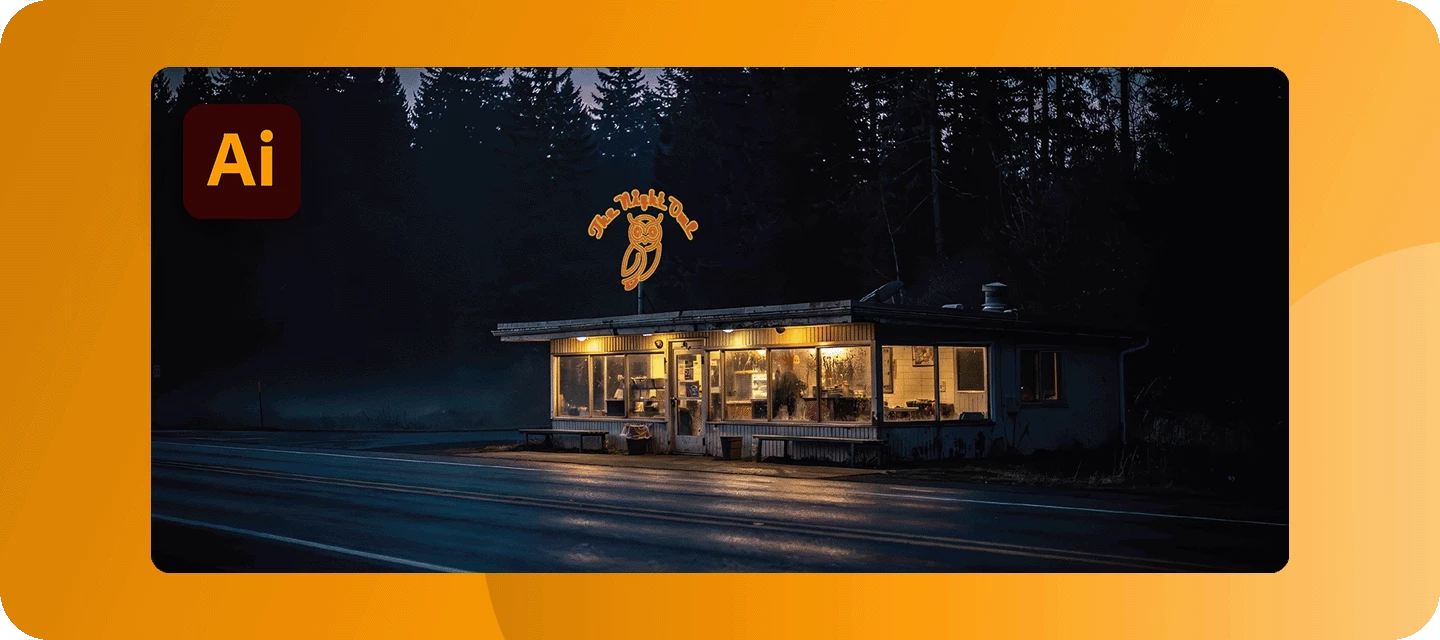
Welcome back to the Illustrator Creative Challenges - our monthly nudge to open Illustrator, try something new, and share it with the community. Last month, we turned beach photos into vector art. This month we're chasing that warm, humming glow of a classic neon sign: the kind that hangs over a roadside diner at the end of a long night. THE BRIEF:This isn't just any diner. Here's the fun part - choose a lane (or smash them together):🐾 The Animal Diner - a 24-hour joint run by, and for, animals. Maybe it's THE NIGHT OWL, open till dawn. Maybe it's a greasy spoon called COYOTE'S, or a flamingo-pink cocktail bar out on the strip. Your creature is the star of the sign.🛸 The Sci-Fi Diner - a roadside pit stop the way the 90s imagined the future: chrome, rockets, ray-guns, and flying saucers. THE MARS MALT SHOP. LAST STOP BEFORE HYPERSPACE. A neon rocket is optional but heartily encouraged.Want a raccoon running a diner on the moon? Even better. The brief is a neon diner sign - the world
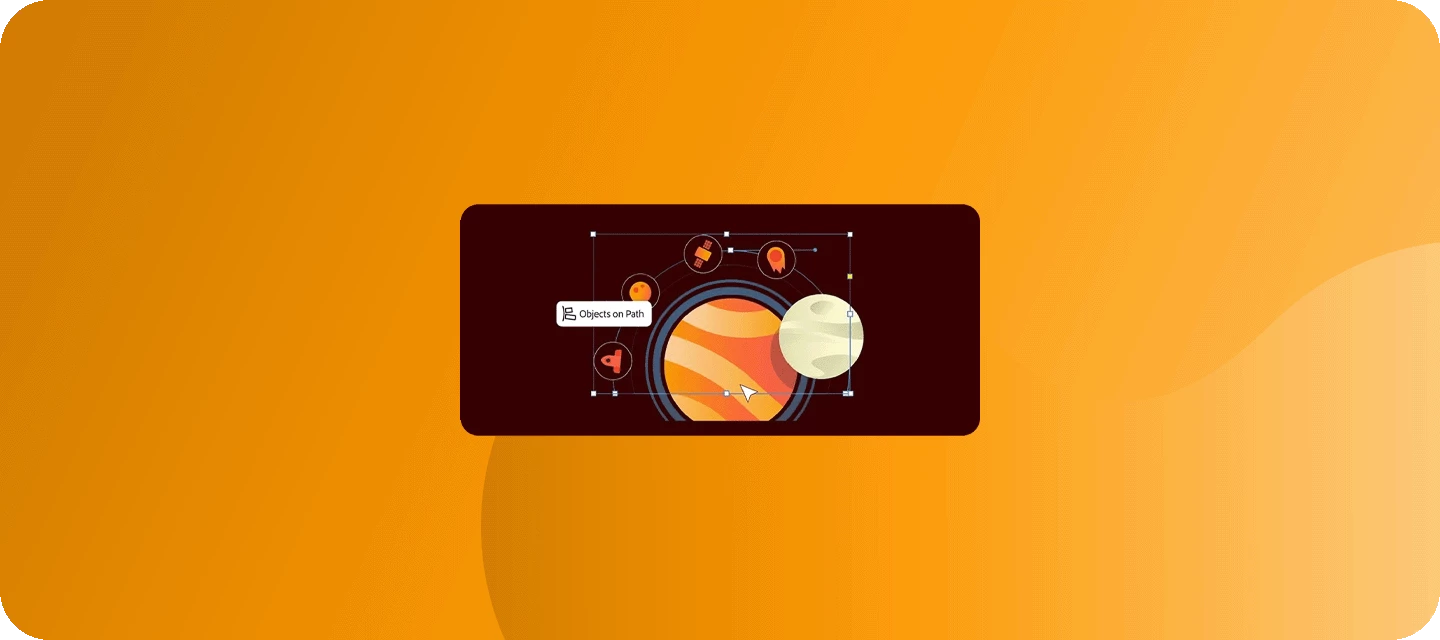
Unleash your creativity with 'Objects on Path' in Illustrator 2025 version 29.0 - easily attach, arrange, and move objects along any path, giving designers new ways to create with speed and precision. Follow along with a sample file to learn how to use the Objects on Path tool in a few simple steps. Try it yourself in Illustrator using this link!Note: Objects on Path is only available for Illustrator version 29.0 or later. Update the app now!Check out our tutorial for a first-hand look at it in action! A special thanks to Saurav Agrawal (Product Manager- Adobe Illustrator) for sharing this video! Let’s get started with Objects on Path: Step 1: Select the objects you want to attach to a path. Step 2: Invoke the "Objects on Path" Tool from the Tools Panel or Object Menu, the Align Panel, or the Contextual MenuStep 3: Select the Target Path you want your objects to align with. The objects will automatically attach to the path.Step 4: Adjust Properties. Spacing: Adjust the space between t
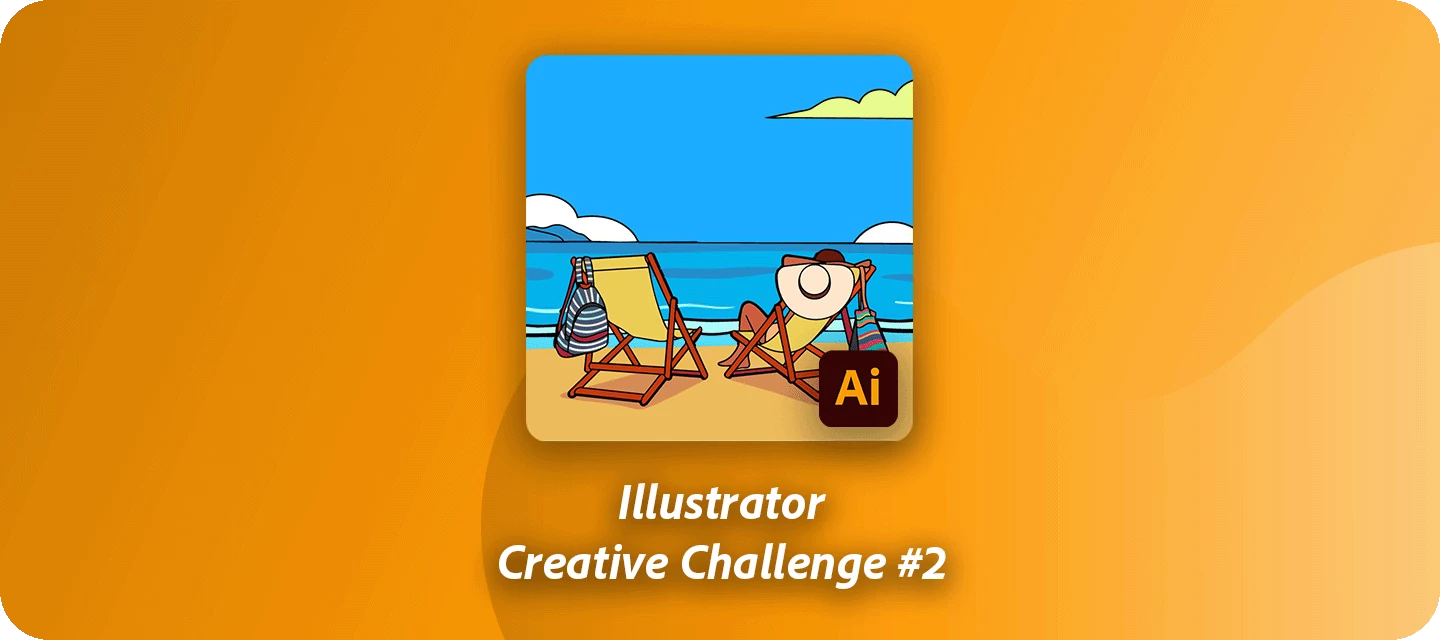
We've all got a beach photo we love — a sunset, a shoreline, one perfect afternoon — sitting at phone resolution, too small to ever print. For this challenge, let's set one free.Welcome back to the Illustrator Creative Challenges, our monthly nudge to open Illustrator, try something new, and share it. Last time, we designed bakery logos; this month, we're tackling one of the most-searched things designers ever do — turning a photo into clean, scalable vector art. A beach, with its bold light and clear depth, is the perfect place to learn it. The BriefTake a beach photo — a holiday snap, an Adobe Stock frame, a sunset you can't forget — and rebuild it as vectors. Flatten it into bold poster shapes, chase a glowing gradient sunset, or go fully graphic: three colors, hard edges, travel-poster energy. The photo is your reference; the look is your call.What to includeA clear focal point — a palm, umbrella, surfer or boat to anchor the eye. Three layers of depth — sky, sea and foreground, on
Hey everyone!With the latest release, Illustrator’s engineering team has rolled out exciting artboard enhancements—shaped directly by your feedback. These updates bring faster setup, clearer canvas control, and export precision you can rely on.Explore the latest updates and enhancements in Illustrator. Update to Illustrator 30.3 using this link, or open the Creative Cloud desktop app and click Update next to Illustrator. For step-by-step guidance, check out the detailed update instructions. Enhancements in Illustrator 30.0 Now lock artboards with just a click. Simply right-click (or control-click on macOS) your selected artboard and choose from:Lock Selected Lock All Except Selected Lock All You can also lock artboards directly from the Artboards panel. Select the artboard and click the lock icon.With Illustrator v30.0, it's easier to preview your designs by allowing you to assign solid background colors to individual artboards. Whether you're designing dark UIs, social media template
Hey everyone!With the latest release, Illustrator’s engineering team has rolled out exciting color enhancements—shaped directly by your feedback. These updates now allow you to apply gradients using your existing fill and access recent colors instantly. Try out the latest Color enhancements in Illustrator. Update now using this link! Enhancements in Illustrator 30.0 Discover how the Dither effect enhances gradient fills by reducing banding and creating smoother color transitions. Banding occurs when colors between gradient stops blend unevenly, forming visible steps. Dither solves this by converting gradients into raster pixels and adding subtle noise, resulting in cleaner, more natural blends—perfect for both digital and print artwork. Discover how perceptual interpolation enhances gradients by creating smoother, more natural color transitions. This technique aligns with how the human eye perceives color differences, resulting in more distinct adjacent hues and seamless blending. Use
We're back with the next round of our "similar tools" series. Last time we broke down the most commonly confused tool pairs. This time we're looking at two groups of tools that share a job but not a method - because Illustrator gives you more than one way to select an object, and more than one way to set type, and each tool works at a different level.Pick the wrong one and a quick edit turns into a fight with your own artwork. Pick the right one and you stay in full control. Selection Tool vs. Direct Selection Tool vs. Group Selection Tool — Same click, three different levelsThe Selection tool (V) grabs an entire object or group and lets you move, scale, or rotate it as one unit. The Direct Selection tool (A) goes a level deeper, letting you pick individual anchor points and path segments to reshape the artwork itself. The Group Selection tool sits between the two - it selects a single object inside a group without breaking the group apart. Object, path, or group: once you know which l
Hey everyone!We know that performance is essential to your creative workflow in Adobe Illustrator, and we’re excited to share our ongoing efforts to enhance the application's speed and responsiveness. You will experience noticeable improvements in common workflows, particularly when working with menus, linked images, effects, app launch times, file saving and more. Our roadmap includes extensive performance upgrades, with regular updates planned throughout 2025 and 2026.Explore the latest updates and enhancements in Illustrator. Update to Illustrator 30.3 using this link, or open the Creative Cloud desktop app and click Update next to Illustrator. For step-by-step guidance, check out the detailed update instructions. Enhancements in Illustrator 30.0 Faster saving: Illustrator now saves only the changes made, not the entire document, allowing quicker saves for complex artwork. Improved crash recovery: Quickly and reliably restore your work after unexpected crashes. Seamless edi
Hey all!Illustrator 30.5 brings a major leap forward in AI-powered design workflows, putting intelligent generation and editing capabilities right at your fingertips. This release introduces Concept to Vector for turning rough sketches into refined vector artwork, Prompt to Edit for conversational refinement of generated assets, Rewrite Text for AI-generated copy and translations, a centralized Gen AI Hub, Firefly Board integration, and quality-of-life improvements. For more details, check out the What's New page.Concept to Vector (Sketch to Vector)Transform rough sketches and concepts into polished vector artwork with Concept to Vector. Simply draw or import a loose sketch, describe what you want, and Illustrator generates clean, editable vector graphics that follow your composition. Ideal for quickly iterating on ideas without starting from scratch.Learn how to generate vectors from sketches.Prompt to EditRefine your generated artwork without regenerating from scratch. Prompt to Edit
Hello everyone, 🙋🏻Have you ever generated artwork you loved, only to wish you could tweak just one small detail, without regenerating the whole thing or hunting through layers to fix it manually?Then, we have something for you - Prompt to edit is now live in Adobe Illustrator (Beta) — Build #30.6.11!🤷🏼What is Prompt to edit?Prompt to edit lets you generate your artwork and then keep refining it conversationally — no starting over, no losing what you already liked. Just describe the change you want, and Illustrator does the rest.It works with two features you already know and love:Generate Vectors (Text to Vector) Turntable🤔How does it work?Generate Vectors (Text to Vector)Generate your artwork using any model. Hit Done and spot Prompt to edit in the contextual HUD. Enter a prompt describing your change, or pick from the suggestions provided. Hit Generate and watch your edits come to life.TurntableApply Turntable to any object and load your variations onto the canvas. Ungroup the v
Hey all!Illustrator 30.4 introduces powerful new AI-driven workflows and typography enhancements to help you create faster and with greater precision. This release includes Generative Expand for images, one-click background removal, editable generated text in vector graphics, enhanced style reference support in Text to Vector Graphic, and improved Japanese text formatting controls. For more details, check out the What’s New page.Generative Expand for Images Use Generative Expand to intelligently extend images beyond their original boundaries while naturally blending new generated content with the existing image. Easily adapt visuals to different aspect ratios and layouts without cropping or distortion.Learn how to expand images.Remove Background from Images Quickly isolate subjects with the new Remove Background feature. Create transparent-background images for layouts, packaging, social graphics, branding, and more with a single click.Learn how to remove image backgrounds.Edit Generat
As a Creative Cloud member, you have access to a host of membership benefits to keep you ahead of the curve and support your creative work. This month, we've added a powerful new partner perk and a curated collection of free design templates to help you do more with your membership. Here's what's new:New Partner Perk: 50% Off Hootsuite + 30-Day Free TrialWhether you're a freelancer, marketer, or creative professional, getting your work in front of the right audience matters just as much as making it look great. That's why we're excited to announce an exclusive Hootsuite offer for Creative Cloud members: 30 days free plus 50% off your first year of Hootsuite Standard.With Hootsuite, you can plan your content calendar, publish across multiple social networks from a single dashboard, engage with your audience, and measure what's working, all in one place. And because Hootsuite integrates with Adobe Express, you can design your visuals and schedule them without ever breaking your creative
Hey all!Illustrator 30.3 introduces new features to enhance creativity and efficiency. Turntable enables multi‑angle viewing and dynamic exports, Auto Select generates multiple variations from a single prompt, style references now work across partner models like GPT Image and Gemini, and Export for Screens supports direct saving to Adobe Cloud. For more details, check out the what’s new page. Turntable: View 2D objects from new anglesDiscover how to use Turntable in Adobe Illustrator to view both vector and raster objects from different angles.Smart Model Selection with Auto Select in Generative AILearn about Auto Select in generative AI, a feature that helps you choose the most suitable models for your prompts. Style Reference Across Partner Models in Text to Vector GraphicApply style references with new partner models in Text to Vector Graphic by using a reference image to guide your output across models like GPT Image and Gemini.Seamless Cloud Export from Export for Screens Export y
As a Creative Cloud member, you have access to a host of membership benefits to keep you ahead of the curve and support your creative work. Over the past month, we’ve added new benefits and enhanced others to make your membership more valuable. Here’s what’s new: Adobe Fonts: New Foundries and Sofia UpdateWe know everyone has their own type – which is why we’re constantly adding to Adobe Fonts to make sure there’s something for every project. With this update, we’ve added new expressive/display fonts, as well as fonts that support Korean, Hebrew, and Arabic. Plus, we’ve expanded the iconic Sophia Pro font family.Click here to explore the new fonts and foundries. New Partner Perk: 25% off Flickr ProPhotographers, this one’s for you! We’ve heard a desire from Creative Cloud members in the photo space for partner perks designed for photo use cases. Look no further! We’re happy to announce that Creative Cloud members can take advantage of a 25% discount on various Flickr Pro plans. That
Remix with Firefly Community Gallery
Thousands of free creations to fall in love with and remix in Firefly.
Already have an account? Login
Enter your E-mail address. We'll send you an e-mail with instructions to reset your password.