




Illustrator Creative Challenge #2: Vectorize a Beach Photo in Illustrator
We've all got a beach photo we love — a sunset, a shoreline, one perfect afternoon — sitting at phone resolution, too small to ever print. For this challenge, let's set one free.
Welcome back to the Illustrator Creative Challenges, our monthly nudge to open Illustrator, try something new, and share it. Last time, we designed bakery logos; this month, we're tackling one of the most-searched things designers ever do — turning a photo into clean, scalable vector art. A beach, with its bold light and clear depth, is the perfect place to learn it.
The Brief
Take a beach photo — a holiday snap, an Adobe Stock frame, a sunset you can't forget — and rebuild it as vectors. Flatten it into bold poster shapes, chase a glowing gradient sunset, or go fully graphic: three colors, hard edges, travel-poster energy. The photo is your reference; the look is your call.
What to include
- A clear focal point — a palm, umbrella, surfer or boat to anchor the eye.
- Three layers of depth — sky, sea and foreground, on separate layers.
- A palette and a look you commit to — flat, gradient-rich, or line-art.
Here's mine — and how I got there
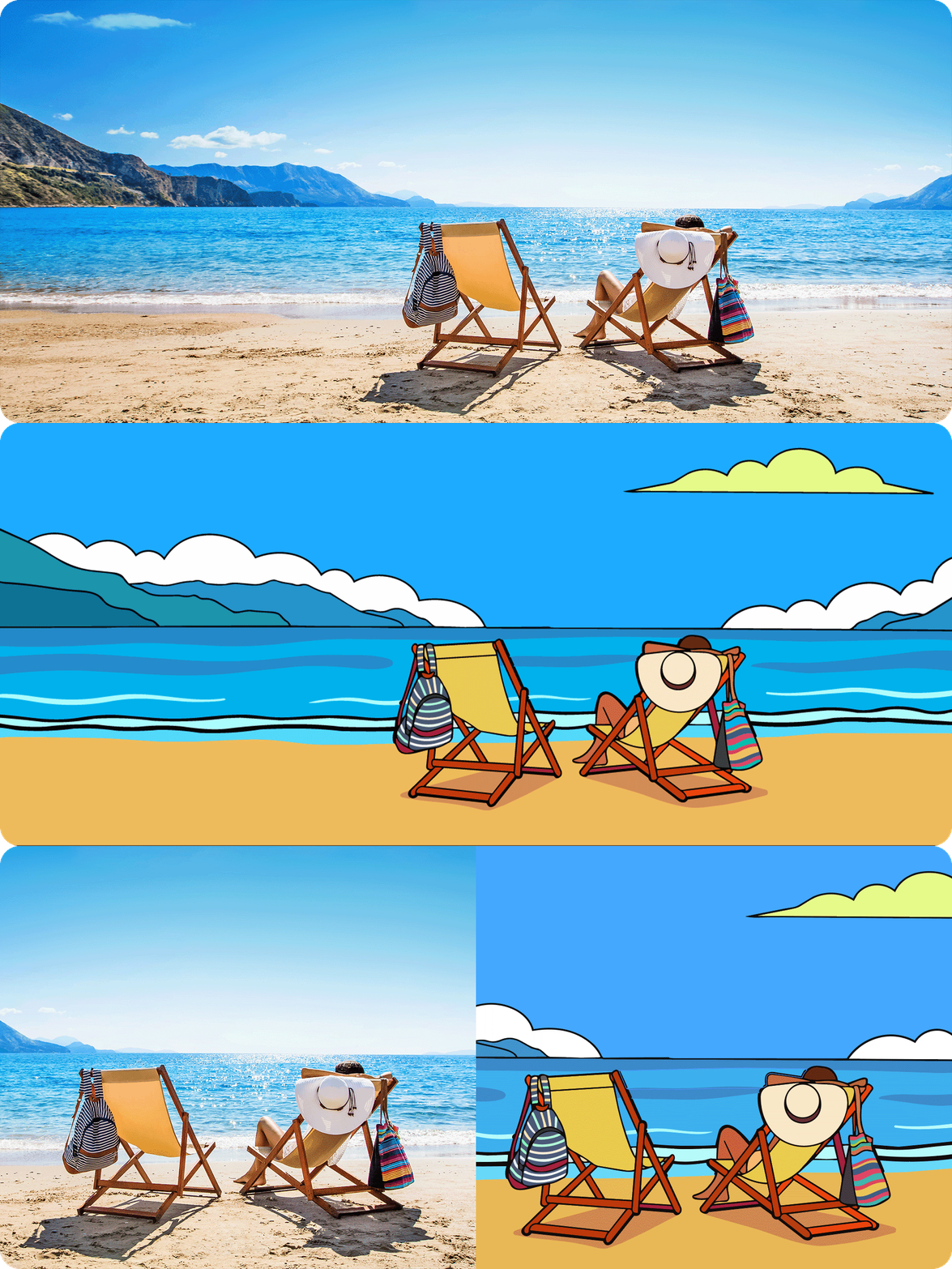
I started with a photo from Adobe Stock: https://stock.adobe.com/in/images/woman-enjoying-sunbathing-at-beach/206356322?prev_url=detail.
- Concept to Vector did the heavy lifting — I placed the photo and picked the Gemini 3.1 [Nano Banana 2] model, and within seconds had editable vectors instead of pixels.
- I hit Expand, then spent most of my time in Generative Recolor, pushing the palette toward a warmer golden hour set than the original.
- Finally, a little Pen tool cleanup, and done.
Total time: about 15 minutes - most of it spent choosing colors, not drawing. That's the fun of this one: the tools get you 80% of the way fast, and the taste is all yours.
Your toolkit
This challenge is built around two ways in — pick whichever suits you:
- Concept to Vector — our newest tool: feed it your photo, describe the style, get editable vectors.
- Image Trace — the classic engine. Pick a preset, tune Paths, Corners and colours, then Expand.
- Recolor Artwork — clean up the palette or reinvent it.
- Gradients & Gradient Mesh — for skies and water flat shapes can't carry.
- Pen & Shape tools — to refine whatever the trace doesn't nail.
Use all of them, or just Image Trace and a coffee. The goal is to make something you like.
How to submit
Reply to this thread with:
- Your final vector and the original photo — we love a good before-and-after.
- A line or two on your process — which features you used and one choice you made. Honestly, this is the best part to read, so don't skip it.
Not ready to post art yet? Reply with the beach you're starting from — drop the reference, and we'll cheer you on.
Share your feedback
Up next: you choose Challenge #3. We're torn between two ideas the logo-design world can't stop posting — a t-shirt graphic or a tattoo design. Tell us which one you want below — and if you've got a different idea, drop that too.
If you found this helpful, hit 👍 Like. Tap ⭐ Subscribe to be first to see the next challenge. And feel free to share it with anyone who'd enjoy joining in.
 AdChoices